


mrsfancyface
Participant
February 28, 2024
Question

Text on a Selection/Text on a Shape is not working properly in PSE 2024

  • February 28, 2024
  • 2 replies
  • 317 views

After creating a selection, and choosing the Text on Selection Tool, the next step is to click on the selection and then click the checkmark and then get the Horizontal Type tool. Once I click the checkmark, the box disappears. It's not allowing me to text on the selection.  I have made sure that my OS (Mac/M1 - Sonoma 14.3.1) is up to date and I have uninstalled and removed PSE 2024 and then redownloaded it.  There is an issue with this software.  Previous versions have worked.  Can you offer a solution or a fix for this?
This topic has been closed for replies.

2 replies

Glenn 8675309
Legend
February 29, 2024

WHAT GREG SAID IS KEY: "If you have clicked inside the marching ants rectangle, you should be displaying a solid line."

It looks like you are selecting nothing on a blank cavas that has a white background.

IF THAT IS THE CASE:   Use the text on a shape-- the shape goes away after you confirm the text you type. 
IF THAT IS NOT THE CASE READ THE STUFF BELOW.


MAKE YOUR SELECTION ON THE IMAGE, lets say it's a simple rectangle.

Slect the TEXT ON SHAPE.

Click once inside the shape.
click on the confirmation checkmark.
Slowly move your mouse to where you want the text to begin to appear till it changes into the text shape, and type away. 

Greg_S.
Community Expert
Community Expert
February 28, 2024

I am unable to reproduce your problem on a Windows machine.  As I understand your workflow:

  1. You have created a selection with the Rectangular Marquee Tool
  2. You choose the Text tool and the Text on Selection tool.  A circular cursor with crosshairs appears. 
  3. If you want to retain the rectangular selection it is then necessary to click on the selection with the cursor. (Otherwise, and perhaps more normally, the crosshairs cursor is used to create a selection from image pixels.) This then gives you the option to accept or decline the selection.
  4. Once the selection has been accepted, the marching ants change to a solid line and the crosshairs cursor remains.  You then need to hover it over the edge of the selection where it will become a text entry cursor.   Once you click it on the edge of the rectangle, the Lorem Ipsum text appears which you can then edit by typing.


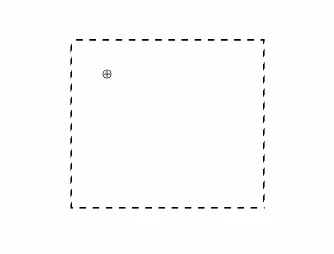
It is not clear from your screenshot whether you have tried this.  Your screenshot shows the cursor inside the boundary of a marching ants selection. If you have clicked inside the marching ants rectangle, you should be displaying a solid line.


Are you saying that you are unable to get a text entry cursor when you hover over the selection edge?  I know it can be a little sensitive.  Perhaps increase the size of the cursor using the square bracket keys.


Also, since you are trying to type on a rectangle, are you able to do so, using the type on shape tool?