
New Participant
January 20, 2016
Answered

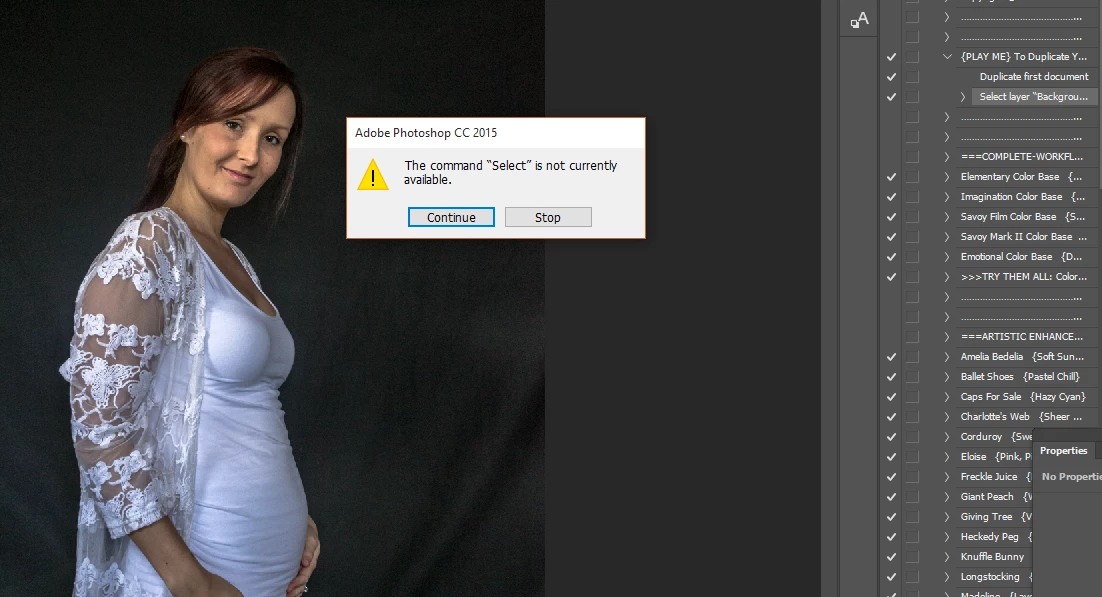
Error - The command Select is not currently available in Photoshop

  • January 20, 2016
  • 36 replies
  • 310917 views

I've installed a Greater Than Gatsby Action but cant run it because I get 'The command SELECT is not currently available. I tried running a default Action and get 'The command FEATHER is not currently available.'

I went back to PREFERENCES to check everything is in order. I cant find anything amiss. Can someone help please?
Correct answer aeolate

I had this exact same issue with an action I was using.  Look down the action list at the first "Select" command.  Make sure that your layer is named the same as what is in that command.  After that it should work.

36 replies

New Participant
October 11, 2020

I am currently having this issue. I have tried all of the solutions noted and it still does not work. The file I am working with is a png with a transparent background, when I flatten the image it runs, but then the background is no longer transparent and the file becomes completely unusable. I even played with rename the layers and that did not work either. I am at a complete loss on what to do. 

Participating Frequently
October 11, 2020

I finally got it to work with a JPEG won't work with the photoshop
extension I followed the instructions to a tee except used a jpeg and it
worked! I noticed the instructions said open a jpeg which didn't notice
that at first that it had to be a jpeg to start with.

Good luck

Michael
DangersTeez Digital Art

[image: --]

DangersTeez Digital Art
about.me

New Participant
August 14, 2020

I had the same problem, "The command SELECT is not currently available" and after reading the solution here from aeolate, I realized that my brush layer was named "Brush" once I renamed it "brush" without the cap B it ran fine. Crazy.

Participating Frequently
August 18, 2020

I don't have a brush layer they are different names the point of an action
is to do multiple steps on it's own and if you want to do it you have to
click the box on 50 steps ok for this ok for that not available ? if i
SELECT a command why would it not be available? but anyway I have no brush
layers they are numbered layer #1 and so forth.


DangersTeez Digital Art

[image: --]

DangersTeez Digital Art
about.me

Participating Frequently
August 13, 2020

I have yet to get any actions to work it just keeps telling me that command is not available. won't do anything on its own you have to click each piece in the action I sit here clicking and clicking it's never-ending I thought the purpose of the actions is so it does all the actions itself ? after you hit play I have to ask it to perform each step I get tired and just quit there is something wrong that nobody can answer  

New Participant
July 17, 2020

Also NB - if the layer is named "background" which it seems PS does by default, the action will not run.  It calles for the layer to be named "Background" with a capital "B". Doing so will fix the problem.

The layer does not need to be locked.

Cheers!

New Participant
April 29, 2020

Make sure also that you didn't uncheck the box "add "copy" to Copied Layers and Groups" cuz if you did, most actions are programmed to select the copied layer by it's name "layer 1 copy" 😉 this option is in the layers panel options

Kukurykus
Brainiac
April 29, 2020
New Participant
September 26, 2019

For me, the issue was that i had Unchecked the "Add "copy" to Copied Layers and Groups" checkbox under Layers Panel Options, so my actions that were looking for "Background copy" layer, were only finding "Background". Once i rechecked the box, all worked as planned.

New Participant
July 6, 2019

Hi, import all assets brushes, patterns etc.

New Participant
January 28, 2019

Hi, sometimes, when your action work with filters or something, your file has to be in RGB, not in CMYK. In my case, that's why I had some error like yours.

Inspiring
January 7, 2019

Some tricks for making actions that work on any document you try them on:

1. "Rename" the current layer - in an action step.

To do this, stop recording, then select a layer, then start recording again, double click the layer name and rename it. This way when you select the layer later in your action, by name, it will always exist. And the action will work on any "Current Layer" that is selected.

You can also record this: create a new layer first, and name it.

2. Create a duplicate layer to manipulate - on layered psds.
If you're creating an action to work on any PSD documents that may have layers, try recording this little sequence before a desired operation:

Record these steps:

> Add a New (empty) Layer

> Name it "Empty"

> Move to Front ( Command+Shift+] ) (repeat this step 3-4 times to get around possible nested groups in other documents)

> Select all

> Copy Merged ( Command+Shift+C  )

> Paste

> Name the new layer "Art" (any name will work)

> Select Layer "Empty"

> Delete "Empty" Layer.

Now you can select the "Art" Layer in your action to record your action on - and it will always exist in any document you run the action on.

Note: The sole purpose of the empty layer is to make sure the "Art" layer is on the top of your layer stack.

3. How to use actions on the "Background" layer in any language.

A. First - on a multi-layered document, select the top layer.

B. Record these steps:

     > Select bottom layer (  Alt (or Option) + ,  )
     > Rename this layer to "Background" (Or any other helpful name i.e "Base").

D. Record the rest of the action.

4. Don't touch the name field while saving.

You can use any of the save commands in an action, and navigate to where you want to save the file, even create a new folder to put the files in, but don't touch the name field or every time you run the action it will save with the same name.

5. You can Option (Alt) drag action steps to copy them to other Actions.

Hope these tricks help. (Thanks for inspiration JJMack)
-PG1

Participating Frequently
August 13, 2020

Isn't the purpose of the action for it to do all that on its own? after you press play? this is too much to do for a single action do you think the issue is with adobe software or the actions? 

yura_photo
New Participant
October 16, 2018

Hi,

Had a similar issue.

In my case it was solved by using the locked layer (with a lock).

After I've selected it, the Actions started to work properly, with no errors.

Hope this could help someone ))