


Participant
May 23, 2016 11:48 AM UTC
Answered

P: How to fix Photoshop Scratch Disks Full Error?

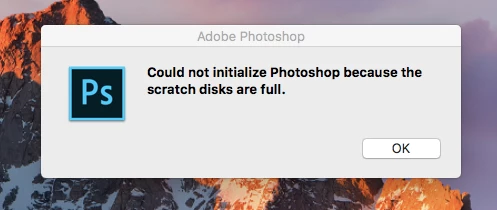
I am running Photoshop CC on my MacBook Air with macOS Sierra. Every time I attempt to open Photoshop through any means, the following message appears: "Could not initialize Photoshop because the scratch disks are full", and Photoshop does not open. I tried clearing space from my Mac in general including several GB worth of apps and removing several cache files, but nothing seems to work. I also tried holding down the command and option keys to reveal the Scratch Disk Preferences, and it lets me select the Startup and MacIntosh HD. Again, nothing worked. Anyone know how to fix this message, and/or clear scratch disk space?
 

{Moderator note: Edited the thread title PS-65057}

Mohit Goyal
Mohit GoyalCorrect answer
Community Manager
May 5, 2021 11:44 AM UTC

Hi all,


We're sorry for the scratch disk issue. Take a look at the following troubleshooting article which can help you to resolve the "Scratch disk is full" error: Troubleshoot scratch disk full errors in Photoshop


Please have a look and let us know if that helps.


Thanks,

Mohit

342 replies

Participant
Oct 27, 2020 4:29 PM UTC

I am having the issue where it says I can't open up photoshop because of the scratch disks - but when I hold down CTRL + ALT this is all I get - so I can't even reset it.  

Translate
deanned28105396
Participating Frequently
Oct 27, 2020 6:35 PM UTC

I had this as well - and the only way I could reset it was to uninstall the program and reinstall, and when I first opened it, I first plugged in an external hard drive and then hold down CTRL + ALT and I could select it.....

Translate
Participant
Oct 24, 2020 10:25 PM UTC

So what do I do when that thing pops up

Translate
Participant
May 12, 2020 6:24 PM UTC

HI, I was trying to enter to Photoshop but it wont open since my scratch disks are full. Ive seen tons of tutorials but none would help me to empty the scratch disks. Can someone help me?


Translate
marliton
Community Expert
Community Expert
May 12, 2020 6:54 PM UTC

Hi. Essentially, you need as much free space as possible in your Scratch Disk. Maybe these links can be helpful:

Troubleshoot scratch disk full errors in Photoshop

P: Photoshop won't open because scratch disks are full

Translate
Marlon Ceballos
Participant
May 6, 2020 7:39 AM UTC

Apparently my scratch disk is full. I hold down the Ctrl + Alt keys and try to open PhotoShop but I keep getting the message that it's full. It won't open! So how do I get to the settings then?


I am a designer, not a techie, the 'instructions' are not aimed at technically challenged people.


If I uninstall then reinstall will that fix it? HELP!

Translate
Akash Sharma
Legend
May 7, 2020 4:39 AM UTC

Hi there,


Sorry that Photoshop is showing an error message that says scratch disks are full on your computer. 


Which version of Photoshop are you using? Would you mind checking the steps mentioned in this article https://helpx.adobe.com/photoshop/using/scratch-disks-preferences.html#Troubleshootscratchdisksarefullerror and let us know if that helps?


Thanks,

Akash

Translate
Participant
May 7, 2020 11:02 AM UTC

I'm running PhotoShop CC 2020.... I cannot find these .psp files on my laptop... HELP!

Translate
Participant
Apr 9, 2020 9:57 PM UTC

I have tried two different external disks.  Both are formatted as Mac OS Extended journaled.  Any ideas what could be

wrong?

Translate
Akash Sharma
Legend
Apr 10, 2020 8:46 AM UTC

Hi there,


Sorry that Photoshop is not recognizing your external drive as a scratch disk drive.


I'd recommend that you checkout the steps mentioned in this article https://helpx.adobe.com/photoshop/using/scratch-disks-preferences.html#Troubleshootscratchdiskfullerror and let us know if that helps.


Thanks,

Akash

Translate
juanbriasco
Participant
Mar 24, 2020 4:15 PM UTC

For those who hasn't solved the problem try this!
1) Go to Mac icon on the upper left corner

2) Click on About this Mac > Storage > Manage > Documents

3) Click on "Incompatible Apps" or something like that (I have it in Spanish)

4) Delete every file shown there. Most are from Adobe.

5) Now try to open Photoshop ad it must be solved.


For me it worked.


😄

Translate
Pete.Green
Adobe Employee
Mar 20, 2020 6:16 PM UTC

Hi all,


We have several suggestions for the Scratch disk full error listed on our KB article here: https://helpx.adobe.com/photoshop/using/scratch-disks-preferences.html#Troubleshootscratchdisksarefullerror


Please have a look and try the suggestions listed there.


Let us know if that helps.


Regards,

Pete

Translate
Participant
May 24, 2020 4:55 PM UTC

Please help! It won't let me do anything because 'my scratch disk is full' even tho in the preferences I have my hard drive with over 800 GB selected. What do I do? (Sorry for bad quality picture) 

thank you! 


Translate
Akash Sharma
Legend
May 25, 2020 6:46 AM UTC

Hi there,


Sorry that you're getting an error "Scratch disk full" while using Photoshop.


Which version of Photoshop and the operating system you're working with? In Photoshop, you can check that by going to Help > System Info.


Would you mind checking the troubleshooting steps mentioned in this article https://helpx.adobe.com/photoshop/using/scratch-disks-preferences.html#Troubleshootscratchdiskfullerror and let us know if that helps?


Thanks,

Akash

Translate
Participant
Feb 4, 2020 12:55 AM UTC

I've read every post on scratch discs, so don't refer me to one of those posts, I've googled everything, I've been on hold with Adobe customer support for 25 minutes.  I can't change the location of my scratch disc, nothing works, I need an actual person to help walk me through this.  I'm doing step by step everything every blog says to do, it won't work.  I'm paying a ton of money for this program that has been nothing but a nightmare from day one.  I have to use it because my photogrophy class requires it.  This so seriously shouldn't be this hard. I've used free apps on my phone that work better than this.  I need some actual help.

Translate
Nancy OShea
Community Expert
Community Expert
Feb 4, 2020 1:14 AM UTC

The devil is in the details.  Tell us about your computer system.

  1. Which operating system build #?
  2. How many hard drives do you have and what type are they?
  3. Which version of Photoshop?
  4. Do you have administrative rights to change settings on your computer?


Scratch disks cannot be

  • Network drives
  • Thumb drives
  • Any USB-2 drive


Translate
Nancy O'Shea— Product User & Community Expert
Legend
Feb 4, 2020 1:24 AM UTC
neegedee
Participating Frequently
Jan 6, 2020 10:06 PM UTC

Hi all.


I am trying to change the scratch disk to my external hard drive by going to preferences> Scratch disks etc but my External HD isn't showing as an option and it won't allow me to de-select the Mac HD option either. Even when I launch PS and press Command + option it doesn't show my external HD as an option.


I had to spend ages deleting a load of files from my HD in order to free up space, but I have an ext HD with tons of space so I would like to use that instead.


I'm using Photoshop CC 2020 - Macbook Pro Catalina v 10.15.2


Any advice would be greatly appreciated! Thanks!

Translate
Legend
Jan 6, 2020 10:51 PM UTC
For windows, you can do this


For Mac, I don’t know where the registry analog is, where you can specify the parameters for Photoshop.
 
Translate
Participant
Nov 18, 2019 7:35 PM UTC

Hello,

I am currently having an issue with scratch disks where I cannot open up Photoshop whatsoever to change my preferences, and it gives me no options to change or update my scratch disk preferences. Please help!

Translate
D Fosse
Community Expert
Community Expert
Nov 18, 2019 8:11 PM UTC

Your disk really is full, 3.75GB free is almost down to nothing at all. You don't get an option to change it because that's the only disk you have.


You really need to clear out space ASAP! You will soon have much bigger problems than Photoshop. Consider this an early warning before the machine freezes up completely.

Translate
deanned28105396
Participating Frequently
Sep 13, 2020 7:20 PM UTC

D_Fosse, This response, although perhaps accurate, is not helpful for me. Ok, so I need to clear space ASAP. What kind of space are we talking about? What type of data needs to be eliminated? I have very little on this computer - it is new. But I have about the same disk space - 3.75GB as the above example, which sounds like a lot of space to me. So again, what kind of files or data needs to be eliminated?

thank you

Translate