




Discuss: Paste to same track
We are excited to announce some new improvements to copy and paste workflows in Premiere Pro.
In the past, pasting operations in the Timeline have always respected track targeting.
While this can be very useful for some workflows, a lot of users have expressed their desire to simply paste to the same track the item came from, which is much more intuitive for most users.
This new feature changes the behavior when copying and pasting assets in a Timeline. We now default to pasting items to the same track instead of always pasting according to track targeting. In addition to this more useful default behavior, we have 4 new functions making additional keyboard shortcuts available.
| Before | After |
|---|---|
|
|
|
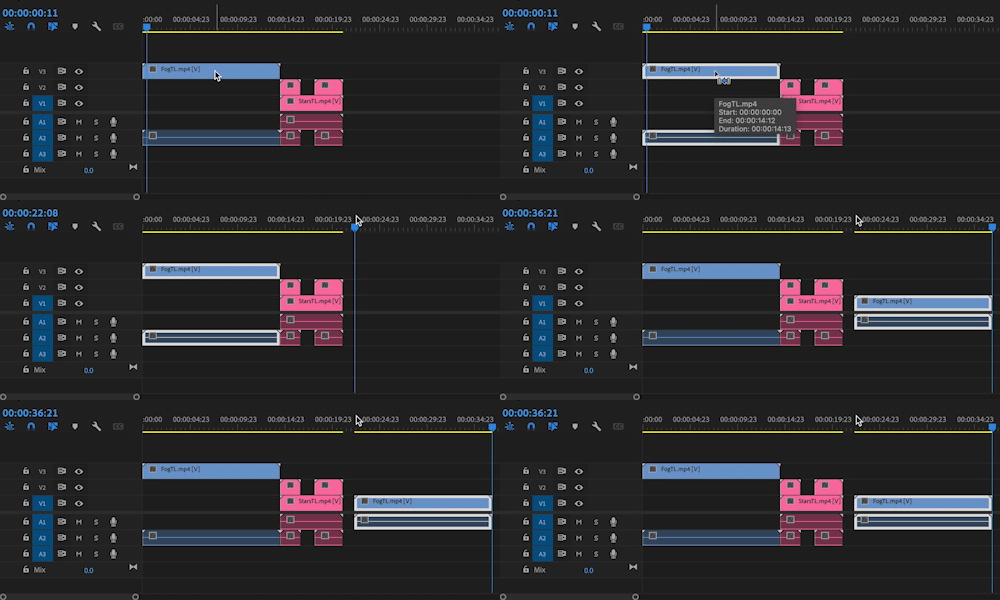
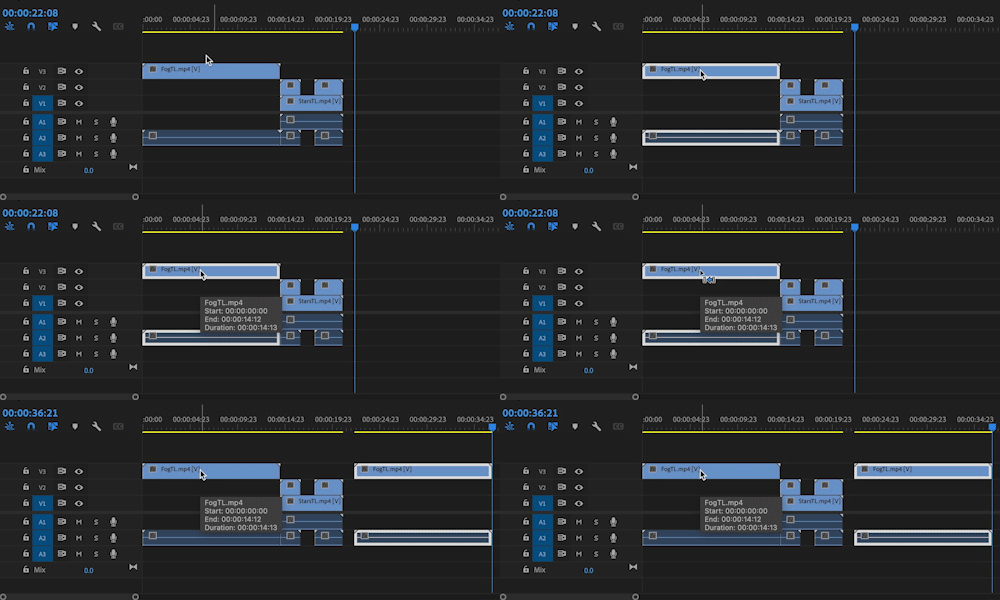
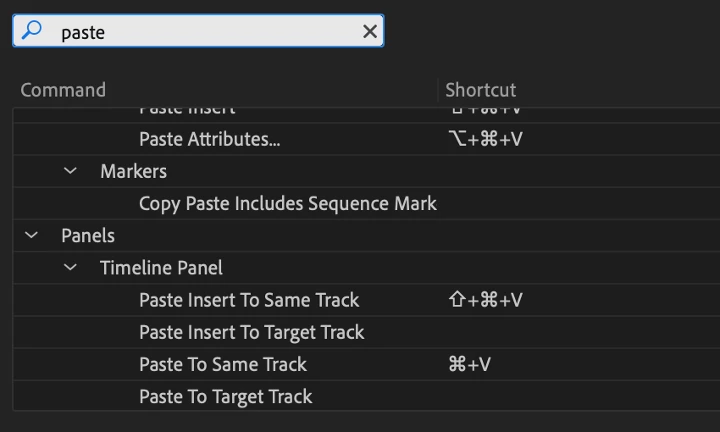
This new functionality can be accessed and via four new assignable keyboard shortcuts.
Paste to Same Track
Once assigned, this new keyboard shortcut will always paste items in the Sequence to the Same Track the item was copied from.
Paste Insert to Same Track
Similar to Paste to Same Track, this Keyboard shortcut can be used to perform a ripple (insert) paste operation.
Paste to Target Track
This new K/S provides the same behavior os legacy copy and paste operations. The Paste to Target Track command will paste according to the lowest targeted track(s).
Paste Insert to Target Track.
This new K/S can be used to create an additional keyboard shortcut that provides the same behavior os legacy copy and paste insert operations. The Paste Insert to Target Track command will perform a ripple paste (insert) operation according to the lowest targeted track(s).
Note: All four of these functions can be assigned to keyboard shortcuts providing the ability to paste to the same track or according to track targeting. These shortcuts override the legacy application wide default copy paste keyboard shortcuts when the Timeline Panel is active and can be accessed from the Timeline Panel shortcuts in the Keyboard Shortcut Editor.
 AdChoices