




Now in Beta: Embedding Interpret Footage Input LUTs into a Project File
In Adobe Premiere Pro 24.1 beta, Interpret Footage Input LUTs are embedded directly into a project file to make collaboration and sharing easier.
Previously, Input LUTs assigned to footage in the Interpret Footage dialogue were not embedded into a Premiere Pro project file. When you shared this project with someone else, or moved to a different machine that didn’t have the LUT, Premiere declared it offline and wouldn’t render it.
This meant requiring the extra step of sharing any associated Input LUTs assigned in the project file. In Adobe Premiere Pro 24.1 beta, this is no longer necessary because Input LUTs assigned in the Interpret Footage dialogue are now embedded into the project and travel with it.
An Interpret Footage Input LUT can be assigned to a clip in two locations:
1) By Control-Clicking the video clip in the Project Browser and selecting Modify > Interpret Footage > Color Dialogue.
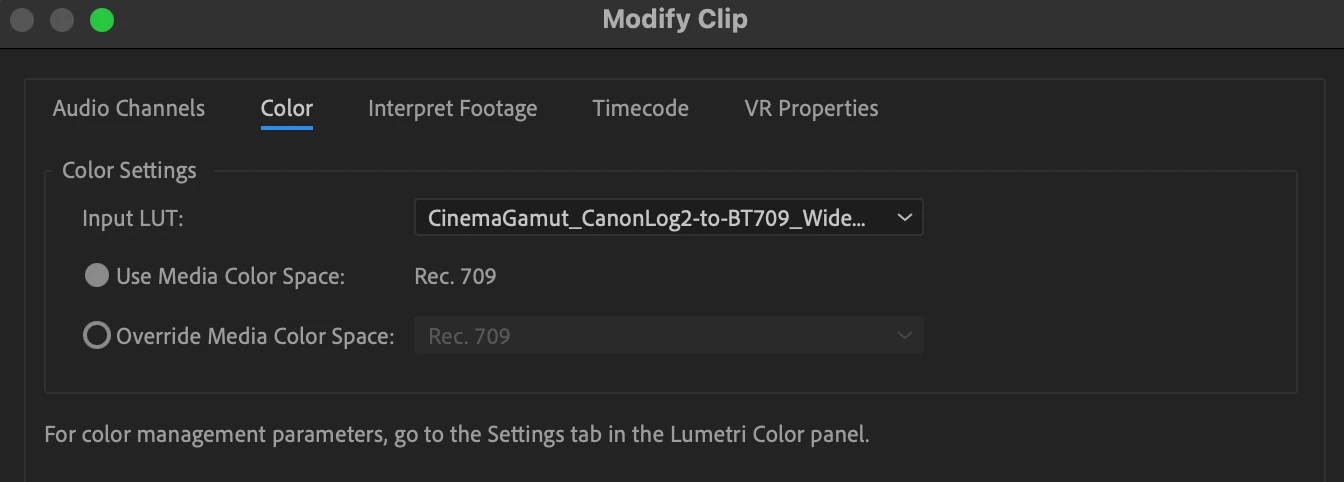
2) In the new Lumetri Color Settings Panel, under the Source Clip section.
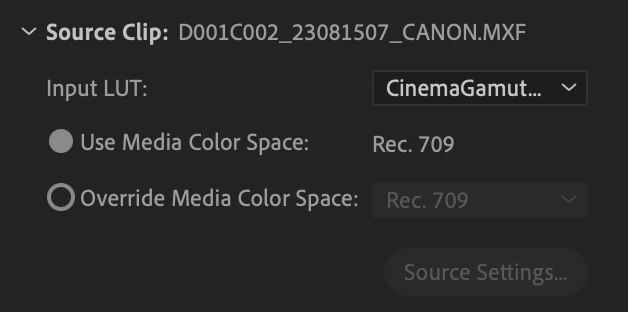
Assign the Input LUT and save your project.
That’s all you have to do, Premiere Pro has embedded a copy of this LUT into the project so you can easily share it.
 AdChoices