


Francis-Crossman17221443
Community Manager
Community Manager
September 1, 2025
Answered

[Now Released] New Masking Tools

  • September 1, 2025
  • 47 replies
  • 56234 views

We’re excited to push an early development preview of new masking workflows to Premiere Pro (beta).  Whether you are color grading, applying effects, or cutting objects out from the background, these new masking tools are built to help editors work faster, smarter, and more creatively without needing to go to After Effects for simple tasks.


Note: This beta is an early look at upcoming Premiere Pro workflows and is not intended to reflect general availability performance or polish. Please contact us with bugs, feedback, and feature requests to improve these features.


  • Object Mask – Automatically identify objects and people in your footage using AI and isolate them with a single click. Plus mask refinement tools and fast tracking throughout clips.
  • Redesigned Shape Masks – the traditional shape mask tools (ellipse, rectangle, pen) have been rebuilt from the ground up with many performance and UI improvements.
  • Faster Shape Mask Tracking – the tracking algorithm has been completely rebuilt too.  It’s significantly faster than before, more accurate, and offers more precise control for correction.
  • Compositing tools – blend any combination of Object and Shape Masks to create complex masks with new blend modes: add, subtract, intersect


Quick Start guide

Follow these steps to get started with New Masking.

  1. Make sure you have enabled New Masking (see above).
  2. Select a clip on the timeline.
  3. Find the new Mask Tool group in the toolbar. Long-press to see all the masking options. Choose the Object Mask tool.
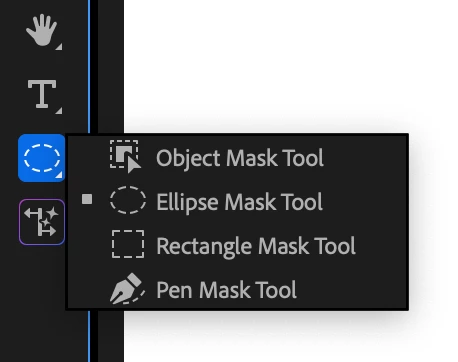
     

  4. Hover the mouse over the program monitor, watch as objects are identified, and click. This will draw a static mask around the object or person.
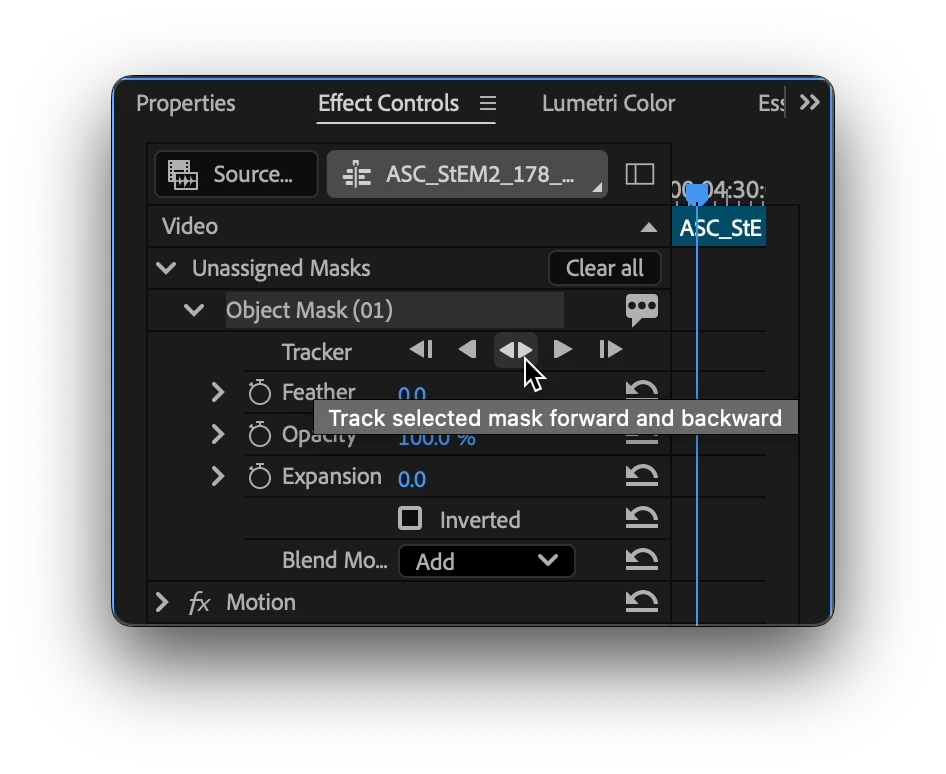
  5. Track the motion. Find the new “Object Mask” in the “Unassigned Masks” section of the Effect Controls Panel. Click on the forward and back button.

    Tip: the Effects panel is a different panel from the Effect Controls Panel. Find it in the Window menu.
  1. Add an effect. Find the Gaussian blur effect in the Effect Panel. Drop it on the clip in the timeline. The mask will automatically be applied to the effect.
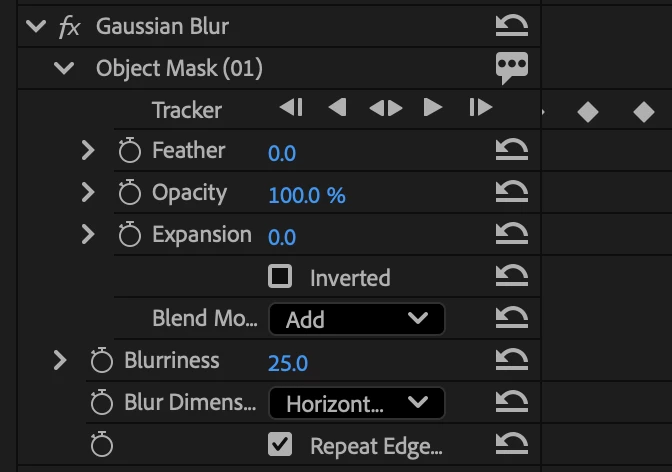
  1. Congratulations, you just used Object Mask to blur an object!
  2. Now, try to use the other tools in the group in a similar manner.


Visit here for the complete documentation. https://helpx.adobe.com/premiere-pro/using/object-masking.html


We want to know what you think.  Join the conversation below.

This topic has been closed for replies.
Correct answer kes_akalaonu

Make sure to right click on the tracked mask in the Effect Controls and select Change to Opacity Mask. Duplicate your video and remove the tracked opacity mask and placed that on V1 and your masked layer on V3 or above. Place your graphics on V2 and it should show up.

47 replies

Participant
September 26, 2025

Me costo entender que hacer una vez se haya creado la mascara nueva, pero rápidamente arrastrando logre entender las posibilidades y si, era lo que estuve esperando desde siempre. ME ENCANTO!!!, muchas gracias por incorporarlo, funciona genial!

Inspiring
September 23, 2025

Has anyone done a tutorial video on how to use the new masks?  I was trying to matte out a section of a lock down camera and couldn't figure it out.  Had to make a black & white mask and do track matte key to finally do it.

Francis-Crossman17221443
Community Manager
Community Manager
September 23, 2025

We have not made any tutorials just yet.  We typically don't make tutorials for features that are just in Beta.  But we will certainly have learning materials available when we release this in the full version.  In the meantime you may be able to find your answer in the documentation here: https://helpx.adobe.com/premiere-pro/using/object-masking.html

Participating Frequently
September 14, 2025

We are experiencing the same GPU render error while exporting projects in Premiere Pro. The render process fails with a GPU Render error message. We are using the new object mask tool and have added a Gaussian blur effect to blur some portions of the footage. This tool helps us quickly create masks and track objects automatically throughout the clip. It would be very helpful if anyone can guide us on how to troubleshoot and resolve this issue. Any advice or solutions are greatly appreciated

Adobe Employee
September 15, 2025

Hi @Dileepkumar_ind 

Thank you for reporting this issue. To help us investigate further, could you please share the following details?

  • Device, operating system, and graphics driver information

  • Renderer selected in Project Settings

  • Whether the issue also occurs with other media files

  • Whether the issue persists when object masks are not applied


Vikas
Participating Frequently
September 15, 2025

Hi Vikas, we are using Hp Z8 workstation with Nvidia Quadra RTX 5000 graphic card (Driver Version:R570 U9 (573.73)) with windows 11 installed. The error is only happening when i use object mask tool, i am adding glaussian effect to blur masked content. Then we are getting the error. There is no issue when object mask tool is not applied.

Participant
September 10, 2025

Thanks for this adobe team! Love how fast the roto is. Agreed with the others that we need better refinement tools, the + and - clicking is too unspecific and isnt removing or grabbing things that are needed. Would love to see this model as a Rotobrush 4 though. 


So far the new Pen tool and shapes are a major improvement. I refused to masking in the current premiere due to the frustrating masks but this is a much needed change. 

Adobe Employee
October 13, 2025

@ryanlaux Thanks for your feedback. Can you share specific examples where the "+" and "-" tools where not grabbing things as expected. 

_nicdean
Community Expert
Community Expert
September 9, 2025

Shape Masks should continue to default to "Opacity" instead of the new "Unassigned" group

FlyingFourFun
Inspiring
September 10, 2025

Is there any reason why we cant have the same quality of selection that is available in PhotoShop (beta that is, as the selection tool for ondevice in the PS Beta is really solid) for this tool?


Participating Frequently
September 8, 2025

This is awesome news! The new Object Mask and faster tracking sound like real time-savers, especially for quick blurs and color work without jumping into After Effects. Excited to test this in the beta and see how it fits into my editing workflow. Great job team!

Gabby16bit
Known Participant
September 9, 2025

Please, don't remove the shortcut mask symbol near each effect in effect control, it was so quick to access to the mask tool for each effect, now it goes into unassign mask and i have to relocate it, and it's clunky sometimes don't work correctly, like i used opacity to crop out fast things i don't need, now it feels i need to do more steps for the same result 


Ron Rigler
Community Manager
Community Manager
September 9, 2025

If you select an effect, Opacity as an example, when you create the mask it will be applied directly to the effect as it did before. You can also either drag the mask from Unaassigned to the effect or use the right+click contextul menu to move the mask[s] to Opacity. I hope this helps!

Participant
September 8, 2025

This function seems awesome but since last update, premiere pro beta not working, 

software not opening, it is loading and nothing...

Adobe Employee
September 8, 2025

@Hugo32271336oxsc Can you share the build number and the device spec you are using. 

Participant
September 8, 2025

Thanks for your quick reply,

I actually just figure out how to solve it, 
I uninstall the Insta360 plugin and now it is working, 

So I guess there is a compatibility issue between this beta version and the Insta360 plugin.

Participating Frequently
September 8, 2025

Some notes on the speed of tracking after some testing with various clips.

Its fast, very fast. Like Resolve fast for 1080 and 4K clips.
but tracking on a Nikon N-RAW 6k clip made it very slow, as slow as the old tracker on a 1080 clip, still a huge improvement but it seems like tracking on raw clips (only tested N-Raw right now) the speed drops.
Converting the N-Raw 6k clip to a Prores 6k clip, and the tracking speed was much faster again.

tracking the same clip in Resolve and there was no difference if it was a raw or a prores clip in 6k (in a 6k timeline so Resolve didnt have its normal benefit of tracking a lower timeline resolution that it normally has)

Some work to still to do on raw clip processing in Premiere. Maybe for tracking it doesnt need to process the raw at full res? At least not before we get more edge refine tools for the masking the full res should be needed for movement track.

Adobe Employee
September 8, 2025

Hi Thanks for the feedback. We are actively working on improving speed of tracking for different formats. You should receive updates soon in future beta versions. 

novian
Participant
September 8, 2025

can we get tracking position from this masking tool?

Adobe Employee
September 8, 2025

@novian 
Can you please elaborate on what you are referring to here? Any specifics will help us address the issue. 

Shebbe
Community Expert
Community Expert
September 23, 2025

I believe novian's idea is that a center point positional data of the resulting tracked mask track can be extracted and used to be applied to other effects' positional data. This would be incredibly useful for 'sticking' graphics to someone's head for example which you'd otherwise have to resort to AE for.

Inspiring
September 6, 2025

Dear Adobe.

THIS is way better than any AI extending / creating you have tried to spoon fed us lately (I guess to be able to double the renting prices for the apps?). So far, I have yet to come across any pro level editor raving about the AI your shareholders seem to love.


All the things you have added to the beta lately, is light years ahead in value to me. Improving the GUI, adding nifty features to scale down time for me. I.e I dont want the Ai to create all my stuff so I can do the dishes, it's supposed to be the other way around.


When I teach Premiere, I never talk about what you seem to love, AI. I allways focus on the real improvements like this. And dont get me wrong, I know its driven by Ai, but it's not taking any decisions for me (creating), it just helps me to get to rendering faster.


Everytime people talk about "but have you seen the new Ai "whatever". Yes I have, and so does every other youtuber out there and are probably paid to talk about it and adding the "shocking, gasping mouth wide open, hands pulling the hair-thumbnail". I tell them to ignore the noise, ignore the path Adobe is forced to blindly walk because of that monday-meeting when corporate sent the email stating "Ai is so cool, lets get down with the kids"


I will continue to be outspoken about Adobe and Ai, telling people to ignore it, look at what really creates a good NLE. Because it sure as h*ll isnt AI int he way Adobe thinks about it.


THIS is the way... 😉

Keep this up, and I might just stay with Premiere.