



Francis-Crossman17221443
Community Manager
Community Manager
September 1, 2025
Answered

[Now Released] New Masking Tools

  • September 1, 2025
  • 47 replies
  • 56234 views

We’re excited to push an early development preview of new masking workflows to Premiere Pro (beta).  Whether you are color grading, applying effects, or cutting objects out from the background, these new masking tools are built to help editors work faster, smarter, and more creatively without needing to go to After Effects for simple tasks.


Note: This beta is an early look at upcoming Premiere Pro workflows and is not intended to reflect general availability performance or polish. Please contact us with bugs, feedback, and feature requests to improve these features.


  • Object Mask – Automatically identify objects and people in your footage using AI and isolate them with a single click. Plus mask refinement tools and fast tracking throughout clips.
  • Redesigned Shape Masks – the traditional shape mask tools (ellipse, rectangle, pen) have been rebuilt from the ground up with many performance and UI improvements.
  • Faster Shape Mask Tracking – the tracking algorithm has been completely rebuilt too.  It’s significantly faster than before, more accurate, and offers more precise control for correction.
  • Compositing tools – blend any combination of Object and Shape Masks to create complex masks with new blend modes: add, subtract, intersect


Quick Start guide

Follow these steps to get started with New Masking.

  1. Make sure you have enabled New Masking (see above).
  2. Select a clip on the timeline.
  3. Find the new Mask Tool group in the toolbar. Long-press to see all the masking options. Choose the Object Mask tool.
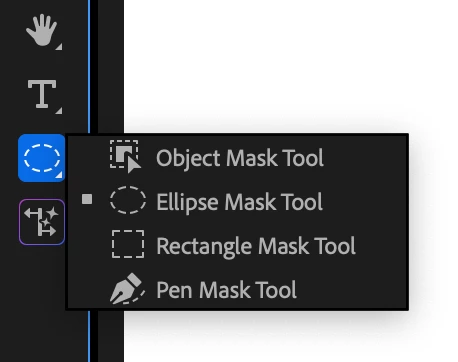
     

  4. Hover the mouse over the program monitor, watch as objects are identified, and click. This will draw a static mask around the object or person.
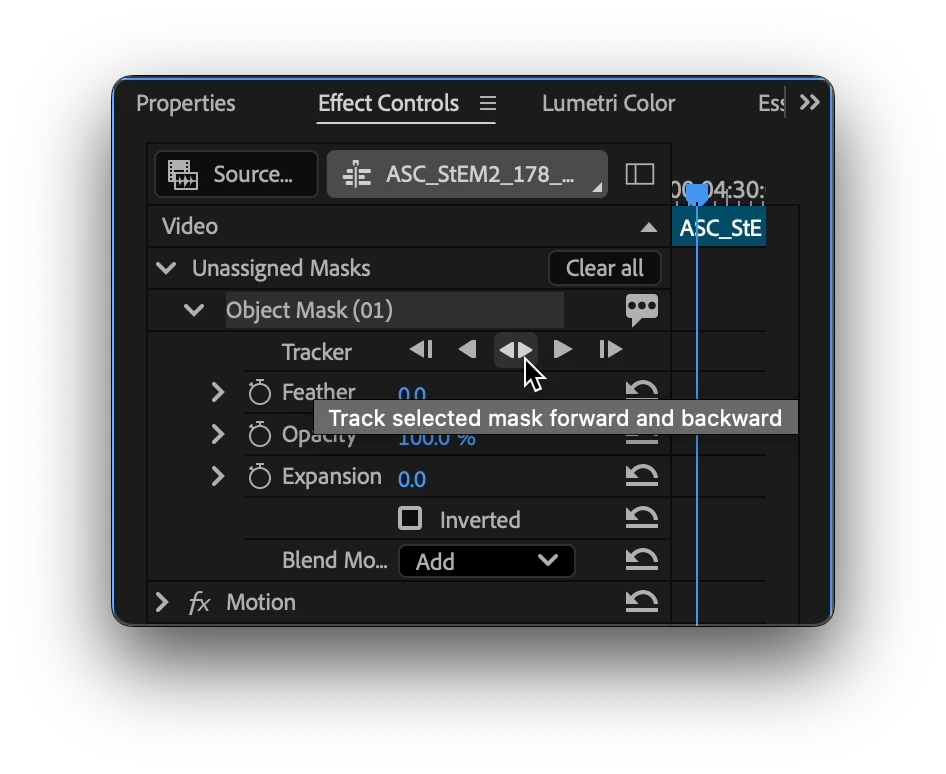
  5. Track the motion. Find the new “Object Mask” in the “Unassigned Masks” section of the Effect Controls Panel. Click on the forward and back button.

    Tip: the Effects panel is a different panel from the Effect Controls Panel. Find it in the Window menu.
  1. Add an effect. Find the Gaussian blur effect in the Effect Panel. Drop it on the clip in the timeline. The mask will automatically be applied to the effect.
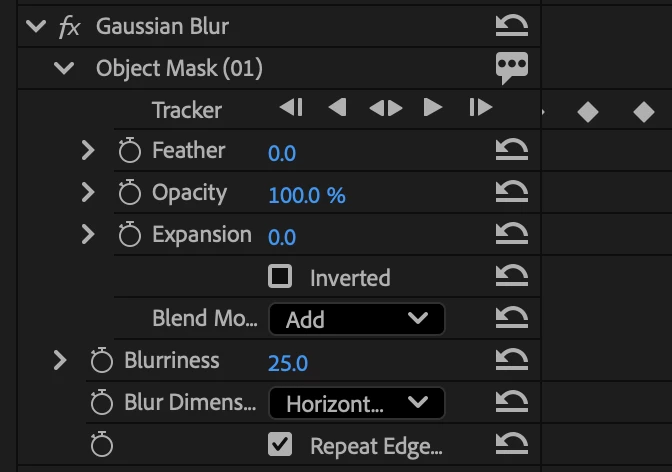
  1. Congratulations, you just used Object Mask to blur an object!
  2. Now, try to use the other tools in the group in a similar manner.


Visit here for the complete documentation. https://helpx.adobe.com/premiere-pro/using/object-masking.html


We want to know what you think.  Join the conversation below.

This topic has been closed for replies.
Correct answer kes_akalaonu

Make sure to right click on the tracked mask in the Effect Controls and select Change to Opacity Mask. Duplicate your video and remove the tracked opacity mask and placed that on V1 and your masked layer on V3 or above. Place your graphics on V2 and it should show up.

47 replies

Participating Frequently
October 23, 2025

I'm running into an issue that sometimes occurs when trying to edit an already tracked object mask. For example, If the track misses something and I try to add to the mask and re-track, it ignores the new selection and only follows its original track. Similarly if it starts tracking more than I want and I improve the selection, as soon as I hit the track button It will instantly revert back to the original mask. I can't figure out what the conditions are to reproduce the problem, sometimes it works no problem, sometimes it only works if I start at the beginning of the track, sometimes it doesn't work at all and I need to create a new mask from the point where I need to change it and hide the other one. I can have 2 videos in the same project, or even the same timeline, where one video is giving me this issue and the other video allows me to edit the mask's tracking no problem.

Participating Frequently
October 28, 2025

I think I may have found the problem. It seems like videos with variable refresh rates have problems with the object mask tracking. After converting the video to a constant frame rate tracking works much better.

FlyingFourFun
Inspiring
October 28, 2025

I belive Adobe needs to detect and flag VFR video to the user so they know it might cause issues.... 

Otherwise, good catch figuring this out.

Shebbe
Community Expert
Community Expert
October 20, 2025

Finally a moment to do some testing with the new mask features. Here's my feedback after a quick spin.

As overall feature this is a great step forward. Allowing tools to be expanded in functionality by adding UI elements in the viewer (program monitor) is a good choice. Many other tools can potentially benefit from such mechanisms breaking out of the sometimes restrictive effects panel slider, checkbox, menu principles. Why not promote the tracker buttons to the Program Monitor as well? So you can keep your eyes around the same working area when tracking.


  1. Individual mask tools cannot be cycled with a single assigned keystroke (like in Photoshop or AE) making cycling between them a pain. Assigning a key per tool is not a solution.
  2. In addition to the above, what also helps is if the mask tool types are exposed in the program monitor UI so you can switch between them quickly after either of them was activated, without using keyboard shortcuts or holding down your mouse while selecting it in the toolbar. See this mockup for reference + the tracker tools.
  3. When transforming, anchor point cannot be snapped to one of the 9 boundingbox positions. Would expect this to be possible via holding CTRL while moving it for example.

  4. Transform controls for rect/elipse is confusing w.r.t their values. Anchor becomes 0,0 (top left canvas), size is the sequence resolution, shape returns to original drawn position. Why not make this function the same as AE's shapes where rect path size == absolute in pixels drawn and transform size(scale) = separate % scalar with 100%  == drawn size. Such a mechanism would also allow for drawing fixed resolution masks onto footage.
  5. Would be useful if center positional data of a tracked mask could be used to drive other effects. For example you track a face and you copy paste it to transform of a text element. (See how BorisFX Mocha stores tracking data)
  6. AI masking option is rough. There is severe lack of temporal stability or mask detail around edges and transparency. There are also no options to refine the matte with post effect other than feathering/blur. To make it more useful you'd need some user controlled tools like painting in gaps created on random frames by the model.
  7. Editors likely use masking tools 99/100 times for opacity. This should be a default (or user preference) if no other destination is selected when drawing on a selected clip, instead of the unnassigned masks section.

    To conclude, what definitely a showstopper is atm is the fact that it takes way too much time getting from A to B if all you want to do is apply an elipse or rectangle mask onto a clip. If point 1, 2 and 7 are addressed this should already be greatly improved.


Ron Rigler
Community Manager
Community Manager
October 24, 2025

Thank you for the feedback. In regards to point #4, can you please explain how you got into the state where the two Ellipse masks have different Scale? 
You can use the SHIFT modifier to draw a fixed sized shape or maintain the shape when adjusting Scale with the Bounding Box.

Ron Rigler
Community Manager
Community Manager
October 27, 2025

No problem @Ron Rigler ! The point isn't so much how to draw shapes, but the way data is handled is not efficient and artist friendly.


What currently happens is that the property [Scale] is upon first draw declared the dimensions of the sequence regardless of the drawn shape.

This in itself is already unusable because it doesn't reflect the ratio of the shape.


When manipulating the small shape to roughly match the larger shape, you get dimensions that are totally meaningless to the user from an information parsing point, and due to slider sensitivity roughly based around values up to say 1000, make sliding them instead of changing the shape in the viewer totally useless.

This is why it would make much much more sense if dimensions for Elipse and Rectangle were absolute pixel based.


Let's promote a new value [Size] (being a property of the path/object). In addition there could be a secondary (existing) [Scale] slider (part of transform) that at 100% (default value) reflects the shape's pixel size but can be scaled as secondary operation. This mechanism would allow animating such a shape from 0-100% but using pixel width/height to determine the real dimensions for it. This would tremendously help artists type in say 300x600 and (provided media clip matches sequence res and isn't by itself scaled) create a mask that is exactly that rather than get some arbitrary values from current mechanism.

Here's a mockup of what I mean. This way scale is also able to be reset to 100% rather than back to sequence size. The initial draw of the shape dictates [Size] in pixels instead, and so should scaling it via the path in the viewer.

Even better would also be the ability to change between Rectangle and Elipse on the mask itself. Since these are 'fixed' shapes they can easily be made dynamic and get a dropdown that allows toggling between them. When adjusting a point of a rectangle that makes it not a rectangle anymore, the Size property should reflect the dimensions of the bounding box instead and keep relative shape when altered.

When flipping back and forth between Elipse and Rectangle the previously used shape data should restore itself.


Lastly, once any point is altered in a Rectangle there seems to be no way to recover the real rectangle (90degree angles). There should ideally be an option for this for cases where you did so accidentally and can't undo anymore.


These ideas are based on how AE shape layers and the new Mesh primitives in v26 are designed. I think it's much more rugged this way and it would also help a little bit with mechanism parity between these software packages.


@Shebbe thank you for the additional info. I will share it with the team.

Participant
October 10, 2025

Step-by-Step Process:


Convert Tracked Mask to Opacity Mask
Right-click your tracked mask in the Effect Controls panel and select "Change to Opacity Mask" to activate mask-based transparency effects [2].


Duplicate Video Layer

Create a duplicate of your original video clip
Remove the tracked opacity mask from this duplicated layer


Layer Arrangement

Place the duplicated layer (without mask) on Video Track 1 (V1)
Position your masked layer (with opacity effects) on Video Track 3 (V3) or higher
Add your graphics/elements to Video Track 2 (V2)


This stacking order ensures proper visibility:

V1: Clean background video
V2: Overlay graphics
V3+: Masked effects layer

The graphics on V2 will now appear sandwiched between the base video and masked layer for controlled compositing.

Adobe Employee
October 10, 2025

We have shortcuts in the beta that allow for you to promote an unassigned mask to opacity and restore it to unassigned as well. You can do the right click method and drag a mask to Opacity.

Participant
October 10, 2025

The regular mask doesn't work in the beta version. It's impossible to change the position, size, or animate a regular, non-object mask. The path isn't created or moved; the mask stays in place, and its position and size can't be moved.

Adobe Employee
October 10, 2025

You can. In the program monitor, chnage from Clip to Frame and it will allow you create keyframes for non object mask.

Participant
October 9, 2025

The new masking tools in Premiere Pro Beta are a big step forward  especially the AI-powered Object Mask and improved shape tracking. These updates make editing faster and reduce the need to switch to After Effects for simple masking tasks. I’ve been exploring similar creative tech enhancements on Touch Cric , where speed and precision also matter for delivering live visuals smoothly. Adobe’s direction here clearly focuses on smarter, more efficient workflows for editors.

Participating Frequently
October 8, 2025

First of all, I'm really glad to see features like this being explored in Premire. Resolve's AI masking has been something I wish I had in my toolbox for a while.

I'm mainly giving feedback on the object tracker here: it's amazingly quick, seems to find subjects in videos with no issue, and tracks them with 90% accuracy with one click. Amazing! BUT!
The model is too flickery/chattered/indecisive to be useful at all. For example: If I'd like to mask a subject, then invert it and apply color correction to the background with the subject cut out, I can see the flicker of the mask around the subject in a major way. Feathering, expanding, or modifying the mask with the Add or Subtract tools can't help fix it.
All in all, this is a useful feature that I'll be keeping an eye on, but in its current state: I'd like to see refinements to the model that improve its edge detection and consistency.

Adobe Employee
October 9, 2025

@Logan_Barney5958 Thanks for the feedback. I will reach out to via DM to get additional details on what you are seeing.  

Participant
October 8, 2025

البرنامج يعطيني اشارة انتظار مجرد الضغط على الاداة


Adobe Employee
October 13, 2025

@fierce_Mercury8940 Can you please share a screenshot of the problem you are seeing.

_nicdean
Community Expert
Community Expert
October 6, 2025

How can users move the Mask Anchor Point? It is centered in the Mask when it is created, but does not update when you move individual mask points. So the Mask Shape scales and rotates from the wrong point. The Mask anchor point is not selectable with any mouse-based tools.


TrentHappel
Adobe Employee
Adobe Employee
October 6, 2025

You can move the anchor point by holding down Alt/Opt key then drag the anchor point. This was done to in the hopes to easily avoid moving it by mistake. Let us know how you feel about that.

_nicdean
Community Expert
Community Expert
October 6, 2025

Ah, I see. Option+click is fine. You can add a tooltip on-hover of the Anchor Point so that is more obvious. It also needs snapping to the 4 corners, edges, and center point with "Ctrl" / "Cmd".


Why do Graphic Shapes scale from the corners, but Mask Shapes scale from the center?


A big disconnect to me is why the Mask bounding box behavior is different from Graphic Shapes. They scale from different points, have different UI for rounded corners, have different Anchor Point behavior, and different keyboard shortcuts (like Shift). If you draw a box with Mask vs. Shape, they have to be edited in totally different ways.


All Points & Shapes should be editable in more or less the same way.

Known Participant
October 6, 2025

Just tried it.  The first thing I noticed: NO SIDE HANDLES in rectangular masks!  Why do you guys HATE your users to the point you wouldn't even put as simple a feature as side handles??????!!!!!!!!


Adobe = one step forward, two steps back


For the love of god FIX THIS!  Or are you going to make us beg for the simplest of features like you did years ago by withholding side handles in the crop tool for years?! 


Seeing the absolute calousness with which you treat your users, that's one step closer for me to jump ship to DaVinci Resolve.  I've absolutely had it with the way Adobe disrespects its paying users by refusing to provide the most basic functionality imaginable.  Inexcusable!

Participating Frequently
October 6, 2025

In my opinion they covered this with the SHIFT update they recently added. Which works to constrict all points on one axis.

Known Participant
October 6, 2025

Using SHIFT takes 3 steps instead of one:

1. select point in one corner

2. select point in other corner while holding Shift

3. drag newly selected point while holding Shift to constrict movement to up/down or left/right


VERSUS


1. grab any side handle and grad.


In which universe are 3 highly undiscoverable steps for the average user better than 1 highly discoverable/easy one?


So yes, my opinion continues: Adobe simply doesn't care about their users (at least not enough to give us the most basic of tools such as side handles!  If I was a programer, I'd be ashamed to put out half baked junk like this, and knowing Adobe's record, they probably won't add side handles for years.  That's what they did with the crop tool debacle years ago.  Another example of how they don't care is when they got rid of the Titler, they didn't give us the most basic of tools to replace it, such as Alt drag the side of a rectangle to change both oposing sides at the same time.  Photoshop and Illustrator have this.  Premiere Pro used to have this.  But not anymore now that the geniuses in the Pr team 'improved' it.  As I said before:  Adobe = one step forward, two steps back


I know I might sound harsh.  But the harshness of my words are nothing compared to the pain Adobe causes to their users by constanly breaking things and making things worse than need be, all because they simply don't care to do better.  I could give dozens of examples, including how they give the middle finger to world wide software conventions (ex. Shift- and Ctrl- selecting multiple items doesn't work as per convention, including all other Adobe software, and inexplicably even differs from one part of Pr to another), but I think everyone gets the point.

Participant
October 2, 2025

I was hoping I could use this to give a nice clean mask to head and shoulders footage, and drop the background image in, but the mask edges are way too pixely to be used, and not enough tools to tweak smoothness or the amount of points being tracked etc.
It also takes quite a while - 17 minutes for 1 minute of footage for similar results to what Teams or Zoom does in realtime.
As a back up I used Colour Key and that gave much better results.

Adobe Employee
October 13, 2025

@Paul22121037igw0 Will reach out to in DM to understand more