


Participant
February 29, 2024
Answered

Rendered video preview file path can’t be found

  • February 29, 2024
  • 2 replies
  • 1551 views


I'm using Premiere Pro Beta 24.4.0 on a Windows Desktop / Windows 11 Version 22H2 for x64 based systems.  Firstly, when I open my project, I get an issue message showing that most of my rendered video preview file paths can’t be found. It system requests: Locate File Rendered.
It shows Last Path and Path.
For example:
Last Path: C:\Users\rpeet\Creative Cloud Files\Premier Pro\22.0\Adobe Premiere Pro Auto-Save/Adobe Premiere Pro (Beta) Video Previews\2020 Ajit_2_1_1.PRV\Rendered - b2d5a88-9b45-47b5-a740-55f0ddad11ac.mpeg
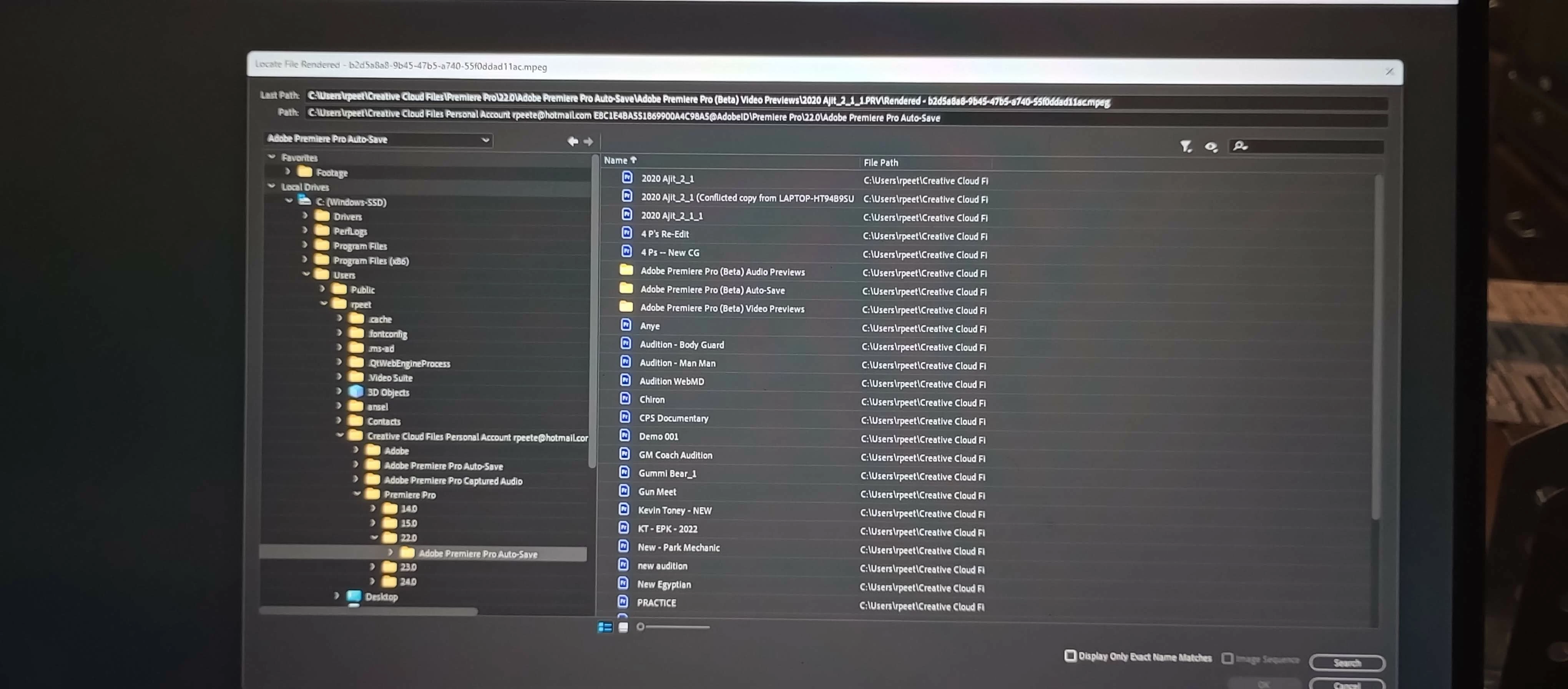


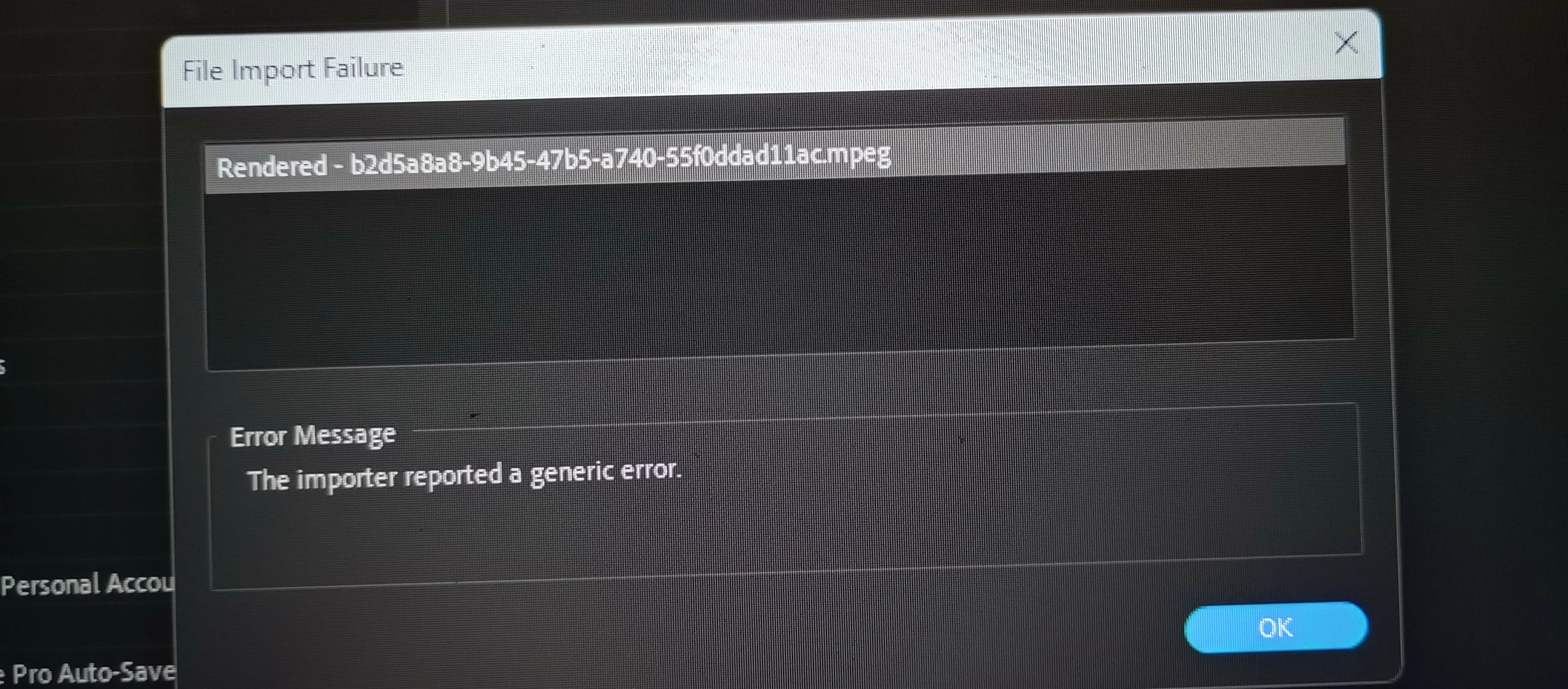
I then locate the path for the rendered file; however, I get an error message:
File Import Failure
Error message – The importer reported a generic error
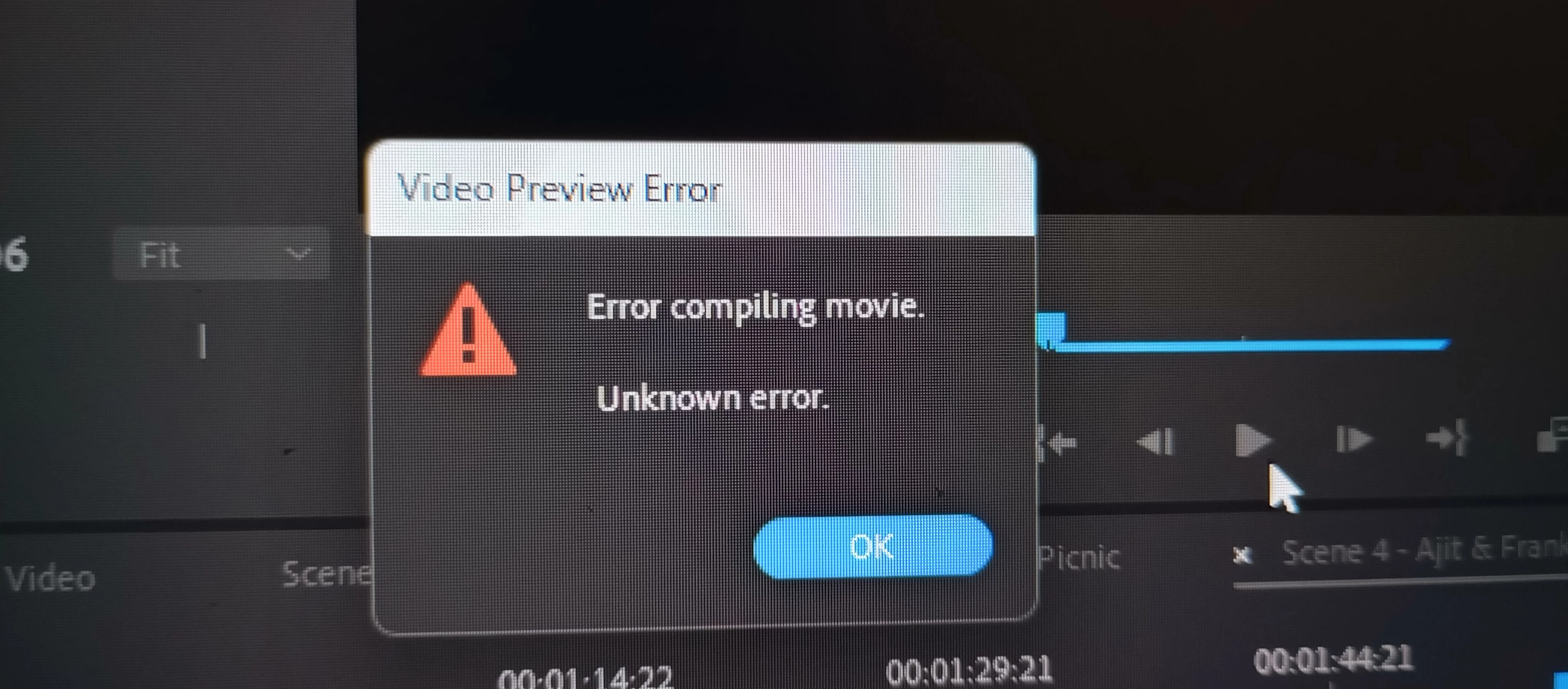
So, I’m forced to skip all the rendered video file previews. Once inside the project and trying to use the application . . . Every time I try to render the timeline, I get an error message:
Video Preview Error
Error compiling movie.
Unknown Error.


I can't go forward with this issue!

This topic has been closed for replies.
Correct answer Ishan Y

Hey there,

Sorry for the issue. Please go to Edit > Preferences > Media Cache and delete the Media Cache files. After that, go to Sequence > Sequence Settings and ensure that the Preview File Format is set to Quicktime and Codec to Prores 422 LT. Let us know if that helps.


Thanks,

Ishan

2 replies

JonesVid
Community Expert
Community Expert
December 22, 2024

This problem is widely known and an issue with many versions of Premiere Pro for years

So far Adobe have not come up with any more information or attempted to fix it. @Ishan Y 

They claim they are working on this problem but have been saying that for over 6 months now.

Its a major problem that has not been addressed see also https://community.adobe.com/t5/premiere-pro-bugs/some-prores-422-video-preview-files-lost-on-closing-and-re-opening-project/idc-p/15025916#M41996


Ishan Y
Community Manager
Ishan YCommunity ManagerCorrect answer
Community Manager
March 2, 2024

Hey there,

Sorry for the issue. Please go to Edit > Preferences > Media Cache and delete the Media Cache files. After that, go to Sequence > Sequence Settings and ensure that the Preview File Format is set to Quicktime and Codec to Prores 422 LT. Let us know if that helps.


Thanks,

Ishan

rpeeteAuthor
Participant
March 15, 2024

Hello. Although this solution worked, I've had to do it each time I open a new session of Premiere Pro. What can I do to not have to continuously follow those steps?

Ann Bens
Community Expert
Community Expert
March 15, 2024

Moved thread to beta forum:\