
TeresaDemel
Adobe Employee
Adobe Employee
February 7, 2024
Question

Text-Based Editing Update: Bulk Delete Speakers for Faster Cleanup

  • February 7, 2024
  • 4 replies
  • 2304 views

I am excited to introduce a new feature that streamlines rough cut cleanup. You can now select all dialogue by a particular speaker in the transcript and quickly remove it from the video. This feature facilitates the removal of any irrelevant dialogue from your timeline, especially interviewers or other off-camera conversations in unscripted content.


How it works

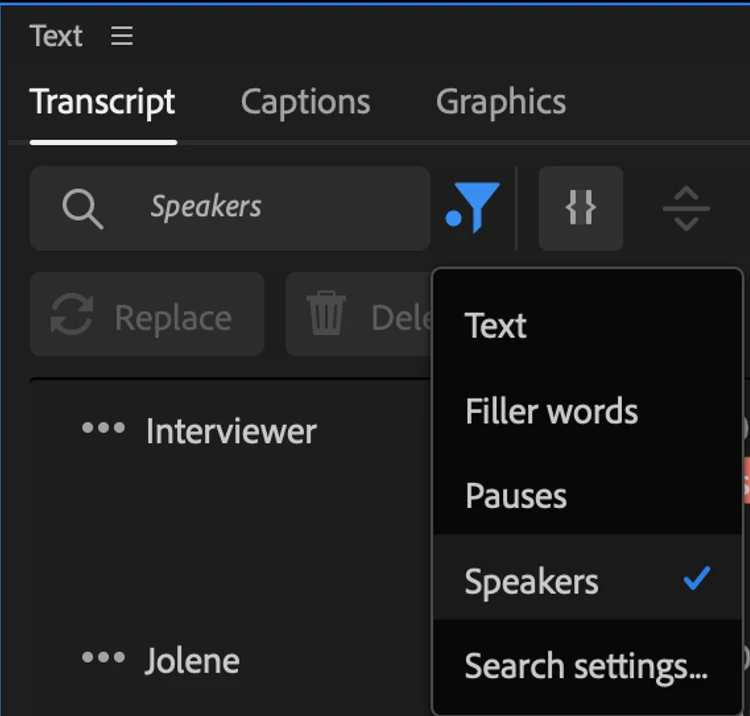
  • In the Text Panel -> Transcript tab -> top-left corner, click on the Filter icon and select “Speakers”
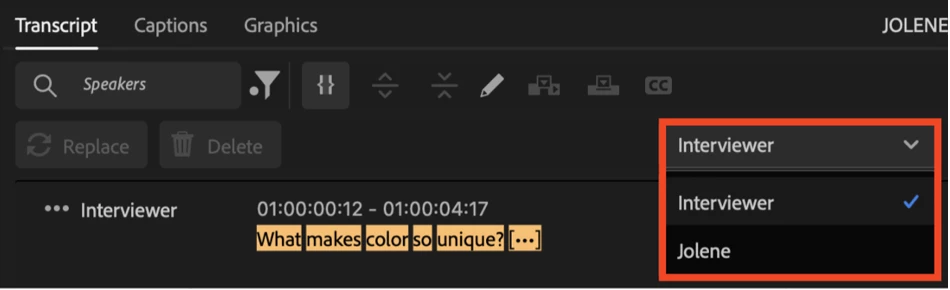
  • In the speaker drop-down menu, select the person whose dialogue you want deleted
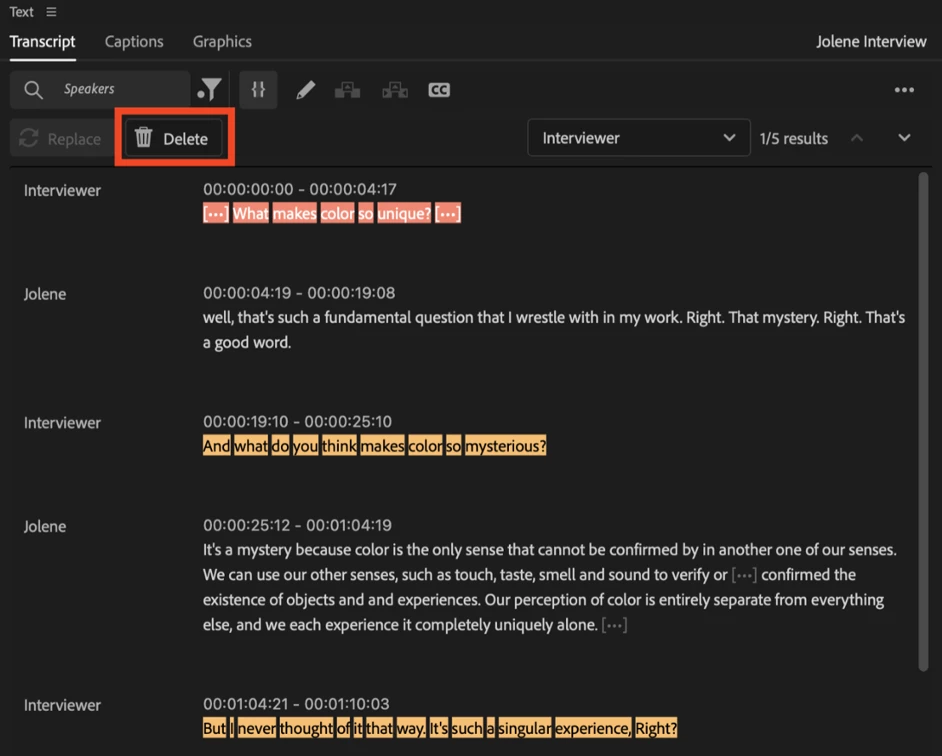
  • Click “Delete”


Notes

  • You can only delete dialogue on a Sequence/Timeline. Footage cannot be deleted from Source transcriptions.
  • Make sure to rename speakers in your Source transcript since “Speaker 1” could be two different people in two different source clips.


Feedback

  • Does it work as expected?
  • Is the user experience smooth with minimal clicks?
  • What else?


This topic has been closed for replies.

4 replies

dmakk767
New Participant
May 17, 2024

Downloaded BETA and see the option now but the Delete button remains greyed out. 

Stan Jones
Community Expert
May 17, 2024

@dmakk767,


I am testing in Beta 24.5.0.43. I cannot find a way to get the Delete button active. As noted before, I did not test this in earlier Beta's. I do not know if something changed, if this never worked right, or if I am doing something wrong.


So I suspect a bug.


@TeresaDemel Can you comment?


This was a single speaker sample, but I did edit speakers so I had 2 options. After selecting "Speakers" in the filter, you must select a speaker in the drop down. (Once I selected one, I could not go back to  none selected.)


I suspect that, as with other filters, the delete is only available in Sequence/Program Monitor view.


But I could not get the delete button active there.


Stan


dmakk767
New Participant
May 17, 2024

Thanks for the quick response. This is the most frustrating thing! I am just getting into video editting and thought I was being smart by reusing the same project for similar videos. Seems like replacing/removing the transcripts would be an OG feature, not an after thought. Either way I have wasted hours trying to make something work that is not even possible, haha. 

Publicar En Digital
Participating Frequently
April 2, 2024

This option "Speakers" doesn't appear in my Adobe Premiere (I am using the latest version as of today). I do attach this screenshot:


Stan Jones
Community Expert
April 2, 2024

Filtering by Speakers is only in the Beta version. New; I have not played with it yet.


It shows for me in Beta 24.4.0 Build 35.


Stan


New Participant
February 23, 2024

Hi, is this just in the beta version? If so what is the process of becoming a Beta user? Thanks! Matt

Known Participant
February 23, 2024

Right now I think it's just in Beta. It's sort of a work in progress, but huge steps towards being useful. Don't recall how you sign up for the Beta program, but it was pretty painless.

Known Participant
February 7, 2024

Wow, this is GREAT! Just what I was asking about not too long ago!

It seems to work well so far.

An additional idea - after filtering and selecting the speaker, could you add the ability to keep the video and audio, but to just move them onto different tracks, or to show the selection on the timeline so you can move them. That way if you do want to keep both people, but say one person had a mic on and the other person's audio needs to be separated and fixed, you could do that.


Thanks!!

TeresaDemel
Adobe Employee
Adobe Employee
February 7, 2024

Very cool. Thank you for sharing!