


- Home
- Premiere Pro
- Discussions
- Re: 4k to 1080 - I want to downsize multiple clips
- Re: 4k to 1080 - I want to downsize multiple clips
4k to 1080 - I want to downsize multiple clips

Copy link to clipboard
Copied
Hi Everyone,
I want to deliver with 1080. The footage I have been given is 4k. It was shot on Sony PXW-FS5 Cinema camera Here is the property info:
Type: MXF
File Size: 3.02 GB
Image Size: 3840 x 2160
Frame Rate: 23.976
Source Audio Format: 48000 Hz - 24 bit - 4 channels
Project Audio Format: 48000 Hz - 32 bit floating point - 4 channels
Total Duration: 00:04:10:12
Pixel Aspect Ratio: 1.0
MXF File details:
Wrapper type: MXF OP1a (type: SingleItem SinglePackage MultiTrack Stream Internal)
File generated by: Sony, Mem (2.00)
H.264/MPEG-4 AVC Long GOP High Profile 4:2:0 Unconstrained Coding
My issue is my computer cannot easily handle 4k and I just want it to be 1080. I read here that just changing the sequence settings to 1080 still leave you with 4k. In fact when I do change the sequence settings to 1080 I end up with a timeline that is now all RED instead of YELLOW.
So my question is what is the best method to convert the above MXF footage to 1080. Can I do that 4k to 1080 conversion within Premiere Pro CC? Or do I best use an external utility to do that?
Thanks
Rowby


 7
Replies
7
7
Replies
7


Copy link to clipboard
Copied
You will either need to use Adobe media Encoder to transcode/scale your footage or if you are CC2015 or later you could use the Ingest/create proxy workflow. Proxies of you 4K files should be the burden of 1080 files but retain the 3920x2160 frame size.


Copy link to clipboard
Copied
There is one downside to using proxies that is when using either Warp Stabilizer or Morph Cut: it will use the original footage in your timeline
So if you are going to use a lot of WS proxies wont help.
Then downsizing with AME is the way to go.
Copy link to clipboard
Copied
Thanks Kib and Ann for helping me.
I'm going to go the media encoder route.
Based the 4K media's properties that I included in my question, what output settings would be best quality for the 1080 export? AVI? MOV animation? -- and any other preset and sub settings to pull the best 1080 export from my 4K footage. I want to continue editing in Premiere with the downsized 1080 AVI or MOV footage and then will finally export that sequence to my final resolution, such as h264.
For example in Encoder I see Quicktime /GoPro CineFrame YUV 10 Bit (I don't have any alpha channels on these videos) Quality I'll move up to 5, and change the aspect ratio to 1080 height. Render at" maximum depth" -- right? (YUV 10 bit or RGBA 12 bit?). And Check "Use Maximum render quality" . For Time Interpolation: "Free sampling" seems to be the default. I aso see "Frame Blending" and "Optical Flow". Any suggestions for Time Interpolation?
This is primarily for YouTube audiences, but would still like the best quality for this 1080 version in case I re-purpose it elsewhere. Who knows -- maybe it'll win the Oscar! (I'll be sure to mention you in my acceptance speech for your encoding suggestions.)
I'm using Premiere CC -- latest version. Windows.
Rowby

Copy link to clipboard
Copied
I see Quicktime /GoPro CineFrame YUV 10 Bit
Use that. It's very high quality and edits very smooth.
The default quality 4 is plenty sufficient, though. Don't change any settings but the resolution.

Copy link to clipboard
Copied
Hi Rowby,
The Max Depth setting helps with high-bit-depth sources. Especially if you have certain color effects applied, like in Premiere. If source is 8-bit, then I don't believe this would have any benefit. Looks like your source uses 4:2:0, so not high-color.
I've seen mixed comments on Max Render Quality - supposed to help with scaling of output, however some say if you have GPU acceleration enabled, then it is already used by default and you don't need to check it.
My general rule of thumb is to NOT go along checking boxes unless I know specifically what the benefit or downside of doing so would be. Adobe has things set up the way they are because those are the best settings for most cases I believe. Go with the defaults when in doubt!
As for the Quality slider - hovering the mouse over it shows 1-2-3 being Low-Medium-High quality respectively, with 4-5 being Film Scan and Film Scan 2. What does that even mean? So don't automatically assume that "5 must be a better choice than 4".
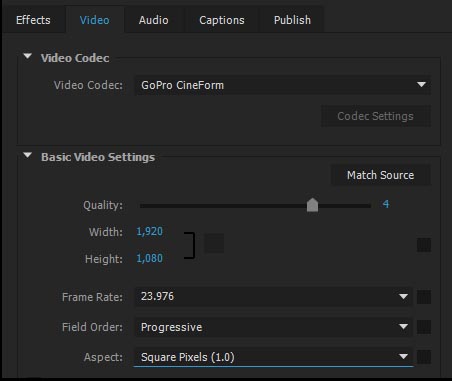
The attached pic shows the 1080p24 settings. You may be confused about frame dimensions versus pixel aspect. Pixels should be 1.0 aspect - square. The 1080 is part of the resolution.
Time Interpolation - does not affect you, leave it alone. That would be for changing frame rates for instance, which method would be used for that. Doesn't apply here. Like I said, stick with defaults and don't overthink it so much.
Whenever you do encoding, the big ones to look at are:
- Width/Height
- Frame Rate
- Field Order
- Aspect
Thanks
Jeff
Copy link to clipboard
Copied
Thanks Jeff and Jim
Heading for the encoder now and will use your suggestions.
Rowby

Copy link to clipboard
Copied
JPEG2000 is also a good option, exactly for the problem with insufficient hardware for 4K or higher editing. You may have a look at this Premiere Pro plugin


Find more inspiration, events, and resources on the new Adobe Community
Explore Now
 AdChoices