


- Home
- Premiere Pro
- Discussions
- Re: Crash when trying to use external monitor
- Re: Crash when trying to use external monitor

Copy link to clipboard
Copied
This is a brand new laptop that I am working from. The issue that I am having is that I am unable to use an external monitor for my workspace and the laptop screen as the playback monitor at the same time. This was something I did all the time on my older system that I just upgraded.
Every time I select Monitor 1 (my laptop screen) for playback the playhead no longer moves, nothing is displayed int he program monitor and Premier Itself seems to crash as It will no longer close I have to use Task Manager to manual shut it down.
**** I have updated my nvidia drivers to latest ones and still no change ****
1. software: Adobe Premier 2017.1.2
11.1.2 (22)
2. Latest update installed
3. Win 10 Home Ver 1607 Build: 14393.1358
4. Source footage: Combination of ProRess 422 HQ and LT
5. There are no error messages, just a complete freeze.
6. Problem started when I plugged in external monitor via HDMI and set my laptop screen as the "Playback" monitor
7. This is the first time this issue has happened on this system (its a brand new laptop 2 weeks old)
8. There are no other software running
9. There are no third party plugins/codecs this is a fresh system
10. PC SPECS
i7 - 7700HQ Quad Core @ 2.80Ghz
16GB DDR4
Nvidia 1070 GTX
11. Yes, using Mercury Playback
12. When DISABLING CUDA - i get audio playback but NO VIDEO
Please help.


 1 Correct answer
FOUND THE SOLUTION
After looking around forever I have discovered that a software called SONIC SUITE for Asus ROG laptops (comes pre-installed) was causing the issue, I removed the software and now everything works!
Thank you, everyone, for your help!

 18
Replies
18
18
Replies
18


Copy link to clipboard
Copied
What are your settings for running two monitors within Windows? Including what are the pixel dimensions of each monitor?
Do you have only that Nvidia, or is there an onboard graphics system running? (Intel Iris or whatever ... )
Neil
Copy link to clipboard
Copied
Hi Neil.
Thank for the quick reply.
The external monitor is running a 2550x1440 resolution and the lappy is running 1920x1080
Looking at the Nvidia control panel, I don't see any other display adapters.
Copy link to clipboard
Copied
And Windows Device manager video shows ... ?
Most laptops have an onboard chip.
Neil
Copy link to clipboard
Copied
Copy link to clipboard
Copied
Just as information, please post screen-grab png's directly into your reply, rather than posting a link to a png. You can drag/drop a png/jpg onto the reply box, or use the little sort-of flower icon in the middle of the control bar at the top of the reply box and navigate to the image file. The "Play" arrow is for adding a short video file into your reply.
Well, that's one potential cause eliminated, and typically an easier one to fix at need. And fits with your comment that on disabling Mercury in PrPro you get no image ... yup.
Are both the laptop and external running at their 'native' resolutions? What are your settings for Windows to use the monitors ... clone, extend ... ? Within Windows, which monitor is set as "1" and which as "2"? Have you dragged the UI to the second monitor before selecting the laptop monitor for playback?
Neil
Copy link to clipboard
Copied
Niel, thank you again for providing such quick response and thank you for letting me know about the image and video feature.
Are both the laptop and external running at their 'native' resolutions?
Yes, both are running on "native" - the laptop is a 17 Inch 1080p and Monitor is Benq 27Inch 2550x1440
What are your settings for Windows to use the monitors ... clone, extend ... ?
Current settings are to "Extend"
Within Windows, which monitor is set as "1" and which as "2"?
Monitor 1 is the laptop Monitor 2 is the monitor
Have you dragged the UI to the second monitor before selecting the laptop monitor for playback?
Yes. The UI is 100% on the second monitor (including the program monitor in the corner)
Note: I have tried loading a separate project to see if its specific to that, with no change. I also tried a different HDMI cable, without any change.
Val
Copy link to clipboard
Copied
Next thing to ask ... as some have had an issue where when they maximized a window on their second monitor, Windows put one pixel-wide line of it on the first monitor, and they couldn't even see it. So ... if the UI is not maximized on the second monitor, so that you can see background around the UI, does it work?
Also ... have you tried changing which monitor is which in Window ... set the laptop to monitor 2?
Neil
Copy link to clipboard
Copied
I have seen the article about the line of pixels moving into the next screen and have tried to make the window smaller without any kind of overlap to the second window with no change.
When swapping the monitors in the Playback menu, I get no playback. Not even a black screen that usually happens.
Copy link to clipboard
Copied
I can't tell from your response ... do you mean changing which monitor Windows identifies as 1 and 2, or just try something within PrPro?
Neil
Copy link to clipboard
Copied
I have tried changing the setting within premier pro only. I have not tried swapping primary display outputs in Windows. Can try that as soon as I am in front of the machine tonight.
Copy link to clipboard
Copied
Hello Neil,
Sorry to wake this old sleeping issue up but I was finally able to do the last test and have found a new issue.
So bring up to speed,
Brand new Laptop, 1070 gtx, win 10
Premier crashes when trying to use the laptop screen itself as a playback monitor over hdmi. (diff cables tested, diff monitor tested, diff adjustments within windows display options tested)
Still crashing when going trying to use Playback monitor option within premier settings.
*New issue* yet I feel is somewhat related.
I was cutting on the external monitor when it came time to do colour I knew that the laptop was a better display so I simply moved the entire suite over to the second screen (which is the laptop itself) and then moved the lumteri panel back to my external so I can work off of it. When I "Ctrl + tilde" to full screen the laptop the suite crashed and I cannot get out of a black fullscreen. Forced to shut down through task manager.
Copy link to clipboard
Copied
Not quite understanding your panel movements. The Lumetri panel itself is just the UI section of tabs ... there's no reason to have the color wheels themselves any "prettier" depending on which screen is best. So there's no reason to have the Lumetri control panel UI on the better monitor. It's the Program monitor that counts. And no, not the little preview window in the Creative tab. The actual Program monitor.
It sounds like you had the main UI on the separate monitor, and were trying to have PrPro recognize the main screen of the laptop as your playback/program monitor? Were you trying to say drag or open the Program monitor onto that screen, or trying to use the Edit/Preferences/Playback control for "Enable Mercury Transmit" after selecting a screen in the dialog box for that?
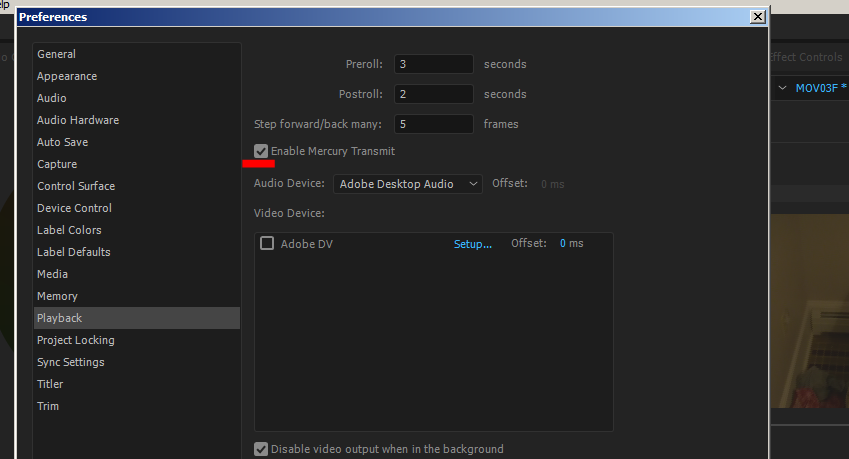
If you have multiple screens on the computer, there will be options for each in that box for "Video Device", and you would select one, then click the "Enable ... " above. I use two externals on my main desktop, one chosen in the Video Device box, and I have Shift-C set as my keyboard short to "Enable Mercury Transmit".
Using two screens for PrPro typically requires Windows to be set to "extend" to the other screen, and ... sometimes with laptops with both built-in graphics (on virtually all laptop mobo's) and an installed full GPU, the presence of both the on-board graphics chip thing and a full GPU can confuse PrPro. There have been a number of users that needed to go into their laptop's BIOS utility and set the on-board graphics to "off", so that the only GPU type running was the "real" GPU card.
Neil
Copy link to clipboard
Copied
Hi Neil,
I may not have explained my issue properly. I was editing on the external monitor and then moved the entire Premier Pro (including the program monitor) onto the better screen to do colour, I moved lumetri over to the other screen so that I can maximize my laptop and still have lumteri controls.
This laptop does not have an on board GPU only the 1070 GTX
I get get a crash when:
1. Selecting the laptop as the playback monitor within the premier playback setting
2. When I move the program monitor over to my laptop and maximize it
Copy link to clipboard
Copied
Interesting laptop, with no mobo GPU. But cool.
Have you tried putting the whole UI on the second screen, selecting the laptop's screen in Edit/Preferences/Playback in the "Devices" section, then clicking the "Enable Mercury Transmit" button?
That would put the entire UI in one place, on the second screen, and fill the latptop's screen with the program signal.
The one tricky thing about using monitors by moving things "manually" is if there's one pixel worth of screen overlap (and you won't see it!) which is not uncommon in PrPro when "maximizing" the UI on one screen of a two-screen setup ... it can do things like you're getting. Maybe also try to manually size the separate windows so they're certainly not overlapping a screen.
Neil

Copy link to clipboard
Copied
I hate to be silly... but have you ensured you laptop drivers are all updated? This means the latest NVIDIA drivers, the latest audio drivers, chipset drivers, BIOS from laptop maker etc?
What is the make/model of the laptop?
I picked up a new laptop around Mar this year... it had been released a month or two earlier... excellent laptop but I noticed its auto-update wasn't getting all latest items. I ended up solving a whole mess of issues by simply updating my drivers... some were as old as 6 months or so... also I had choices between the laptop maker's NVIDIA driver vs the one NVIDIA would install... I'll go for NVIDIA's but fallback on the laptop maker's drivers if the latest from nv has issues. I try one then the other.
If it's a brand new laptop (not used or made a while back) then ensuring you have the latest chipset, I feel, can be more critical as changes to those things matter more, it seems, when a laptop isn't that old in it's make/model lifetime.
I'm not saying Premiere isn't the issue here but it seems like it could be a crash due to some Premiere/driver interaction... just a guess really but offering fwiw. I'd also not hesitate to uninstall Premiere, Use the Creative Cloud Cleaner Tool to solve installation problems, and ensure all CC system-wide and project-local caches are cleared, the reinstall Premiere and try again.
Manually double-checking you have the latest drivers for your laptop is always a prudent step I feel. Uninstal/clean/re-install of Pr seems to be so easy that it's worth trying.
If you've done all this please excuse me... I'll step aside! 
Copy link to clipboard
Copied
... oh, and as part of checking drivers, check BIOS versions make sure you have the latest installed. I mean any laptop drivers/firmware/software... make sure they're up to date. Cheers.
Correct answer by
VolfMedia
AUTHOR
Copy link to clipboard
Copied
FOUND THE SOLUTION
After looking around forever I have discovered that a software called SONIC SUITE for Asus ROG laptops (comes pre-installed) was causing the issue, I removed the software and now everything works!
Thank you, everyone, for your help!

Copy link to clipboard
Copied
Oh my gosh, thank you so MUCH!!!
I've been having the same issue across all Adobe products using my new ROG Zephyrus laptop-->Apple Cinema Display.
For a minute there I was thinking it may just be a stubborn communication between Window and the Apple display, but nope! I uninstalled ASUS Sonic Suite and problem solved!! Thanks again!!
FYI: To uninstall ASUS Sonic Suite you have to UNcheck the boxes first. Extremely counter intuitive.


Get ready! An upgraded Adobe Community experience is coming in January.
Learn more
 AdChoices
