


thibautdewinter
Known Participant
January 6, 2017
Question

GPU Render Error | Nvidia GTX 1080 | Premiere Pro CC (2017)

  • January 6, 2017
  • 8 replies
  • 8209 views

Hi everybody,

Recently we switched from a Mac Pro (Late 2013) to a Windows PC.

Here are our specs:

Asus X99-A II

Intel Core i7-6900K

Asus GTX 1080 STRIX GAMING NVIDIA 8GB D5X

64 GB Corsair D432GB 2400-16

Unfortunately everytime we want to render our sequence in Premiere we get the following GPU render error
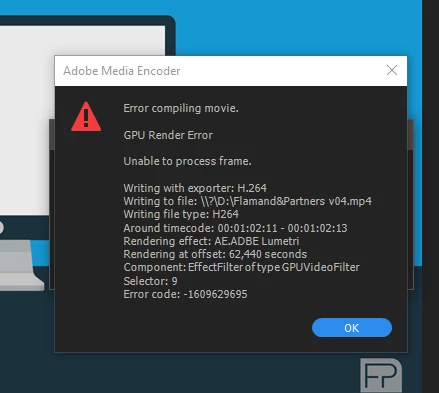
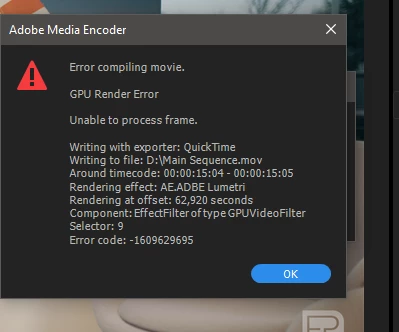
We tried rendering the sequence in 1080p or 4K.
Different formats like H264 and Quicktime. CBR, VBR 1, VBR 2, nothing really helps.

We literally tried everything.

The weird thing about this GPU error is that the point of failure is always somewhere else.

The footage we are editing is from our RED Epic-W mostly shot in 6K or 8K RAW.
Our composition is 3840 x 2160.


We used different dynaminc links between PR and AE, some with the RSMB plugin.
Setting RSMB to render by CPU instead of GPU doesn't help either.

We can render the sequence in three different parts and then combine them together.
But thats a big waste of time.

I can't imagine that one of the most popular graphic cards is not supported by Adobe.

We've run a few benchmarks to stress the GPU (FurMarck, Valley Benchmark, etc).
The GPU usage was 100% for a few hours, it stayed very cool at 57° and didn't fail at all.

Does somebody have the same problem? Any idea how can we solve this?

Thanks in advance.
Greetings,
Thibaut De Winter

This topic has been closed for replies.

8 replies

New Participant
May 20, 2017

This might not work for you but i found out why i was having the issue.


     I applied a C-LOG to rec709 LUT to my C300 footage, saved and logged off then unplugged my hard drive where i      keep my LUTS.

     I log back on and everything is fine apart from all my C300 footage wont play back even though it says my LUT is still      applied.

     I had to go through all my footage and re-apply the LUT then all my errors went away and when i say 'all'  i mean it      gave me every error I've seen so far because of this one problem.

MyerPj
Community Expert
March 19, 2017

I ran the PPBM today on my current rig in anticipation of my new build which will be happening soon.

I too ran into the same error as from this post, and I couldn't run the h264 export. I finally got it to run if as Jim_Simon​ suggested not doing anything else at all while trying to render. I even was able to switch back on the H264 Acceleration option (I turned it off trying to get this to work) and it still worked when I rebooted, went straight into PP and ran PPBM. Here was that error message:

twizzf89483545
New Participant
January 28, 2017

I just bought a I7 7700K and a 1080 card.

Its using the cuda but why is the processor only working in 15% and taking 5 gb of

the memory. I have allocteded all free memory to premiere and have nothing else

open at the same time. I have 32 gb of memeory right now.

Right now im trying out the Red giant Toonit. When i do other stuff its fast but why

dosent it use more of cpu and gpu and memory.

Bill Gehrke
Inspiring
January 28, 2017

If you would like to see 100% GPU usage you need to be applying lots of GPU usage accelerated effects and features.  My Premiere Pro Benchmark (PPBM) can show you 99% usage when you ruin the MPEG2.DVD timeline export and the H.264 timeline export hits 99% quite often.  Here is my GTX 1080 at 99%


If your CPU is only using 15% for that usage you should probably be glad generally it means you have lots of CPU left (unless you have other processes running stealing CPU cycles)  How many processes do you have before you open Premiere?

MyerPj
Community Expert
March 19, 2017

Bill Gehrke​, Hey Bill, here's the screen shot at the end of running PPBM

i7-2600K, GTX560ti, 16GB - Everything running from my Samsung 256gb-850evo

"123","358","43","767", Premiere Version:, 11.0.2.47

thibautdewinter
Known Participant
January 14, 2017

I got in touch with a Adobe engineer. Hopefully they can solve this problem.

I'll keep you guys posted!

thibautdewinter
Known Participant
January 11, 2017

Thank everyone for your time and advice.

The GPU error is still there unfortunately, does anyone else have any idea?

Lawn Care Ninja
Inspiring
January 11, 2017

Do you have another 1080 to pop in and check? Maybe from another machine or a friend? I would take out the card and make sure when you put it back in that it is seated properly. Sorry I can't help much beyond that. I have a EVGA FTW 1080 and it works great for me, no render problems.

Inspiring
January 10, 2017

I see the same issue periodically here on my Mac Pro 2010 with GTX 980, either when I render a clip or try to export a sequence.

My playback also periodically blinks out, usually every 20-30 minutes into editing. My preview/source screens remain black until I restart Premiere.

I contacted Adobe support and was told it was a CUDA incompatibility issue and it was up to NVIDIA to update the drivers.

I'm on 12.12.2 and drivers 367.15.10.25f02. I had this problem on the previous two graphics driver versions and 12.12.1. I think it all started when I upgraded to Sierra.

jasonvp
Inspiring
January 11, 2017

benwinter wrote:

I see the same issue periodically here on my Mac Pro 2010 with GTX 980, either when I render a clip or try to export a sequence.

My playback also periodically blinks out, usually every 20-30 minutes into editing. My preview/source screens remain black until I restart Premiere.

I contacted Adobe support and was told it was a CUDA incompatibility issue and it was up to NVIDIA to update the drivers.

I have similar issues with my Windows 10 box, a pair of Titan X (Pascal) cards, and the latest NVidia drivers.  I've read similar things to what you're saying here on the forums: there's an issue with the latest round of NVidia drivers (I don't know how far back this problem exists).  Whether we have to wait for NVidia to fix it or for Adobe to alter Pr to address it is unknown.

Inspiring
January 11, 2017

I really think it is an Adobe issue. I would think the problem is with Nvidia if the graphics were crashing at random times, but the problem is reproducible when I adjust the length of a clip on the timeline, then all playback blinks out.

Duffallo
New Participant
January 9, 2017

Know bug.  Work around is

Clear cache.  Save project as a different name. Close PP.  Restart pc.  Open different name project.  Copy and paste full sequence into new sequence.  Save and close pp.  Restart pc.  Open media encoder now try it. 

Awful solution but works 100% for me.

thibautdewinter
Known Participant
January 9, 2017

Thank you for the info Duffallo, I tried it several times without succes..
It's getting very annoying, I missed a deadline for a corporate project today because of the error.
There is no way rendering out the project, it fails every time even when rendering in small pieces.

I'm now executing the benchmark Jim mentioned.

Brainiac
January 6, 2017

Similar problems I was having just went away when I upgraded to 2017 and a GTX 960.  I'm very surprised you're still having this issue.

What worked when I did have the issue was turning off CUDA.

thibautdewinter
Known Participant
January 6, 2017

Thank you for the answer.

The render time goes from 25 minutes (with CUDA turn on) to 1 hour and 32 minutes with it turned off...

Do you have any other methods to fix this error?

thibautdewinter
Known Participant
January 9, 2017

Congratulations you ran the benchmark almost perfectly.  And it apparently did not throw an error.

The one score that apparently was not correct was the CPU only test of the export of the MPEG2-DVD timeline  That is the 78 second number above in the results and is to small with your unoverclocked i7-6900 K, my 8core i7-5960X at 4.5GHZ score is ~250 seconds.  Your GPU assisted export of that timeline with your GTX 1080 shows as 16 seconds which is very good score

I do not unerstand your score for the export of my H.264 export of 461 seconds as my similar export is about 50 seconds.  Do you have Intel H.264 acceleration turned

off like this?

Your disk transfer rate of 1033 MB/second is great.


Bill, thanks once again for your time.

H264 acceleration is turned on, indeed.

Unfortunately the GPU error is still there, despite all the very interesting fixes in this topic.