


- Home
- Premiere Pro
- Discussions
- Re: Graphics with writing distorted when rendered
- Re: Graphics with writing distorted when rendered

Copy link to clipboard
Copied
I am currently editing a lecture series, which requires image graphics of the notes overlayed one the video.
I have tried in both JPG and PNG taken from PPT and inserted them via new layer insert from file. The problem I have is that when it is rendered these notes become unreadable as the writing appears blurry and like someone has taken an eraser and erased part of the words out.
I am rendering out to MP4 to be put on vimeo.
Does anyone have any idea how to fix this?


 1 Correct answer

It's all about choosing the correct Sequence Setting to begin with. Like building a house, you need a good foundation. Your foundation is currently sand unfortunately and you will never get any quality from it.
What resolution is the video footage you are working with? Right-click a clip in the Project Bin and select New Sequence from Clip. Hopefully, you are using HD video and will thus end up with a matching HD-quality sequence to work in to maintain that quality. Where are the note overlays co
...
 10
Replies
10
10
Replies
10


Copy link to clipboard
Copied
what adobe program?
Copy link to clipboard
Copied
Adobe Premiere Pro CC
Copy link to clipboard
Copied
[ moved from Adobe Creative Cloud to Premiere Pro CC]

Copy link to clipboard
Copied
Please post your export settings summary, like this example below:
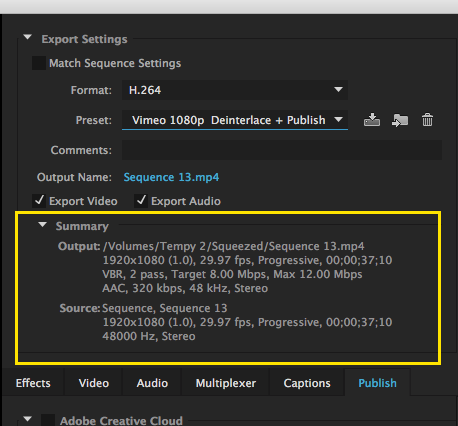
Also. please post the pixel dimensions of the graphic files you are working with.
MtD
Copy link to clipboard
Copied
Here is the screenshot of the image size, and a small example of the text and image what it looks like as well as the export settings
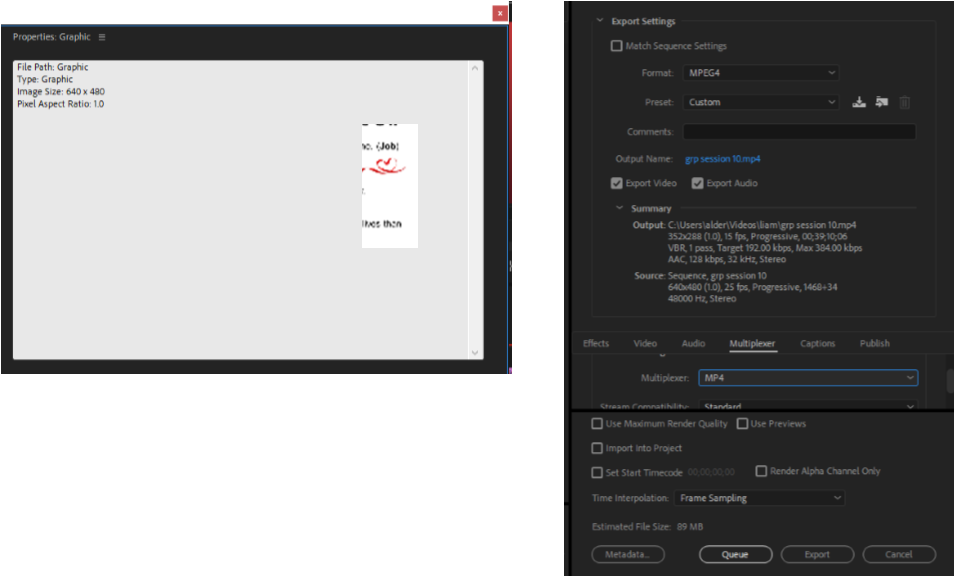
Hope this is what is needed. 
TP

Copy link to clipboard
Copied
Starting with a very small 640x480 pixel image, then output to 352x288, is somewhat puzzling.
That is an incredibly small image.
Neil
Copy link to clipboard
Copied
Thanks Neil
How do I resize while keeping integrity and a size that will sit at the top right hand side of the video
TP

Copy link to clipboard
Copied
Hi,
Why are you exporting your final video at such a small resolution 352x288. It's very very small compared to today's HD standards at 1920x1080 or even "HD Ready" size at 1280x720.
Watching your 352x288 video on a TV, PC monitor or even a recent phone will give you a very blurry look.
Cheers,
Seb
Copy link to clipboard
Copied
It's all about choosing the correct Sequence Setting to begin with. Like building a house, you need a good foundation. Your foundation is currently sand unfortunately and you will never get any quality from it.
What resolution is the video footage you are working with? Right-click a clip in the Project Bin and select New Sequence from Clip. Hopefully, you are using HD video and will thus end up with a matching HD-quality sequence to work in to maintain that quality. Where are the note overlays coming from? Keep the resolution/quality up on those as well! And then export at same settings as Sequence to avoid conversion/quality loss from scaling to something else. For instance, with a 1080p30 Sequence (matching source video in this example), also export as 1080p30 then. And if there is video of someone speaking, then keep the same frame rate as original clip.
Please let us know some details of the media you are working with and then we can assist in determining the best workflow for you to maintain quality.
Thanks
Jeff

Copy link to clipboard
Copied
Hi.
I recommend you read this basic guide provided by Adobe.
https://helpx.adobe.com/premiere-pro/using/basic-workflow.html


Get ready! An upgraded Adobe Community experience is coming in January.
Learn more
 AdChoices