Participating Frequently
April 24, 2017
Answered

How to add multiple lines in Essential Graphics text field?

  • April 24, 2017
  • 3 replies
  • 23661 views

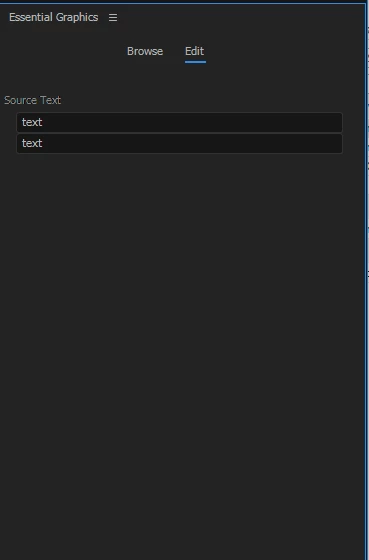
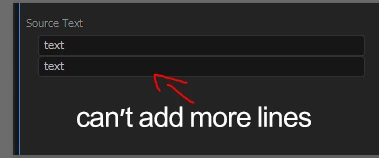
I made a new Motion Graphic template with After Effects and used it inside Premiere Pro. I have a text inside the Template which can be edited in the Essential Graphics window, but it seems to be impossible to add multiple lines. I can type in text but I can't add a line break. Is it simply not possible (yet?) or am I just not able to find out how to do it?

Greetings from Germany and thanks in advance. Any help would be appreciated

Norman
This topic has been closed for replies.
Correct answer Roei Tzoref

*Edit. following cessers response later in the thread

but not for those created with After Effects.

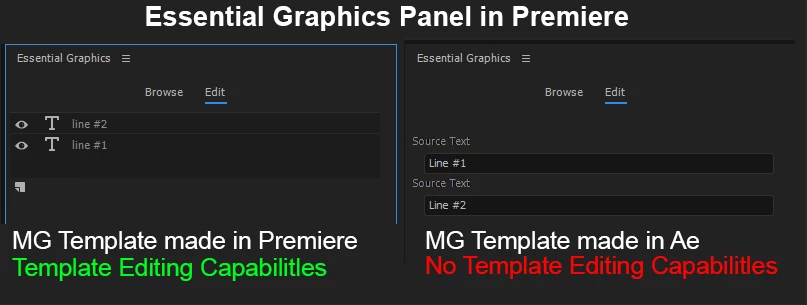
that is correct. Ae made motion graphics templates are closed for template editing when in Premiere. you can only change the parameters you were given. or use the original aep file to modify the parameters differently, and export again, and replace your graphic layer in the Premiere timeline.

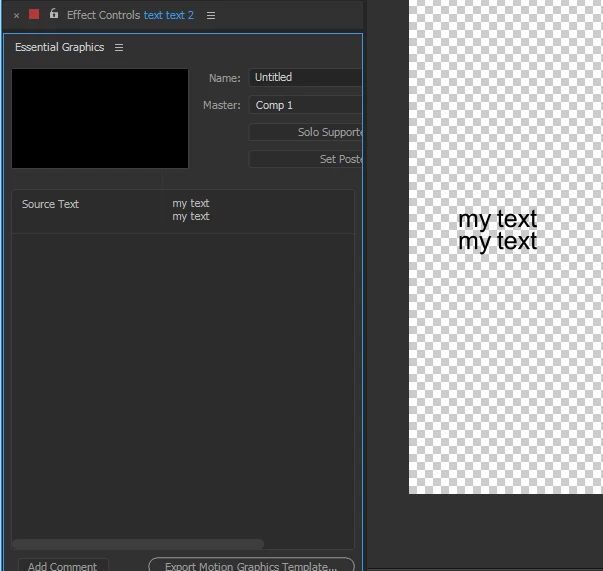
if you want to create a template with After Effects that has more lines, you can do this in the same text layer:

in Ae just add another line break with the return key

opened in Premiere

I notice, you can't do this after the fact in premiere

here are some helpful links:

Motion Graphics Template Workflow in After Effects and Premiere Pro CC 2017 (Spring) — Premiere Bro

Create Motion Graphics templates |

3 replies

edbertc37580552
Participant
December 22, 2017

put script in your SourceText layer.

replace(/"\n"/g,"\r")

and then Type your text like this

John Smith\nPresident/CEO

and you can change the scale by using Range Selector at the text layer

follow these settings in the text layer

More Options > Anchor Point Grouping > Line

More Options > Grouping Alignment > -100,0%

add scale

Animator 1 and scale is created

set scale to your desired small size

under Animator 1, follow this value.

Based On - Index

Mode   - Line

set these values
Start - 0

End - 1

Offset - 0

Participating Frequently
January 25, 2018

Wow! That works like a charm for my usecase. I was able to export a MotionGraphics Template of my Lower Third, that does exactly what I want it to.

Thank you so much. Your help's appreciated!

cessers
Inspiring
May 19, 2017

I was able to do this by typing my text with carriage returns into a simple text editor (I use SubEthaEdit) then copy/paste into the Essential Graphics field. Carriage returns remained!

Roei Tzoref
Legend
May 19, 2017

thank you cessers I edited my response after I see that you can add more line in one text layer in Ae. this works with native Ae editing and pressing return in the text layer or the text in the essential graphics panel. adding another line in premiere (when opening an mograt made in Ae) after the fact, is not working.

cessers
Inspiring
May 19, 2017

Pasting into Premiere works for me.

Roei Tzoref
Legend
April 24, 2017
I can type in text but I can't add a line break. Is it simply not possible (yet?) or am I just not able to find out how to do it?

if you want a line break in the essential graphics panel, it appears you would have to create an additional text layer from within the panel. the easiest way I found is CTRL+D to duplicate. on the program monitor use the Ctrl key to align it.

Participating Frequently
April 24, 2017

This seems to work for Motion Graphics Templates created with Premiere Pro but not for those created with After Effects. Thanks for trying to help. At least I know how to do it with Motion Graphics Templates created with Premiere now.

Ideas on how to do it with my Template created with After Effects anybody?

Roei Tzoref
Roei TzorefCorrect answer
Legend
April 24, 2017

*Edit. following cessers response later in the thread

but not for those created with After Effects.

that is correct. Ae made motion graphics templates are closed for template editing when in Premiere. you can only change the parameters you were given. or use the original aep file to modify the parameters differently, and export again, and replace your graphic layer in the Premiere timeline.

if you want to create a template with After Effects that has more lines, you can do this in the same text layer:

in Ae just add another line break with the return key

opened in Premiere

I notice, you can't do this after the fact in premiere

here are some helpful links:

Motion Graphics Template Workflow in After Effects and Premiere Pro CC 2017 (Spring) — Premiere Bro

Create Motion Graphics templates |