


Participant
November 1, 2021
Answered

iPhone 12 pro max and 13 pro HDR footage blown out in Premiere Pro 2022 (v22.0)

  • November 1, 2021
  • 23 replies
  • 123806 views

After upgrading to Premiere Pro 2022 (v22.0) all my HDR footage from my iPhone 12 ProMax and 13 Pro are blown out (screen shot below)
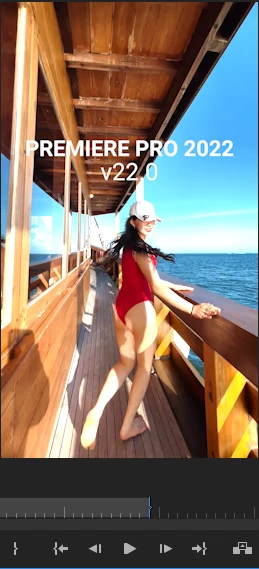
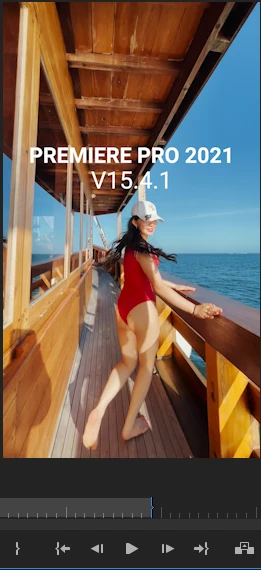


There are actually similar disscussion here that talks about this issue, but i thought i would make new discussion that spesifically talks about this issue on iPhone 12 Promax series and above. So whoever having similar issue hopefully could find this thread when they're googling


There are two solution to fix this issue

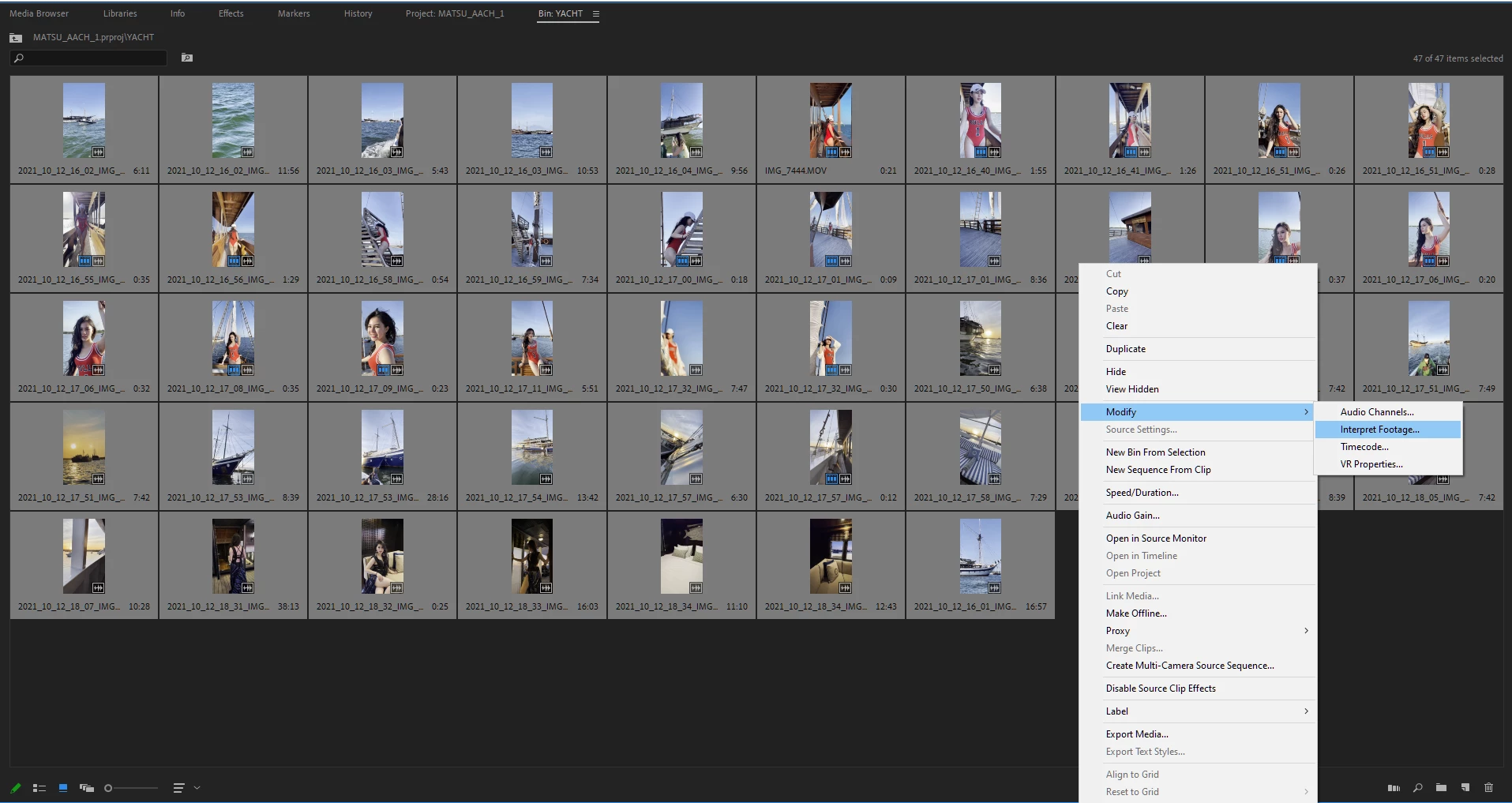
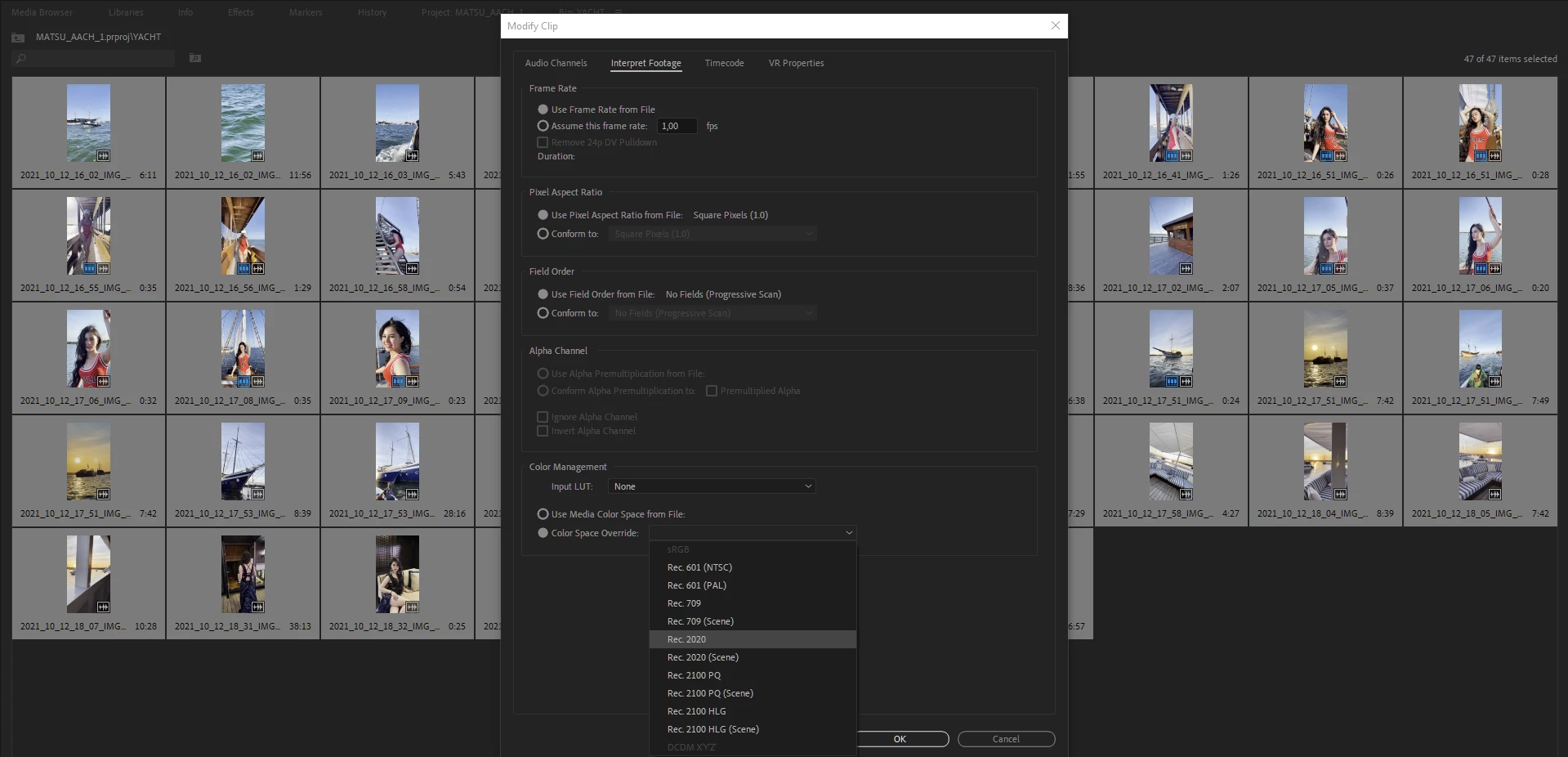
First Solution, go to project panel, select all of your HDR clips > Right Click (windows) > Interpret Footage > Color Space Override > Choose Rec 2020


Second Solution (I do recommend using this), open your creative cloud control panel and just re-install previous version Premiere Pro 2021 v15.4.1 (i'm using both PP 2021 & 2022 at the moment)
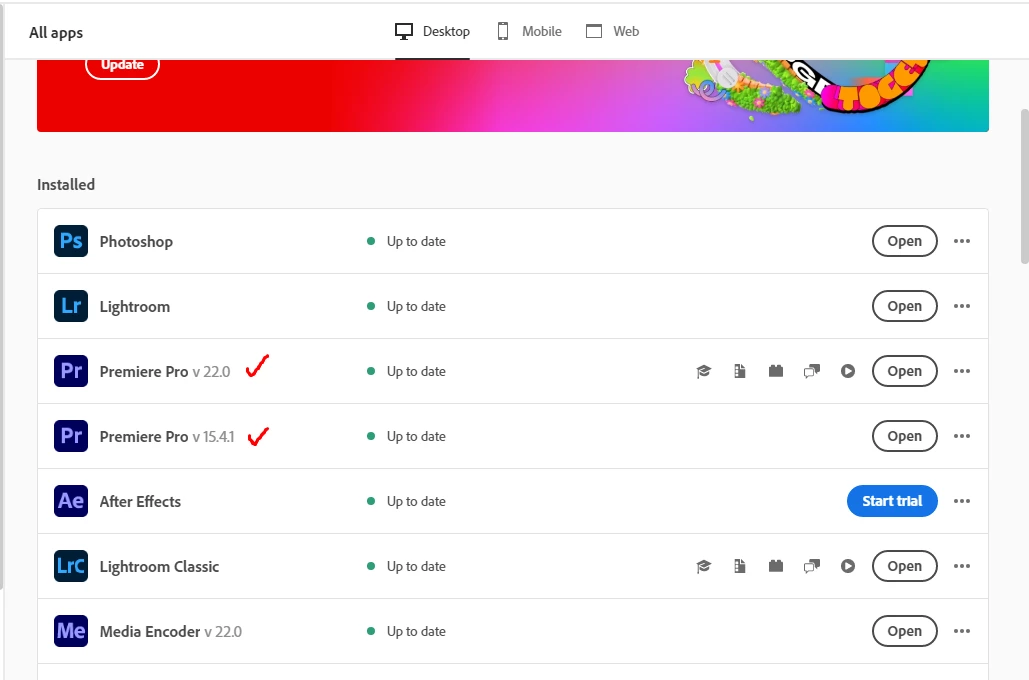


Hope this will help whoever having this iPhone HDR footoge blown out on Premiere Pro 2022 v22.0


This topic has been closed for replies.
Correct answer R Neil Haugen

This new version added quite a bit of user-settable color management options (CM) and that's confused a lot of people. There are several places to check & set CM.


  • Clip properties in the bin: Modify/Interpret Footage
  • Sequence settings dialog settings
  • Scopes panel settings.


For most users with HDR media right now, I'd suggest setting the sequence to the 2100/HLG option as a starting point. Match that in the scopes and clip settings if you can.


And report back how well it works. It will probably take us all a bit to sort this out.


And the reaction of some users to the engineers adding CM options, is why many of the engineering staff were reluctant: they knew for a lot of users it would be confusing and cause issues until they could figure it out.


Once you understand how it's supposed to work, you'll have more options than you did before. Yea, it's painful to figure out at first.


Neil

23 replies

Participant
January 2, 2024

Thank you so much, I solved my problem with the First Solution, the colors look a little better.

Participant
November 30, 2022

Lifesaver! Thank you for this quick fix.

Participant
October 25, 2022

i found a solution that worked for me. in finder if you select the original mov files and right click and select "encode selected video files" and pick a h.264 setting, finder will do the conversion. I went into my prproj and replaced the files with the new ones and to my eye it looks just like the original mov. I havent had time to export all the sequences but at least the project preview window looks good

Participating Frequently
September 19, 2022

Yep, this is a nightmare and needs to be fixed in a more efficient way asap. We don't pay good money each month to upgrade software and have to find a working around with color management. I just want my footage to look how it did on the phone! For now, I'm just going to take HDR off as I don't really know the real benefit of HDR on my iphone footage just yet..

R Neil Haugen
Legend
September 20, 2022

 "I just want my footage to look how it did on the phone!"


Um ... as someone who teaches pro colorists, well ... the iPhone is probably a better screen than even many computer monitors, but still ... that ain't an exactly correct 'view' of the footage. Not a camera made has a perfect view of the footage ... not even the $70,000 RED or Arri rigs. They'll take a professionally calibrated screen with them with a hood and all on-set if they need a very accurate view.


So how it looks on a phone or a camera is an indication of what your file can look like. First.


Past that, Premiere used to be totallly built around Rec.709 color space. They've rebuilt the underlying color system, unfortunately we don't have the final tools for the whole thing yet. Which yes, is a problem.


But if you shoot HDR clips, you need to work in an HDR sequence/project or do the color managing necessary to tranform the clips to Rec.709 ... that ain't a workaround, that's necessary color management steps.


And the users not only will now have more CM tools, but ... will need to use them. Premiere is no longer going to assume everything is Rec.709. You need to tell it what you want it to do with your clips.


Like with any other app, and yes, Resolve (which I use daily) has had controls for this for years, having started as a grading app. Premiere will be getting more and 'deeper' controls over time, like the user has in Resolve.


Neil

Everyone's mileage always varies ...
Participating Frequently
April 19, 2023

Thanks Neil, I have only just seen this and I get what your saying but we are not working with Raw footage, its just a consumer phone not ProRes footage from A 70k Camera.. - massive difference and poor comparison.

Anyway as I said taking HDR off for now and does the job for quick and dirty edits. When I want full grading capability I definitely won't be using a phone.

Inspiring
September 9, 2022

Hi. I need help on the backend of possible?  I am working with a project using iPhone footage mov. I am Mid  project. The footage is completely blown out on export now after the update.  MY problem: Its not letting me modify the clips in my timeline to 2020rec. Please someone tell me I dont have to reedit the entire project

Inspiring
September 9, 2022

Sequence setting output is h264 29.97 there is no option to modify colorspace for the seq to the rec 2020 only 709, 2100 HLG or 2100 PQ

Participant
August 3, 2022

I recorded footage on my iPhone 12 mini and edited it on my Macbook Pro (2015) in Premiere Pro 2022 and had a similar issue. I'm still new to Premiere, and it looked fine in the preview, but looked overblown and oversaturated when exported to H.264.


I tried color space override and it didn't work for me. Honestly I'm impatient so I will save downloading the 2021 version for another day (I was riding the 2019 versions for a while anyway).

My project is a personal one, so I worked out a quick and dirty solution. I turned down Exposure and turned up Contrast until it looked right. I still have some adjusting to do but it's starting to look good enough for me! I just want to wrap up my project so I can move onto the next one.

I'm making this for Skillshare, who recommends recording with your iPhone, but I'm never doing that again cause this was a whole hassle and the footage looks pretty bad anyway. I've learned my lesson and will use a better camera and testing methods moving forward. Yay Team Never-Update!

Ann Bens
Community Expert
Community Expert
August 3, 2022

@samanthac1915920 wrote:


I'm making this for Skillshare, who recommends recording with your iPhone, but I'm never doing that again cause this was a whole hassle and the footage looks pretty bad anyway. I've learned my lesson and will use a better camera and testing methods moving forward. Yay Team Never-Update!


What an odd recommendation.

IMO a regular camera is still the way to go.


FAQ : Making your iPhone 12 and 13 footage look normal

Participant
April 6, 2022

Thank you for this!! 


Known Participant
March 16, 2022

Option one worked on some clips (thank you!), in others the color management options aren't active. (I'm not sure what the installing the old Premier suggestion means, if it's going back and forth between the two, it's difficult for me to see that as a practical option—so I'm guessing I'm missing something as my old versions are still installed.)


On those with the inactive options, they aren't blown out so much in the timeline like the others, it almost looks over saturated and like the highlights are blasted—definitely not the same as in the source monitor.


Any suggestions?

Known Participant
March 16, 2022

I found the answer, buried deep in the middle of the thread. But, now all the clips in the timeline are affected, instead of the problemed clips. So, I went back to just adjusting the individual clips, but that doesn't account for the ones that don't have the color management options active.


What's the best solution?

Known Participant
March 30, 2022

The answer I came to is just color grading the iPhone clips that didn't have the option to convert. It was sooooo simple I wish I'd tried it first...it didn't look fixable but it is...mostly exposure.

Participant
February 21, 2022

Hey guys, I just spent several frustrating hours trying to figure out this issue. It turns out that one simple solution can do the trick. All I had to do to was open the file in Quicktime, Export as 4K (or any setting), and select 'Greater Compatability (H.264)', rather than the pre-selected 'Smaller File Size (HVEC)' setting. Now when I open the newly exported clip in Premiere (22.2.0), the colors match exactly. Please tell me this helps you too!


Known Participant
June 3, 2023

Great!! Thnaks,  and can y do this with all the clips in one, or do you have to do this per clip?

And i had a tip that one can film in HD and not in HR on your Iphone. Is that so?


Known Participant
June 3, 2023

Sorry for my mistakes, I can not change it anymore. but I mean: Thanks and You can film in HD and not in HDR with your Iphone. 

Participant
February 11, 2022

This solved the issue for me as well, thanks!