New Participant
December 20, 2021
Answered

Source and Program Monitors do not match

  • December 20, 2021
  • 5 replies
  • 5836 views

Premiere Pro v 22.0.0 

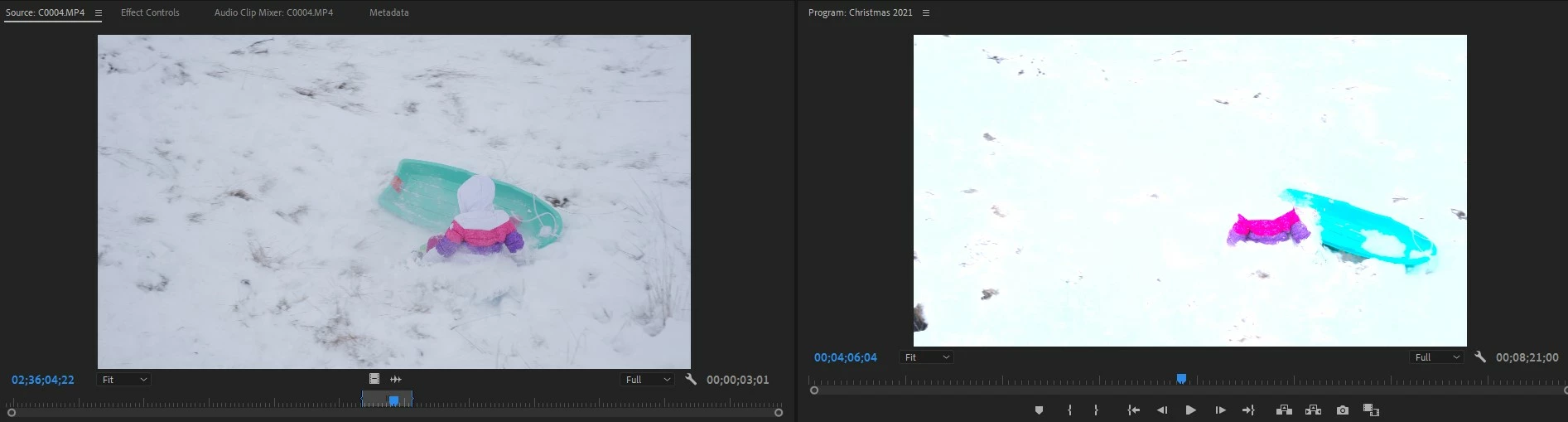
Source and Program monitors look VERY different on .RAW footage.  Lumeteri Color seems to make it rather worse.  Can't seem to reclaim any of the detail the Source window displays no matter what I adjust.  Options?

This topic has been closed for replies.
Correct answer R Neil Haugen

And my guess is your clip there is either log-encoded or an HLG "HDR" clip.


So check the clip properties in the bin. If it is HLG, for most purposes you will still want to work in SDR, standard dynamic range, the Rec.709 standards of still the vast majority of media today. If so, right-click one or more clips in the bin, then Modify/Interpret Footage" and set the Color Management options at the bottom for Override to Rec.709.


Then in the Sequence settings, make sure the CM is set to Rec.709. And make sure the Scopes are also showing a Rec.709 signal by right-clicking in the scopes panel, selecting the color Rec.709 color space. Then set the scale dropdown in the lower right corner of the scopes to 8bit or 10bit.


Neil

5 replies

DamienNeva
New Participant
February 14, 2023

Premiere Pro 23.1.0


Source monitor isn’t showing full video like the program monitor. Camera produces a 1920x1080 MP4, which I rotated -90°. However when I view the same video in the source the top and bottom of the footage does not display.  If I adjust the scale of the source video and then drag the video into the timeline, it’s smaller than the full frame in the program monitor. Help please. Thank you.


Damien


Participating Frequently
January 20, 2022

I'm having this problem too. non HDR footage and timeline (I checked), but it is a new macbook pro with HDR screen.

Participating Frequently
January 20, 2022

Oh interesting, I started the project on the laptop computer with a second monitor plugged in (not HDR), then I detached to continue working-- thats where the color issue started. Rebooted app (without reattaching to monitor) and the color came up as it was supposed to. Hope that helps someone.

New Participant
January 17, 2022

Dear all,

I have recently updated my Premiere Pro to the newest 2022 version. I'm working on footages from Sony A7III, 4K, with HLG 3 as its picture profile.
The look of the original footage shows no problem at all with perfectly good exposure, which can be seen from the source monitor on the left. However, there is a distinct difference with how the footage looks on the program monitor on the right.
The footage looks washed out with the highlight is overly saturated on the program monitor.


Can anyone please help me what to do to fix it? 
I've been editing for 3yrs+ and this is my first time encountering a problem like this

Current Sequence Settings:

Any help is much appreciated. Thank you!

R Neil Haugen
R Neil HaugenCorrect answer
Brainiac
December 20, 2021

And my guess is your clip there is either log-encoded or an HLG "HDR" clip.


So check the clip properties in the bin. If it is HLG, for most purposes you will still want to work in SDR, standard dynamic range, the Rec.709 standards of still the vast majority of media today. If so, right-click one or more clips in the bin, then Modify/Interpret Footage" and set the Color Management options at the bottom for Override to Rec.709.


Then in the Sequence settings, make sure the CM is set to Rec.709. And make sure the Scopes are also showing a Rec.709 signal by right-clicking in the scopes panel, selecting the color Rec.709 color space. Then set the scale dropdown in the lower right corner of the scopes to 8bit or 10bit.


Neil

Everyone's mileage always varies ...
New Participant
December 20, 2021

Thank you so very much.  I don't think I'd have ever figured it out on my own.

R Neil Haugen
Brainiac
December 20, 2021

Yea, right?


The changes are simply massive, but ... not all that obvious to be polite. It's been a surprise in a number of ways even for someone like me who's considered an expert at Premiere's color management. I've spent hours with the staff checking things out and working on this topic with pro colorists also. And a couple changes surprised me.


In the public beta apps, they have a beaker icon on the upper right of the program menu bars. It is to inform public beta users of changes ... anytime that beaker has a blue dot,  you're supposed to click on it to see the changes. Easy and useful!


I've suggested that this would be a Very Good Thing for the shipping version, as that way users could quickly check for and track any changes.


Neil

Everyone's mileage always varies ...
R Neil Haugen
Brainiac
December 20, 2021

This is quite possibly due to the massive changes in both the basic underlying color mamagement of Pr2022 and the default behaviors it now adopts with many log-encoded and/or HLG media clips.


I've got two FAQs here ... the first on the changes, and how to work within the new system.


The second ... how to monitor HDR sequences, as it seems that has changed completely also in the Pr2022 release.


Neil

FAQ:PremierePro 2022 Color Managment for Log/RAW Media


How to Set Monitors for HDR work in Premiere Pro 2022?


Everyone's mileage always varies ...