Participant
June 13, 2017
Answered

transforming landscape videos to portrait

  • June 13, 2017
  • 2 replies
  • 25261 views

hello,

i have some videos that were shot in landscape mode.

now i want to transform them in portrait.

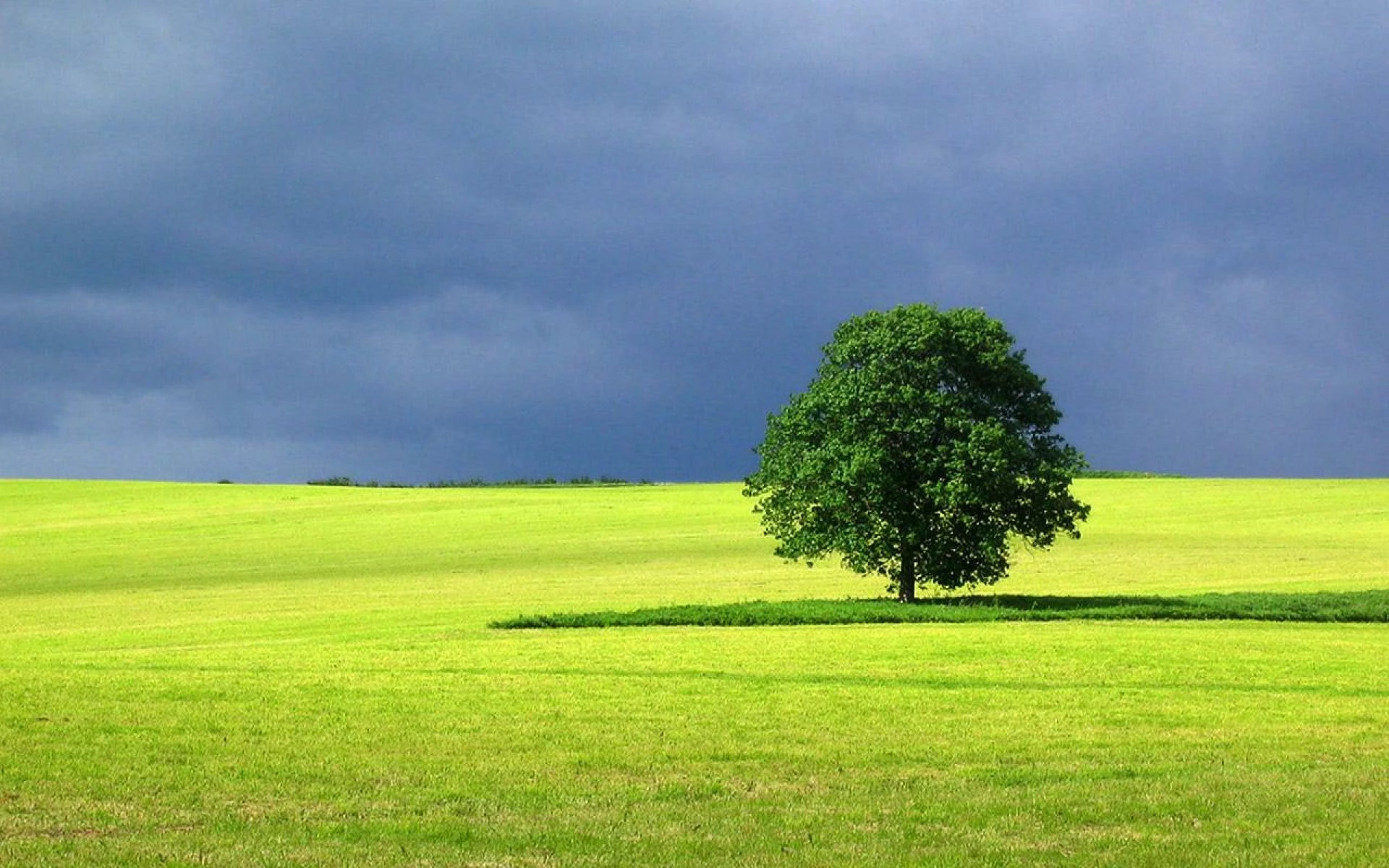
it is something like this:

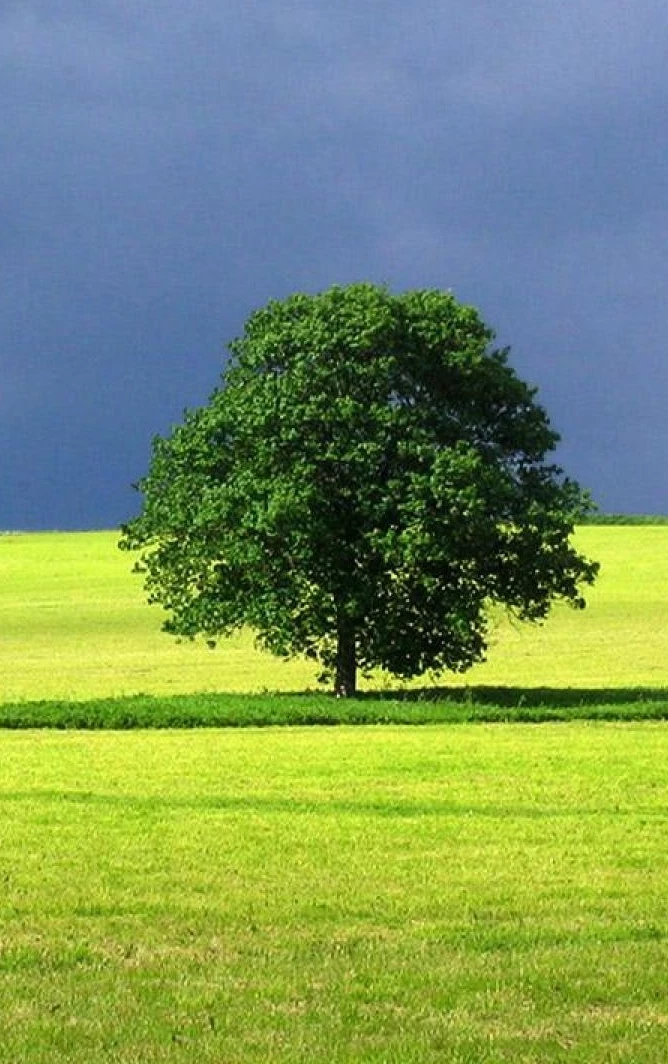
to transform to this

how do i do this?

i have searched in google with some related keywords but i am really not able to find a video that would help me

maybe i need to use some other keywords?

smb can do me the favor of helping me a bit?

thank you in advance

    This topic has been closed for replies.
    Correct answer premieregal

    Hi BobMarley  - I have just the solution. Follow these 5 steps (below) and you will be well on your way to exporting your portrait video.  Let me know if it was helpful and correct. Cheers! - PremiereGal

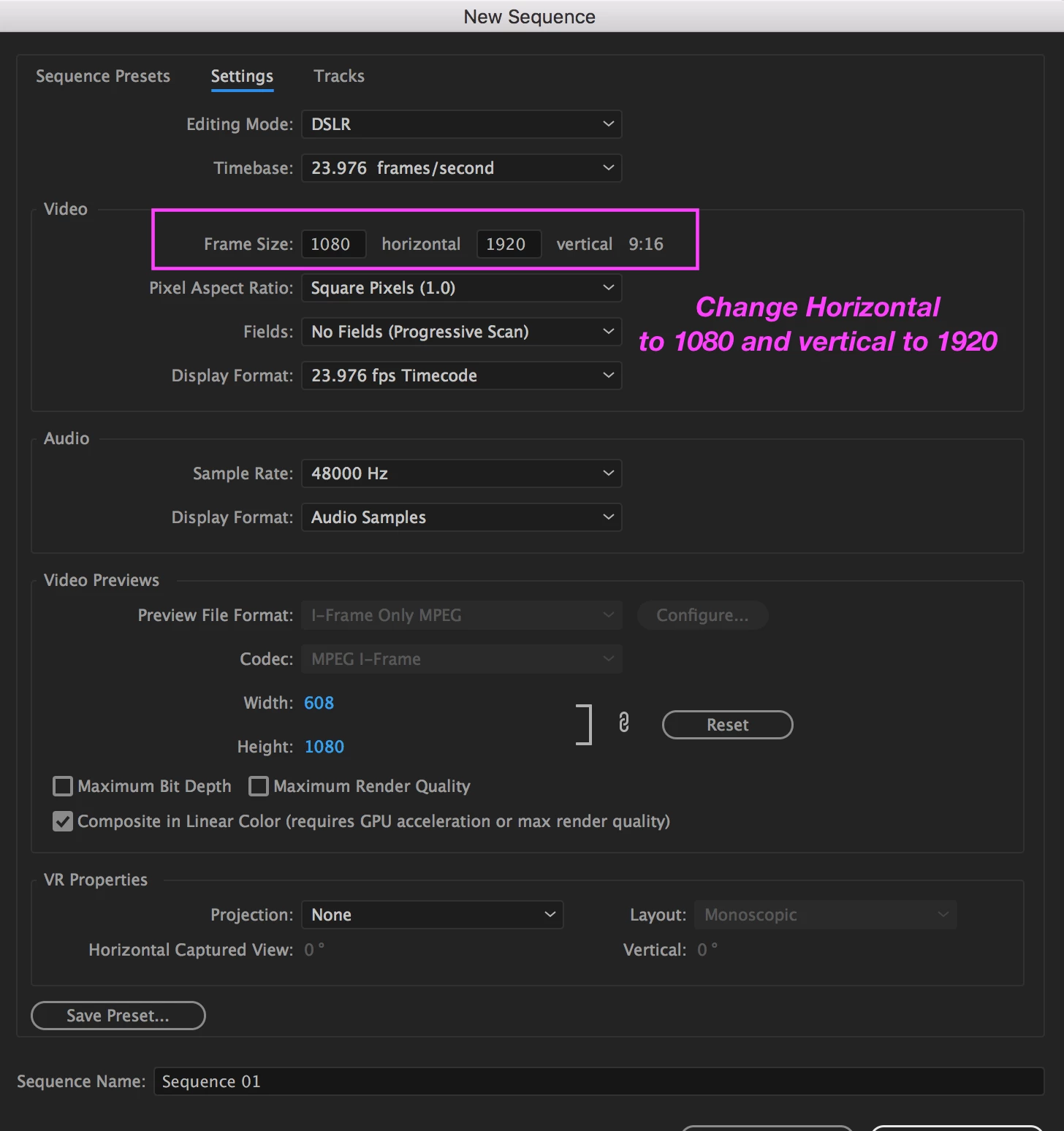
    1. First create a new sequence with custom dimensions of 1080 horizontal x 1920 vertical. After you create a new sequence, select, a 1080p preset, such as DSLR 1080p 24 fps, then hit the settings tab, here change the dimensions to be portrait. See screenshot, then hit okay.
    2. You will now see that your sequence is in portrait mode.
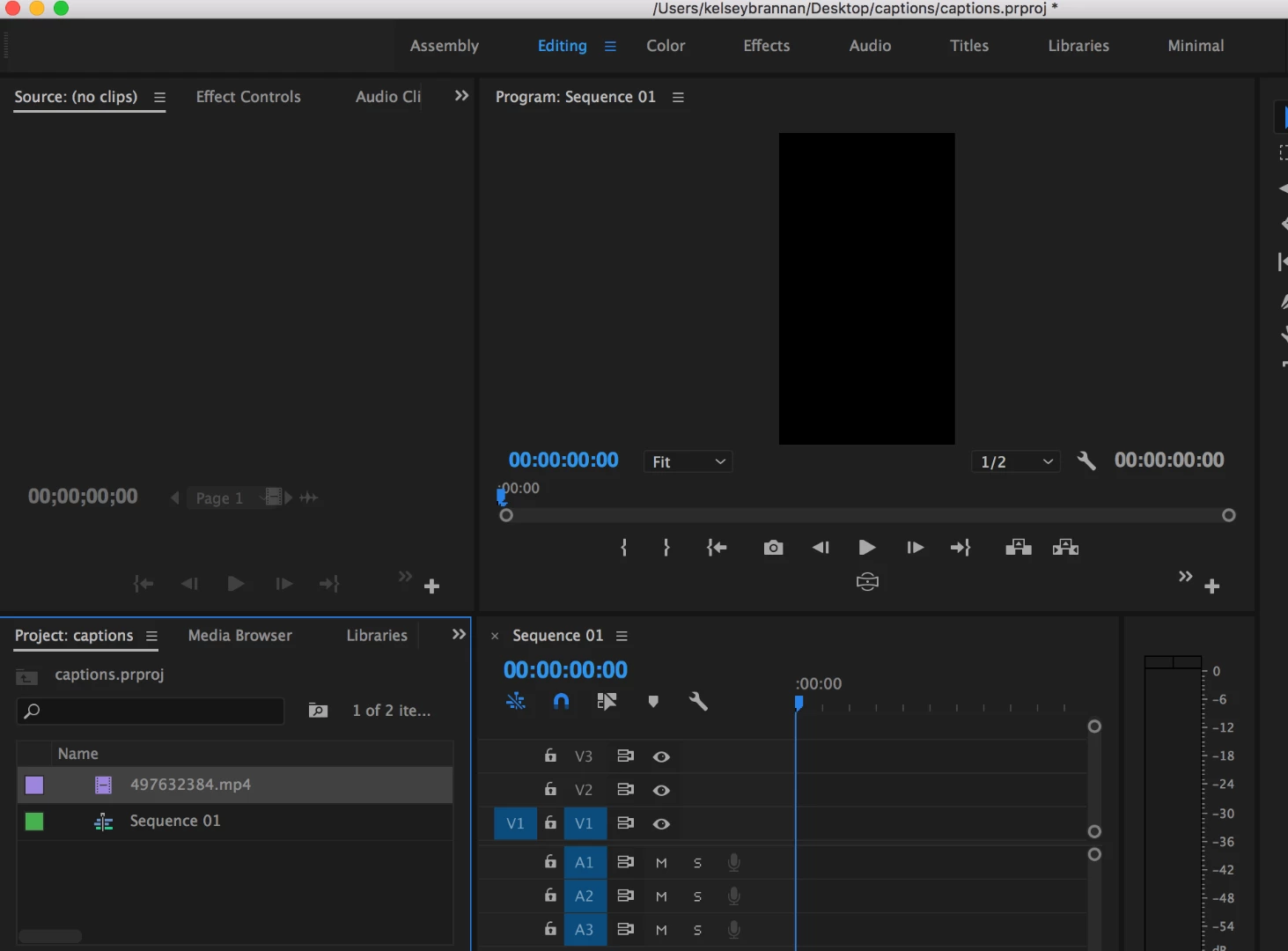
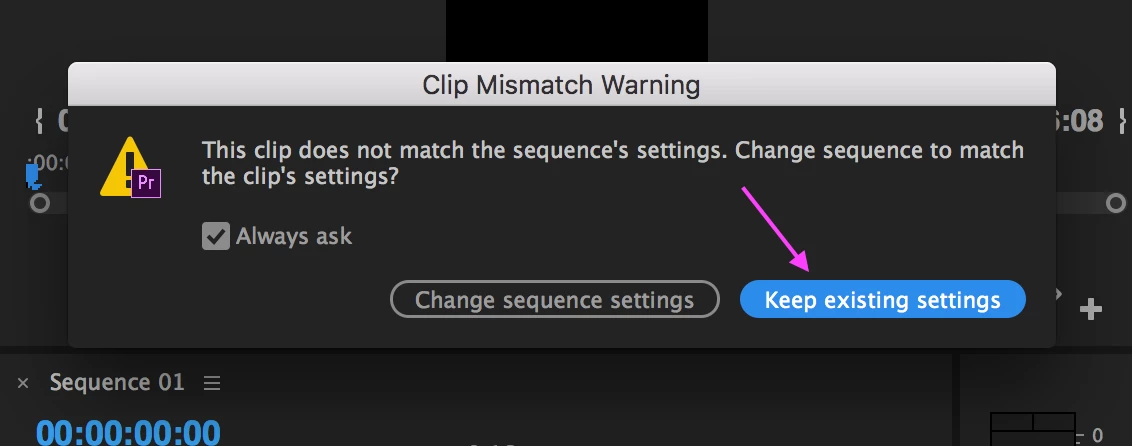
    3. Drag your video into the sequence, be sure to click on "Keep existing settings" when prompted.
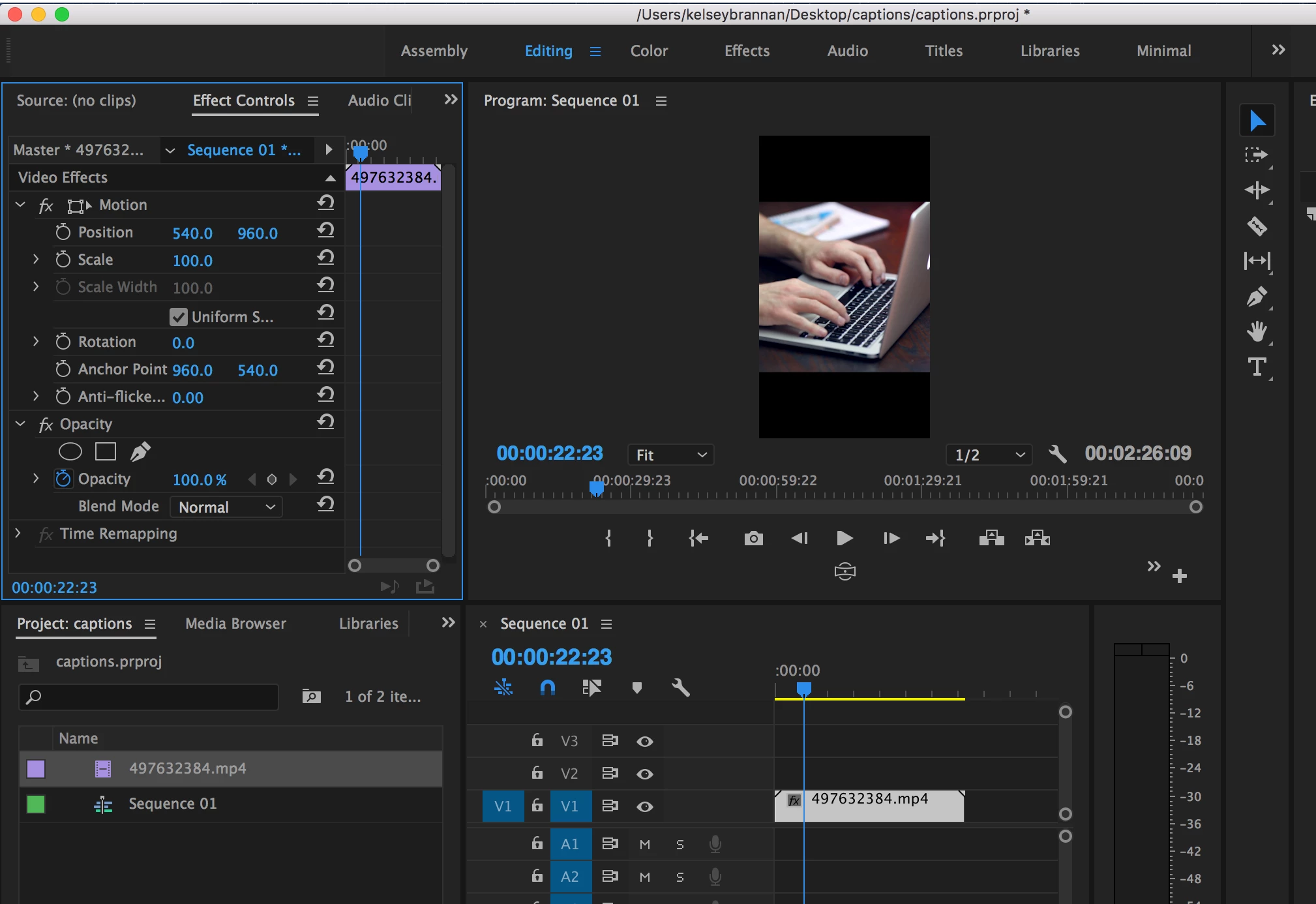
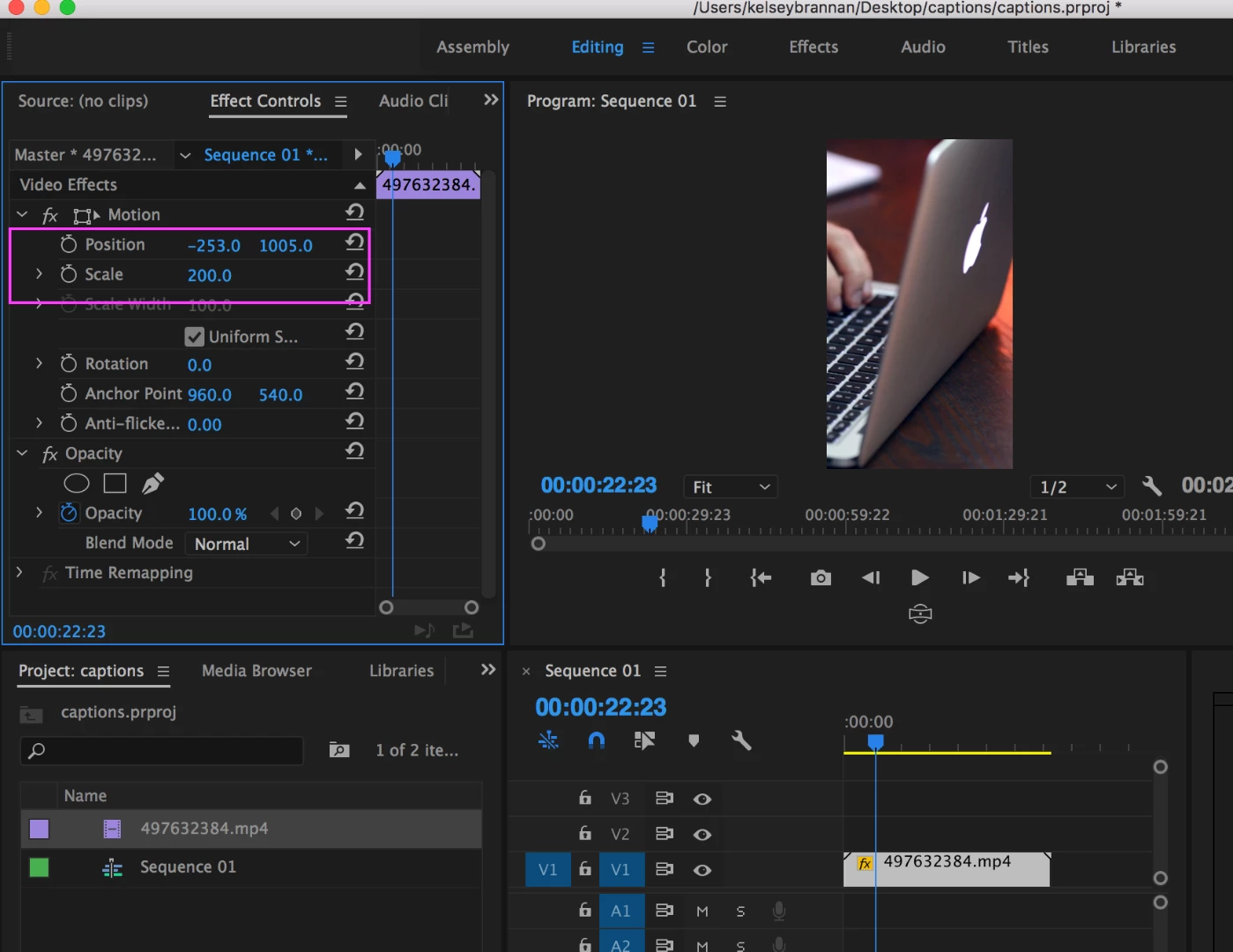
    4.  You then will see your video you need to adjust the position and scale of the video under Effects controls to reposition the video to fill the frame.
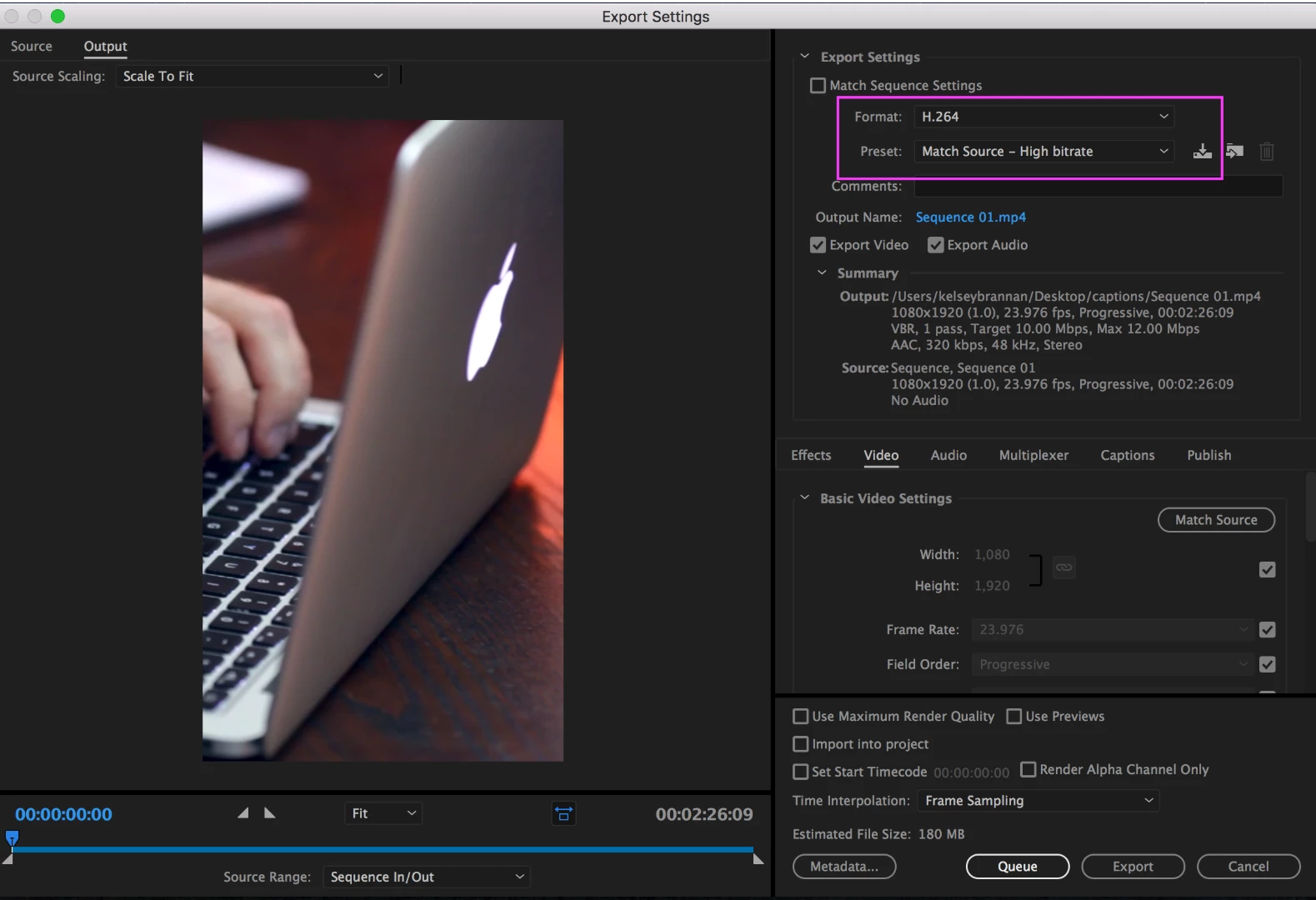
    5.  Then once you get all your clips in place following the above step, go up to File > Export > Media... And you can keep it at Match Source- High Bitrate. Then hit export, you should be good now!

    2 replies

    premieregal
    Community Expert
    premieregalCommunity ExpertCorrect answer
    Community Expert
    June 14, 2017

    Hi BobMarley  - I have just the solution. Follow these 5 steps (below) and you will be well on your way to exporting your portrait video.  Let me know if it was helpful and correct. Cheers! - PremiereGal

    1. First create a new sequence with custom dimensions of 1080 horizontal x 1920 vertical. After you create a new sequence, select, a 1080p preset, such as DSLR 1080p 24 fps, then hit the settings tab, here change the dimensions to be portrait. See screenshot, then hit okay.

    2. You will now see that your sequence is in portrait mode.

    3. Drag your video into the sequence, be sure to click on "Keep existing settings" when prompted.

    4.  You then will see your video you need to adjust the position and scale of the video under Effects controls to reposition the video to fill the frame.

    5.  Then once you get all your clips in place following the above step, go up to File > Export > Media... And you can keep it at Match Source- High Bitrate. Then hit export, you should be good now!

    Ann Bens
    Community Expert
    Community Expert
    June 13, 2017

    Just set the framesize to 1080x 1920 instead of 1920x1080 in the sequence setting.

    BobMarleyAuthor
    Participant
    June 13, 2017

    but when i export the video on the left and right is filled with black

    kulpreet singh
    Inspiring
    June 13, 2017

    Hi BobMarley,

    You need to scale your footage in 1080 x 1920 sequence to get rid of those black bars.

    Thanks,

    Kulpreet Singh