


Inspiring
December 21, 2021
Answered

How to hide or disable buttons on home page

  • December 21, 2021
  • 24 replies
  • 1576 views

Hi Everyone.


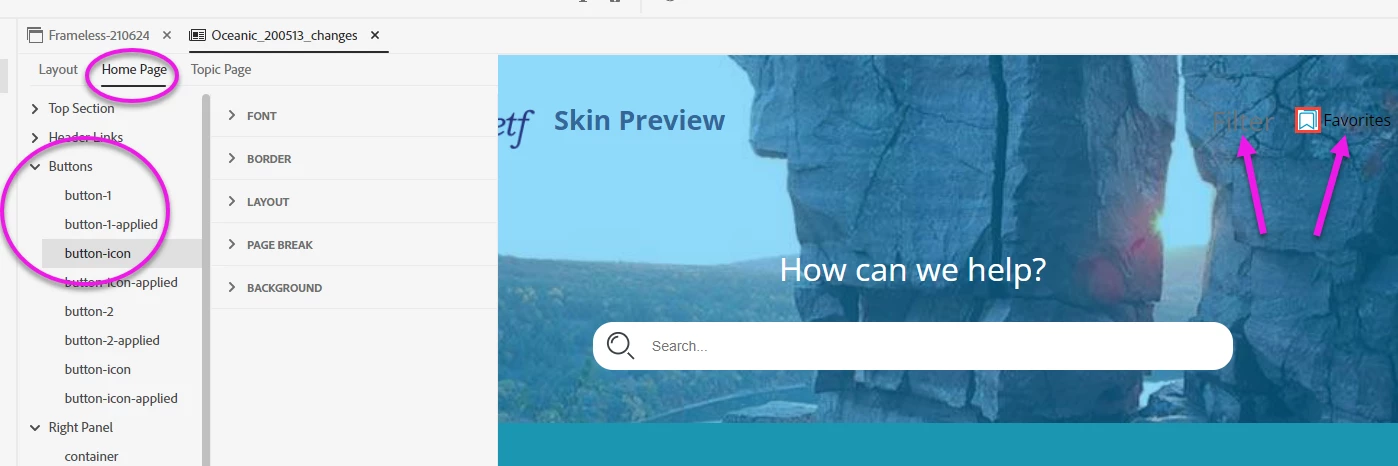
We don't want the buttons of our skin to appear on the home page. I've looked all over the skin editor (see screenshot). But I don't see any way to hide or disable the buttons.


Is there any way to do this?


Thank you!


SCREENSHOT:


    This topic has been closed for replies.
    Correct answer Amebr

    I don't have RH2020 right now, but check there isn't anything in the Output Preset (unlikely but worth checking) or on the Skin > Layout tab.


    Assuming nothing there, try selecting "button-x", expanding Layout and setting Display to 'none'. (Working off screenshots and guesswork - hopefully reasonably accurate guesses 😛  )

    24 replies

    Inspiring
    December 22, 2021

    Thank you, Amber, John, and Peter.


    I've gone with Amber's solution b/c I don't want the area to be clickable. So I'm glad you all have given me solutions for both hiding and removing. Thank you!


    What's left now is the filter:


    Can you please tell me how to do two things with the filter:


    1. How to remove the filter
    2. How to adjust the filter's appearance (in case we decide to keep the filter on the home page)


    If we keep it, we'll want the text to show better on this dark background.


    Thank you!


    Peter Grainge
    Community Expert
    Community Expert
    December 22, 2021

    @johndaigle's solution will work but I think the area will still be clickable. What @Amebr is referring to is this option.


    ________________________________________________________
    See www.grainge.org for free Authoring and RoboHelp Information

    Use menu (bottom right) to mark as Best Answer or to Highlight particularly useful replies. Found the answer elsewhere? Share it here.
    johndaigle
    Legend
    December 22, 2021

    I think you're getting close, Martin. Try this.

    The idea is to delete the default button images in the template under the Skin Editor Home Page tab.

    For example:

    Open Home Page  > Buttons > button-icon (under button-1-applied)

    From the right, scroll down to the Background section > Image Path and delete the homepage-bookmarks.svg graphic, 

    homepage-bookmarks-applied.svg, etc. and continue for each Home Page default Image.

    Click Save. Create an Output Preset and specify the newly edited Skin. Generate and test.

    Here are before and after screen shots.

    Here is the generated Home Page after editing the Skin.


    John DaigleAdobe Certified RoboHelp and Captivate InstructorNewport, Oregon
    Community Expert
    December 22, 2021

    @johndaigle do you have some time to try out my suggestion using button-1 as an example? (I don't currently have access to RH2020.) If it works it will get around a problem I remember being mentioned, where the link still exists and is clickable, you just can't see it without hovering the mouse over it.

    AmebrCommunity ExpertCorrect answer
    Community Expert
    December 21, 2021

    I don't have RH2020 right now, but check there isn't anything in the Output Preset (unlikely but worth checking) or on the Skin > Layout tab.


    Assuming nothing there, try selecting "button-x", expanding Layout and setting Display to 'none'. (Working off screenshots and guesswork - hopefully reasonably accurate guesses 😛  )