


Inspiring
December 21, 2021
Answered

How to hide or disable buttons on home page

  • December 21, 2021
  • 24 replies
  • 1576 views

Hi Everyone.


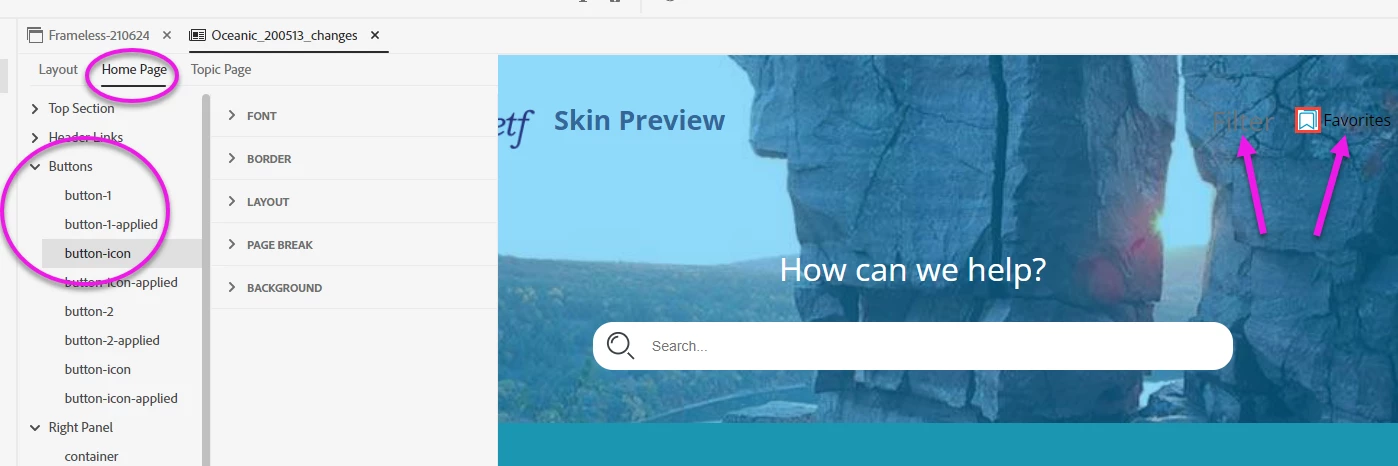
We don't want the buttons of our skin to appear on the home page. I've looked all over the skin editor (see screenshot). But I don't see any way to hide or disable the buttons.


Is there any way to do this?


Thank you!


SCREENSHOT:


    This topic has been closed for replies.
    Correct answer Amebr

    I don't have RH2020 right now, but check there isn't anything in the Output Preset (unlikely but worth checking) or on the Skin > Layout tab.


    Assuming nothing there, try selecting "button-x", expanding Layout and setting Display to 'none'. (Working off screenshots and guesswork - hopefully reasonably accurate guesses 😛  )

    24 replies

    Community Expert
    January 26, 2022

    In the output, right-click on the filter icon and select Inspect. The relevant code for the icon will be selected in the developer tools. If a div tag is selected, check the class for "button-x". If a div isn't selected, look for its parent div and that should have a class that includes "button-x" (button-0, button-1, etc). That's the button style you could try adding to the skin.


    If you're still unsure or can't see anything that looks right, post another screenshot like your first one with the dev tools window. (Sorry, it can be hard to be precise with the dev tools, depending on what people click on and different outputs and versions of RH. 🙂 )

    Inspiring
    January 25, 2022

    Hi Amber.


    Thanks so much for this!! I understand your instruction.


    But here's what the developer tools show. Can you please help me understand what we're looking at -- and how it correlates to Skin Editor controls?


    ENLARGED:


    ENLARGED:


    Thank you!!!


    Inspiring
    December 22, 2021

    When I click Button-1, Favorites gets highlighted.


    When I click Button-2, nothing gets highlighted.


    Thanks for that -- I'll ask Adobe Support if they can return the buttons to default settings.


    John, thank you for the link to the Skin Editor Documentation.

    Community Expert
    January 24, 2022

    If you use the developer tools to inspect the output you should be able to find out what style of the Favourites button is. For example, maybe it's button-3, but for whatever reason the skin editor has gotten confused. Theoretically then you would add the correct name back in the skin editor and you'd be good to go.

    Peter Grainge
    Community Expert
    Community Expert
    December 22, 2021

    Click on button 1 and then button 2. What do they highlight in the skin editor? 


    I can't see how Support have any more chance of knowing what you did but the might be able to get those settings back to default. 

    ________________________________________________________
    See www.grainge.org for free Authoring and RoboHelp Information

    Use menu (bottom right) to mark as Best Answer or to Highlight particularly useful replies. Found the answer elsewhere? Share it here.
    Inspiring
    December 22, 2021

    Oh, you're right, Peter, a fresh Oceanic also has the filter as Button 2.


    I hear you re. not having much chance if I can't remember what I did. Do you think Adobe Tech Support would have any chance?

    Peter Grainge
    Community Expert
    Community Expert
    December 22, 2021

    In a new orange skin, button 2 is the filter. If you click on it in the settings, the filter image is highlighted. If you have somehow changed things and can't remember how yourself, I don't think we have much chance. 🙂


    ________________________________________________________
    See www.grainge.org for free Authoring and RoboHelp Information

    Use menu (bottom right) to mark as Best Answer or to Highlight particularly useful replies. Found the answer elsewhere? Share it here.
    Inspiring
    December 22, 2021

    Hi, again, Everyone.


    I've remembered something hugely important. Early on, I felt I wanted the filter on the home page. (The default skin has two home page buttons, neither of which is the filter.) At that time I found a way to replace Button-2 with the filter on the home page. But I have no idea how I did that.


    My current need is simply to control the filter on the home page -- change its font color or delete the filter if we decided we no longer want it. However, the button-2 controls do not affect the filter in any way.


    Thank you.

    Inspiring
    December 22, 2021

    Thanks, again, for all your help, Everyone.


    I think I might have a unique situation:  Neither of the button controls (button-1, button-2) corresponds to my Filter. 


    • Button-1 corresponds to Favorites (Screenshot 1)
    • Button-2 does not correspond to Filter.
      • I've changed the font color to pink, but the change does not show up in either the Preview (Screenshot 2) or the generated output (Screenshot 3).


    NOTE:  I have a vague memory of changing the sequence of the button controls. I don't remember why. Notice that, of the two buttons (Filter, Favorites), Button-1 controls the one on the right. Wouldn't a stock skin editor assign Button-1 to the one on the left?


    SCREENSHOT 1


    SCREENSHOT 2 (skin preview)


    SCREENSHOT 3 (output in browser)


    Peter Grainge
    Community Expert
    Community Expert
    December 22, 2021

    If you delete it from the skin settings, to the best of my knowledge the image remains in the skins folder in your project, it simply isn't used.


    Use a good search tool on your local drives to find instances of such files.

    ________________________________________________________
    See www.grainge.org for free Authoring and RoboHelp Information


    Use menu (bottom right) to mark as Best Answer or to Highlight particularly useful replies. Found the answer elsewhere? Share it here.
    johndaigle
    Legend
    December 22, 2021

    Right, Peter. For me and my test project, "No_Home_buttons", I found the ingredients here:

    C:\Users\daigl\Documents\My RoboHelp Projects\No_Home_buttons\publish\skins

    Warning though. SVG graphics are cool but not very friendly for viewing in File Explorer. It's an acquired taste 🙂 and a deeper understanding of CSS and even Javascript is required if you really want to trick out your Skins.


    John DaigleAdobe Certified RoboHelp and Captivate InstructorNewport, Oregon
    Peter Grainge
    Community Expert
    Community Expert
    December 22, 2021

    @johndaigle No Home Buttons is the name of your project and skins is where the images in question are in your project. That's what I was pointing to.

    ________________________________________________________
    See www.grainge.org for free Authoring and RoboHelp Information

    Use menu (bottom right) to mark as Best Answer or to Highlight particularly useful replies. Found the answer elsewhere? Share it here.
    Inspiring
    December 22, 2021

    PS:  Here's a question related to John's solution. John's solution involves deleting the graphics file from the button (Background section > Image Path and delete the homepage-bookmarks.svg graphic, homepage-bookmarks-applied.svg).  Where do we get those graphics, such as the "homepage-bookmarks-applied.svg"?  


    Is there a library of these graphics files somewhere? I ask in case we need to change the graphic or icon, for a dark vs. light background, for example?


    Thanks!


    johndaigle
    Legend
    December 22, 2021

    Thanks to Amber and Peter for their enhancements. Deleting references to the images and selecting "none" as Amber suggests works for me and I find no clickable ghost links :-).

    I'm enroute to family holiday gatherings now, but here is a screenshot of what I think you want for Font color change should you elect to include Favorites and/or Filters in a different scheme. I changed all the Font color for all the buttons as a test (with magenta!) and it works for me.

    I have to ring off now, but you may also want to take a look at this online help page with a bit (not enough) documentation on the Skin Editor. https://helpx.adobe.com/robohelp/using/frameless-skin-editor.html


    Thanks and Happy Holidays.

    john

    John DaigleAdobe Certified RoboHelp and Captivate InstructorNewport, Oregon
    johndaigle
    Legend
    December 22, 2021

    One more thing. I noticed that on occasion, the Skin Editor can be contrary and replace default button graphics after having deleted them and saved them. So be aware of that in case a gremlin creeps in.

    John DaigleAdobe Certified RoboHelp and Captivate InstructorNewport, Oregon