



How to Map a multilevel List in Word with a multilevel List in RoboHelp
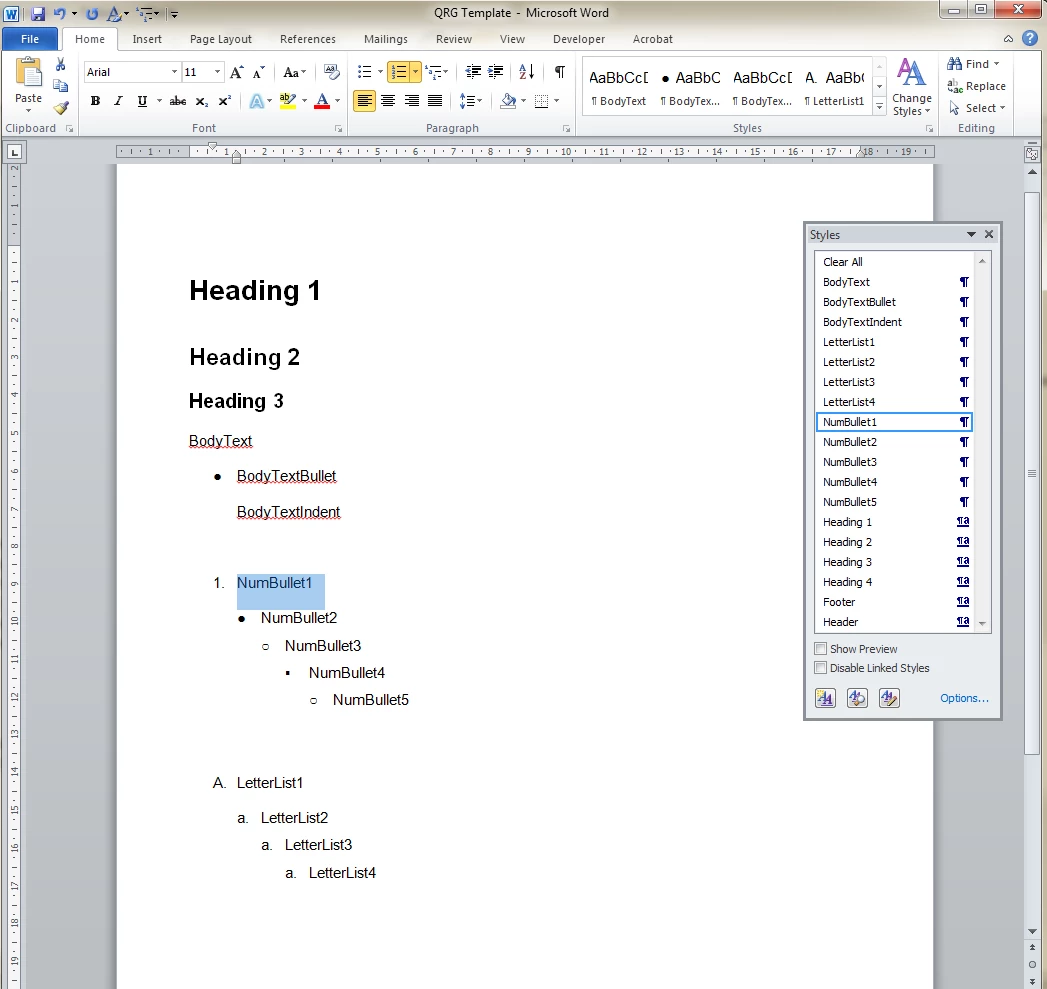
1. First of all make a clean simple Word template. To do that,
- Modify the default paragraph styles that you cannot delete them, like Headings,
- Create new paragraph styles for each line of your multilevel list/s and name them rationally (don't make list style, just for each level of your multilevel list define an individual paragraph style),
- Delete the extra paragraph styles you don't need them (for those you cannot delete it's better to remove from Quick Style List).
So at the end you will have something like this:
2. Now in RoboHelp:
- Modify the default CSS sheet or create a new CSS and define all the paragraph styles you need and are NOT part of the multilevel list like Headings and Normal. You can do it by modifying those styles that already built or by creating new styles. It is better to use the same names you used in your Word template (other wise there might be problems in auto mapping later so you need to map them manually). It's not necessary to have exactly the same characteristics for styles with the same name in Word template and RoboHelp, for example the size of Heading 2 can be chosen different in RoboHelp in comparison to Word or the amount of indentations and so on, but the names of the compatible paragraph styles better to be exactly the same.
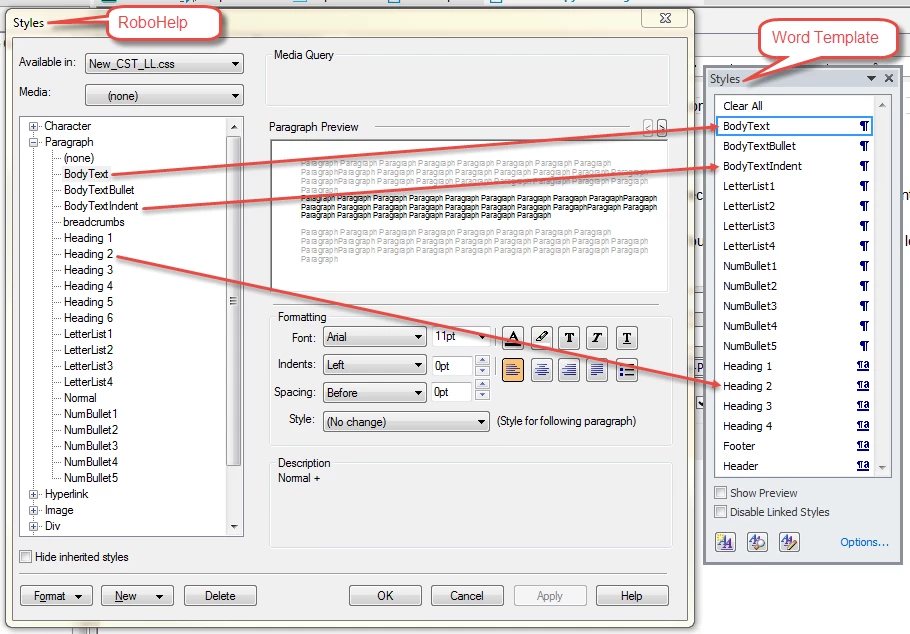
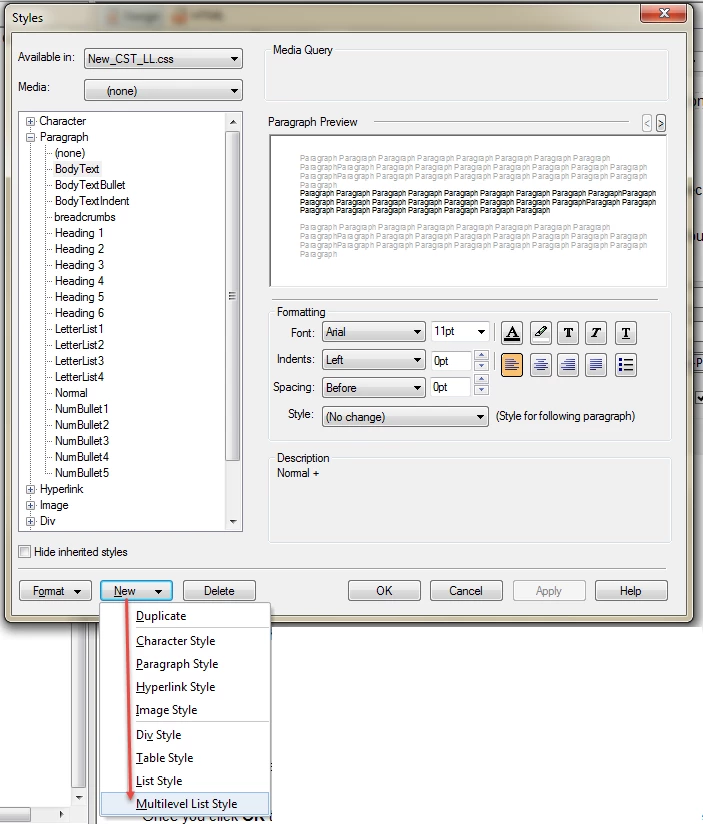
- Then make a new multilevel list:
- Give it a new name and define the characteristics of each level (numbering style, indentations amount, dot or parenthesis after, etc.).
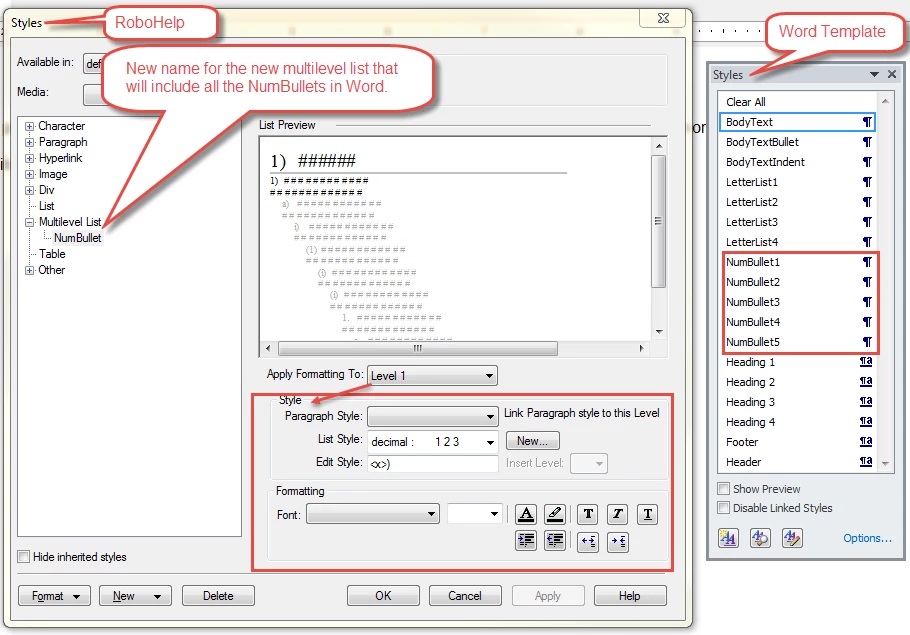
- When you finished your multilevel list, start creating new paragraph styles for each level of your multilevel list. Names these paragraph styles exactly the same name you used in Word. For bulleting and indentation, you need to match them with the levels of your multilevel list as following:
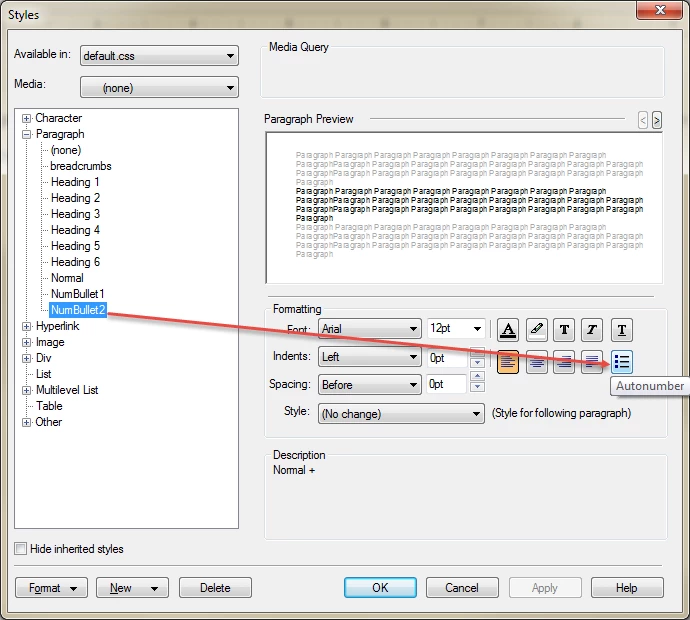
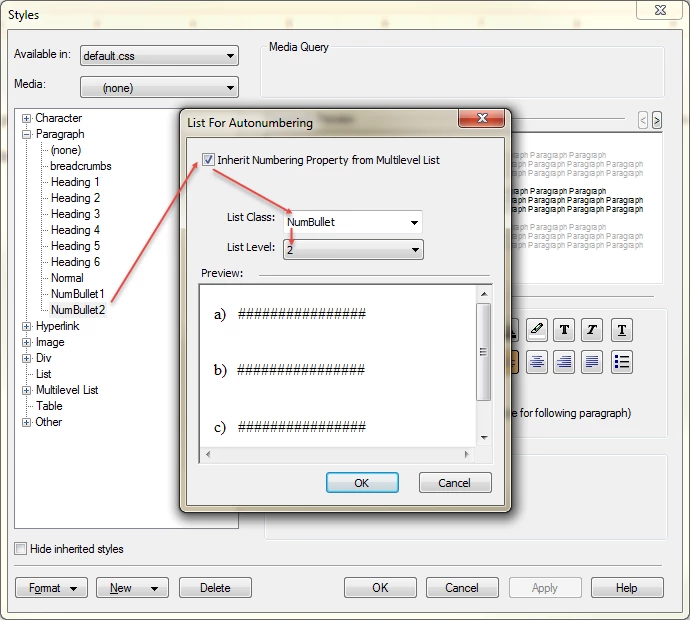
- So now you have a multilevel list that for each level you defined a paragraph style inherited the numbering property like this:
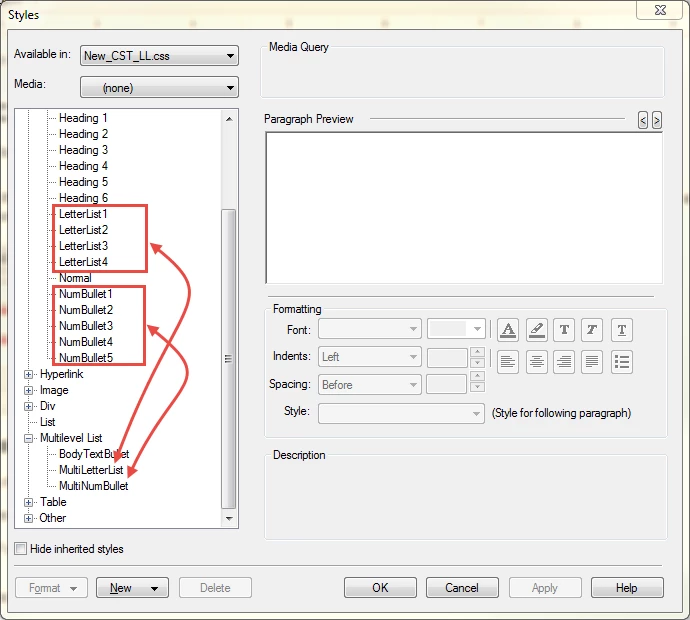
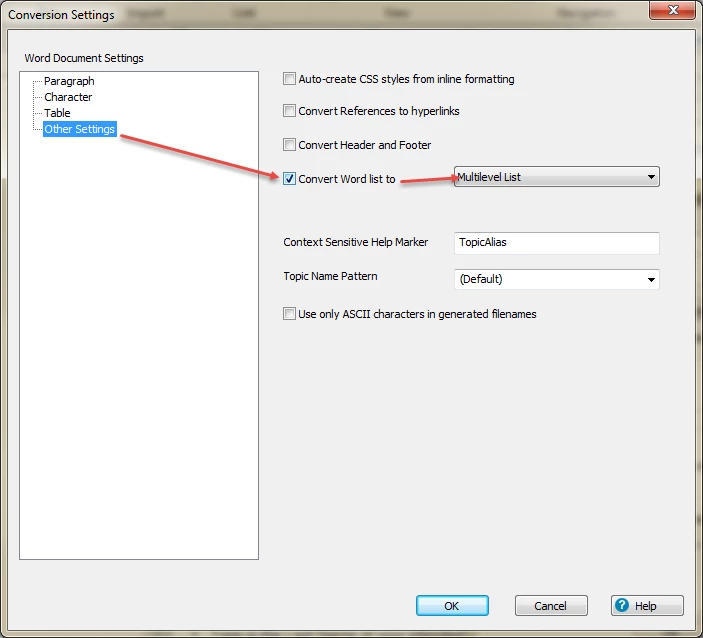
3. Now define Automap for paragraph styles,
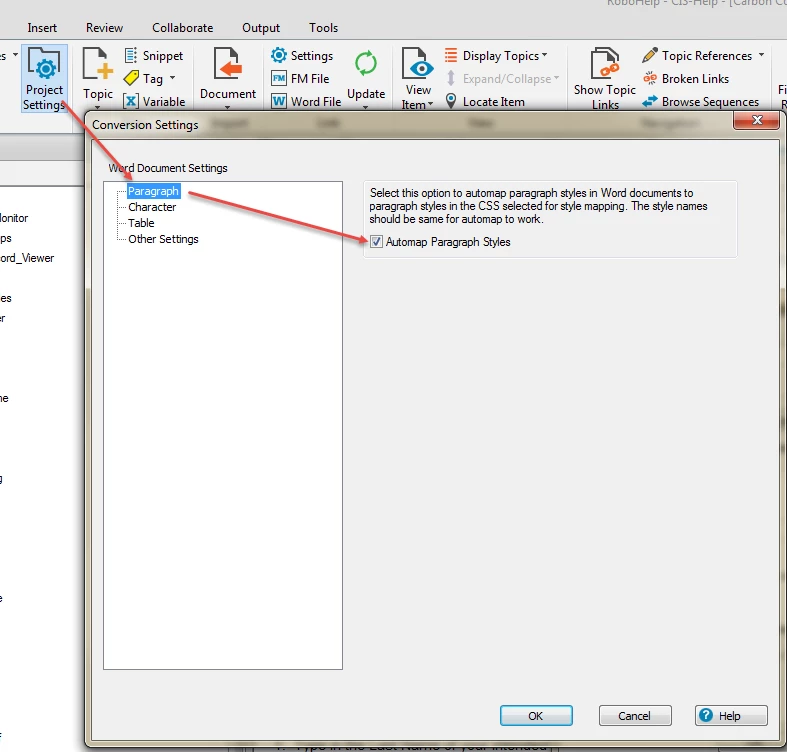
then for Other Settings choose Convert Word list to Multilevel List:
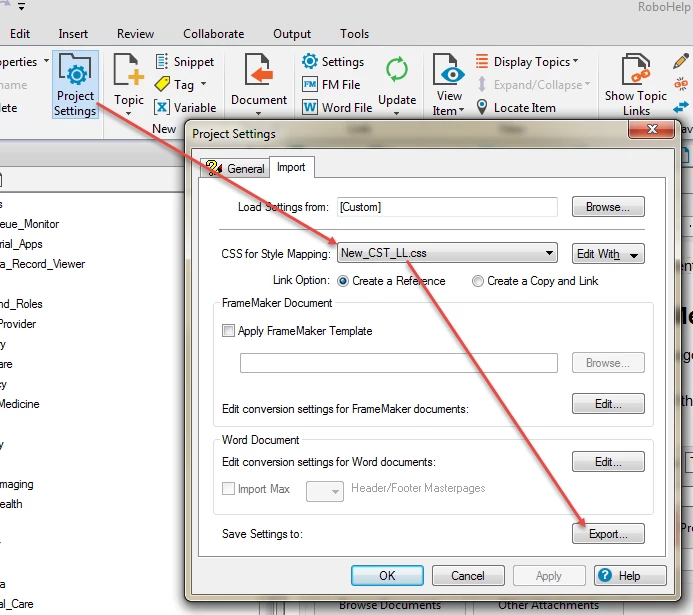
4. Now you need to define the mapping setting. Click Project Settings, choose your CSS for Style Mapping, then say Export:
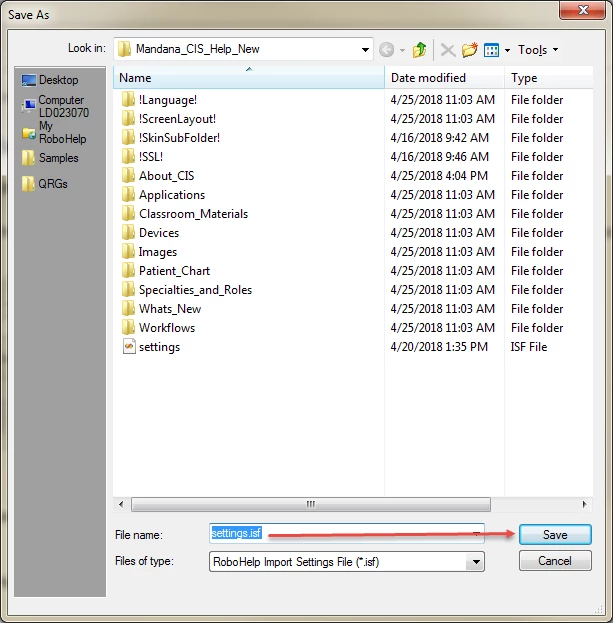
You can save it with the same name (settings) as a .isf file and overwrite it on the previous setting.isf by clicking Save, Yes, OK.
TADDAHH!
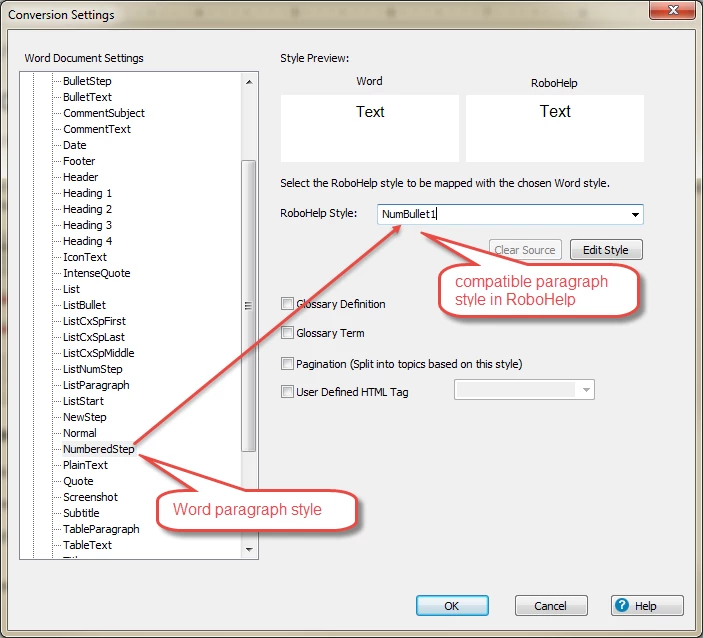
It's all done. Create your Word document based on your template, import it and allow RoboHelp to map it by automapping. If the paragraph styles in your Word template are not exactly in the same name of RoboHelp paragraph styles, during the import process Edit the mapping process manually (uncheck the automap, and for each Word paragraph style that RoboHelp found in your Word document determine the compatible RoboHelp paragraph style like the following):
Eager to have any feedback 
 AdChoices