Known Participant
March 22, 2021
Answered

Paragraph Styles Missing and Application Error after Upgrade to 2019 from Classic

  • March 22, 2021
  • 16 replies
  • 1779 views

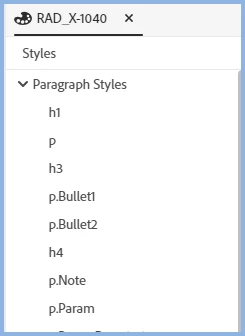
After upgrading from RoboHelp Classic to 2019, paragraph styles are missing and an Application Error appears that reads "The application has run into an error. Please save your unsaved changes and restart from menu: Help > Restart RoboHelp"

Any tips as to what's going on or what was done incorrectly? Thanks.

    This topic has been closed for replies.
    Correct answer Peter Grainge

    Solution.


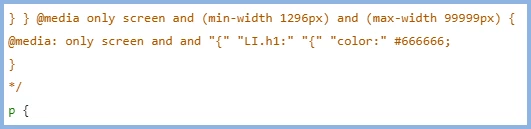
    Open the CSS in source view and locate the first @217338 only style. Prefix it as I have done with /* and the code for the rest of the CSS will change to the colour shown because that has commented it out.


    Next scroll down to where they stop just before the P tag and close that section with */.


    Save that and you will be able to go back to the CSS in author view and you will see your styles.


    Open a topic and you will also see them there.


    I'm guessing those media definitions don't meet CSS3 standards. Check your outputs to ensure they still work OK.

    ________________________________________________________
    See www.grainge.org for free Authoring and RoboHelp Information

    16 replies

    Peter Grainge
    Community Expert
    April 17, 2021

    This solution commented out the media styles definitions that contained syntax errors.


    If you find those styles are required you will need to fix those errors. The comment from Adobe in the bug report is "extra braces also min-width etc are missing semicolons after them. @media is not getting applied for first occurence in every series."

    ________________________________________________________
    See www.grainge.org for free Authoring and RoboHelp Information

    Help others by clicking Correct Answer if the question is answered. Found the answer elsewhere? Share it here. "Upvote" is for useful posts.
    Peter Grainge
    Community Expert
    March 24, 2021

    Wherever you told it to. 🙂


    Look in the preset and the output path should be there. If it is blank, then RoboHelp puts it in Documents > My RoboHelp Projects > Outputs.


    Best to create a path to where you want it.

    ________________________________________________________
    See www.grainge.org for free Authoring and RoboHelp Information

    Help others by clicking Correct Answer if the question is answered. Found the answer elsewhere? Share it here. "Upvote" is for useful posts.
    Known Participant
    March 24, 2021

    Got it. Thank you.

    Peter Grainge
    Peter GraingeCorrect answer
    Community Expert
    March 24, 2021

    Solution.


    Open the CSS in source view and locate the first @217338 only style. Prefix it as I have done with /* and the code for the rest of the CSS will change to the colour shown because that has commented it out.


    Next scroll down to where they stop just before the P tag and close that section with */.


    Save that and you will be able to go back to the CSS in author view and you will see your styles.


    Open a topic and you will also see them there.


    I'm guessing those media definitions don't meet CSS3 standards. Check your outputs to ensure they still work OK.

    ________________________________________________________
    See www.grainge.org for free Authoring and RoboHelp Information

    Help others by clicking Correct Answer if the question is answered. Found the answer elsewhere? Share it here. "Upvote" is for useful posts.
    Known Participant
    March 24, 2021

    The paragraph styles are showing up now! Thank you so much, Peter.

    With that problem solved, I tried to generate Responsive HTLM5 output. It says it generated successfully, but I can't find the result. Where does RH 2019 generate the output?

    Known Participant
    March 24, 2021

    Nevermind. I figured out the path set in the Preset. Thanks again.

    Peter Grainge
    Community Expert
    March 24, 2021

    If you create a new project and then add this CSS to it, does the same problem arise? If it does, then see the Contact page on my site and send the project as instructed there. Do make sure you include a link to this thread and please do not email the project direct.

    ________________________________________________________
    See www.grainge.org for free Authoring and RoboHelp Information

    Help others by clicking Correct Answer if the question is answered. Found the answer elsewhere? Share it here. "Upvote" is for useful posts.
    Community Expert
    March 23, 2021

    I think the stylesheet has to be applied to the topic for styles to show in the Properties panel. I have one set in the Project Settings for a test project, but the styles don't show up unless the stylesheet is defined per topic.


    To test, switch to Properties > Topic and check if a stylesheet is listed. If not, select one and you should see the styles in the Styles tab.


    If this works you can apply the stylesheet to all or a selection of topics using the Topic List report. Do scroll right to the bottom of the report before changing the properties, as from memory there's a bug where it will only select the currently displayed topics - so scroll to the bottom to make sure they're all "displayed".

    Community Expert
    March 23, 2021

    Oh never mind. I just saw your response about copying the old stylesheet in and getting a parse error.

    Known Participant
    March 23, 2021

    Thank you though, Amebr. I just tried your suggestion of switching to Properties > Topic and the desired style sheet is selected; however, when I switch to the Styles tab, there are still no Paragraph styles present.

    Peter Grainge
    Community Expert
    March 23, 2021

    Open the CSS in the RoboHelp editor again and switch to source view. I think it will show you where the errors are. 

    ________________________________________________________
    See www.grainge.org for free Authoring and RoboHelp Information

    Help others by clicking Correct Answer if the question is answered. Found the answer elsewhere? Share it here. "Upvote" is for useful posts.
    Known Participant
    March 23, 2021

    Thank you, Peter. I can view the html style sheet, but not sure I'm skilled/experienced enough at how Style sheets are supposed to look as I don't see any obvious errors. They may be there, but I'm not sure what to look for.

    Peter Grainge
    Community Expert
    March 23, 2021

    It shouldn't do any harm but create a copy of the project first. 

    ________________________________________________________
    See www.grainge.org for free Authoring and RoboHelp Information

    Help others by clicking Correct Answer if the question is answered. Found the answer elsewhere? Share it here. "Upvote" is for useful posts.
    Known Participant
    March 23, 2021

    Progress, but not out of the woods yet....I copied the .css file from the Classic project directory structure to the assets/css directory and it worked to some degree. The style sheet now shows up in the 2019 NewUI project and the fonts and formatting look correct in the 2019 NewUI topics, but there still are no paragraph styles in the Properties menu and I'm getting the message "Error. Failed to parse the stylesheet."

    Peter Grainge
    Community Expert
    March 23, 2021

    Double clicking it should open it like this and then you would click the icon shown.


    You could try using the three dot menu when hovering over the CSS and selecting Edit.


    If it is still blank that suggests something is wrong with the CSS. Click the Show in Explorer option and then open the file in a text editor to see what is in it.

    ________________________________________________________
    See www.grainge.org for free Authoring and RoboHelp Information

    Help others by clicking Correct Answer if the question is answered. Found the answer elsewhere? Share it here. "Upvote" is for useful posts.
    Known Participant
    March 23, 2021

    Yes, something's wrong with it as it's empty everywhere, including when I open it in WordPad from Explorer. The same .css from Classic is NOT empty when I open it in WordPad from its location.


    Any suggestions? Can I copy the .css from the Classic project to the 2019 location or does 2019 need it in a different format that the upgrade process didn't properly create? Thanks.

    Peter Grainge
    Community Expert
    March 23, 2021

    Try this path for the log.


    C:\Users\<user-name>\AppData\Local\Temp\RHTMP folder

    ________________________________________________________
    See www.grainge.org for free Authoring and RoboHelp Information

    Help others by clicking Correct Answer if the question is answered. Found the answer elsewhere? Share it here. "Upvote" is for useful posts.
    Peter Grainge
    Community Expert
    March 23, 2021

    Go to Assets > CSS and double click your CSS file. 


    What styles do you see there? Also look in Source View to see if that looks correct. It looks like something in your CSS didn't upgrade properly.

    ________________________________________________________
    See www.grainge.org for free Authoring and RoboHelp Information

    Help others by clicking Correct Answer if the question is answered. Found the answer elsewhere? Share it here. "Upvote" is for useful posts.
    Known Participant
    March 23, 2021

    When I go to Assets > CSS and double-click the CSS file, nothing displays in the authoring area - it's blank.


    In case it's helpful, the fonts in my topics are not the same as they were in my Classic project, so I suspect too that something is wrong with the CSS.


    How do I look in Source View?


    Thanks.