Inspiring
October 11, 2021
Answered

Rh2020.6.76 - Nested Numbering

  • October 11, 2021
  • 3 replies
  • 430 views

I am using Rh2020.6.76 version.  I have been using nested numbering for my technical documentation since January, 2021 without any issues.  That changed with the Version 6 update. I have 2 issues with list styles described below.


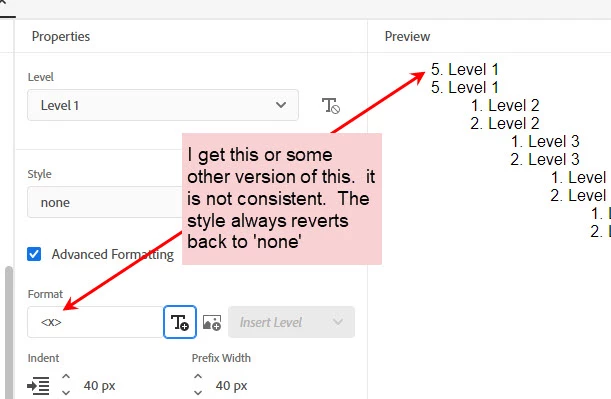
1st ISSUE: Today, I needed to create a new nested numbering scheme.  I duplicated the ol in my css to start manipulating the levels.  What I have found is this:

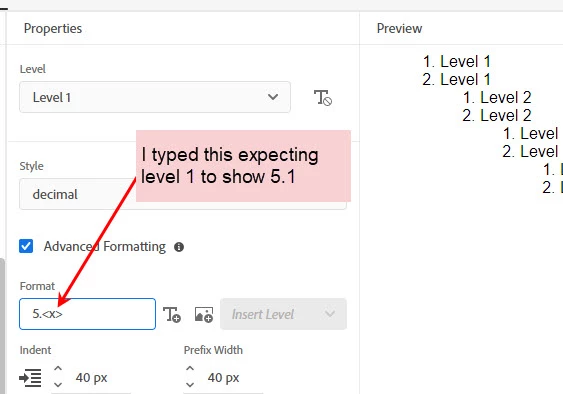
  • the style when changed to 'decimal' will revert back to 'none' after I hit tab
  • the numbering I try to begin with (example: 5.<x>), does not stay in the 'Format' box and will cause the <x> to become inactive.
  • the <x> will remain but you cannot edit it


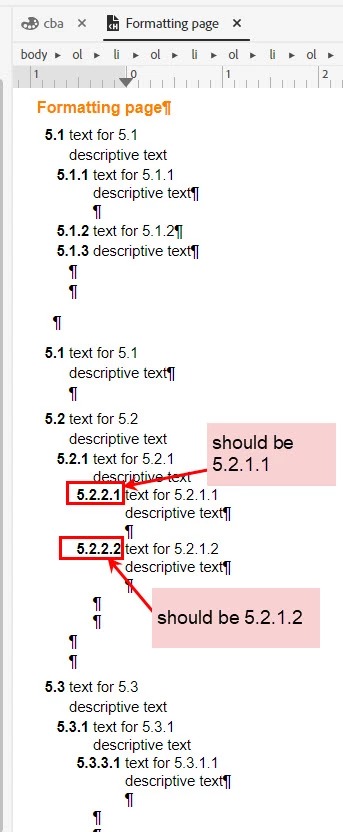
2nd ISSUE: As long as I do not edit my existing nested numbering styles, they continue to work properly until I go beyond Level 4. The issues begin with level 5.

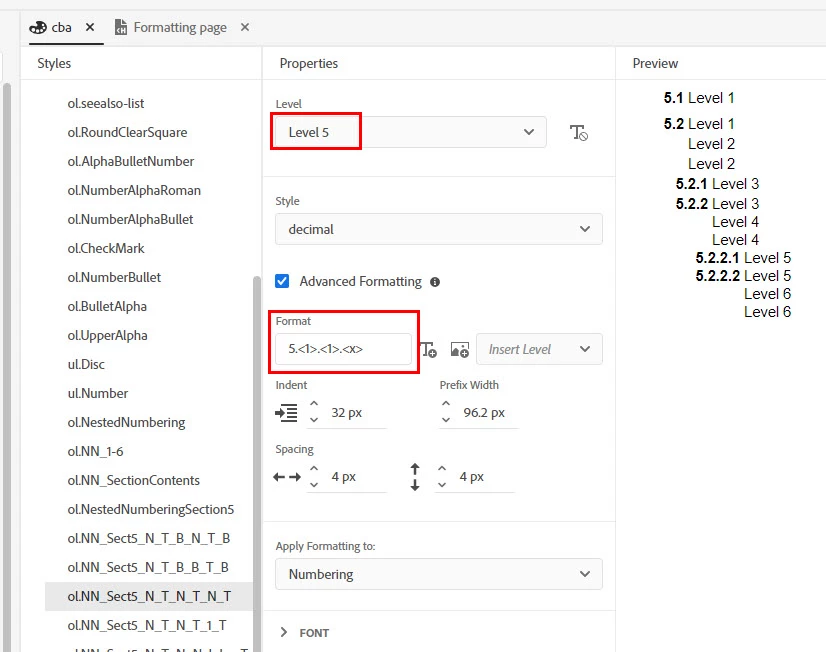
At Level 5, my numbering should appear as 5.2.1.1 (as shown in this image) but it appears as 5.2.2.1 which is incorrect.
 

Any suggestions?

    This topic has been closed for replies.
    Correct answer Peter Grainge

    I have been given details of a workaround for creating a new multilevel list.


    1. Create a new list style.
    2. In the UI click Advanced Formatting.
    3. Click the Increase Indent once to increase the indent.
    4. Now decrease to set it back to the default.
    5. Configure Level 1 as required.
    6. Change to Level 2 and click Advanced Formatting.
    7. Repeat Steps 2 to 4.
    8. Configure that level.


    It's the same for each level.


    As far as your wrong numbering is concerned, you have set that up incorrectly. Where you see <1><1> that should be showing <1><2>. I think you selected the wrong level to insert.

    ________________________________________________________
    See www.grainge.org for free Authoring and RoboHelp Information

    3 replies

    Peter Grainge
    Peter GraingeCorrect answer
    Braniac
    October 13, 2021

    I have been given details of a workaround for creating a new multilevel list.


    1. Create a new list style.
    2. In the UI click Advanced Formatting.
    3. Click the Increase Indent once to increase the indent.
    4. Now decrease to set it back to the default.
    5. Configure Level 1 as required.
    6. Change to Level 2 and click Advanced Formatting.
    7. Repeat Steps 2 to 4.
    8. Configure that level.


    It's the same for each level.


    As far as your wrong numbering is concerned, you have set that up incorrectly. Where you see <1><1> that should be showing <1><2>. I think you selected the wrong level to insert.

    ________________________________________________________
    See www.grainge.org for free Authoring and RoboHelp Information

    Help others by clicking Correct Answer if the question is answered. Found the answer elsewhere? Share it here. "Upvote" is for useful posts.
    Inspiring
    October 13, 2021

    @Peter Grainge - thank you for your help.  I will try that and will post the results.

    Peter Grainge
    Braniac
    October 12, 2021

    Maybe go into the topic code to remove any restart numbering?

    ________________________________________________________
    See www.grainge.org for free Authoring and RoboHelp Information

    Help others by clicking Correct Answer if the question is answered. Found the answer elsewhere? Share it here. "Upvote" is for useful posts.
    Inspiring
    October 12, 2021

    @Peter Grainge - Yes.  I can go into the code to remove the restart numbering.  Thanks.

    Peter Grainge
    Braniac
    October 12, 2021

    No suggestions at the moment as I have just created a new project with a new list and it is not working as I expected. I have contacted Adobe and will revert when I can.


    On the second issue, try Restart Numbering. Click in the list where it is wrong and you should see it top right in Content Properties. Not sure if that will work here but it's the only thing I can think of right now.


    I think what may be behind this is some changes had to be made as Firefox decided to interpret list styles in a different way to other browsers. That forced Adobe to make some code changes. They also hid some Advanced options to simplify things for users who only wanted more basic lists. That shouldn't have changed how the advanced options work when accessed but who knows.

    ________________________________________________________
    See www.grainge.org for free Authoring and RoboHelp Information

    Help others by clicking Correct Answer if the question is answered. Found the answer elsewhere? Share it here. "Upvote" is for useful posts.
    Inspiring
    October 12, 2021

    @Peter Grainge - Thank you for confirming the issue I was seeing with List Styles.  If you place a bug ticket, please let me know the number and I will vote on it.


    As far as Restart Numbering, I tried changing the numbering at different levels of my listing with no changes. 


    What I did find is that once you place a number in the “Content Properties > Restart Numbering at”, you cannot remove it.  I don’t remember if the previous versions was like this but it is a bit inconvenient if you make a mistake, save, and need to change it.  You have to set the list style to none and start over.


    My steps:

    My list style looks like this due to needing a line of text after a numbered line. 

    Levels 2, 4, & 6 are set to 'none' to allow me to type descriptive text.