


michellef1266897
Known Participant
April 11, 2019
Answered

RoboHelp 2019 Breadcrumbs and Project Image for WebHelp Output

  • April 11, 2019
  • 1 reply
  • 4164 views

Hi, I need help with setting up breadcrumbs for online help for another product.  In this case, we are working directly with the html files in an existing project that has been upgraded from RoboHelp 2015 to RoboHelp 2019 and for the most part looks great and works okay, but I have questions on how to get breadcrumbs set up.  I would like to have breadcrumbs on all topics.  This is what I've set up that hasn't quite worked yet.

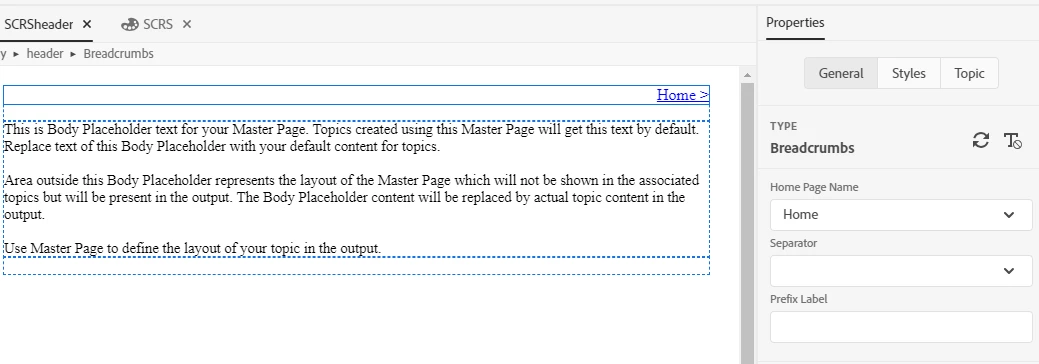
I created a Master Page that is Type = Breadcrumbs.
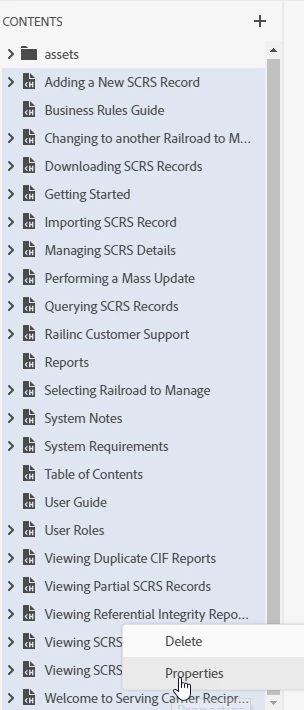
I selected all the topics and applied the Master Page to all of them:
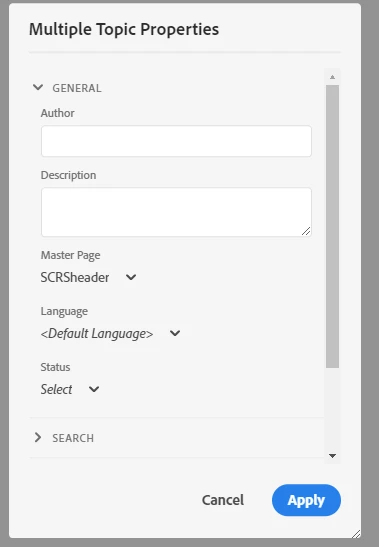
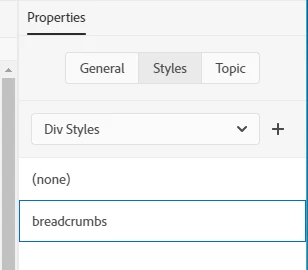
That didn't get me what I wanted, and I read this: RoboHelp 2019 - Miscellaneous  and added the Div Style:
This is the result. On the Home page, breadcrumbs look right, but have 2 issues.

  1. The Home link it creates doesn't take me back to this page as expected
  2. The breadcrumbs are not showing up on any of the other topics
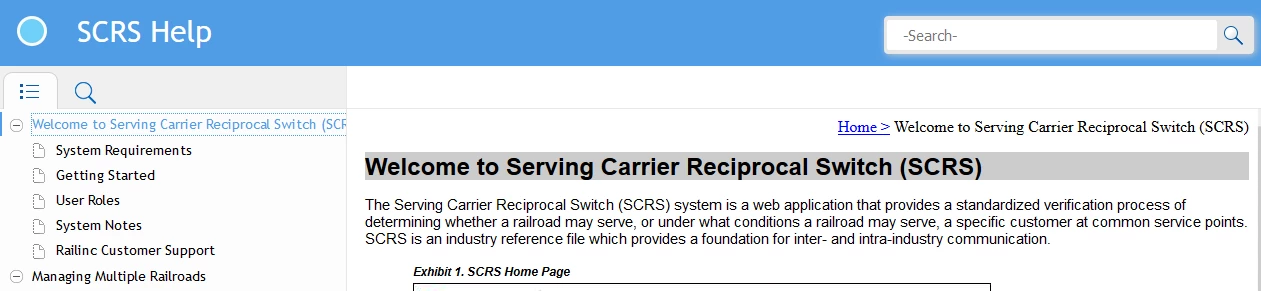
When I click Home, I see the generic info for the Master Page:

My next question is about the project image:  where the project title is in the blue section at the top (we are using Azure_Blue and this is close to what we used in the old version), is there a way to replace the lighter blue circle with our company logo or are we stuck with the circle?  I see where I can update the favicon, but not where I can update the circle image.

Thanks for your help!

This topic has been closed for replies.
Correct answer Peter Grainge

I've sent you a zip file of the project through wetransfer.com to your email address.


A couple of posts in the thread have been deleted as it was found the issue is somehow related to the TOC. In a new TOC without any books, everything works as it should.

The problem is still under investigation.


See www.grainge.org for free RoboHelp and Authoring information.

@petergrainge

1 reply

Peter Grainge
Community Expert
April 11, 2019

Use the Topic List and select all your topics there. There's a single checkbox at the top to select them all. I haven't tried selecting all topics the way you did so I'm not sure it works.

I will check out applying breadcrumbs shortly and post back.


See www.grainge.org for free RoboHelp and Authoring information.

@petergrainge

Help others by clicking Correct Answer if the question is answered. Found the answer elsewhere? Share it here. "Upvote" is for useful posts.
Peter Grainge
Community Expert
April 11, 2019
  1. I opened the supplied RoboHelp Reimagined sample project and created a Master Page called Breadcrumbs.
  2. Using the icons above the authoring area I added breadcrumbs and saved.
  3. I then went to the Topic List and selected all topics.
  4. I applied Breadcrumbs and saved.
  5. I previewed a topic and it looked OK.
  6. I then generated the output and it's working as expected.

To get the formatting right, you need to attach the CSS where you created the breadcrumbs to the master page. If you are using the same CSS for your topics, that will be OK. See the Master Pages topic in RoboHelp Reimagined or the RoboHelp Tour. Otherwise, open the master page and set the colour there.


See www.grainge.org for free RoboHelp and Authoring information.

@petergrainge

Help others by clicking Correct Answer if the question is answered. Found the answer elsewhere? Share it here. "Upvote" is for useful posts.
michellef1266897
Known Participant
April 15, 2019

What shows for master pages if you go to the Properties for one of the topics not showing the breadcrumbs?

The equivalent of Show in the new skins is currently broken. Adobe are aware and I expect it will be fixed soon.


See www.grainge.org for free RoboHelp and Authoring information.

@petergrainge


What i do notice is different is that the topics that begin with body > h1 are the ones that are showing the breadcrumbs, but any topics that begin with body > div > h2 > a  - these do not show the breadcrumbs.  What should I do to fix this, since we need the master page to work for both?

This is one that doesn't work:

This is one that works and any of the ones that work start out with body > h1: