


Participant
April 13, 2024
Answered

I did not select the "Created using generative AI tools" option.

  • April 13, 2024
  • 3 replies
  • 511 views

Hey Adobe Stock producers.

I sent the images I created with artificial intelligence to the editor for review.

But I did not select the "Created using generative AI tools" option. How can I fix this situation?
This topic has been closed for replies.
Correct answer Abambo

Delete, resubmit.


Do a copy of the title and the keywords, as those do not get saved somewhere.

3 replies

Abambo
Community Expert
AbamboCommunity ExpertCorrect answer
Community Expert
April 13, 2024

Delete, resubmit.


Do a copy of the title and the keywords, as those do not get saved somewhere.

ABAMBO | Hard- and Software Engineer | Photographer
KaanDemAuthor
Participant
April 13, 2024

Yes I saw it now. It took time to delete them one by one. But I got it done. 🙂

Abambo
Community Expert
Community Expert
April 13, 2024
quote

Yes I saw it now. It took time to delete them one by one. But I got it done. 🙂


By @KaanDem

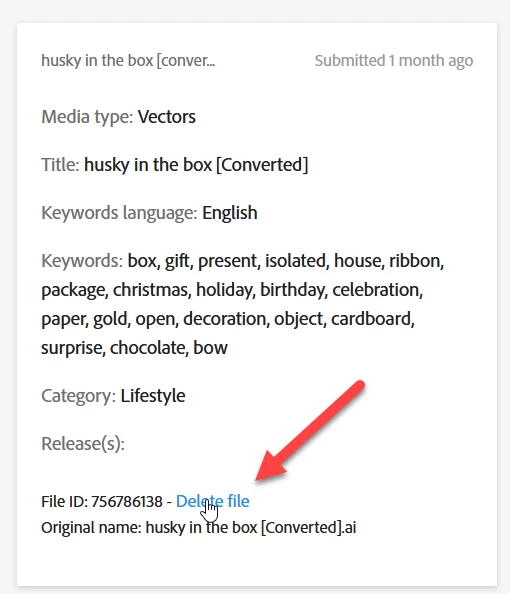
The link is “hidden” in plain sight. My first time I looked for a dustbin. It took me a while, before I got it. And it is indeed not thought to be user-friendly and allow for mass delete.

ABAMBO | Hard- and Software Engineer | Photographer
Nancy OShea
Community Expert
Community Expert
April 13, 2024

Remove & Resubmit with correct options checked.

If you leave it unchecked, it will probably get rejected for Non-Compliance. 


Nancy O'Shea— Product User & Community Expert
KaanDemAuthor
Participant
April 13, 2024

There is a delete option on the right. I saw now. I had to delete them one by one in the review section. This took some time. But I deleted it. Thank you very much.

Nancy OShea
Community Expert
Community Expert
April 13, 2024

You're welcome.

😊

Nancy O'Shea— Product User & Community Expert
daniellei4510
Community Expert
Community Expert
April 13, 2024

Delete the asset and resubmit.

Adobe Community Expert | If you can't fix it, hide it; if you can't hide it, delete it.
KaanDemAuthor
Participant
April 13, 2024

I sent the picture. In the "In Review" section. And there is no delete option.

daniellei4510
Community Expert
Community Expert
April 13, 2024

The delete link is on the right, at the very bottom. Reduce the size of you window if you can't see it.

Adobe Community Expert | If you can't fix it, hide it; if you can't hide it, delete it.