This topic has been closed for replies.

3 replies

Participating Frequently
July 11, 2019

I am having this problem too. Also, I get an auto save error, so I don’t want to quit to revert to the last auto save because I don’t know how much work I’ll lose. Team projects has been such a massive clusterfork the only reason I’m still using it is that I haven’t been able to train our other editors on resolve yet, but I’m working on it.

PeterELee
Adobe Employee
Adobe Employee
July 11, 2019

I'm sorry to hear you're having these problems. If you look in the Auto-Save history in the Media Browser, it will show you the time and date of each auto-save, which should give you some idea of how much work might be in jeopardy.


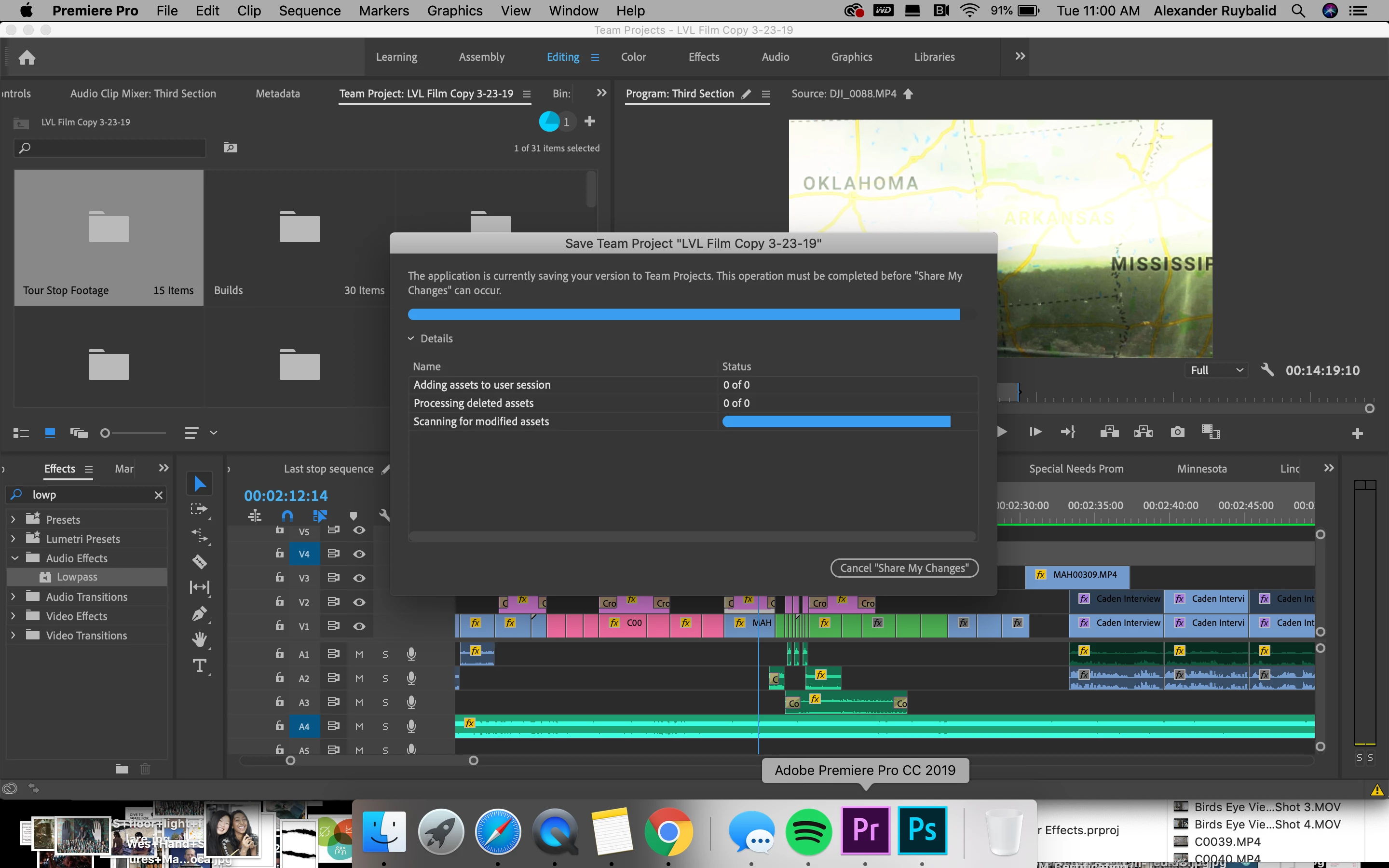
The system will warn you immediately if it detects an error that interfered with auto-saving, but it also monitors the process and will warn you if it has been more than five minutes since the last successful auto-save, even though no errors were detected. This can happen in some cases due to network performance issues, or the need to save a large number of new changes, for example. If you get that warning, the best thing to do is to stop editing until you see that the asterisk next to the Team Project name has gone away, indicating that the auto-save has completed. You can speed up the process by either closing the Team Project or hitting the Share button (even if you then cancel the share operation). Both of these actions bring up a progress dialog and allow auto-save to run much faster. It is not a good idea to continue editing until you have seen an auto-save complete successfully.

Note that the original message is about problems sharing changes. This is distinct from auto-save. Auto-save happens on your local workstation, regardless of whether you are connected to the internet. If you are connected, your latest auto-save is also uploaded to the cloud in the background. Sharing is when you merge your local changes with the shared copy of the Team Project in the cloud.

Participating Frequently
July 12, 2019

"If you look in the Auto-Save history in the Media Browser, it will show you the time and date of each auto-save, which should give you some idea of how much work might be in jeopardy"

That's a good tip.  Thanks for that.  But I think we're going to look for a different way to remotely collaborate. Adobe team projects are just too flaky.  Share for autosave, cancel to continue, and exit to revert are all pretty exemplar of the Team Project experience.  That, and like the other guy said, waiting six hours.  Or waiting six hours with a progress window open, then clicking cancel after seeing no progress, and discovering that cancel was the answer all along.  No thanks.

Participating Frequently
July 10, 2019

I'm seeing this three and four times a day and it's getting to a point that we are avoiding team projects all together.

Sure would like to see a fix.

PeterELee
Adobe Employee
Adobe Employee
July 11, 2019

When you say you're seeing this three or four times per day, does that mean that the share operation eventually completes on its own? What version of Premiere and/or After Effects are you using?

Participating Frequently
July 11, 2019

After opening the project I am usually able to share and auto save appears to work until a warning alert appears.  I know I am in trouble when I see the warning icon that says "Collaborators will appear offline because the presence service for "wwtttt2019"(this is the project name) is currently unavailable.  We will continue to retry the connection in the background."  After that sync or trying to close the project ends up with the error  alexanderr31337795​ has show above and after that no activity.  No saving.  No network traffic.  Pretty much a cancel is the only option.  

PeterELee
Adobe Employee
Adobe Employee
July 9, 2019

That's very strange -- it's saying that there are zero changes that need to be shared. Normally the share button is disabled in that case. If you make a trivial change, like creating an empty bin, then try sharing again, does it work?

Participant
July 10, 2019

No it does not work after any changes, edits, or time passing.

PeterELee
Adobe Employee
Adobe Employee
July 11, 2019

Hmm. If you're willing to share your project data with me (not the media, just the metadata describing the sequences, clips, and history), I'd like to see if I can find out what's gone wrong. I will PM you with details.

In the mean time, I would suggest trying to roll back to a previous auto-save, and see if you can share from there. You can do this from the Media Browser - browse to the Team Project you're seeing this issue with, then click on the Auto-Saves tab. Next, use the slider on the right side to scroll down to an auto-save from before you started seeing this problem. Finally, right-click on the name of the Team Project and choose "Make Auto-Save (...) the latest...". This does not delete any of the auto-saves that came after the one you chose - they are still in the history, but the "current" state will match the auto-save you chose. This may cause sharing to become "unstuck."