




Now in Beta: Send from Premiere on iPhone to Premiere Pro
Now you can start editing on your iPhone with the Premiere iPhone app and then continue in Premiere Pro on desktop. This new workflow connects mobile and desktop editing, giving you flexibility to shoot and edit on the go while still having access to all the professional tools in Premiere Pro.
How can you try it?
You can apply to test the new Premiere on iPhone by filling out this survey. You can also pre-order Premiere on iPhone on the App Store.
Adobe Premiere on iPhone
Next-level editing. Now in the palm of your hand. Quickly turn any idea into attention-grabbing content with amazing creative control, unique audio tools, and generative AI — and take your creativity on the go with Premiere on iPhone.
How does the workflow between Premiere on iOS and Premiere Pro work?
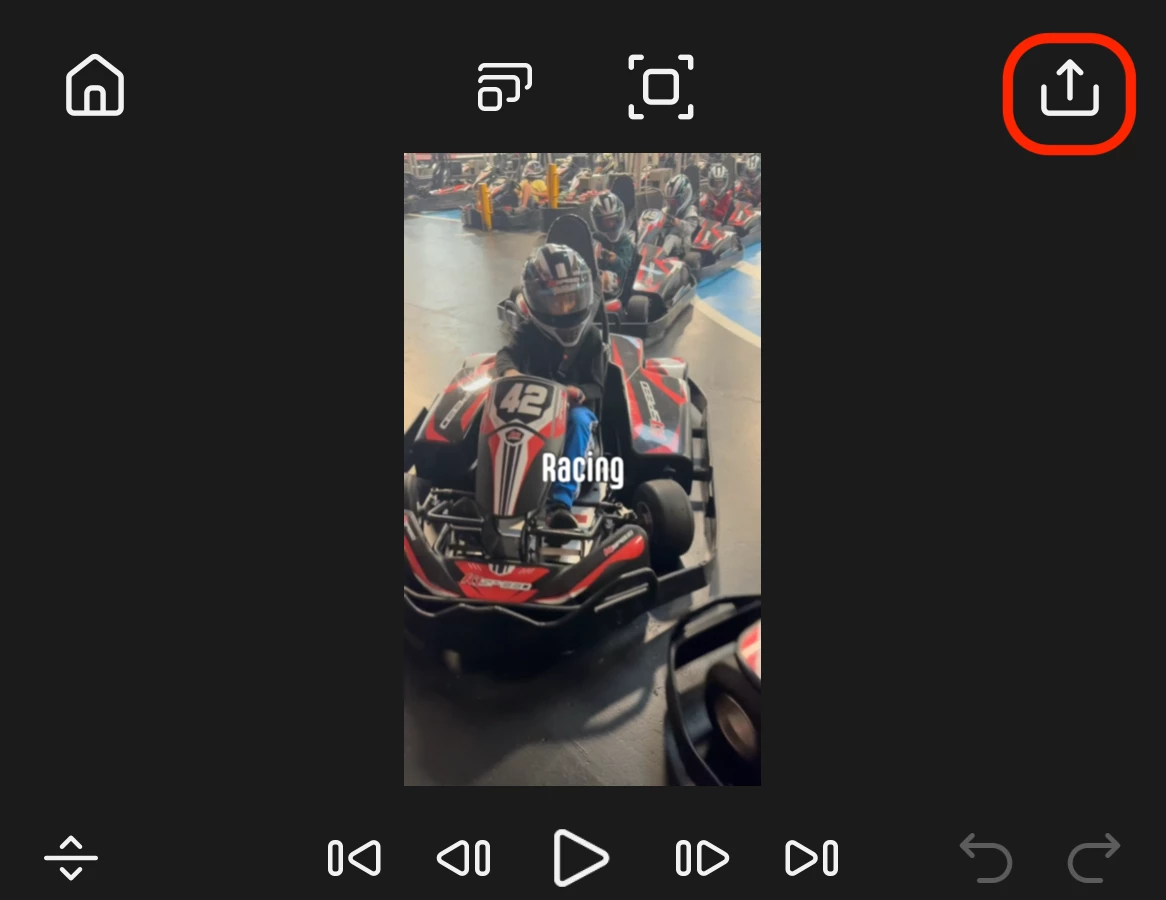
1. In Premiere on iPhone, go to Export:
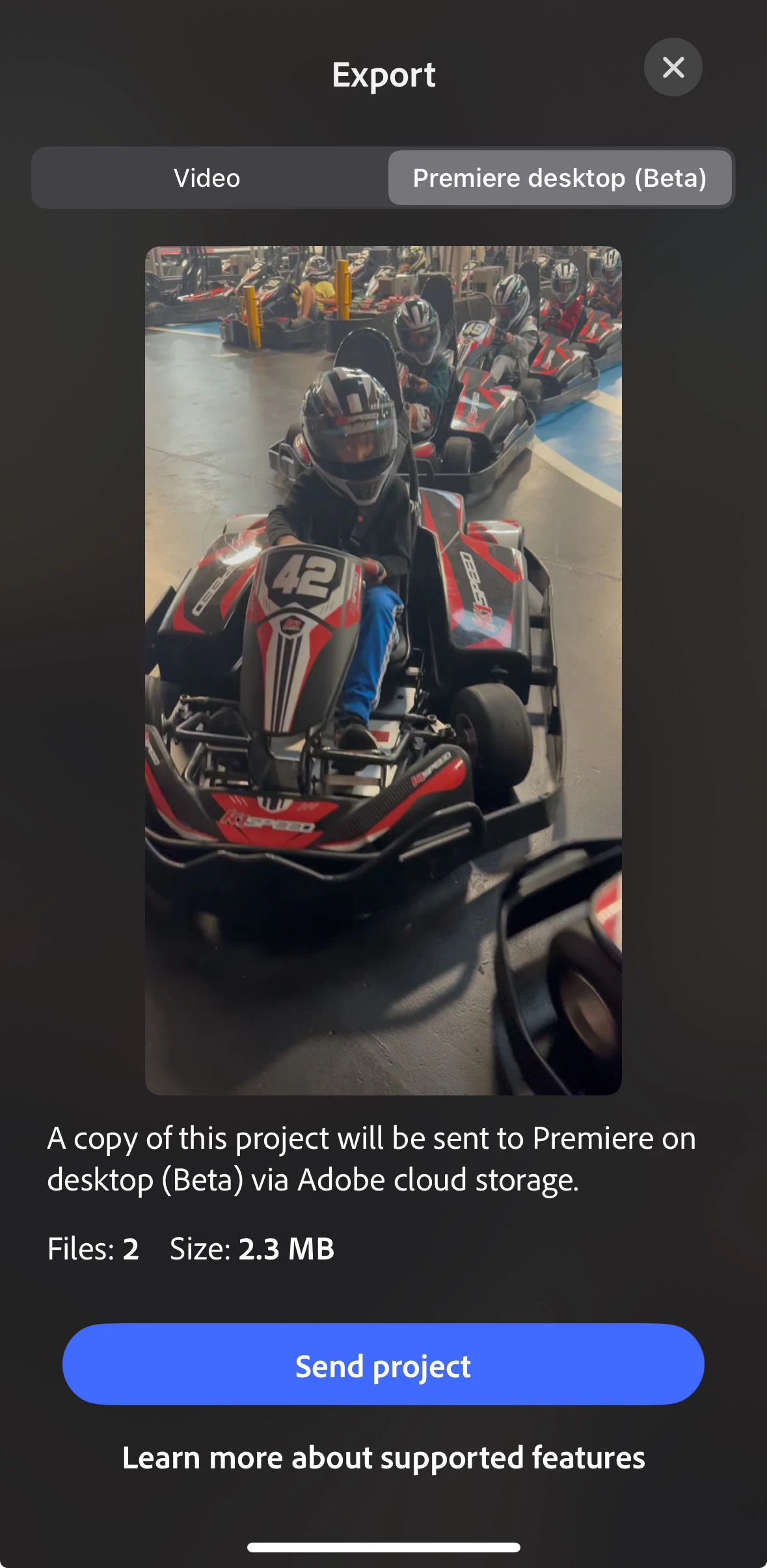
2. Select the Premiere desktop (Beta) Tab and tap Send.
3. Open Premiere Pro Beta (or if you already have it open), you will receive the following notification. Select Open and continue your edit in Premiere Pro. 
You can also access your sent Premiere on iPhone data from the File>Import>Import from Premiere on Mobile menu. The menu also allows you to check for new updates: 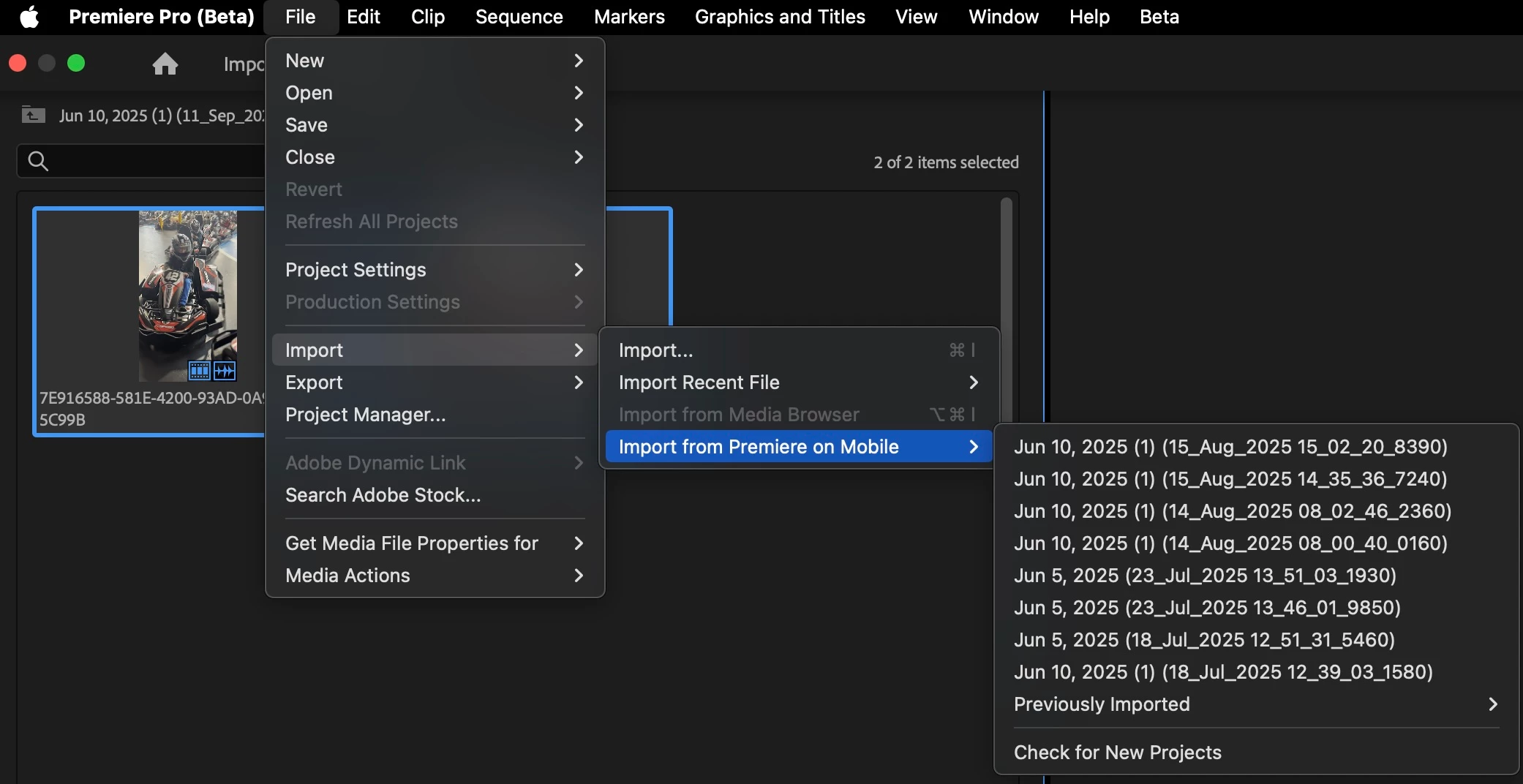
We would love your feedback on how this workflow fits into your editing process. Please try it and let us know what you think here in the comments.
Abhi Singh
Principal Product Manager, Premiere Pro
 AdChoices