


Participating Frequently
April 20, 2016

P: Export via PDF Presentation, it reverses the order of pages from what's displayed in the dialog

  • April 20, 2016
  • 27 replies
  • 4723 views


When I
drag & drop a PDF file into Photoshop , the page order will be like 5,4,3,2,1 so you have to put them in order ONE-by-One  ... that's a problem when you have like 500
pages  ...
it's in the PDF presentation menu
When you'd like to create a Multi-page PDF... it should be an option to put the imported PDF pages in the right order. The right order would be like 1,2,3,4,5.....etc.
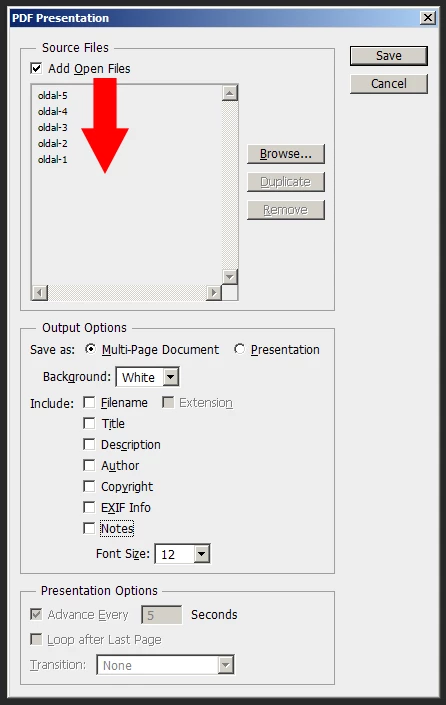


Somebody has the same problem in 2014 on your forum. Even R_Kelly couldn't aswer it :D:D Check it:

https://forums.adobe.com/thread/1526111?start=0&tstart=0

"in Photoshop cs6, I am working on a multipage pdf catalog. When I import or open the pdf in Photoshop, it reverses the order of page. for example: Page 4, Page 3, Page 2, Page1. And when i batch>automate pdf presentation, it save the pages in the wrong order. How do i get it to open and batch pdf presentation in the right order?"

This topic has been closed for replies.

27 replies

Inspiring
January 2, 2020
Still happening in PSE 2019, so the bad code still exists.
Inspiring
October 26, 2019
This problem does not exist in my PS 2015 version. I've just installed 2019 and it again creates PDF presentations in reverse file name order.  
TomWAAuthor
Participating Frequently
April 3, 2018


HUGE MISTAKE! = Photoshop CS6 reverse page order
when you Automate > create a .PDF presentation or
when you work with Batch, Actions

For example:
Drag and drop a .PDF file (has example 100 pages) into Photoshop CS6
and select the pages (for example 5 pages) you'd like to import (from the 100).
(another mistake that I can't import more than around 100 .PDF pages at the same time, because it's too much tabs for opening to the software...)
Now you have the .PDF pages (10 pages) imported into Photoshop CS6.
Let's say now you want to create a .PDF presentation as a multi-page .PDF document from these opened 10 pages.
You go to File > Automate > PDF Presentation...
And if you call in the opened 10 pages to the list... you will see that Photoshop does not care about the order,
so your list will not look like this >   1, 2, 3, 4, 5, 6, 7, 8, 9, 10
it's going to be something else like >    5, 4, 3, 2, 1, 7, 8, 9, 10
which is very annoying when you have like 500 pages in your .PDF file.
It's obvious that you will not put your 500 pages into the right order ONE-by-ONE.
It should have an option to set the pages into the right order by file name or the imported number of pages or SOMETHING.

This is a very amateur mistake that I wish will be changed in some next versions.
I don't know about the other versions. I only know CS6 version.
Try it with CS6 or try it with your actual version, but not only with 10 pages. Try it with a 200 page .PDF file.
You will see that it won't be in order (your tabs). Until a number of pages it keeps the order and above a number it does not for some reason. And it is very amateur to put them in order one-by-one...
I don't know if it's the same thing with inDesign and all the other softwares, but please change this mistake, because it's a very needed basic function, and way too amateur for a professional software to make it this way.
It is the same mistake when you work with Batch and run an Action... because you have your tabs opened in Photoshop CS6 in a REVERSED order, and so when you work with Batch and run your Action your images will be in the WRONG order too.

Amateur mistake from a professional software.
Legend
March 15, 2018
I was not able to reproduce with PS CC 2018 19.1.2 on macOS. I use 6 images to make a 6 page PDF and it was in the correct order.

What OS are you on? How many pages are in your PDF?
Inspiring
March 15, 2018
I choose the sort option in CC 2018. But the issue in PDF is in wrong order. The last page becomes the first page. How can I solve this Problem?
Legend
November 2, 2016
This has been changed to load in the preferred order. Please try this out in CC 2017: http://blogs.adobe.com/photoshop/2016/11/keep-creating-a-guided-tour-through-the-latest-photoshop-up...
Legend
April 20, 2016
I can repro. I'll see if this is something we can improve.