Participant
May 11, 2015

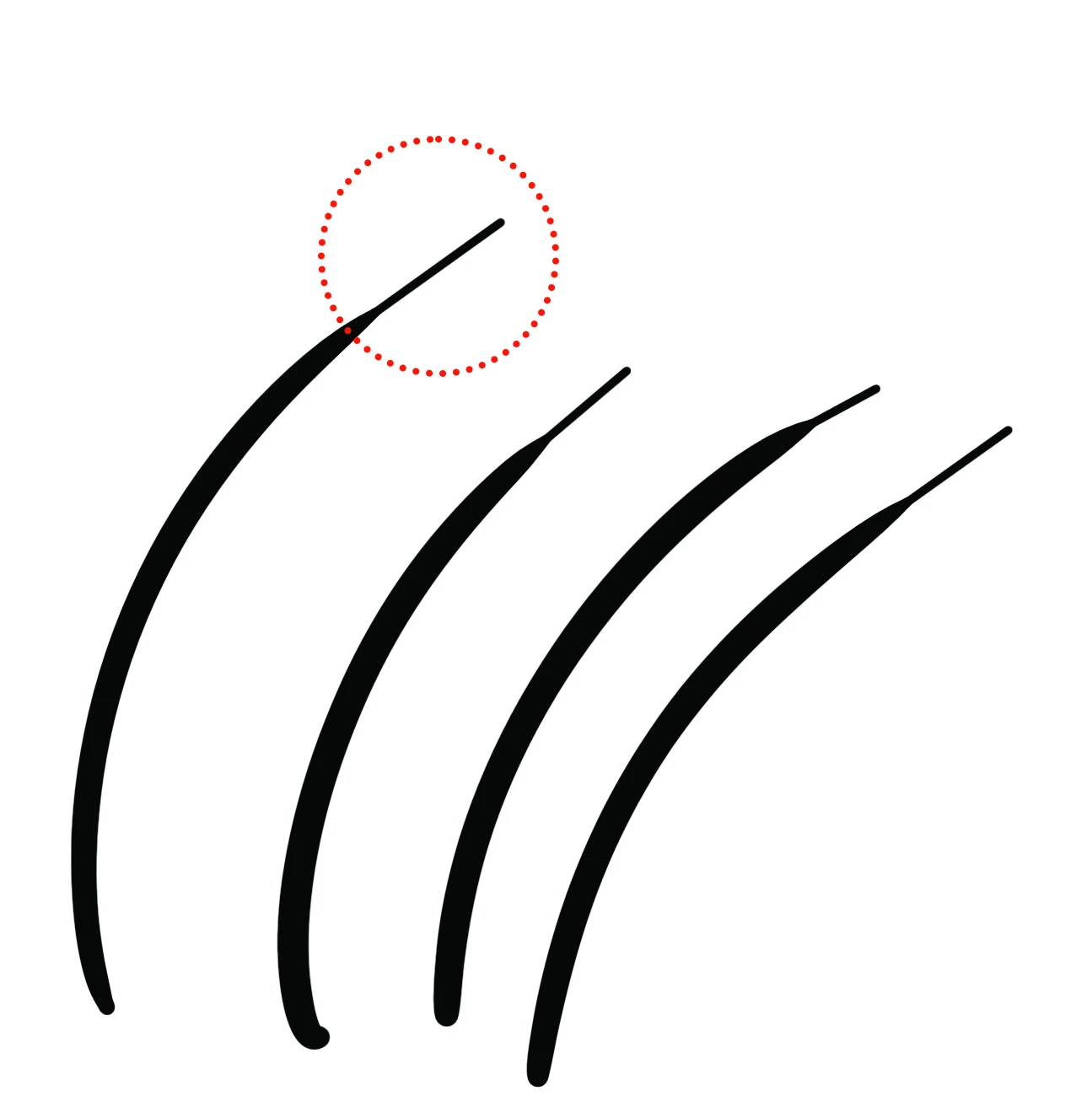
P: Shoelace shaped brush stroke with Wacom and smoothing on macOS

  • May 11, 2015
  • 22 replies
  • 16928 views

I'm getting fed up with you Adobe

This is a recurring issue with smoothing creating a "shoelace" effect. I'm on a brand new mac, and a brand new Cintiq. I've tried reinstalling drivers, installing older versions of photoshop, and toying with smoothing settings. As far as I can tell, if I want to use smoothing, it generates these artifacts at the end of my strokes. 


I've used photoshop for a couple of decades professionally, but I'm at a crossroads with whether I will bite the bullet, cancel my Adobe subscribtions and switch to Pro Create or another product. Fix this.


22 replies

chad.rolfs
Participating Frequently
January 13, 2022

Unfortunately this is just the pressure fall off Photoshop gets from Wacom.  Some things you can fiddle with to make this better:

In Wacom settings Options, uncheck Tip-Up Assist,
In Wacom Pen Setting set Tip Feel to more Firm,
In Photoshop smoothing options (gear icon): uncheck Stroke Catch-up and Catch-up on Stroke End,

In Photoshop use a brush that doesn't use pressure, or simply paint slower with a brush that does (not a great options I admit).
You can also try lowering the smoothing and adjust how quickly you pull the stylus off the tablet.  If you apply less pressure as you finish the stroke before you lift the stylus off the canvas/tablet surface, you'll not see as many of these shoestrings but rather a gradual thinning of the stroke. 

Hope that is helpful. 

Legend
November 30, 2021

Thanks. I've asked engineering to take a look at this.

Trevor.Dennis
Community Expert
Community Expert
October 13, 2021

It's called a 'shoelace' artifacts. It's generally associated with Wacom tablets on Windows systems, but I only have experience with Windows.  Turning off smoothing will probably fix it, although we shouldn't need to lose smoothing to fix a bug.  You can try different, or updating, your Wacom drivers (assuming you are using one.  I expect other tablets can have the same problem though.


The good news, and easily your best fix, is to use Lazy Nezumi Pro which completely eliminates shoelace problems as well as adds incredible functionality to a drawing tablet.  I call it the best value Photoshop add-on bar none.  Unfortunately, it is only available for Windows systems.

Lazy Nezumi Pro - Mouse and Pen Smoothing for PhotoShop and other Apps


Participant
October 13, 2021

The end of the brush stroke keeps coming out as a round blob instead of a sharp point like it should. How do I fix this? I've seen other people have this issue but there was never a solution given.


Participant
November 9, 2021

Have same problem in PS 2022.
It's really frustrating. I remember, that PS cc 2019 had solved this issue perfectly, but after couple of years with well working brushes, we're where we was years ago...this sucks.

Participant
June 14, 2021

When I use my brush I don't get a stroke that tapers smoothly. Instead, I get what I see people calling "shoelace artefact" and some of these people solved the problem by turning off the smooth option in the brush settings or using a third-party software called Lazy Nezumi. The thing is, is there a way i can solve this problem without turning off the smoothing or installing another software/plug-in?

Tablet: Wacom Intuos S - CTL-4100
PS version: 22.4.2

JJMack
Community Expert
Community Expert
June 14, 2021

I use WinTab interface with Wacon Intuos Small and like  Lazy Nezumi smoothing better then Photoshop something. At 80 I'm no longer a smooth operator.

JJMack
Participant
November 1, 2020

Hi! I recently purchased and installed the latest version of Photoshop 2021 on my up-to-date Windows 10. I use a Wacom Intuos Pro drawing tablet. However, with any brush I use, I noticed glitches in the pressure sensitivity. See below; I am trying to draw tapering strokes but rather than tapering at the end of the stroke as my pen eases off the tablet, it adds a "bulb" at the end. The second stroke is closer to what it should output, except for an odd 1 px line at the end. This issue does not exist in any other art programs I use. I tried a clean reinstall of Photoshop and Wacom's drivers. I also tried both unchecking and checking the "Use Windows Ink" option in Wacom Tablet Properties. Additionally, I tried the "PSUserConfig.txt" trick to no avail.


Participant
September 23, 2020

Pc - windows 10 

Wacome ONE tablet version 6.3.40 - 2 

Photoshop CC v. 21.2.3

I've the PSuserconfig.txt file inserted - windows ink is CHECKED (although thte fix in previous updates was to UNCHECK it - for some reason now it's the opposite.) I've rolled back updated for both photoshop and wacom (restarting inbetween each one) Tried all combinations of rolled back measures. Ive gone into the custom sensitivity graph for the wacom tablet - that helped a little bit but also, not at all. 

Of all teh bugs and problems with photoshop - this is the most annoying and hindering. At least with the paning issue and teh clicking randomly around the canvas, I can fix with a restart. -_- Please help. 

davescm
Community Expert
Community Expert
September 23, 2020

Try unchecking brush smoothing in brush settings (turning it to 0% in the options bar is not the same, although you would think it should be)


Alternatively with smoothing on, go to smoothing options (cog wheel in the options bar) and uncheck "Stroke catch up" but check "Catch up on stroke end"


Dave

Participant
October 1, 2020

You, sir, are as God amonst men!

😄 Thank you, that worked a treat. Smothing unchecked left the main line shakey. With Smoothing checked and set to 2%, with the Catch up on stroke end on! 


Thanks!! 

Participant
August 4, 2020

Please help, 

This has been quite a long persisting issue. I have a wacom intuos pro medium, which hasn`t been working correctly with PS. When drawing the brushes create dots randomly, almost every other stroke. I can`t use the updated new PS versions because all the lines I draw have the "shoelace bug", in which the lines end in blunt shapes. I can use the PS 2017 version without the shoelace issue, but the annoying dots still persist. 

This is not a wacom issue, I contacted their support earlier. 

My operating system is Mac OS Mojave. 

italosan
Community Expert
Community Expert
August 4, 2020

Hi, sorry you are having problems with Adobe Photoshop. Have you checked for driver updates for your Wacom and for your graphics card? Have you also tried to reset Adobe Photoshop preferences?

Participant
August 4, 2020

Hello!

Yes, I have the newest wacom driver. I`ve tried different drivers as well, with no difference. I also tried resetting PS preferences 

June 27, 2020

My brush strokes in photoshop aren't coming out the way I'd like them to. I'm using an Wacom Intuos Pro tablet and have tried it with Pen Pressure for size setting on and off and I still get the same result. 


What's happening is I make a brush stroke and at the end of the stroke it's fat and then suddenly very thin making it look like it was a circular line with a sharp line added to the end of it not one smooth line. It's subtle, but noticable. 


I'm not having this issue in PaintTool SAI (but, then again, I have the option to change the max and min size manually).


Is there any way to fix this/settings to minimize this effect? I've used the smoothing tool and it doesn't help with this either. It just made it look like there's a fat nub at the end of the stroke. 


Trevor.Dennis
Community Expert
Community Expert
June 27, 2020

It's called a 'shoelace' artifact, and is usually associated with drivers, but also with which API you are using (windows Ink or WinTab).  What operating system are you using?  If Windows then one surefire way of fixing it is to use the Lazy Nezumi Pro plugin.  LNP is a total no brainer for table users anyway, and gives you way more control than just Photoshop.


One of my favourite LNP presets is called Vanishing Lines and makes matching perspective when compositing elements to an existing image a sinch 


June 28, 2020

Hello Trevor, 


Yes, I'm using Windows. I'm looking into Lazy Nezumi now, thank you for the recommendation! I might just go ahead and purchase it. But I am curious as to what you meant when you said it's usually associated with drivers & API. I'm not sure where to look to check any of that either. I might want to try and see if that's the issue first before I make any purchases. 

Participant
May 16, 2020

Hi!


I had an issue where my computer couldn't find my drawing tablet after I updated its' drivers, got that fixed and working but once I tried to use it in Photoshop 2020 the pen pressure didn't work anymore. Got it working again by using this method: https://community.adobe.com/t5/photoshop/pen-pressure-not-working-in-the-new-photoshop-2020-21-0-2/td-p/10798947?page=1

Pressure is working again but now I've run in the problem where my brush strokes don't have a smooth end/fade but are instead... round? 

This only happens to me with the newest version of Photoshop (21.1.2), with the previous 2019 version (20.0.9) everything still works fine. I've tried reinstalling PS 2020, roll back to previous version of the tablet drivers, updating it again, restarting computer... nothing seems to work. Is this a known bug, is there a fix? Seems weird that the pressure worked fine on the 2020 version for me up until now... 😕😕 I'm using a Wacom Intuos CTL-490 tablet on Windows 10.


Here's an example with how the same brush strokes look like in PS 2019 and PS 2020 for me now:

Trevor.Dennis
Community Expert
Community Expert
May 16, 2020

I haven't heard of this happening for quite a while now.  Three or four versions maybe.

Are you using Windows Ink or Win Tab?  Whech ever one you are using, try the other.

Do you use Lazy Nezumi Pro?  It is still a totally must have plug-in for tablet users with Windows, and does way more than brush smoothing.  It specifically addressed the shoelace issue back when it _was_ an issue, so if you don't have LNP you can at least use the trial period to see if fixes your problem

https://lazynezumi.com/


Of course the bottom line here is that it shouldn't be happening, so so either the Wacom driver is not working properly with 21.1.2 or 21.1.2 is interpreting the API differently.  If the latter I would expect swapping which ever API you are using.  I think I swapped back to Windows Ink a couple of version updates ago. 


Participant
May 17, 2020

Hi and thank you for your reply!


I've tried using the tablet both with Windows Ink and Win Tab, closing the program in between, but the problem still persist when using Photoshop 2020. I'm pretty sure I had Windows Ink on as default before this problem occurred.


I came accross Lazy Nezumi Pro when trying to understand this problem, haven't used it and tbh I wouldn't want to believe that a 3rd party program is the answer here since everything worked just as it should on the 2020 version before I had to update the drivers. What I find weird is the fact that rolling back to the drawing tablet's previous driver version or reinstalling PS 2020 isn't helping either, and in the 2019 version of Photoshop the pen pressure is working just as it should with the tablet's drivers updated and all... I have no idea why this problem is happening with the 2020 version, is there a setting inside Photoshop that has something to do with the API etc that I'm missing?