Participant
February 12, 2016
解決済み

How do you change the default color of the typewriter (now Add Text Tool) in Acrobat DC

  • February 12, 2016
  • 返信数 3.
  • 11505 ビュー

I want it to default to Red instead of Black like it used to in Acrobat X.  Also the font keeps changing size when I click to start entering text.  Is there a way to keep it to the size and style I want?

このトピックへの返信は締め切られました。
解決に役立った回答 Karl Heinz Kremer

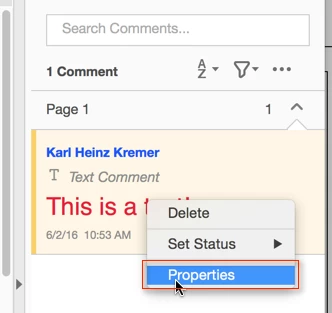
The "Add Text" tool (Tools>Edit PDF>Add Text) is not the same as the typewriter tool in Acrobat X. It's the same tool as the Tools>Edit Text&Obects>Edit Document Text while holding down the Ctrl or Option key. It will create static PDF text, whereas the typewriter tool created a text annotation. You can do that by selecting Tools>Comment>Text. This will allow you to save the settings you applied to one text annotation as the default for all text annotations you create from now on. To do that, select the annotation in the list of annotations and right-click on it, then select "Properties" from the menu:
On the dialog that pops up, select to make the current properties the default:
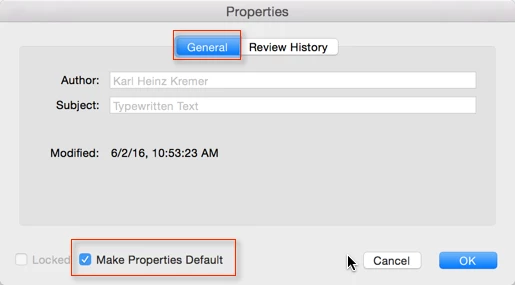
When you now create new text annotations, they will use the color and font/font size that you specified as the default.


返信数 3

Participant
September 10, 2018

I have found the easiest way is to Size/Color format the text in Word. Copy that text into an existing text box and it usually carries that formatting. :-)

Karl Heinz  Kremer
Community Expert
Community Expert
June 2, 2016

The "Add Text" tool (Tools>Edit PDF>Add Text) is not the same as the typewriter tool in Acrobat X. It's the same tool as the Tools>Edit Text&Obects>Edit Document Text while holding down the Ctrl or Option key. It will create static PDF text, whereas the typewriter tool created a text annotation. You can do that by selecting Tools>Comment>Text. This will allow you to save the settings you applied to one text annotation as the default for all text annotations you create from now on. To do that, select the annotation in the list of annotations and right-click on it, then select "Properties" from the menu:

On the dialog that pops up, select to make the current properties the default:

When you now create new text annotations, they will use the color and font/font size that you specified as the default.

Participant
June 5, 2016

Thank you Karl, it works!

Meenakshi Negi
Community Manager
Community Manager
February 13, 2016

Hi nycpa‌,

Once you select "Add text" tool in Edit PDF, you get the "Format" option on tool pane at right.

There you can find option to change size, style and square black box to change color .

Regards,

Meenakshi

Andy Blaszak
Participant
June 2, 2016

Meenakshi,

You did not answer the question.  Yes the options do come up in the tool pane on the right.  However like nycpa I want to change the default settings and not have to select each option EVERY time I want to add text.

try67
Community Expert
Community Expert
June 2, 2016

After you make the changes to the text you added select it using the Select Object tool, right-click it, select Properties and then tick the "Make Properties Default" box.