I have a similar Sony so I shot a raw image in 16:9 and played around with it. I found that there is a Reset to Full command, as shown in the demo below:
1. As you saw, originally it comes into Camera Raw as 16:9.
2. If you select the Crop tool, the entire 3:2 image is shown, but the crop rectangle covers only the 16:9 area marked by the camera. You could restore the full area by manually dragging the crop rectangle handles out, but that seemed like too much effort so I also looked for a feature that could do it in one step. I found that if you click the Crop tool Preset menu, the Full option does restore the crop rectangle to the full sensor area. (If you like using context menus, you can also see Reset to Full by right-clicking the canvas when crop rectangle is active.)
3. You can see at the bottom that after applying Reset to Full, the pixel dimensions of the current crop now report my full 6000 x 4000 px (3:2) camera sensor area.
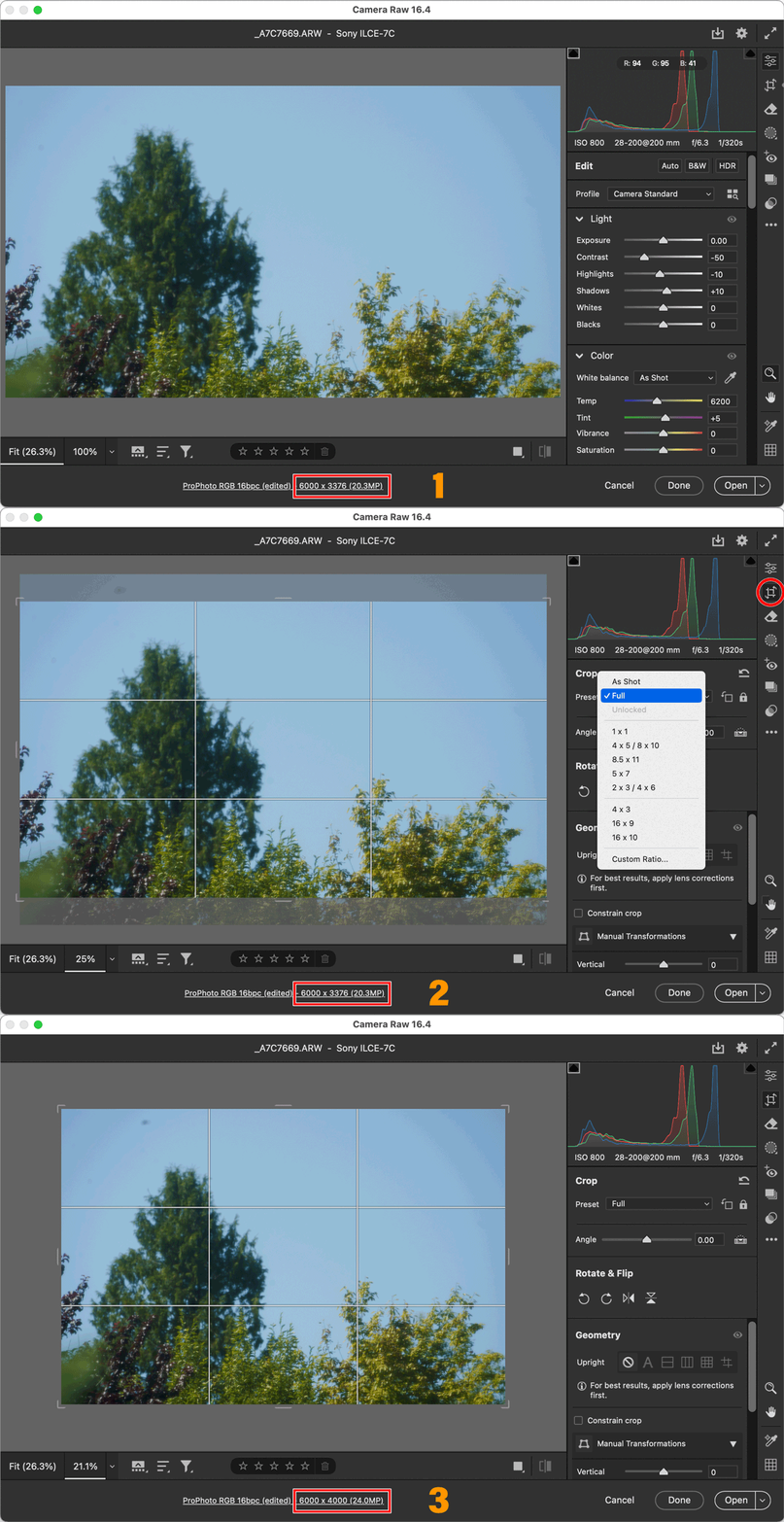
Important: The reason resetting Camera Raw preferences will not fix this is that it’s based on a setting in the raw file, not because of any settings in Camera Raw. When Camera Raw opens the raw image, it sees that the camera metadata includes a 16:9 crop setting and it applies that until you override it. The Crop tool Preset menu also includes an As Shot option, in case you want to reset the crop to what it says in the raw file.




 AdChoices