


How to handle Profile Mismatch (Color management) in Illustrator?
Hey everyone, first time posting here.
This issue is driving me nuts, so I made a community account just for this. Please help :')
I have an .ai file that was given to me by a colleague, and that file's embedded color profile was "Display".
My original color settings was "sRGB IEC61966-2.1".
When copying an object from this particular file A (color profile: display) over to one newly created file B (color profile: sRGB) on my desktop, the colors on the exported PNGs are of a slightly different shade.
For example, #FBEAE2 would become #FCE8E0, even though both files read the colour as #FBEAE2.
So, I tried to remedy it by assigning a profile to file B.
I've also tried changing my color settings to "Monitor RGB - Display" as well as "Display".
Still the same, somehow the color from file A was just slightly richer compared to file B.
Then file A starts giving me this warning upon opening.
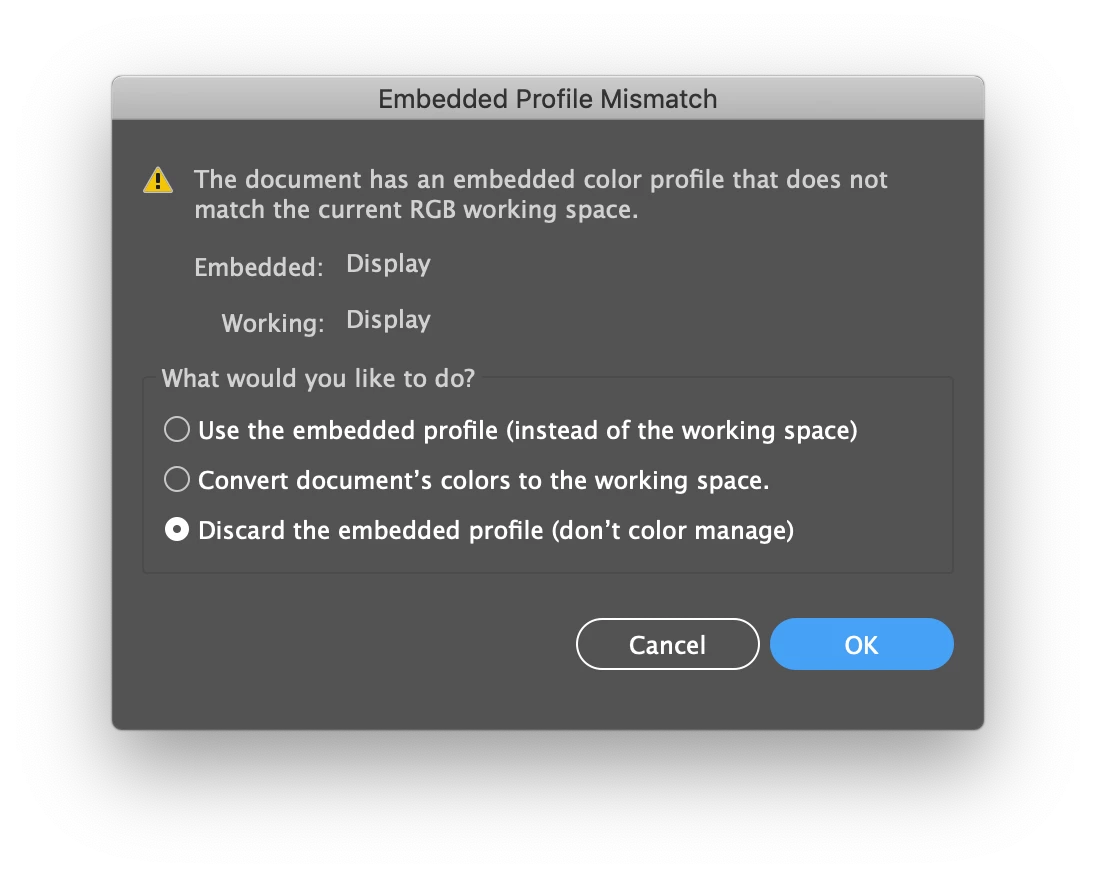
I am puzzled.
1) What could be the original embedded "Display" profile? Shouldn't it be the same as mine?
(If it helps, both our desktops are Apple iMacs within 2017-2018)
2) Why are the colors somehow different across both files even though it's the same hexcode?
I understand it has something to do with the color profiles, but I'm not exactly sure. I could be wrong.
3) And why is Illustrator even giving me this warning anyway? The only reason I could think of is that somehow both our "Display" profiles are different, even though the names are the same.
I would think of this as possibly an isolated issue, because so far I haven't found a solution. Please help.
{Renamed by MOD}
 AdChoices