
spawklz
Known Participant
May 15, 2018
Answered

Weird results when pasting objects from Illustrator into InDesign?

  • May 15, 2018
  • 7 replies
  • 7377 views

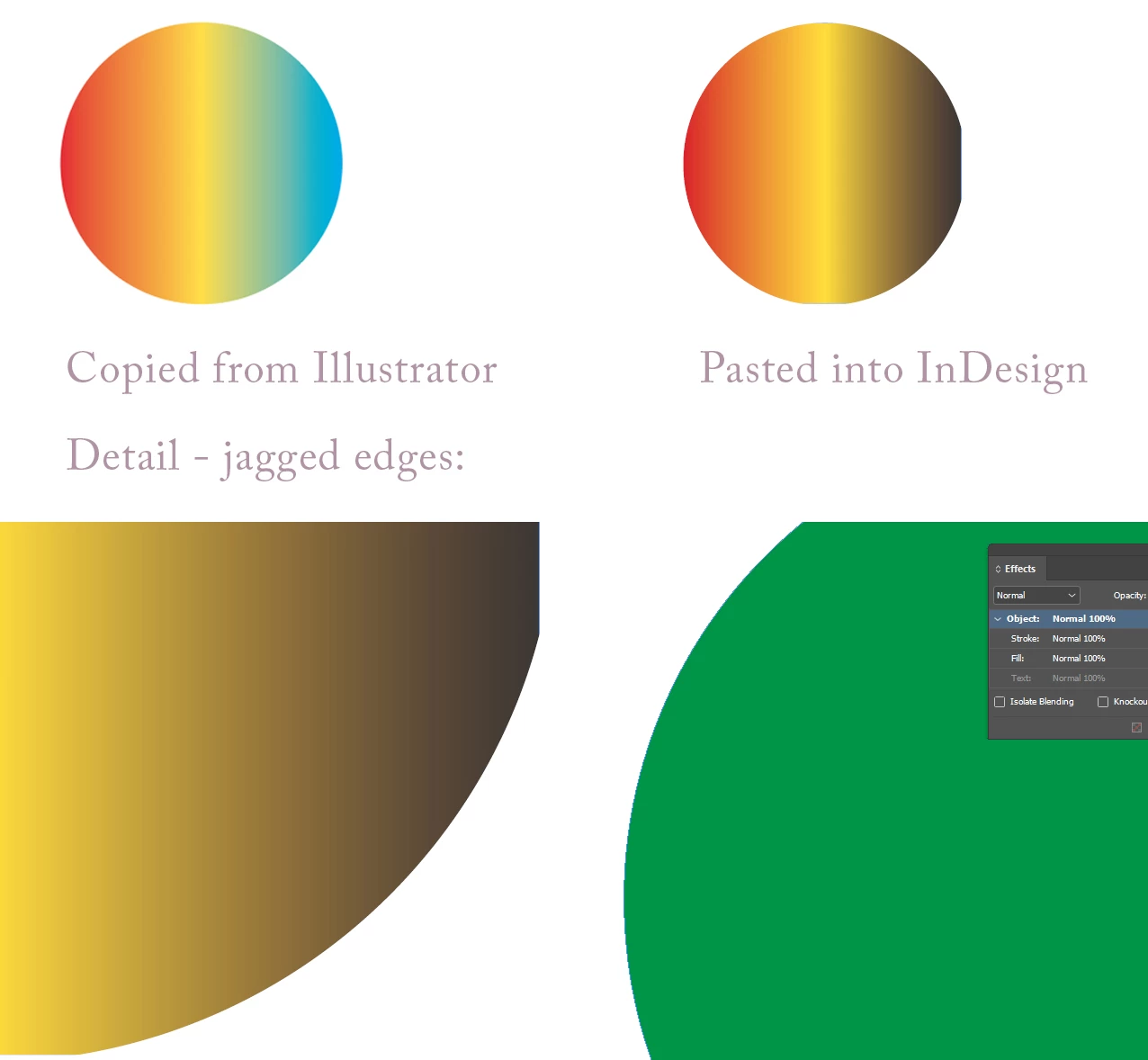
Can anyone tell me why this is happening? I make a relatively basic gradient in Illustrator, copy it, and paste it into an InDesign document. To me, it kind of looks as though the third colour is swapped with black, maybe? Also, look at the weird cropping on the shape in InDesign (it looks like parts of the curve are missing - on the bottom and right side of the circle). Furthermore, weirdly, when I paste the circle with the gradient, the edge looks smooth enough in InDesign, but when I paste a plain solid colour circle, the edge looks jagged and nasty. I've set InDesign to high quality display, and cleared per object display settings, FYI.

Correct answer Luke Jennings

If you go to your InDesign preferences> Clipboard Handling> Prefer PDF when Pasting, that fixes the cut-off circle for me.

As for the color change, perhaps there is an illustrator layer that is not visible (a second gradation under the first) that is only appearing in InDesign?

7 replies

Inspiring
May 16, 2018

I got curious, so I started playing around with it...I created a gradient swatch, assigned it to an ellipse, then copied and pasted it into InDesign (both CMYK and RGB docs). I played around with the Clipboard handling (Prefer PDF when Pasting, paste as PDF) and I wasn't able to reproduce the error. What I did notice, however, is if you select "Prefer PDF when Pasting", it will convert it to a pasted graphic, as well as give you the jagged lines. When you deselect that setting (just "Copy PDF to clipboard"), it converts it into a graphic frame (it'll be labelled accordingly in your Layers panel).

I figured it might be something to do with how Illustrator handles clipboard, so I played with the settings there, with the only difference being that it only converts to "Graphic frame" regardless of your InDesign clipboard settings.

As it is, I find that copying and pasting vectors from Illustrator to InDesign is not always foolproof. Whenever I copy and paste complex vectors from Illustrator to InDesign (like anything more than a few dozen shapes, more than several colours, or incorporating gradients), it'll be converted to "graphic frame" or "pasted graphic". When it's a graphic frame, the gradient doesn't get preserved when you scale the object, and when it's a pasted graphic, it will sometimes be converted to a low-resolution raster when you output a high-res PDF.

If you want to keep working between Illustrator and InDesign, you will probably want to either link to the file in Illustrator, or if you want to edit the vector directly in InDesign, you can copy the shapes over, as long as it's assigned a solid colour like black, then create the gradient swatch in InDesign and assign it to the object there.

Luke Jennings
Luke JenningsCorrect answer
Inspiring
May 16, 2018

If you go to your InDesign preferences> Clipboard Handling> Prefer PDF when Pasting, that fixes the cut-off circle for me.

As for the color change, perhaps there is an illustrator layer that is not visible (a second gradation under the first) that is only appearing in InDesign?

spawklz
spawklzAuthor
Known Participant
May 16, 2018

Hey, thanks again for all the useful tips, guys!

It seems like Luke Jennings​' idea to tick "Prefer PDF" did the trick! I created a new Illustrator file, made a circle, gave it a simple three-stop gradient, copied the object and pasted it into a new InDesign document. The result was exactly the same as before - the third colour (which was still blue) turned into black in ID, but when I changed the setting, the gradient looked the way it was supposed to!

Thanks again, everyone - most helpful!

Participating Frequently
January 14, 2025

It workes for me as well, but with this setting, whenever I wanted to copy text from a word-file, it appeared in ID as an Image, instead of text.

Community Expert
May 16, 2018

Hi spawklz ,

what's your version of InDesign, Illustrator and OS ?

Could you upload some test files to Dropbox or a similar service and post the link so that we can test your case?

Regards,
Uwe

spawklz
spawklzAuthor
Known Participant
May 16, 2018

Hi, and thank you to everyone who has replied.

I will upload some test files later today.

I made sure that the Illustrator document was set to CMYK (unless there is anything more than simply setting this in the dialogue when you create the document?) Also, there's no transparency involved; to replicate the issue, i simply created a new document, created a circle and filled it with the gradient.

I've synced my colour profiles across all CC apps.

I'm running the latest CC version of both apps, on Windows 10. My home computer was already on the April update, but my work computer is installing that very update right now, and the problem first occurred at work, without that update installed .

Thanks again, for taking the time, people!

Bill Silbert
Community Expert
Community Expert
May 15, 2018

If you are on a Mac try turning off GPU Performance in InDesign preferences. It may help with the jagginess of the solid shape. I also got the flattened side when I copied and pasted but could not replicate the color shift.

Barb Binder
Community Expert
Community Expert
May 15, 2018

Hi spawklz :

I'm also not getting the color shifts, but do get the flat edges with paste (and not with placing the native .ai file).

~Barb

~Barb at Rocky Mountain Training
Steve Werner
Community Expert
Community Expert
May 15, 2018

What color mode is Illustrator in, RGB or CMYK? Do you have transparency on the page? Those factors could change colors. But I don't see how it could change blue to black.

Scott Citron
Legend
May 15, 2018

I just tried the same thing. My gradient came in exactly as it appears in AI. I did notice two flat areas on the circle when pasted into ID (one at 3 o'clock, another at 6 o'clock), but this can be easily fixed by enlarging the fill content (the gradient) just a touch. Why the gradient colors didn't paste faithfully is indeed odd.