Inspiring
January 24, 2023
Answered

Printing with ICC Profile from LRC looks terrible, but "Managed by Printer" looks good

  • January 24, 2023
  • 4 replies
  • 11948 views

Prints made by specifying a paper profile in the Print module, end up looking terrible - very flat, bad color.

The same image printed using the "Managed by Printer" color management setting looks good. It looks about the same as printing the image from the Preview app. What gives? I've used profiles managed by LR forever with great results. Now the process is broken.


In December, bought a new Mac computer running Ventura (13.1). Finally got everything moved over and started setting up the printer. I make high-end photo prints for clients. Previously used a Macbook Pro running MacOS 10.15 with no problems.


I have the latest Epson driver for the printer. The new Mac print dialog tempramentally swicthes settings to defaults easily, but I have been able to specify the right paper and for no color management. Results are bad. If I changed the Color Setting to sRGB, the results get better, but still bad. If I change it to Adobe RGB, the results are better but still bad, not evene close to having the printer manage the colors.


It may be an Epson printer, but I trust Adobe to do color science right and better than Epson. I want to print with Lightroom Classic managing the colors on printing. How is this not working?

This topic has been closed for replies.
Correct answer GeoffScottSD

OK. The printing seems to be working correctly now. I have detailed instructions to follow about what I did that works. Just to be clear, I'm running MacOS 13.1 Ventura on an M1 Mac Mini, printing from Lightroom Classic 12.1 w/ Camera Raw 15.1 to an Epson Stylus Pro 3880 with the Epson SP3880_1262_AM print driver installed.


Step #1 - Page Setup

In the Lightroom Print Module, at the bottom of the lefthand drawer are two buttons. One is labelled "Page Setup…"

• Click on the Page Setup button to bring up the Page Setup dialog.

• Choose the paper size from the Page Size pop-up menu.

It is important to choose the correct paper size and the paper feed option when available. Some papers cannot use the Sheet Feeder option, and the paper choice may be limited in the Print Settings, if you do not choose the paper path based on the paper you are using. For example, if you want to print to Epson Hot Press Bright, it cannot go through the Sheet Feeder. If you choose that in the Page Setup, the Fine Art selection of papers won't be available to select in the Print Settings dialog.
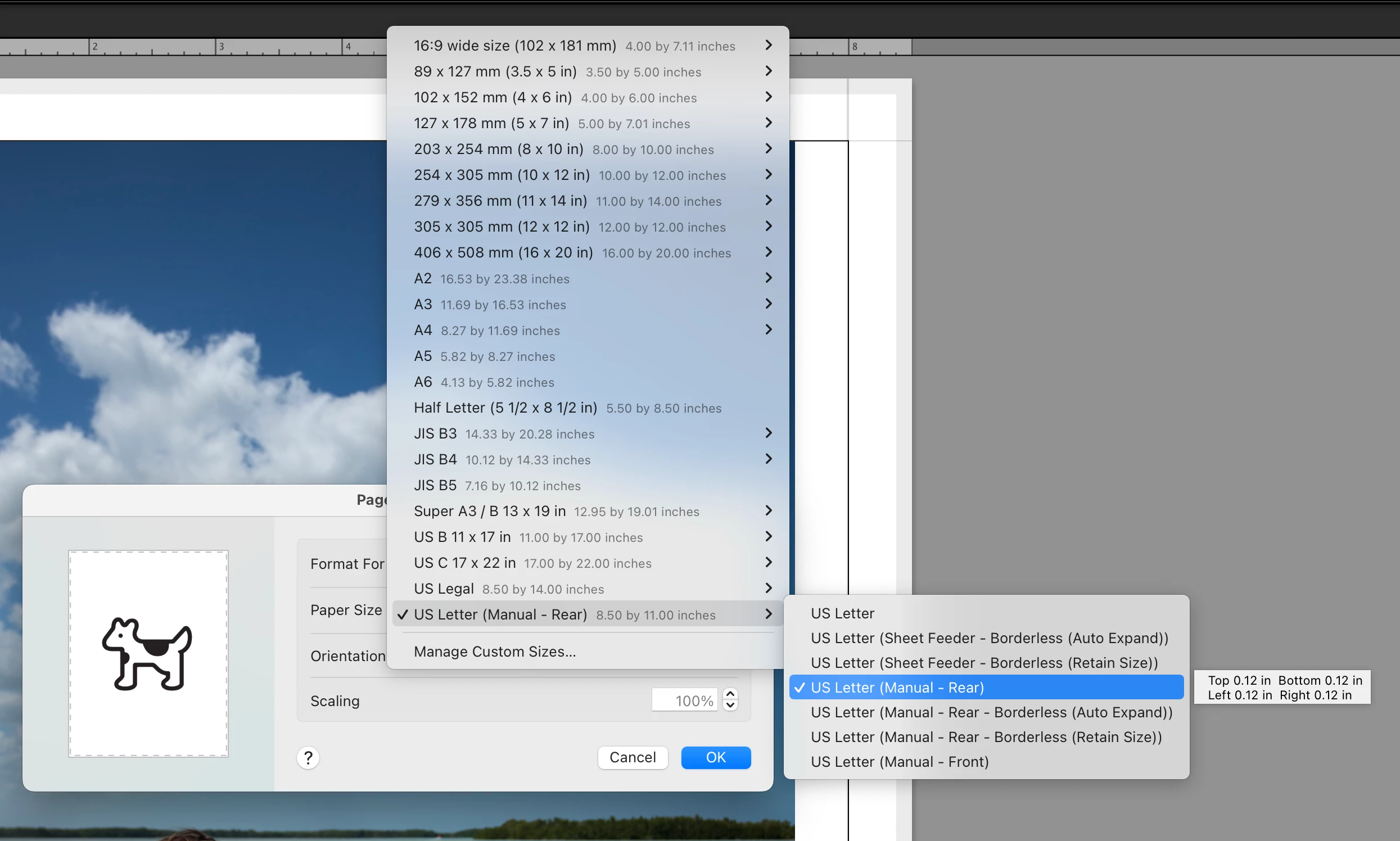
• When done click the OK button to close the Page Setup dialog.


Step #2 - Print Settings

The other button at the bottom of the lefthand drawer is labelled "Print Settings…"

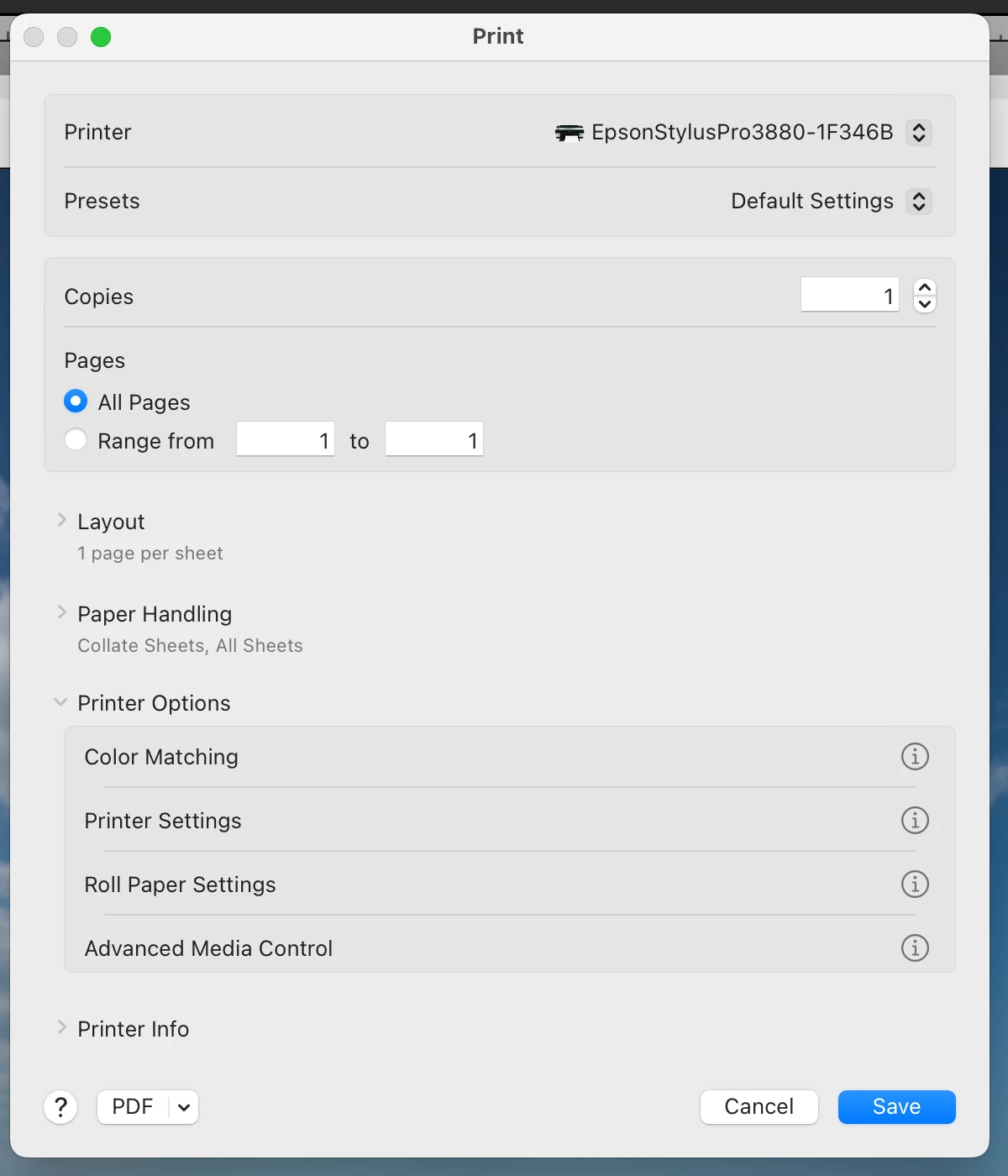
• Press the Print Settings button to bring up that dialog.

• Choose the Default Settings option from the Presets menu.
 

Step #3 - Color Matching

• If not already open, press the > next to the Printer Options to open the list of further options.

• Click on the word Color Matching to open up its dialog.
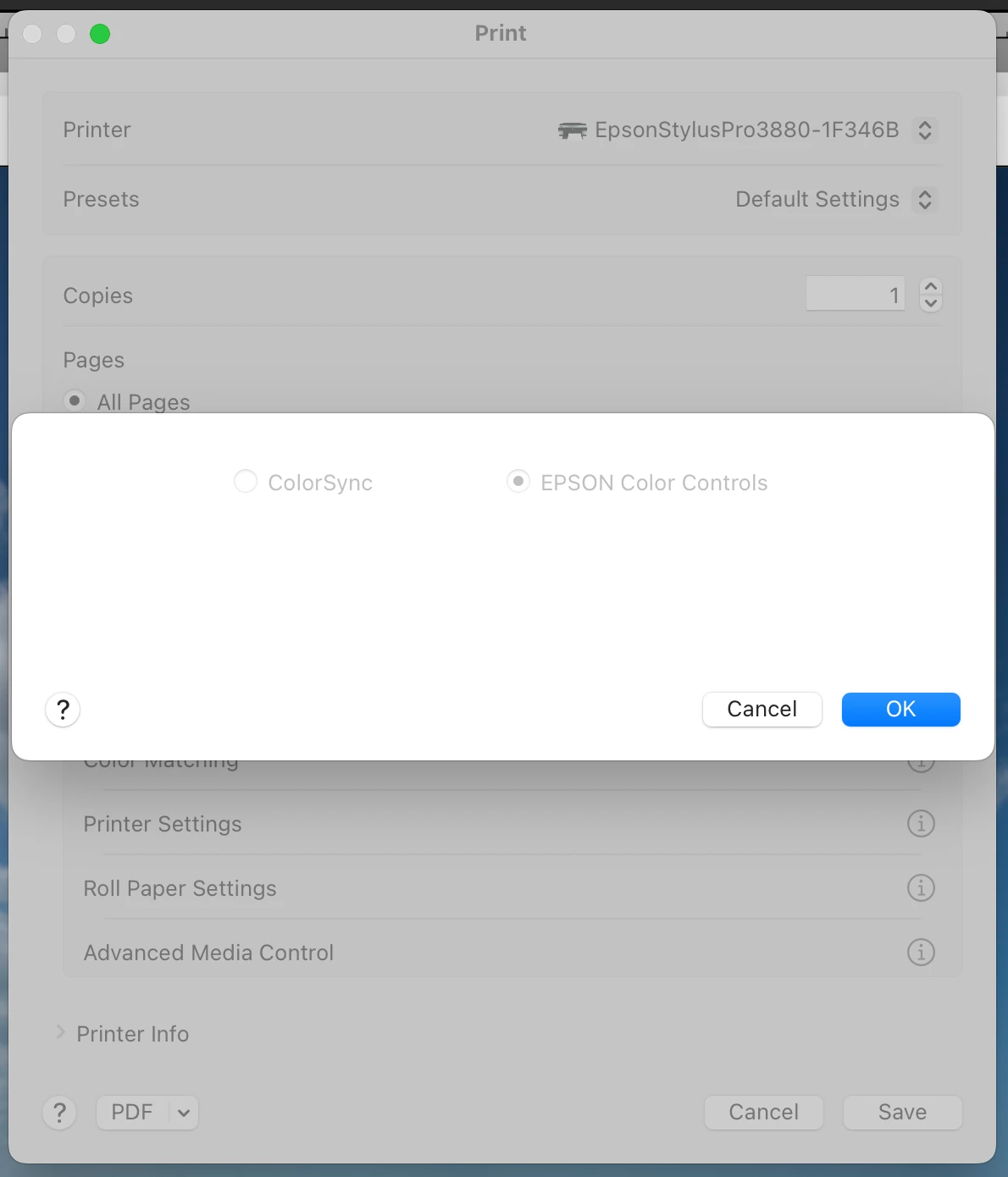
The color matching options should both be greyed out and nonchangeable. It doesn't matter which of them are selected; they are not used. I tested with both and it made no difference.

• Press the Save button to close the dialog. Don't press the Cancel button (more on this next).


Step #4 - Printer Settings

• Press the word Printer Settings to bring up that dialog.
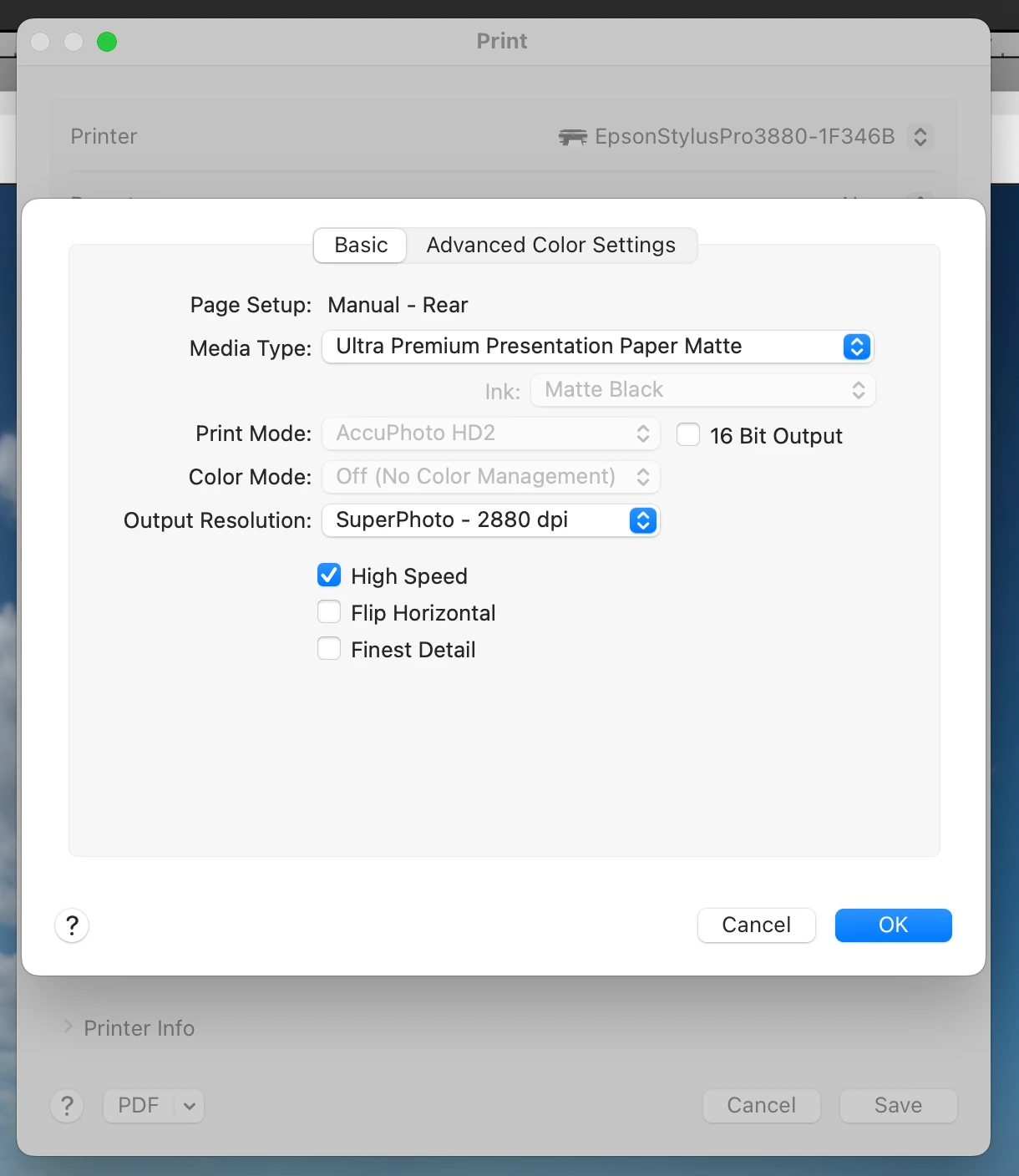
• Be certain that the Page Setup shows the paper path you chose in Page Setup. In my case, I needed the Manual - Rear. This is not changeable here, so if it wrong, close this dialog and then the Print Settings dialog, and go back to Step #1.

• Choose the Media Type you are using. This is the Epson paper closest to what you are printing to. If you are using paper from a different brand, use the setting the manufacturer recommends. When you downloaded the ICC profile from the paper manufacturer's website, it most likely showed this detail on the webpage and/or included a PDF file detailing what to use. For example, I'm printing using Moab Lasal Matte paper. The website suggested choosing Ultra Premium Presentation Matte for this setting.

• Notice other options that are greyed out & not changeable. In this case, the Ink is set to Matte Black, which is correct. The Print Mode is set to AccuPhoto HD2. Color Mode is set to Off (No Color Management). All these are correct for the case of having Lightroom use an ICC profile when printing, instead of having it all Managed by Printer.

• Set other options you prefer, like Output Resolution and High Speed printing.

• Press the OK button to close the dialog and save your choices. NEVER use the Cancel button if you are checking that the options are what you want. Cancel does not leave the settings unchanged. Cancel RESETS the options to the default values, which in this case is not what I wanted. This seems to be an Epson print driver problem, but whatever. Just don't press the Cancel button.

• Back in the Print Settings dialog, press the Save button to save your changes and close the dialog.


Step #5 - Lightroom Print Job Settings

In Lightroom, at the bottom of the righthand drawer is a Print Job panel.
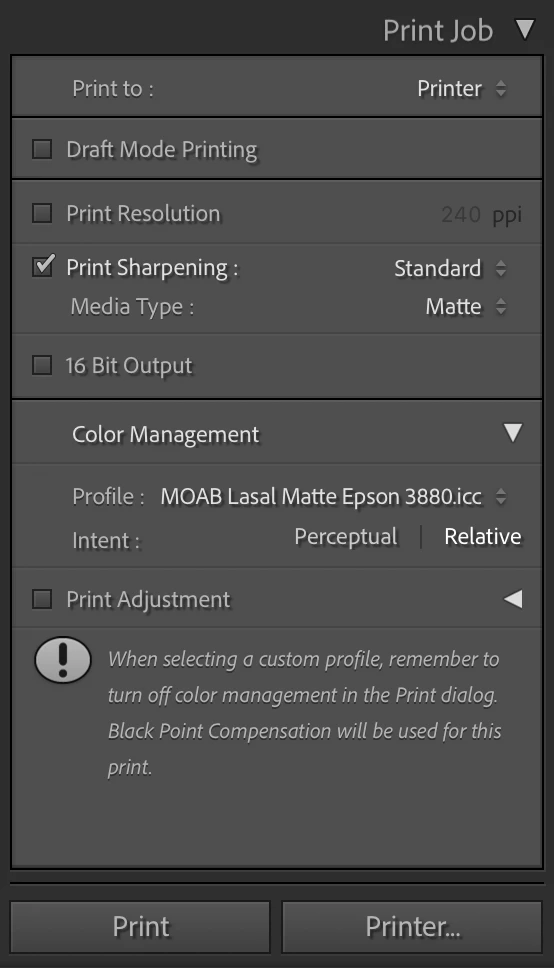
• Check that the top settings make sense to you.

• In the Color Management section, change the Profile to the ICC profile matching the paper you are printing to. In my case, I'm using the generic profile from Moab for the Lasal Matte paper for the Epson 3880 printer.

• When you choose a profile, you may also choose the Intent. In my case, I'm using the Relative rendering intent.


Step #6 - Create a New Lighroom Printing Preset

• In the lefthand drawer of the Print Module is a Template Browser panel. In the title bar of that panel are - and + button. Press the + button to bring up the New Template dialog.
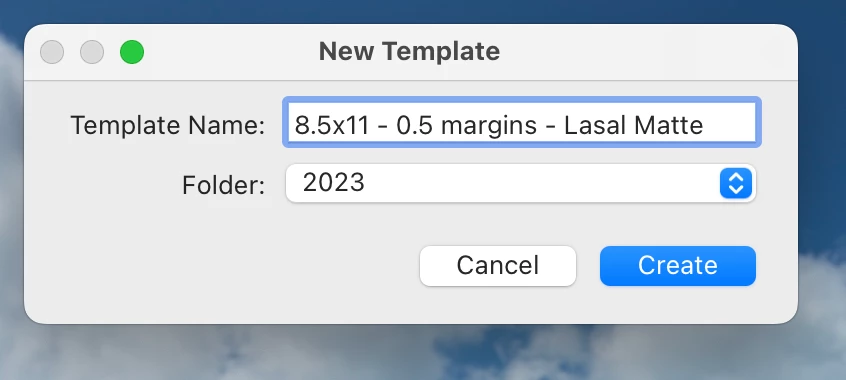
• Give the preset a good, descriptive name and choose the folder for it to be shown in.

• Press the Create button to create the preset and close the dialog.

At this point, you now have an easy way to avoid redoing steps #1 to #5 each time you want to print from Lightroon. You can just use the Template Browser to choose the correct settings and go to Step #7.


Step #7 - Printing

• At the bottom of the righthand drawer is the Printer… button. Press that button to bring up the Printer dialog.
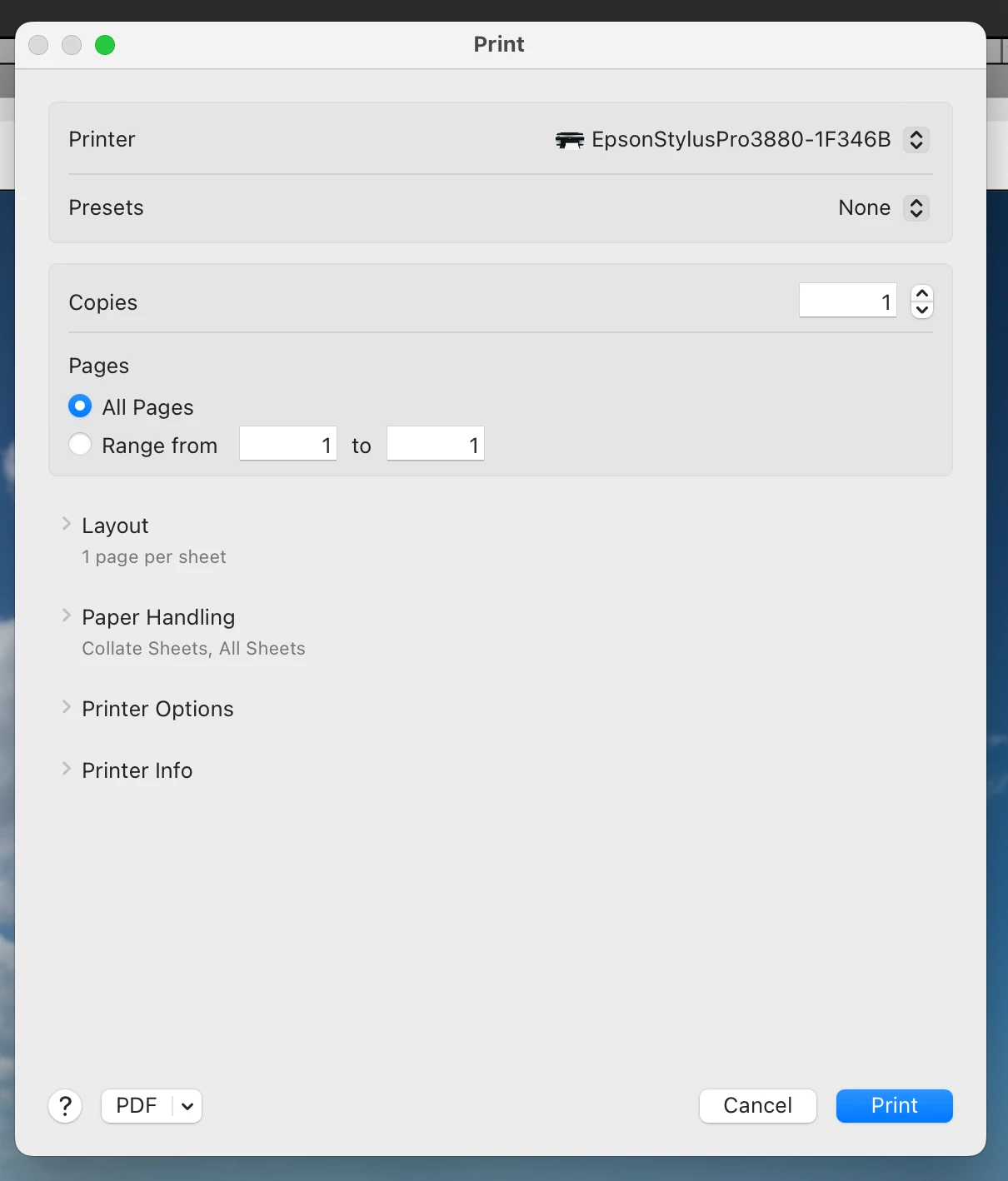
• Notice that the Preset is set to None. DO NOT change this. DO NOT use the Default Settings. If you change this all the settings you previously saved will be reset. For example, the default paper is a luster paper, which uses Photo Black ink. I was printing to a matte paper, which uses Matte Black ink. Choosing Default settings switches the ink, which causes the printer to switch the black inks, which is a waste of ink and not correct.

• Simply press the Print button. Do not check any of the settings, don't do anything except press the Print button.

• If the printer is ready and the paper is loaded, the result will be a print using the ICC profile you selected.


Results: This set of steps has worked consistently for me today. I tested using the Moab Lasal Matte, the Moab Entrada Bright, and the Epson Exhibition Fiber papers. That's two matte black papers and one photo black paper. In each case, the prints look good. And I compared the new print to a previous print that used Managed by Printer. The prints are slightly different, which tells me that the new print used the ICC profile and rendering intent that I had specified.


So, I'm considering the problem solved. I have other papers to try and some custom profiles to create and try. But I am confident that I have a good printing workflow.


Thank you to everyone who particpated and gave suggestions on this thread. Without you I would've continued to be angry and frustrated about a printing system that had been so reliable and consistent in the past. Now I can print to my satisfaction and hopefully have created a resource here that others can use.


If you have questions or comments, please post them and I'll answer what I can.

4 replies

GeoffScottSDAuthorCorrect answer
Inspiring
January 24, 2023

OK. The printing seems to be working correctly now. I have detailed instructions to follow about what I did that works. Just to be clear, I'm running MacOS 13.1 Ventura on an M1 Mac Mini, printing from Lightroom Classic 12.1 w/ Camera Raw 15.1 to an Epson Stylus Pro 3880 with the Epson SP3880_1262_AM print driver installed.


Step #1 - Page Setup

In the Lightroom Print Module, at the bottom of the lefthand drawer are two buttons. One is labelled "Page Setup…"

• Click on the Page Setup button to bring up the Page Setup dialog.

• Choose the paper size from the Page Size pop-up menu.

It is important to choose the correct paper size and the paper feed option when available. Some papers cannot use the Sheet Feeder option, and the paper choice may be limited in the Print Settings, if you do not choose the paper path based on the paper you are using. For example, if you want to print to Epson Hot Press Bright, it cannot go through the Sheet Feeder. If you choose that in the Page Setup, the Fine Art selection of papers won't be available to select in the Print Settings dialog.

• When done click the OK button to close the Page Setup dialog.


Step #2 - Print Settings

The other button at the bottom of the lefthand drawer is labelled "Print Settings…"

• Press the Print Settings button to bring up that dialog.

• Choose the Default Settings option from the Presets menu.


Step #3 - Color Matching

• If not already open, press the > next to the Printer Options to open the list of further options.

• Click on the word Color Matching to open up its dialog.

The color matching options should both be greyed out and nonchangeable. It doesn't matter which of them are selected; they are not used. I tested with both and it made no difference.

• Press the Save button to close the dialog. Don't press the Cancel button (more on this next).


Step #4 - Printer Settings

• Press the word Printer Settings to bring up that dialog.

• Be certain that the Page Setup shows the paper path you chose in Page Setup. In my case, I needed the Manual - Rear. This is not changeable here, so if it wrong, close this dialog and then the Print Settings dialog, and go back to Step #1.

• Choose the Media Type you are using. This is the Epson paper closest to what you are printing to. If you are using paper from a different brand, use the setting the manufacturer recommends. When you downloaded the ICC profile from the paper manufacturer's website, it most likely showed this detail on the webpage and/or included a PDF file detailing what to use. For example, I'm printing using Moab Lasal Matte paper. The website suggested choosing Ultra Premium Presentation Matte for this setting.

• Notice other options that are greyed out & not changeable. In this case, the Ink is set to Matte Black, which is correct. The Print Mode is set to AccuPhoto HD2. Color Mode is set to Off (No Color Management). All these are correct for the case of having Lightroom use an ICC profile when printing, instead of having it all Managed by Printer.

• Set other options you prefer, like Output Resolution and High Speed printing.

• Press the OK button to close the dialog and save your choices. NEVER use the Cancel button if you are checking that the options are what you want. Cancel does not leave the settings unchanged. Cancel RESETS the options to the default values, which in this case is not what I wanted. This seems to be an Epson print driver problem, but whatever. Just don't press the Cancel button.

• Back in the Print Settings dialog, press the Save button to save your changes and close the dialog.


Step #5 - Lightroom Print Job Settings

In Lightroom, at the bottom of the righthand drawer is a Print Job panel.

• Check that the top settings make sense to you.

• In the Color Management section, change the Profile to the ICC profile matching the paper you are printing to. In my case, I'm using the generic profile from Moab for the Lasal Matte paper for the Epson 3880 printer.

• When you choose a profile, you may also choose the Intent. In my case, I'm using the Relative rendering intent.


Step #6 - Create a New Lighroom Printing Preset

• In the lefthand drawer of the Print Module is a Template Browser panel. In the title bar of that panel are - and + button. Press the + button to bring up the New Template dialog.

• Give the preset a good, descriptive name and choose the folder for it to be shown in.

• Press the Create button to create the preset and close the dialog.

At this point, you now have an easy way to avoid redoing steps #1 to #5 each time you want to print from Lightroon. You can just use the Template Browser to choose the correct settings and go to Step #7.


Step #7 - Printing

• At the bottom of the righthand drawer is the Printer… button. Press that button to bring up the Printer dialog.

• Notice that the Preset is set to None. DO NOT change this. DO NOT use the Default Settings. If you change this all the settings you previously saved will be reset. For example, the default paper is a luster paper, which uses Photo Black ink. I was printing to a matte paper, which uses Matte Black ink. Choosing Default settings switches the ink, which causes the printer to switch the black inks, which is a waste of ink and not correct.

• Simply press the Print button. Do not check any of the settings, don't do anything except press the Print button.

• If the printer is ready and the paper is loaded, the result will be a print using the ICC profile you selected.


Results: This set of steps has worked consistently for me today. I tested using the Moab Lasal Matte, the Moab Entrada Bright, and the Epson Exhibition Fiber papers. That's two matte black papers and one photo black paper. In each case, the prints look good. And I compared the new print to a previous print that used Managed by Printer. The prints are slightly different, which tells me that the new print used the ICC profile and rendering intent that I had specified.


So, I'm considering the problem solved. I have other papers to try and some custom profiles to create and try. But I am confident that I have a good printing workflow.


Thank you to everyone who particpated and gave suggestions on this thread. Without you I would've continued to be angry and frustrated about a printing system that had been so reliable and consistent in the past. Now I can print to my satisfaction and hopefully have created a resource here that others can use.


If you have questions or comments, please post them and I'll answer what I can.

apalca
Participating Frequently
April 28, 2023

Thank you for this Geoff. I followed the steps and managed to save settings to an existing template, so that I don't have to redefine my existing templates but can just save the correct print settings to each of them.


I haven't done any actual printing yet but your solution seems "logical" and I'm confident I can now indeed print as I used to do.  I say "logical" because it is of course ridiculous that so many people have been struggling with this and not managed to find a way to save the settings they need. I too have spent countless hours reading about print issues and trying out things. That  it is now possible to choose ICC profiles in printer settings led me stray too,  For instance, I found that I could choose and save Epson profiles for my Epson printer, but if I chose others LR crashed. I now conclude this was probably a conflict between 'managed by printer' (= Epson) and non-Epsonprofiles. But I never realized that the printer was managing things, precisely because I was presented wit ICCprofiles....


I understand now, also from comments of @digitaldog, that selecting ICC profiles in printer settings  is entirely the wrong way to go about it, but really, those of us who don't have such a profound understanding of how these things work are definitely invited to take a wrong turning by the choices presented to us. And Adobe/LR and Apple fail miserably in providing guidance here. All the time I spent web reading up on these issues (first the issue of LR crashing when you so much as touched print settings, then settings not sticking), re-installing printer drivers,  investigating ways around it (should I downgrade? how can that be done?).


So many people wasting hours of their time because billiondollar companies don't test properly and don't provide clear guidelines about changes. "Leave it to the community, there are always a few terriers among them who will figure it out" - it's downright scandalous. And I am immensely grateful that you turned out to be one of these terriers.

Inspiring
January 24, 2023

Reading what I originally wrote and how porrly I did so. I even messed up the title of the post. It should be "Printing" not "Writing". Not sure how that happened. Please excuse the mess and confusion.

Ian Lyons
Community Expert
Community Expert
January 24, 2023

I've modified your title to 'Printing'. Hopefully, it will now attract attention of others who may have experienced the same issue or know what the source of the problem is.

TheDigitalDog
Inspiring
January 24, 2023

Make sure all settings are correct and create a new custom user Print Template. On Ventura, I do not trust some of my Epson drivers either; they used to always be sticky (ColorSync Radio button set and grayed out) with Lightroom Manages Color, but I've been burned a few times when it didn't stick as it should. I blame this on the awful new GUI/bugs in Ventura for print dialogs (Epson as well). 

The print template saves all settings, including Presets. Do not use a preset in the menu from the Epson print dialog. Always use Default Settings: 


I've tested color reference images under Ventura with Epson P800 and 3880 in Lightroom Classic and Photoshop, when everything is setup correctly, they all print as they should and identically. 

Author “Color Management for Photographers" & "Photoshop CC Color Management/pluralsight"
Inspiring
January 24, 2023

I will give that a try in the morning. In the past the Print dialog presets were reliable. That's obviously not the case these days, which is a mistake on Apple's part. I have not tried using the Default Settings and then going from there. I will try it and respond with my results.


Thanks for the quick reply. I had seen your responses on other posts (and message boards) regarding printing issues with Ventura and had hoped you might respond. I'm also using a 3880. Not quite ready to buy a new printer, but it is on the horizon.

GoldingD
Legend
January 24, 2023

So, in the print module, for color management, you select other, then select an icc profile, correct??

Those profiles are typically provided by the printer mfg, or the paper mfg, or a third party. typically not by Adobe.


Now, you have MACOS, and an Epson printer. and things are going odd. In the last few months, that combination has had issues, I do not know if it is related to MACOS updates/upgrades, probably not LrC updates/upgrades. And the situation with other members has not exactly been the issue you describe. However, what they did was to remove the Epson printer from the MACOS, then reinstall  the printer


One key community member is calling this the Epson Enema


see:

https://community.adobe.com/t5/lightroom-classic-discussions/lr-communicates-with-my-printer-epson-3880-but-won-t-print/m-p/13456320


Inspiring
January 24, 2023

I had removed an reinstalled the printer and the drivers multiple times. And I had downloaded the ICC profiles from the website. This is a new computer. So everything was newly installed. Even still, I did try that. I also made sure in the Mac Settings that LRC had permissions to access the full drive.


I appreciate your answer, but it is not the correct one. As I wrote, I am able to print using Managed by Printer. I also was able to print using the Preview app. LRC was not able, for whatever reason, to print when it was providing the color management, which is why I am asking about it here.


Thank you for the reply. It's appreciated.

TheDigitalDog
Inspiring
January 24, 2023

Managed by Printer is a completely different print path and no relationship Application Manages Printer. That you get an “acceptable “ print using Managed by Printer has no bearing on your problem.

Of course you can use this print mode, ignore modern Color Management if you wish. Or we can attempt a fix.


Author “Color Management for Photographers" & "Photoshop CC Color Management/pluralsight"