



Sameer K
Community Manager
Community Manager
January 10, 2022
Answered

🔎 Quick Tips: How to give Full Disk Access to Lightroom Classic on macOS

  • January 10, 2022
  • 74 replies
  • 280351 views


How to provide Full Disk Access on macOS


Since macOS 10.14 (Mojave), Apple introduced a new privacy structure to help ensure that all applications obtain user consent before accessing documents, downloads, desktop, iCloud Drive, and network volumes. This has been reinforced in newer versions of macOS. This change prevents unauthorized access to user files and folders.


When Full Disk access & Accessibility permissions are needed, users may be asked to or be required to change the setting in System Preferences > Security & Privacy > Privacy for Lightroom Classic manually.   

While for the File & Folders access, the user is prompted to allow or deny when needed. 


Why provide full disk access to Lightroom Classic?

Insufficient or broken permissions may restrict Lightroom Classic from functioning correctly and break your workflows. All tasks that require access to the computer's storage importing/exporting images, cross-app workflows, reading/writing metadata,  and more, behave unexpectedly. It may also lead to missing images, performance issues, unexpected sync issues, and random app crash on launch or while working on a file. 


Watch this video for the steps:



Quick steps to enable full disk access and grant permissions to Lightroom Classic

 Follow these steps to prevent the permissions issues from occurring: 


❶  Go to System Preferences > Security & Privacy > Privacy > Click the Lock icon > Authorize via password > Unlock the lock to allow changes to system settings. 
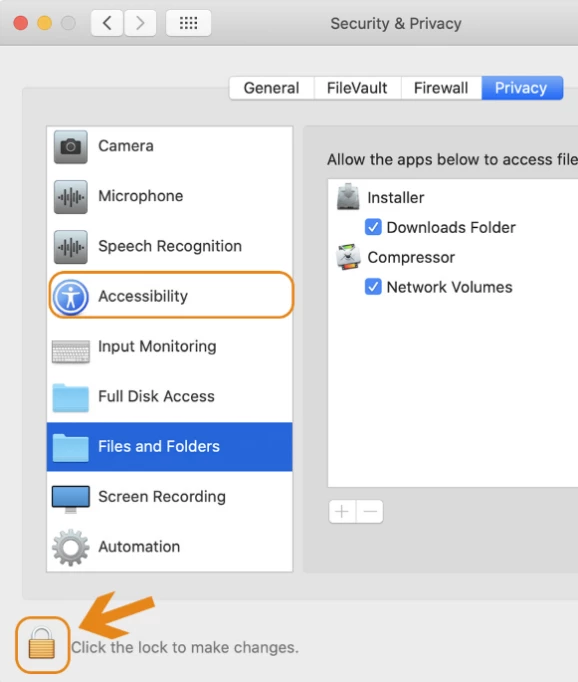


  Add Lightroom Classic by clicking on the (+) button & navigate to the Applications folder on macOS.
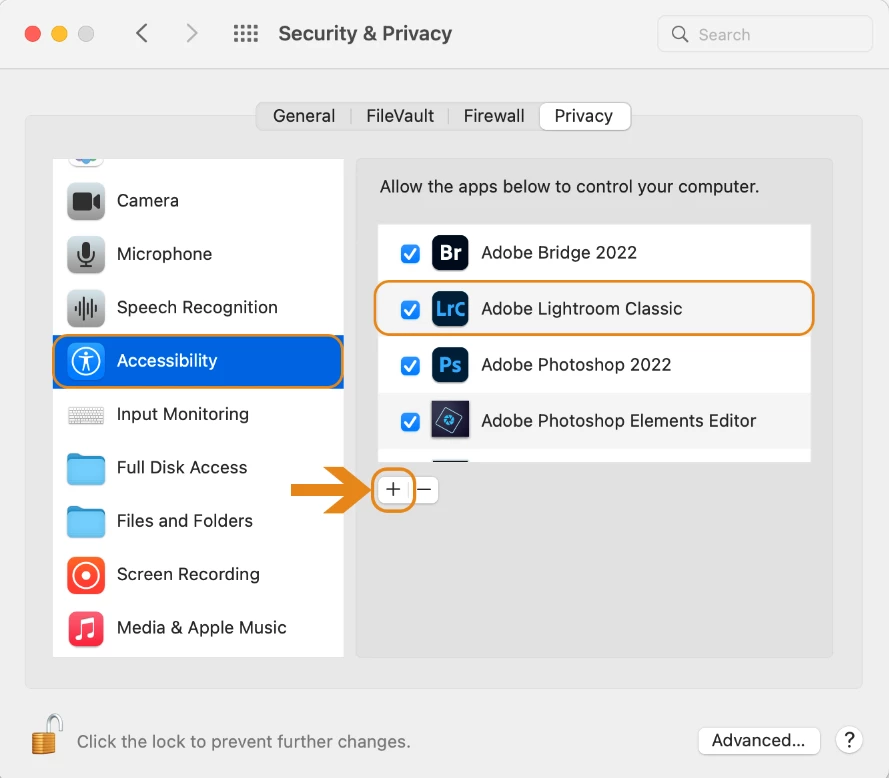


  Go to Full Disk Access and add Lightroom Classic by clicking on the (+) button & navigate to the Applications folder on macOS.
Note: Adding Lightroom Classic under Full Disk Access overrides Files and Folders settings. 
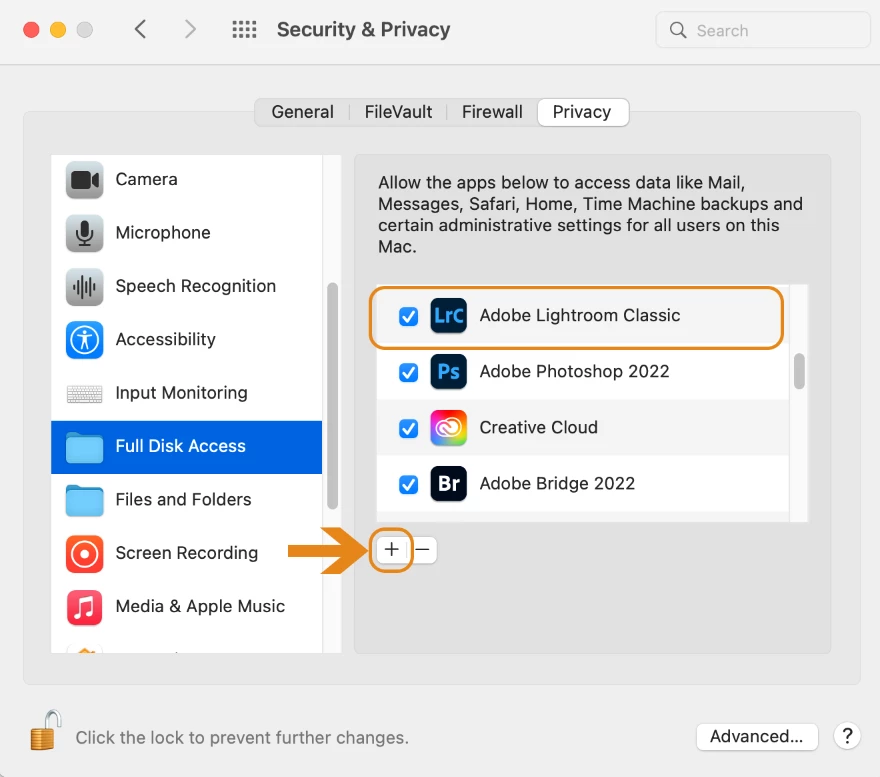


  Click the Lock icon to save the changes. Restart your computer to see the applied changes. 


Stay tuned for more tips to come.


Related links:

Lightroom Classic system requirements 

Quick Tips: Optimize LrC preferences for better performance 

Basic troubleshooting steps to fix issues in Lightroom Classic 


74 replies

Participant
September 1, 2022

Hallo,


ich benötige dringend eure Hilfe. Leider habe ich bisher noch nichts gefunden, was mir geholfen hat, dabei suche ich schon eine Weile. 


Ich arbeite mit einem IMac aus Ende 2015 und habe kürzlich das Betriebssystem auf Monterey umgestellt. Danach habe ich Lightroom für Festplatten und Dateien berechtigt. Seitdem sehe ich Bilder wieder in der Ansicht. 


Allerdings kann ich keine Fotos mehr importieren. Weder vorhandene auf Festplatten, noch neu aufgenommene auf meiner Speicherkarte. Anfangs ging es noch (eingeschränkt, für einige wenige Fotos) jetzt geht nichts mehr. 


Hat jemand einen Tip? Ich bin echt ratlos und auch schon etwas verzweifelt, da ich im September 3 Hochzeiten importieren muss....


Hoffe auf Hilfe!

Christina

AxelMatt
Community Expert
Community Expert
September 1, 2022
My System: Intel i7-8700K - 64GB RAM - NVidia Geforce RTX 3060 - Windows 11 Pro 25H2 -- LR-Classic 15 - Photoshop 27 - Nik Collection 8 - PureRAW 5 - Topaz Photo
Participant
September 1, 2022
I have full permissions for Lightroom on the disks, files and in the operator help.
But still no photos are displayed when I go to import. It is to despair!


Participant
August 31, 2022

I get a message saying 'could not copy to destination folder because it is not writable'

I do not know if this is a coincidence or not - but this started after I updated my desktop Mac to Monterey

Participant
August 31, 2022

Thanks - that did the trick  🙂

Participating Frequently
August 19, 2022

sinds de laatste update van LRC 11.5 op mijn macbook pro krijg ik de melding

"er is een onbekende fout opgetreden. deze foto is niet gerendeerd (1)"

Ik kan dus geen foto's meet exporteren.

Graag een oplossing

AxelMatt
Community Expert
Community Expert
August 19, 2022
My System: Intel i7-8700K - 64GB RAM - NVidia Geforce RTX 3060 - Windows 11 Pro 25H2 -- LR-Classic 15 - Photoshop 27 - Nik Collection 8 - PureRAW 5 - Topaz Photo
Inspiring
August 19, 2022

Après la dernière mise-à-jour du 17 août, j'ai ce message "Lightroom Classic n'a pas accès à certains dossiers Standard" Comment puis-je donner accès à ces dossiers. Merci pour votre aide. Mac OS.


Léo-Guy de Repentigny

Québec QC Canada

lgder@outlook.com

johnrellis
Legend
August 19, 2022

Google translation: "After the last update of August 17, I have this message "Lightroom Classic does not have access to some Standard folders" How can I give access to these folders. Thanks for your help. macOS."


If you haven't already see the first post in the thread to which your post has been merged:

https://community.adobe.com/t5/lightroom-classic-discussions/quick-tips-how-to-give-full-disk-access-to-lightroom-classic-on-macos/m-p/13144477

Inspiring
August 19, 2022

Thank you, the info was OK. No more problem.

Participant
August 17, 2022

Hi, I am having trouble importing photos in Lightroom classic from my MacBook, options for desktop etc are greyed out, I think I need to allow Lightroom Classic access to files/pictures stored on my computer, but I can't find the option to do this. Does anyone know what I am doing wrong?

many thanks


{Title edited by Moderator}

Ranjisha Sengupta
Legend
August 18, 2022

Hi there,


Thanks for reaching out.

Could you please share the Lightroom version and the operating system you are working on? Are you importing the images in Lightroom from an external drive? Do you notice any errors or messages? Is the import button greyed out in Lightroom?


You can try giving Lightroom full disk access if not done yet. Detailed steps are explained here: https://community.adobe.com/t5/lightroom-classic-discussions/quick-tips-how-to-give-full-disk-access-to-lightroom-classic-on-macos/td-p/12913413#:~:text=Go%20to%20MacOS%20'System%20Settings,then%20just%20enable%20the%20checkbox.


Let us know if it helps.


Thanks,

Ranjisha

Participating Frequently
August 20, 2022

The problem has been since the update to LRC 11.5.
I work with a macbook pro, chip Apple M1 Pro, software mac OS Monterey 12.5.1. Photos are stored both internally and externally on a disk. The problem is when Publishing a photo from a smart collection

Participant
August 14, 2022

I had hoped this would solve my problem, but it appears that it does not. 

I was about to try consolodating my legacy mess of random folders with images in my MacOS Pictures folder. My approach was to import them and move so LRc would organise them under Year and date default structure. However, with all the images I ried to do this with, it says I do not have write permission.


Setup: OSX 12.5 M1 MBP 16" and LRc 11.4.1


I have checked the following:

  • The folders all have R/W access for the User/Pictures
  • I have followed the process above and have enabled LRc in Accessibility (then locked) and full disk access (and locked again).
  • I have restarted several times, and double checked all these points, and still I get the same error.
  • I also checked the existing default folders for 2022 and the permissions are the same. 

In LRc I can see it has tried to create the folders to import into, but it fails, and the folders remain with a "?" in the app, but have not been created on the drive.

I also tried to create a new library and it craeated the folder and everything seemed fine, but the same thing happened. I tried to import using move and it siad no permissions.


Have I missed something, or what is the next step to try and solve this?  Help appreciated!


Participant
August 11, 2022

Cada vez que abro lightroom me aparece el siguiente mensaje, ¿Alguien sabe como solucionarlo?


Lightroom no puede escribir en los siguientes directorios. Hasta que se solucione este problema, la sincronización con Lightroom podría no funcionar correctamente.

/Users


Tengo la ultima versión de Lightroom Classic y trabajo con un Mac M1 Pro actualizado a la ultima versión de macOS Monterey


Gracias por la ayuda!

Participant
August 10, 2022

Hi,

When I try to Export photos nothing happens. The sub folder gets created but no photos inside. Anyone else experienced this? I'm on macOS Monterey 12.5, Lightroom Classic 11.4.1.


Thanks!

{Title edited by Moderator}

GoldingD
Legend
August 10, 2022
Participant
August 11, 2022

That worked, thank you very much! 

Participant
August 9, 2022

Hello! I'm hoping someone can help me because I've combed the internet and tried so many things and nothing is working. I just got a new macbook and migrated my whole catalogue over using Time Machine. It worked seemingly (everything is visually there in my library, says everything is linked, etc.). All original raw photos and XMPs are on an external hard drive. But when I go to develop a photo, it says "file not found" yet doesn't allow me to relink it and when I click show in finder, it goes right to the raw file (meaning it's linked already). I made sure it's syncing XMP and says it's trying but makes ZERO progress on the bar, even over many hours and when I even just try one photo. I tried uploading the photos as new just to see if that works (since XMPs are already there, thought I could just re-upload even though that's a pain) and it won't even recognize my external hard drive when I go to import. Yet it recognizes it as a drive within the library panel and in every other function on my computer. I am completely stumped. It feels like something is totally wrong and it's a weird limbo where it's sometimes recognizing things, but then totally not when I want to do any work or import or do anything substantial. Any help is GREATLY appreciated! Thank you

JohanElzenga
Community Expert
Community Expert
August 9, 2022

Apple changed the security requirements in MacOS Monterey. Go to MacOS 'System Settings - Security & Privacy' and add Lightroom Classic and Photoshop to "Full Disk Access". Click on the lock icon to unlock the settings, then click on the plus icon to add Lightroom Classic and/or Photoshop if it isn't already listed. If it is listed, then just enable the checkbox. See also Quick Tips: How to give Full Disk Access to Lightroom Classic on macOS


-- Johan W. Elzenga
Participant
August 9, 2022

THANK YOU SO MUCH!!! That did the trick!! I really appreciate your help so much. 

Marvelous_niceness5D11
Participating Frequently
August 8, 2022

Hi, I work with smart preview catalogs. The client sent a catalog with gray squares in the development and library modules.


This is definitely a smart preview catalog at least because "smart previews.Irdata" file is inside

and the checkmark in the Histogram menu

But it looks like it's a catalog sent without smart previews and that's why I see message "The file could not be found" on each photo.

If I click on the smart preview icon in the upper right corner of any photo in the timeline, this message appears

There were no such problems before. The client always exported the same way and everything worked

 What could be the reason?

macOS Monterey and Lightroom v11.1 on both computers.

AxelMatt
Community Expert
Community Expert
August 8, 2022

That's a known problem. Please try is to switch off the GPU support from the Lightroom preferences and check if that helps to fix the issue.

Go to Lightroom > Preferences > Performance tab > Uncheck "Use Graphics Processor" > Restart Lightroom.

https://helpx.adobe.com/lightroom-classic/kb/lightroom-gpu-faq.html#troubleshooting

https://helpx.adobe.com/lightroom-classic/kb/troubleshoot-gpu.html


If this helps please check you graphic device driver if there are a new version is available. If yes, please download the recent version and install it. Then try again.

More infos you'll find here: Gelöst: P: Gray / Negative image display in the Develop mo... - Adobe Support Community - 13006731


My System: Intel i7-8700K - 64GB RAM - NVidia Geforce RTX 3060 - Windows 11 Pro 25H2 -- LR-Classic 15 - Photoshop 27 - Nik Collection 8 - PureRAW 5 - Topaz Photo
Ian Lyons
Community Expert
Community Expert
August 8, 2022

The OP is using a Mac. Therefore, unless the OP is using a Mac dating back more than a decase, then  '...please check you graphic device driver if there are a new version is available. If yes, please download the recent version and install it. Then try again.' the only drivers available will be those installed with the OS.