mlphoto.raw
Known Participant
December 2, 2023
Question

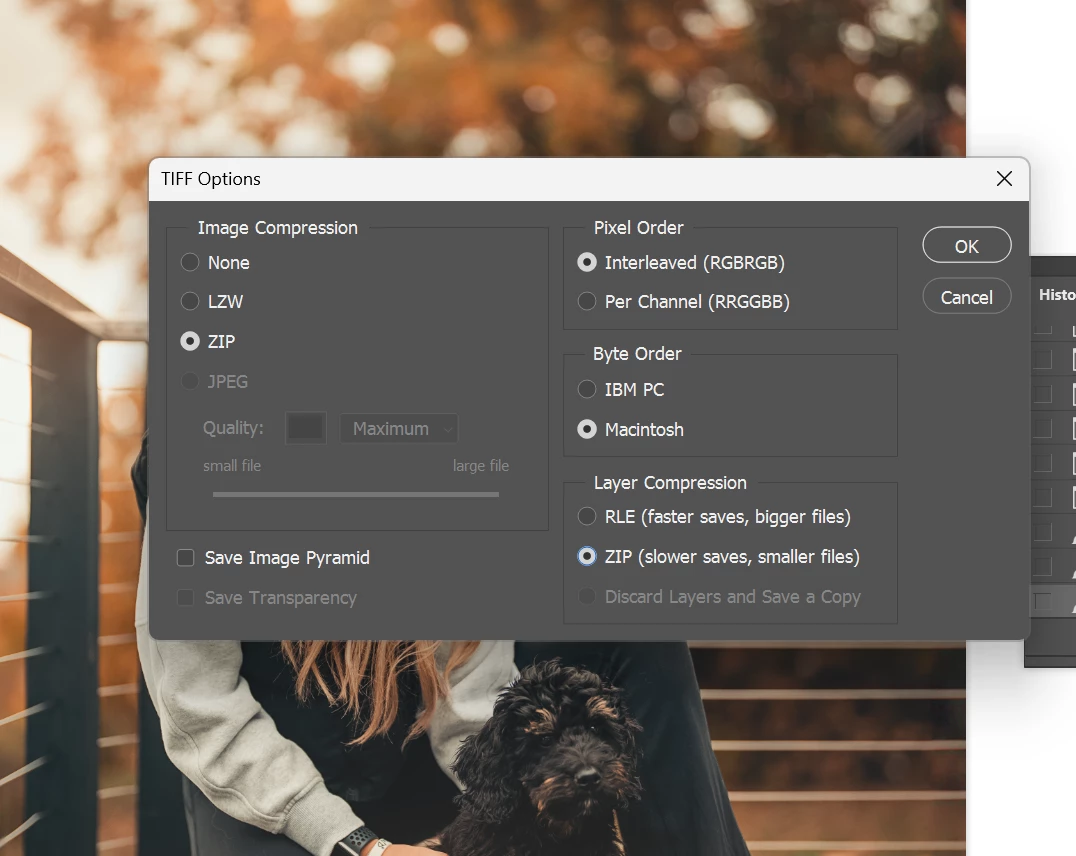
Saving as TIF, how to set "Layer Compression" default as ZIP?

  • December 2, 2023
  • 3 replies
  • 5225 views

Hi! My workflow in Photoshop has always been non-destructive. Just incase I want to come back, to revisit edits. So I save all the layers, and never flatten. 

With the ever growing size of raw on these newer cameras, I've been hitting the 4GB limitation for layered TIF, even if compression is ZIP. I've found that enabling Layer Compression to ZIP always gets me under the 4GB limit to get it to play nice in my workflow.

Is there a way to set default behavior of Layer Compression to ZIP? I'm tiring of having to Save As, and hitting the ZIP option. 

Thank you!

P.S. is there a better way to use an alternative format like PSB, and have the Lightroom Classic catalog/stack it by default?  I rely on LrC a lot, so that would be a requirement. 
  

This topic has been closed for replies.

3 replies

mlphoto.raw
Known Participant
December 4, 2023

ok, so I decided to dive into this further tonight. 

I'm running Adobe LrC 13.0.2. and Adobe Photoshop Beta 25.4.0
Based on the few comments here about PSB, I went into LrC preferences and changed the external editing file preference like this: 

I initially thought PSD is same as PSB. I found this out little later that i was wrong. 

My work flow typically, I do the ACR/LR adjustments in the Lightroom Classic, and right click and edit-in... Photoshop:


For this test, I took this image, and expanded the image using the AI crop tool, to give it some file size, and did my usual layer work flow on it. 
 

original is 5760x8640, and resulting image is 8086x12129. 

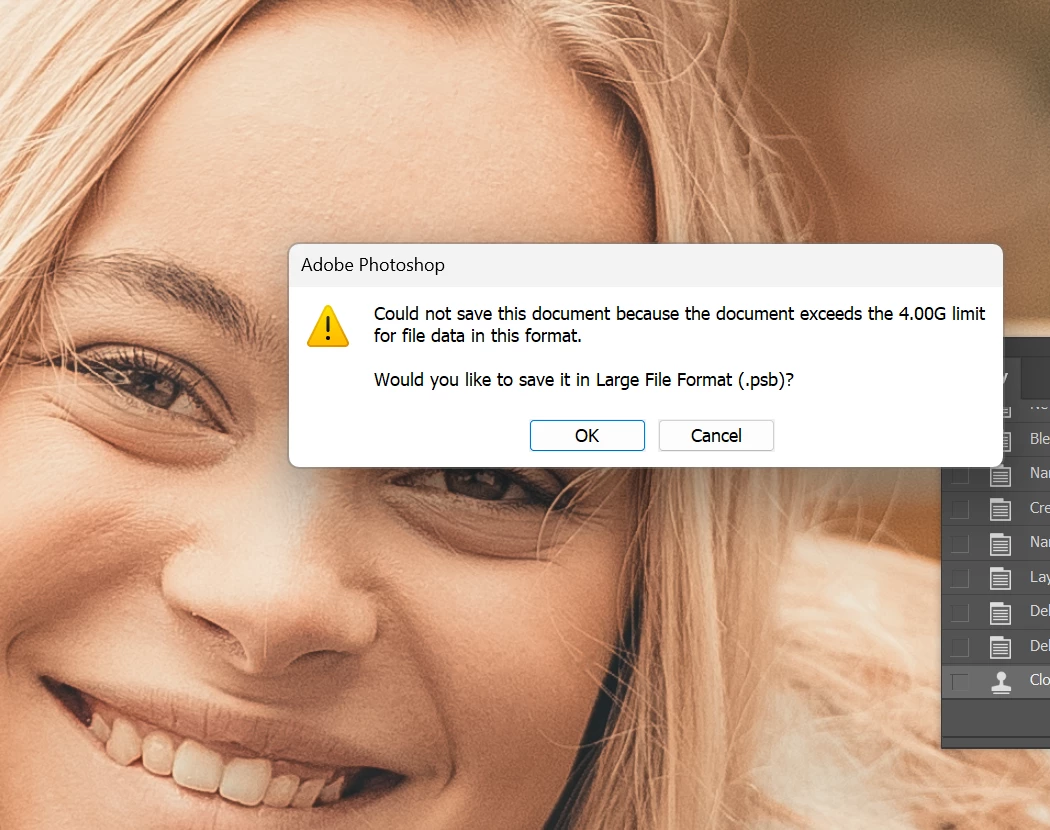
And then, I saved it, and it gave me an error that the image exceeded the 2GB limit for PSD. So I saved it as PSB as it suggested, and lo-and-behold, LrC recognized the PSB, and stacked the images automatically. 


And then, I tried to replicate the TIF saving issue where it exceeds 4GB, and when I attempted to save it as uncompressed TIF with uncompressed layers it did the same error, suggesting to save as PSB. 


The problem here, is why, within the Lightroom preference panel for external editing, there is only PSD or TIFF. Obviously PSB is the ideal choice here, but is there anyway to have the Lightroom default to PSB for external editing? 

Also is there any way to make the Photoshop default to compress ZIP and Layer ZIP in TIF? So when I have ~50-100 images open in photoshop, going through my workflow, and constantly get interrupted by these error messages, and I have to manually hit OK, and save as PSB or hit Cancel and Save As, and hit the layer compression ZIP radio button. 

Perhaps @Mark.Dahm can point me in the right direction? 

Conrad_C
Community Expert
Community Expert
December 4, 2023
quote

Also is there any way to make the Photoshop default to compress ZIP and Layer ZIP in TIF? So when I have ~50-100 images open…

By @mlphoto.raw


I have also seen that Save As to TIFF with ZIP is sticky. That means if I save one file as TIFF ZIP, the next 1 or 1000 files that I Save As will also default to TIFF ZIP. But, the problem is that “sticky” only means it’s re-applying what was done last time. Which means, if for just one file I need to Save As to different specs like Photoshop PSD, now those are the specs that stick, so the next time I need TIFF ZIP, it is time to set it manually again, and now that will stick.


It’s worth noting that if the problem is that TIFF/PSD files are exceeding 4GB too often, adding ZIP compression to TIFF will only be an unreliable stopgap, mostly because ZIP space savings can be highly variable depending on content, so the ZIP option will not always be able to get it under 4GB. PSB (Large Document Format) is the only viable long term solution you want to focus on if you have to get past the 4GB limit reliably.


quote

And then, I saved it, and it gave me an error that the image exceeded the 2GB limit for PSD. So I saved it as PSB as it suggested, and lo-and-behold, LrC recognized the PSB, and stacked the images automatically.

By @mlphoto.raw


For that, you can thank the many users who repeatedly badgered Adobe to add PSB import support to Lightroom Classic so that the increasing number of too-big-for-PSD/TIFF documents could be cataloged. This feature was finally added in 2020, see the feature request Support cataloging PSB files (Status: Released, Upvotes: 174). over on the Ideas section of this community.


Adobe has not yet made PSB one of the options for sending from Lightroom Classic to Photoshop. This has already been requested so Adobe is aware that some want it, see Add PSB as a file format for external editing (Status: No status, Upvotes: 9). The request has been sitting there since 2020 and needs to be upvoted and pushed by other users to advance it up past other potential Lightroom Classic feature requests and bug fixes being added by other users to the Ideas list. So it might not happen for a while.


Ultimately, if it would save you a tremendous amount of time to make Photoshop save to PSB or TIFF ZIP every time without fail, and if you need it done right now (without waiting for a feature request to be approved and developed) the answer is going to be two parts:

  • A custom Photoshop action or script that does a Save As, chooses the format, and sets the correct options. An action for this could be built in a minute.
  • An easy trigger. For an action, put the Actions panel in Button Mode so you can run that action in one click. Or, map it to a function key or key+modifier, and just whack that key every time you need a save to PSB or TIFF ZIP. Some will map that function key shortcut to their Stream Deck or Touch Portal app so they can hit a button on another device being used as a Photoshop control surface.


If this is that critical to workflow efficiency, there are already so many customized automation options in Photoshop that you shouldn’t have to do all those mouse clicks manually or wait for Adobe to make a feature request happen.

Stephen Marsh
Community Expert
Community Expert
December 4, 2023

Okay. 

So this proposed workaround involves these steps with the modal icon enabled:

  1. Hit the action button, vs the Ctrl-S 
  2.  It's saving to a last known file's open folder, known "bug" in "https://community.adobe.com/t5/lightroom-classic-ideas/p-add-psb-as-a-file-format-for-external-editing/idi-p/12248492" 
    So I have to click on the top bar to find the correct folder, and click on that folder to enter it.
  3.  I must click on File name box, to rename the file from the action's saved name, hit enter.


I think I'm gonna stick with save-as (ctrl-shift-s) and wait for the TIF save box to come up, and hit layer compression "zip" button. Its less steps. 
Unless i'm doing something else wrong, and I'm not sure what you mean by "use a script to default to the required ZIP and other save options, including using the current path and filename." I'm a photographer, not a computer scientist 😅


quote

I'm not sure what you mean by "use a script to default to the required ZIP and other save options, including using the current path and filename." I'm a photographer, not a computer scientist 😅


By @mlphoto.raw


You don't have to be a computer scientist to save and run a script (and photographers can certainly create scripts without being computer scientists).


Here is the script code to Save As a layered ZIP TIFF – see if it works for you. The confirmation to overwrite an existing file can be removed if you don't wish to be warned. Unsaved files will be prompted to set a save location and will use the current document name.


/*
Save As ZIP TIFF.jsx
v1.1b, 4th December 2023, Stephen Marsh
https://community.adobe.com/t5/photoshop-ecosystem-discussions/saving-as-tif-how-to-set-default-as-zip/td-p/14273504
*/

#target photoshop

if (app.documents.length) {

    (function () {

        // Save and set the dialog display settings
        var savedDisplayDialogs = app.displayDialogs;
        app.displayDialogs = DialogModes.NO;

        try {
            // Use a custom simplified save process for previously saved files
            activeDocument.path;
            var docPath = activeDocument.path.fsName;
            var docName = activeDocument.name.replace(/\.[^\.]+$/, '');
            var saveFileTIFF = new File(docPath + '/' + docName + '.tif');

            if (saveFileTIFF.exists) {
                // true = 'No' as default active button
                if (!confirm("The file '" + docName + ".tif' exists, overwrite: Yes or No?", false))
                    return;
            }
            // Use true to Save As a Copy, false to Save As
            saveTIFF(saveFileTIFF, false);

        } catch (e) {
            // Use the standard Save As dialog for unsaved documents
            var idsave = stringIDToTypeID("save");
            var desc392 = new ActionDescriptor();
            var idas = stringIDToTypeID("as");
            var desc393 = new ActionDescriptor();
            var idbyteOrder = stringIDToTypeID("byteOrder");
            var idplatform = stringIDToTypeID("platform");
            var idIBMPC = stringIDToTypeID("IBMPC");
            desc393.putEnumerated(idbyteOrder, idplatform, idIBMPC);
            var idencoding = stringIDToTypeID("encoding");
            var idencoding = stringIDToTypeID("encoding");
            var idzip = stringIDToTypeID("zip");
            desc393.putEnumerated(idencoding, idencoding, idzip);
            var idsaveTransparency = stringIDToTypeID("saveTransparency");
            desc393.putBoolean(idsaveTransparency, true);
            var idlayerCompression = stringIDToTypeID("layerCompression");
            var idencoding = stringIDToTypeID("encoding");
            var idzip = stringIDToTypeID("zip");
            desc393.putEnumerated(idlayerCompression, idencoding, idzip);
            var idTIFF = stringIDToTypeID("TIFF");
            desc392.putObject(idas, idTIFF, desc393);
            var idin = stringIDToTypeID("in");
            desc392.putPath(idin, new File("~/Documents/" + activeDocument.name.replace(/\.[^\.]+$/, '')));
            var iddocumentID = stringIDToTypeID("documentID");
            desc392.putInteger(iddocumentID, 986);
            var idlowerCase = stringIDToTypeID("lowerCase");
            desc392.putBoolean(idlowerCase, true);
            executeAction(idsave, desc392, DialogModes.ALL);
        }

        app.displayDialogs = savedDisplayDialogs;

    }());

} else {
    alert('A document must be open to run this script...');
}


function saveTIFF(saveFileTIFF, aCopy) {
    tiffSaveOptions = new TiffSaveOptions();
    tiffSaveOptions.embedColorProfile = true;
    // ByteOrder.MACOS or ByteOrder.IBM
    tiffSaveOptions.byteOrder = ByteOrder.IBM;
    tiffSaveOptions.transparency = true;
    tiffSaveOptions.layers = true;
    tiffSaveOptions.layerCompression = LayerCompression.ZIP;
    tiffSaveOptions.interleaveChannels = true;
    tiffSaveOptions.alphaChannels = true;
    tiffSaveOptions.annotations = true;
    tiffSaveOptions.spotColors = true;
    tiffSaveOptions.saveImagePyramid = false;
    // NONE | JPEG | TIFFLZW | TIFFZIP
    tiffSaveOptions.imageCompression = TIFFEncoding.TIFFZIP;
    activeDocument.saveAs(saveFileTIFF, tiffSaveOptions, aCopy, Extension.LOWERCASE);
}


  1. Copy the code text to the clipboard
  2. Open a new blank file in a plain-text editor (not in a word processor)
  3. Paste the code in
  4. Save as a plain text format file – .txt
  5. Rename the saved file extension from .txt to .jsx
  6. Install or browse to the .jsx file to run (see below)


https://prepression.blogspot.com/2017/11/downloading-and-installing-adobe-scripts.html


Stephen Marsh
Community Expert
Community Expert
December 3, 2023

In a quick test (Intel Mac, Ps2021), the TIFF save settings were sticky, even after quitting and restarting Photoshop.

mlphoto.raw
Known Participant
December 4, 2023

I should try this test on my m2 mbp, I thought I saw the same behavior few months ago. 

D Fosse
Community Expert
Community Expert
December 2, 2023

I never compress anything, so I wanted to see what zip compression actually does.


I took a random file, a few layers, that saves uncompressed at slightly over 2 GB.

With full zip compression it saves at 1.24 GB.

With zip layer compression it saves at 1.25 GB.


So far so good. But now to what mainly interests me: how long does it take?


Uncompressed it saves in under 2 seconds. Basically instant.

With full zip compression it saves in 44 seconds (!)

With zip layer compression it saves in 35 seconds.


I really, really have a hard time seeing how such an insignificant size reduction is worth the long save times. It certainly isn't for me.


Now - I use PSB, and I do agree with one thing. There should be a preference to set that as the default format, so that you don't have to choose it every time.

mlphoto.raw
Known Participant
December 3, 2023

Thank you for your test, however on my end, the size difference is significant with many layers.


D Fosse
Community Expert
Community Expert
December 3, 2023

OK, but how long does the save take?