




TeresaDemel
Adobe Employee
Adobe Employee
March 10, 2021
Question

Multi-Frame Rendering is here! (AKA The multithreading you’ve been asking for)

  • March 10, 2021
  • 147 replies
  • 167166 views

Multi-frame Rendering is here for After Effects beta users. Right now, you will have access to Multi-Frame Rendering for export only. Keep your eye on this forum, as we will be rolling out new features until we launch.


Internally, we have been testing a representative sample of projects with a suite of hardware configurations, and we are excited to finally put this feature in your hands and get your feedback. Test your unique projects on your own hardware so we can ensure that our performance updates benefit all of our customers and meet speed and quality metrics before we launch.


Beta testing of Multi-Frame Rendering will last a little longer than some of our other features because we currently do not support Multi-Frame Rendering in Preview, Motion Graphics templates, Dynamic Link, Adobe Media Encoder and AERender Command Line Interface.


Check out the blog and FAQ post to learn the following:

  • What is Multi-Frame Rendering?
  • What factors influence performance?
  • Which effects have been optimized for Multi-Frame Rendering?


Start Testing!
We want to hear from you! Share your thoughts and ideas in this forum.

  • How much faster is Multi-Frame Rendering compared to Single-Frame Rendering with your comps on your machine?
  • Does our benchmark project perform at the expected speed on your system?
  • If you run into specific speed or quality issues with your project, share your project with us at mfrbeta@adobe.com.


Test Your Comps
Test your comps in Multi-Frame Render mode vs. Single-Frame Render

  • Use Ae Render Queue to export your comp in Multi-Frame mode.
  • Purge both the disk and memory cache, then
  • Use Ae Render Queue to export your project in Single-Frame mode. Note: Use the same output module for Single-Frame and Multi-Frame mode. Go to Preferences -> Memory and Performance -> Enable Multi-Frame Rendering (beta) and uncheck the box to use Single-Frame Rendering Mode


Leave a comment and the following information in this forum:

  • Your hardware specs: # cores in your CPU, GB of memory, GPU model and amount of VRAM
  • Single-Frame render speed (Use “Render Time” noted in your status bar)
  • Multi-Frame render speed


If you detect any problems with render speed or quality, submit your projects

  • Open your After Effects project
  • File -> Dependencies -> Collect Files -> Collect -> Save As (Name Your Folder)
  • After Effects will store your .aep file, footage, and text report (file log)
  • Zip up your project and send it to us at mfrbeta@adobe.com (or send a link to it hosted on your creative cloud storage if it’s too large to email).


Share the following information in your comment:

  • Your hardware specs: # cores in your CPU, GB of memory, GPU model and amount of VRAM
  • Single-Frame render speed (Use “Render Time” noted in your status bar)
  • Multi-Frame render speed
  • Mercury CPU or GPU Mode used


Test our benchmark project and see how your hardware compares
We would love to know how your hardware compares to the results we have gathered from our test suite:
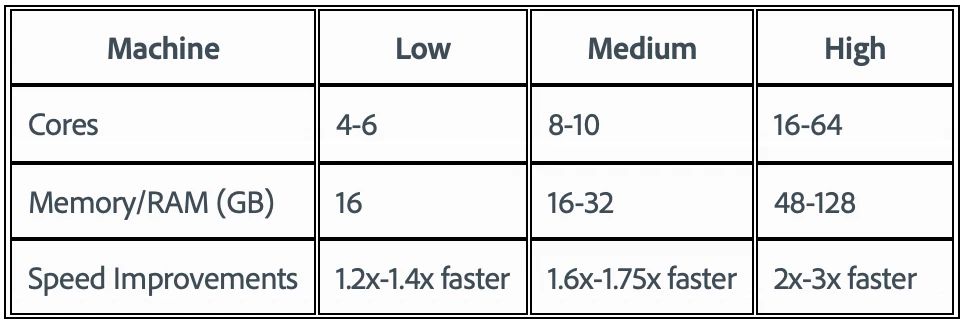
 

To test the benchmark project on your machine:

  • Download the benchmark project
  • Use Ae Render Queue to export the benchmark project in Multi-Frame mode.
  • Purge both the disk and memory cache, then
  • Go to Preferences -> Memory and Performance -> Enable Multi-Frame Rendering (beta) and uncheck the box to use Single-Frame Rendering Mode
  • Use Ae Render Queue to export the benchmark project in Single-Frame mode. Note: Use the same output module for Single-Frame and Multi-Frame mode.


Share the following information in this forum:

  • Your hardware specs: # cores in your CPU, GB of memory, GPU model and amount of VRAM
  • Single-Frame render speed
  • Multi-Frame render speed

147 replies

Known Participant
February 27, 2022

Previewing a simple.MP4 file is MUCH SLOWER when using Multi-Frame Rendering, compared to simply turning the feature off.


See my post here: https://community.adobe.com/t5/after-effects-discussions/preview-on-v22-not-realtime-when-playing-rendered-footage/m-p/12780502#M194603

Juan Barrilete
Inspiring
February 2, 2022

I am also having performance problems previewing a project that go away when MFR is turned off. Specifically with MFR turned on, the timeline will appear to have rendered completely but during preview it hits a patch and starts slowing down. The FPS then goes way down - as you can see in the screenshot below, it's barely going 1 FPS. I've tried different things:

- Emptying the media cache and DB
- Trying all the different preview resolutions
- Switching between CUDA, Software, and OpenCL


My PC: Windows 10 / i7-8700 @3.20GHz (6 cores) / 32 GB RAM / NVIDIA GeForce GTX 1080 (w/latest driver) / 2T NVMe


IMHO, a failure mode where the timeline appears to have rendered successfully (according to the green line) and yet the preview fails to perform in realtime is something that Adobe should address right away. I will not enable MFR until Adobe at least fixes that.


The bug does seem to be project specific, however. I don't see this issue with the Pulse app.


Community Manager
February 2, 2022

Is this a project you are able to share with us so we can see if we can reproduce the frame rate issue you are seeing? 

Community Manager
February 14, 2022

glad to hear you've recreated this issue jenkoid


using AE Pulse rendered preview half res:

1. Yes! green rendered frames disappear when I change comp and back again

2. Yes! If I leave it idle for a few minutes and go back it plays properly and STAYS fully rendered. There's no option to 'turn off cache frames while idle' unfortunately, but your theory makes sense.

3. disk cache on, 256GB dedicated nvme [empty; purged prior to render]. *though I turned it off and exact same issue occured, and were fixed eventually by idle cache


33GB [52%] of my 64GB RAM was in use -- I set AE to reserve 8GB, so 33GB is nowhere near requiring RAM purge? Or is it?


me and juan clearly observing this same issue... thank the gods... we're on the road to a solution


cheers lads & lasses, ball's in your court


On #2, if you go to the Composition Menu -> Preview -> Cache Frames While Idle can be toggled there to turn it on or off if needed. 


Thanks for the other info, the team is working on it!

Known Participant
February 2, 2022

Hi there Adobe, I'm seeking assurance the issue of delayed/jerky preview playback a known one? MFR adds a delay [maybe a second] even when moving to an ALREADY rendered frame, and the playback itself  is also briefly delayed and only intermittenly smooth before degrading into jerkiness/freeze-up ... there's an almost random level of performance when replaying the exact same strip of already rendered ram preview. This is remedied by simply turning off MFR in preferences; the very same piece of pre-rendered timeline will play immediately with no delay, smoothly every single time.


I've observed this issue in every complex project including your AE Pulse project. Can you tell me have you observed this? Is the only solution to turn off MFR or are you working on a cure?


My PC: i7 8086K / GTX 1080 ti / 64GB DDR4 RAM / NVME SSD assets drive


Hopefully you can guide me to a smoother animating experience


Thanks so much for reading,


Kiron

New Participant
January 27, 2022


macbook pro m1pro 16gb

ae beta v22.3.0

Inspiring
January 31, 2022

I today ran for the first time into a major problem with the Beta on my m1max mbp, when someone handed me over an existing project and it just absolutely wouldnt render through. It was playing back super smoothly at 1/3 resolution while editing, but I was unable to render.. 


it took a while to find the culprit- turned out it was an add grain effect in some precomp. Just wanted to let you know, that this effect seems to cause major problems still on the m1 chip.. 

JohnColombo17100380
Community Manager
Community Manager
February 1, 2022

Hi @chfilm,

Thank you for reporting this issue. In testing the Add Grain effect on M1, we were not able to see any issues in either playback or rendering through the Render Queue. To help us investigate further, could you provide a bit information on the problems you are seeing:

  • What does the failure of Add Grain look like e.g. does After Effects (Beta) crash, is an error shown, or some other behavior? 
  • What is the resolution of the composition where the failing Add Grain effect is being used?
  • If you set the playback of the Composition panel to Full, do you see the same problem?


A screen recording of the issue or the collect project with assets would be extremely helpful as well if you are able to share them.


Thank you for reporting and for any further information,

- John, After Effects Engineering Team

iestynx
Inspiring
January 6, 2022

I'm having a hell of a time with After Effects saying that it's out of memory when rendering. Been trying the Beta and 2022  can someone look at this log file and give me some help please🙏

iestynx
Inspiring
January 6, 2022

Tried importing the project into a new one at 8bpc and it works fine. But once I change to 16bpc, my Working space to 709 and linearised, it beach balls.

iestynx
Inspiring
January 6, 2022

OK, I've now Created a new project 16bpc, 709 linear. Imported the footage, redone the comps from sgratch and it all works fine. Renders super quick. How do I repair an After Effects file? As it seems like there's an issue with my working project.🤦‍♂

nikki2008333
New Participant
December 8, 2021

Not sure what's wrong, need help. I cannot get though a single render with any settings, keeps running out of memory.

My PC specs: 

nvidia 3080 rtx - 10 gb vram

cpu intel 19-9900

32 gb ram

windows 10 64 bit

I have tried Mercury only, GPU accelerated, single and multi-frame. nothing gets past halfway before it runs out of memory. Others here have rendered on lesser specs, i dont understand...

Community Manager
January 6, 2022

Hello.

Thanks for reporting this issue. We are currently working on making some memory related improvements that will resolve several memory issues. 

Please stay tuned.

Thanks,

After Effects QE.

iestynx
Inspiring
January 21, 2022

Any estimate on this fix. It's affecting AE 2021, 2022 and the Beta version for me.

zzyzxerxes
New Participant
November 29, 2021

Will not render multi-proc with latest sapphire. Will crash system. 2x 3090, threadripper 3970x 32 core, 256 Gb ram. gpu sapphire disabled. Historically, the multi proc render has been pretty unstable and generally useless. Thanks for keeping with the traditions! At least I can disable "crashnow" 


oof


jjjj


New Participant
November 2, 2021

Thanks for the update. I tested this new update with my work project, MFR makes render queue renders a lot faster but somehow it makes my preview slower. 

When MFR is disabled, the section I preview runs in realtime 24fps on third resolution but when MFR is enabled I can't get it to go past 18fps no matter how low I set the preview resolution!


My rig is kinda ancient by I'm not sure if the rig is the problem here 

i7 4790 / 16 GB DDR3 1600 CL9 / RX580 

I tried switching to mercury software only and OpenCL but it makes no differnce. I tried changing the MFR percentage to either higher than default 10% or even 0, but the problem presists 


I'm on the latest build of Win11 


Please HELP 

hellopaul4
Inspiring
November 2, 2021

I've found similar issues, on a reasonably high end 6-month old AMD 5950X/GTX3090/128GB RAM system, so it's probably not your "kinda ancient" rig's fault. Do you find if you quit/restart AE, the previews run perfectly for a while, then everything begins to slow down? I deleted my prefs, and things seem to be OK - for now at least, so maybe you could try that for a start?

New Participant
November 2, 2021

Hi thanks for your reply. I even deleted all of my preferences, all third party plugins and re-installed AE and tried restarting the program and my rig several times, the problem presists, maybe once or twice it was blistering fast after purging cache and memory but after a pause/playback it went back to being slower than single frame rendering.


Krashin
Inspiring
November 1, 2021

Results:

CUDA ON: MFR OFF // 11:36
CUDA ON: MFR ON // 3:06

That's a 3.74x increase in performance and it's very noticible


AMD Ryzen Threadripper PRO 3975WX 32-Cores 3.50 GHz
256 GB DDR4 RAM


GPU 1: NVIDIA GeForce RTX 3090
Driver version: 30.0.14.7111
Driver date: 6/21/2021
DirectX version: 12 (FL 12.1)
Dedicated GPU memory 13.2/24.0 GB
Shared GPU memory 2/128 GB
GPU Memory 15/152 GB


GPU 2: NVIDIA GeForce RTX 3090
Driver version: 30.0.14.7111
Driver date: 6/21/2021
DirectX version: 12 (FL 12.1)
Dedicated GPU memory 13.7/24.0 GB
Shared GPU memory 2/128 GB
GPU Memory 15/152 GB

sangbuidesigner
New Participant
October 27, 2021

Hi,

I benchmark with Ryzen 3900X | 64GB Ram | RTX 3090 SuprimX | Windows 10 64 bit

  • Single frame: 7:06 
  • Multi Frame: 6:50