

How to Achieve Clean Scene Fades Without Layer Overlap Issues
Hi all,
In my work as an animator, I often have scenes fade out at the end and transition into a new scene. This means I fade one symbol in and another symbol out. In the past (about 8 years ago), I would handle this fading directly on the object (the symbol itself) in the properties panel. For the incoming symbol, I would set it to 0% alpha at frame 1 and to 100% alpha at frame 40, using a classic tween to create the transition.
The problem was that all the layers, groups, and shapes within the symbol would become visible through each other, creating a messy blend. What I wanted was for the symbol to fade out as a "flattened" image, but without actually flattening it. Back then, this was possible by setting the blend mode to “Layer.” However, an update has removed this option.
There was also an update that allowed these types of actions to be applied at the frame level instead of the object level, creating a white dot on the frame. I experimented with this, but initially encountered the same messy blend issue. Then, I found that applying a filter (like Blur) to the symbol at the frame level would resolve the blending issue. It’s strange, but it worked. Of course, I didn't actually want a blur, so I had to set the blur to 0% to keep everything sharp while fading out.
It doesn’t sit right with me that this is the way to handle this. Am I missing something? I'd like to create a command with a shortcut for this process, but apparently filters don’t work well in commands. Hopefully, someone has a better idea.
Thanks in advance!
Erik
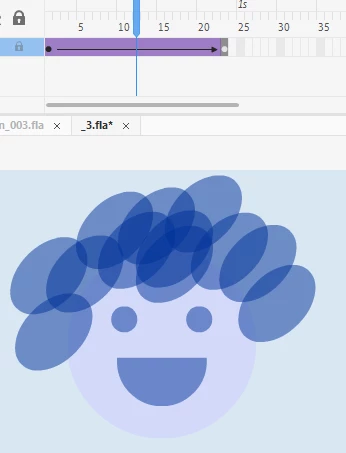
above: the problem
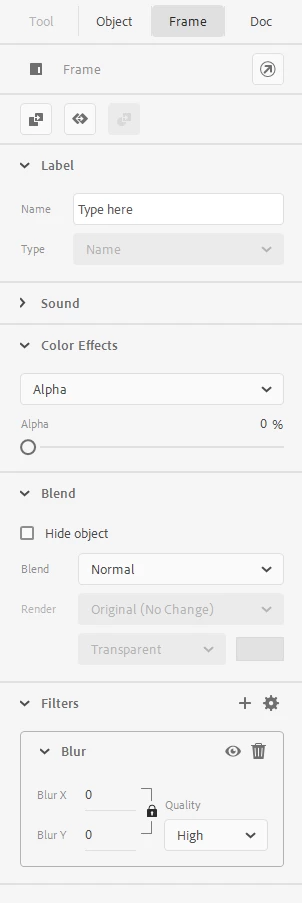
above: my solution
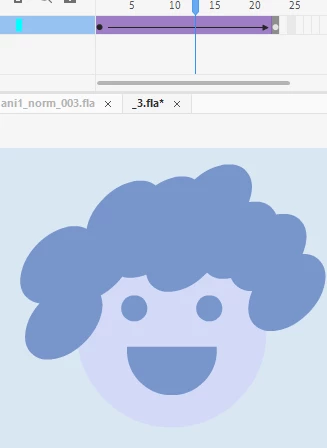
above: the result wanted (about 50% alpha)


 AdChoices