

New Participant
January 21, 2022
Answered

Bridge 12.0 - batch rename doesn't work

  • January 21, 2022
  • 9 replies
  • 7116 views

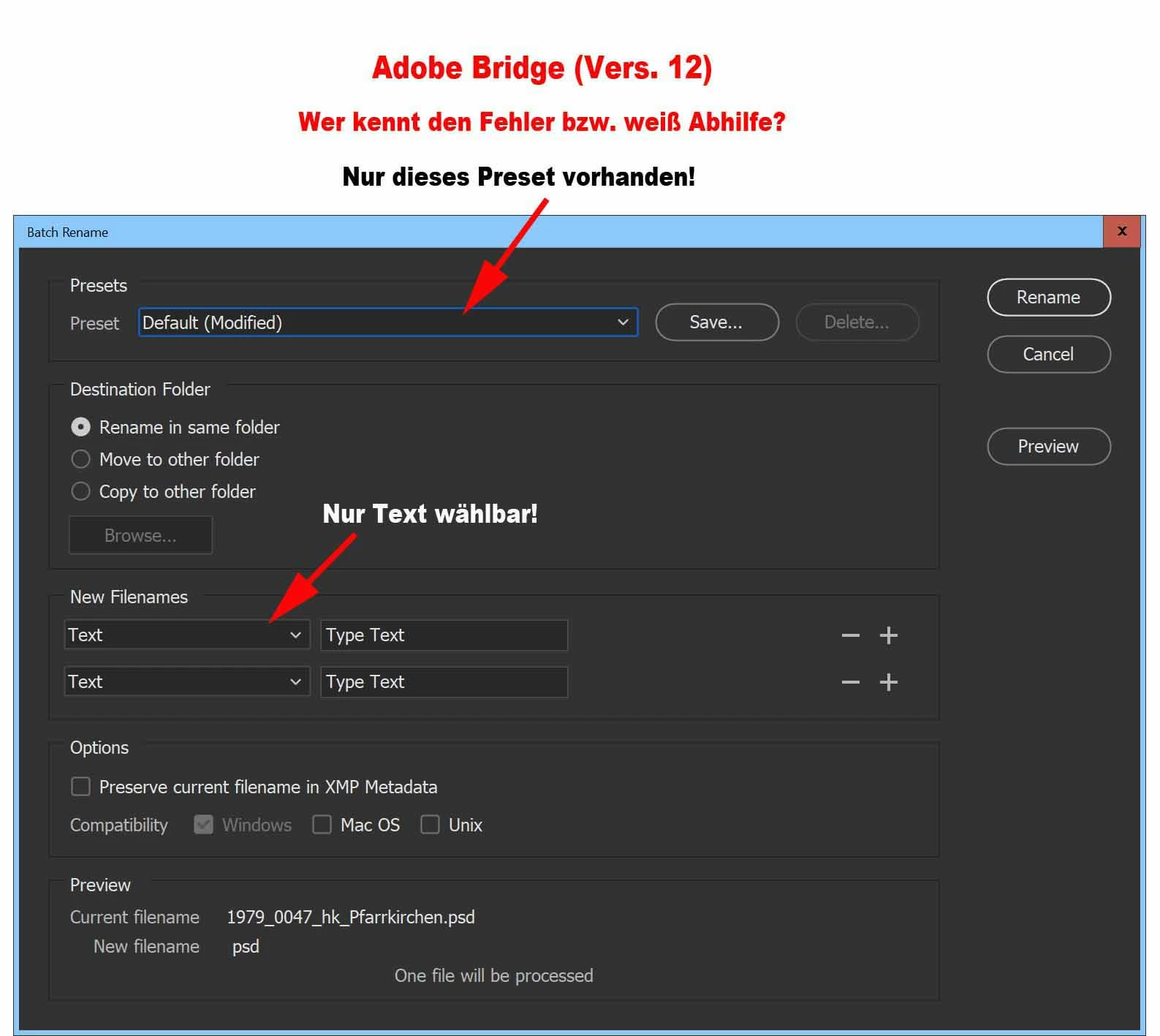
Preset only “Default (Modified), nothing else!

The same at “New Filenames” I can only select Text, nothing else.

I uninstalled and reinstalled Bridge, but it’s still the same.

Who can help me?

Correct answer Melanie22737901pqv7

Problem is solved!

https://helpx.adobe.com/bridge/kb/troubleshoot-errors-freezes-bridge.html


2. Reset preferences, reset the default workspace, and purge the cache.

Damaged preferences or workspaces can cause unexpected behavior in Adobe Bridge. Purging the cache can fix display issues for thumbnail previews.

  • Start Adobe Bridge and immediately press Ctrl+Alt+Shift (Windows) or Command+Option+Shift (Mac OS) until the Reset Settings dialog box appears.
  • Select all three options--Reset Preferences, Reset Standard Workspaces, and Purge Entire Thumbnail Cache--and then click OK
     
    Everything ok

9 replies

billm51937703
Participating Frequently
March 19, 2024

Only works if you can get to the Batch Rename window........................if I select multiple file folders it is not able, not much use for managing large data sets!

Adobe Employee
May 13, 2022

Hi Melanie22737901pqv7 ,Hello all, 
The dropdown issue is fixed in the latest Bridge release (version 12.0.2). Do update to the latest available version.
Find details of other bug fixes here: https://helpx.adobe.com/bridge/kb/fixed-issues.html#may-2022


-Subbi

billwesty2
Participating Frequently
May 13, 2022

This works!

New Participant
April 12, 2022

Had the same problem, both Win10 and Win11, Dutch language setting, drove me crazy. What worked perfectly fine for me, was to use the scroll wheel in order to use the drop-down box to choose an option > change text into metadata or whatever. In other words: the drop-down boxes can only be used via the scroll wheel of the mouse (Logitech, in my case). You have to be careful and just point at the drop-down box and not click on it (remedy: click twice). Clicking only worked - after scrolling - in the Type Text field. I understood that somebody else had to use the space bar to activate the drop-down boxes - that didn't work in my case, but t's clear that the way the drop-down boxes get the focus is messed up. So now the developers can fix it, shouldn't be difficult. 

Ann Bens
Adobe Expert
March 1, 2022

Problem not solved by resetting pref etc.

Issue just repeats itself.

Only solution for me: revert to previous version.

Luca_Sc
New Participant
February 18, 2022

Many user have this issue, there is a bug with the drop down menu in version 12.0.1.246, at the moment the only solution is roll back to version 12.0.0.234, look at this discussion

https://community.adobe.com/t5/bridge-discussions/drop-down-menus-for-file-names-in-batch-rename-not..

Melanie22737901pqv7AuthorCorrect answer
New Participant
January 22, 2022

Problem is solved!

https://helpx.adobe.com/bridge/kb/troubleshoot-errors-freezes-bridge.html


2. Reset preferences, reset the default workspace, and purge the cache.

Damaged preferences or workspaces can cause unexpected behavior in Adobe Bridge. Purging the cache can fix display issues for thumbnail previews.

  • Start Adobe Bridge and immediately press Ctrl+Alt+Shift (Windows) or Command+Option+Shift (Mac OS) until the Reset Settings dialog box appears.
  • Select all three options--Reset Preferences, Reset Standard Workspaces, and Purge Entire Thumbnail Cache--and then click OK
     
    Everything ok
Participating Frequently
January 22, 2022

Pleased that has worked for you. Adobe support couldn't get it to do that for me and the only fix was a roll back to the previous version. I see many others having similar issues so hopefully whatever the bug is they fix it soon.

jbm007
Adobe Expert
January 23, 2022

Maybe when we see pigs start to fly.


I hope so. The issue is so random and doesn't effect everybody.

Inspiring
January 22, 2022

Clicking on the down arrow to the right of the Preset drop down box does not seem to work.  To see other values for the Preset field, make sure the Preset field is highlighted and click shift-down-arrow.

Participating Frequently
January 22, 2022

It's a bug many of us have experienced and reported in multiple threads. Current solution is to roll back a version.

jbm007
Adobe Expert
January 21, 2022

Batch rename has its quarks.

First off, you need to type your file name change in the correct dialog box.  See attached.

Then select if you want the files to reside in that folder or somewhere else.

You will see a preview at the bottom of the panel of what the new renamed file will look like.

You can add spaces after your rename value or numbering sequences.

If you like what you see, you can go back up and save it as a custom preset.

If not just run batch rename.


New Participant
January 21, 2022

This is not my problem. I miss the Presets!