WitchyWoman1998
Participant
August 13, 2019
質問

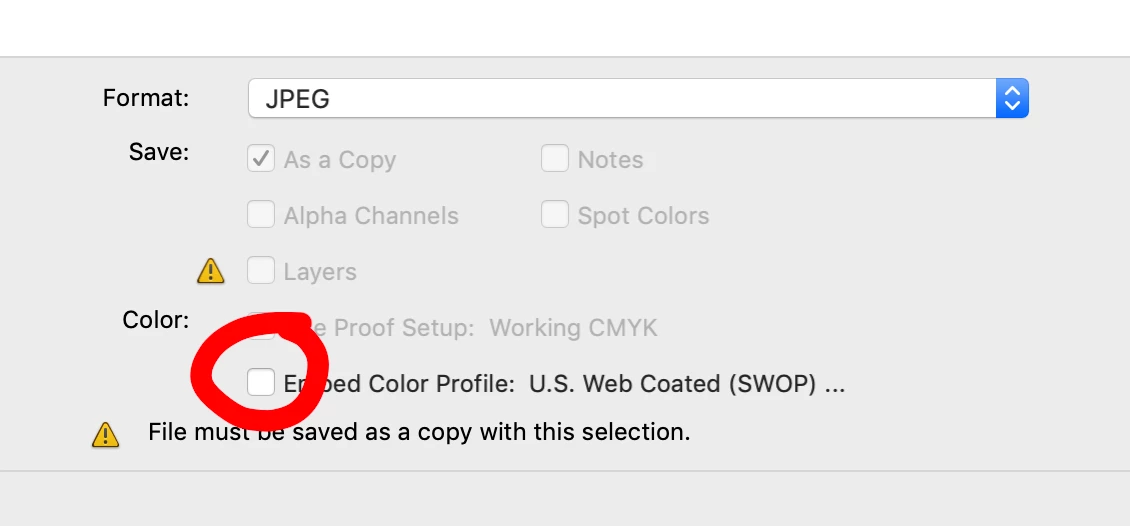
Should I check the "Embed Colour Profile" box when saving as jpg/PDF?

  • August 13, 2019
  • 返信数 12.
  • 65081 ビュー

I would be so grateful if somebody could tell me whether this box should or should not be checked. Is the answer the same whether I am saving as RGB or CMYK, should it always be checked, or never be checked? I can't find a clear answer on a google search!

At the moment, I do NOT check it if I am saving as CMYK as I then get a hazy film over the jpg's, like they are washed out. If I am saving as RGB then I DO check it.

I just would love to know the correct answer!

Thanks

    返信数 12

    bsomberg
    Inspiring
    July 19, 2024

    I have a slightly different question.  It may have been answered in one of the responses, but I didn't see it.  I have a file which I converted to a specific CMYK profile (which I downloaded from my print service).  Now when I save as a jpg it hases if I want to embed and RBG color profile.  I am not sure what the question is for since it is a CMYK file or what to do.  Honestly, I am not sure it does very much at all because if I check the box and then reopen the file, it still has the CMYK profile.   Can someone please help with my confusion?  Thanks.

    NB, colourmanagement
    Community Expert
    Community Expert
    July 24, 2024

    @bsomberg If you have a CMYK file and are saving it - you should not be being asked if you wish to embed an RGB ICC profile, that’s an error.

    Are you SURE it’s a CMYK file? 


    Did you use edit>convert to profile and set the print provider's recommended ICC there? 

    Look at the bottom left of the Photoshop interface - there's a little info window which can be set to ICC profile.

    as you can see, this image is sRGB - - 


    Here's how an ICC conversion is done in edit>convert to profile, I used Relative Colormetric and GRACoL2006_Coated1v2.icc:

    I click OK


    AFTER the conversion I see this - the Photoshop info panel clearly shows GRACoL2006_Coated1v2


    Yours should show whatever CMYK profile you used in the conversion


    I hope this helps
    neil barstow, colourmanagement net - adobe forum volunteer - co-author: 'getting colour right'
    google me "neil barstow colourmanagement" for lots of free articles on colour management
    Help others by clicking "Correct Answer" if the question is answered.
    Found the answer elsewhere? Share it here. "Upvote" is for useful posts.


    NB, colourmanagement
    Community Expert
    Community Expert
    July 24, 2024

    @bsomberg IF the error persists then 

    Perhaps try a thorough reset of Photoshop preferences?

    (read this entire post before acting please)

    Resetting restores Photoshop's internal preferences, which are saved when Photoshop closes.

    If they become corrupt then various issues can occur.


    Here’s some info on how to do that:

    https://helpx.adobe.com/photoshop/using/preferences.html

    Manually removing preferences files is the most complete method for restoring Photoshop to its default state: 

    https://helpx.adobe.com/photoshop/using/preferences.html#Manually


    Manually removing preferences files is the most complete method for restoring Photoshop to its default state. This method ensures all preferences and any user presets which may be causing a problem are not loaded.

    1. Quit Photoshop.

    2. Navigate to Photoshop's Preferences folder.
      macOS: Users/[user name]/Library/Preferences/Adobe Photoshop [version] Settings
      Windows: Users/[user name]/AppData/Roaming/Adobe/Adobe Photoshop [version]/Adobe Photoshop [version] Settings

       
      Note: The user Library folder is hidden by default on macOS. To access files in the hidden user Library folder, see How to access hidden user library files.
    3. Drag the entire Adobe Photoshop [Version] Settings folder to the desktop or somewhere safe for a back-up of your settings

    4. Open Photoshop.

       New preferences files will be created in their original location.


    Note re macOS: The user Library folder is hidden by default.

    To access files in the hidden user Library folder, see here for how to access hidden user library files.

    https://helpx.adobe.com/x-productkb/global/access-hidden-user-library-files.html


    Unexpected behaviour may indicate damaged preferences. Restoring preferences to their default settings is a good idea when trying to troubleshoot unexpected behaviours in Photoshop. check out the video

    https://helpx.adobe.com/photoshop/using/preferences.html#reset_preferences


    Learn how to access and modify Photoshop preferences and customise per your frequent workflows

    https://helpx.adobe.com/photoshop/using/preferences.html


    And here’s an earlier forum discussion as an aid to understanding

    https://community.adobe.com/t5/photoshop-ecosystem-discussions/quick-tips-how-to-reset-photoshop-preferences/td-p/12502668


    You may want to backup your settings and custom presets, brushes & actions before restoring Photoshop's preferences.

    Here is general info about that:  https://helpx.adobe.com/photoshop/using/preferences.html#BackupPhotoshoppreferences


    Before you reset your preferences

    in case of future issues, I suggest you make a copy as Adobe may need one to check problematic references. 

    Quit Photoshop.
    Go to Photoshop's Preferences folder

    Preferences file locations: https://helpx.adobe.com/photoshop/kb/preference-file-names-locations-photoshop.html\


      [on MacOS see: Users/[user name]/Library/Preferences/Adobe Photoshop [version] Settings

      Note for those on macOS: - be aware that the user Library folder is hidden by default on macOS.

      https://helpx.adobe.com/x-productkb/global/access-hidden-user-library-files.html

      In the Finder, open the “Go” menu whilst holding down the Option (Alt) key.

      Library will now appear in the list - below the current user's “home” directory. ]


    Now you can drag the entire Adobe Photoshop [Version] Settings folder to the desktop or somewhere safe as a back-up of your settings.


    Note for those on macOS:

    Preference preservation is affected by macOS permissions,

    you’ll need to allow Photoshop ‘Full Disk Access’ in your Mac OS Preferences/Security and Privacy


    If that doesn't fix the issue:

    Go to Preferences > Performance... and uncheck Multithreaded Compositing - and restart Photoshop.

    Still hanging? 

    Go to Preferences > Performance... click Advanced Settings... and uncheck "GPU Compositing" - then restart Photoshop. 

    Do you still have problems?


    It may even be time to reinstall Photoshop.


    It’s recommended that you use the Adobe CC cleaner tool to remove all traces first.

    (See above about preserving preferences though! It’s worth preserving them unless they are corrupted.)


    https://helpx.adobe.com/creative-cloud/kb/cc-cleaner-tool-installation-problems.html

    Uninstall Photoshop BUT make sure to choose the option “Yes, remove app preference”.


    Once that process finishes, start the installation process and look into the “Advanced Options”. Uncheck “Import previous settings and preferences” and choose to “Remove old versions”.


    I hope this helps

    neil barstow, colourmanagement net  - adobe forum volunteer - co-author: 'getting colour right'

    google me "neil barstow colourmanagement" for lots of free articles on colour management

    Help others by clicking "Correct Answer" if the question is answered.

    Found the answer elsewhere? Share it here. "Upvote" is for useful posts.

    Bob_Hallam
    Legend
    May 29, 2023

    Always and a resounding yes! Without the embedded profile the files color appearance is not defined.  Always include the profile and all color managed software will display it as intended.  


    ICC programmer and developer, Photographer, artist and color management expert, Print standards and process expert.
    ElizabethOOOG
    Known Participant
    May 27, 2023

    Yes if you're a print service, have a relationship and CMS Profile with service. Otherwise, you go through proofing stages with printer/device. Each device has a CMS profile; Screen, Apps, input devices, output devices and substrates. Color profiles for high-end output devices changes daily by service provider. Ask for proof with color targets. Look for gradients stepping, greyscale neutrality, check staturation targets. Learning to anticipate color requires a good relationship with device and years of practice to read the numbers and know hows those numbers should translate on any particlar substrate. A good start is knowing when the targets are off, then you know how good the print service is as well.

    Okay
    NB, colourmanagement
    Community Expert
    Community Expert
    May 29, 2023

    @ElizabethOOOG The answer is actually yes, a document's ICC profile should be embedded - pretty much at all times for pretty much all users.

    An image file needs an embedded profile so that it can be passed between users and services, that’s the point at which a conversion is perhaps made to their own device ICC profile. Without an embedded ICC profile, they'd have to guess what colourspace to convert from.


    I hope this helps
    neil barstow, colourmanagement net - adobe forum volunteer - co-author: 'getting colour right'
    google me "neil barstow colourmanagement" for lots of free articles on colour management

    NB, colourmanagement
    Community Expert
    Community Expert
    April 24, 2023

    @WitchyWoman1998 I say yes, always check it.

    The embedded ICC profile provides users down the line with information about your intentions as to appearance. 

    Say you save an Adobe RGB file with no embedded profile,

    someone opens that file on a machine with Adobe's colour settings prefs set to sRGB and with  'Missing Profiles' - ask when opening disabled.

    Now sRGB will be presumed as the document profile and the image will look totally different, quite desaturated. 


    SOME prepress houses don't want embedded profiles, if that happens to you you need some more info about the required CMYK ICC colourspace so you can properly prepare the file before following that instruction. 


    more here


    I hope this helps
    neil barstow, colourmanagement net - adobe forum volunteer - co-author: 'getting colour right'
    google me "neil barstow colourmanagement" for lots of free articles on colour management

    TheDigitalDog
    Inspiring
    August 15, 2019

    I'll add to the chorus that indeed, always embed the profile unless you want RGB or CMYK mystery meat. The numbers have no inherent meaning without those profiles. Previews will not necessarily be correctly rendered in color managed applications without such a profile.

    Author “Color Management for Photographers" & "Photoshop CC Color Management/pluralsight"
    Bob_Hallam
    Legend
    August 15, 2019

    Always embed RGB and CMYK profiles.   Otherwise the files are mistery meat to a commercial printer.   Som commercial printers will require different CMYK conversions and it is very good for them to know that they have been supplied correctly converted CMYK files or not. 

    ICC programmer and developer, Photographer, artist and color management expert, Print standards and process expert.
    rob day
    Community Expert
    Community Expert
    August 15, 2019

    Otherwise the files are mistery meat to a commercial printer.

    Why assume the original Photoshop file is being provided to a printer? It's more likely going to be placed in a page layout document and exported to PDF before it gets to the printer.

    If we make the assumption that the OP has communicated with someone and knows the output will be US Web Coated SWOP, the CMYK image placed in a layout with a matching US Web Coated SWOP assignment will export the same way with or without an embedded profile. A default PDF/X-4 or PDF/X-1a export of that layout would export both CMYK images as Document CMYK, and they would be listed in the final PDF/X as DeviceCMYK—no profile.

    Again, if there's been no communication, the mistake would be to make a conversion to any CMYK space.

    Bob_Hallam
    Legend
    August 15, 2019

    This is a very easy assumption Rob.  The profile is for SWOP which is a commercial Web offset print profile.  The reciepient of that file will more than likely be a commercial printer.   Regardless of the route it takes, to get there it is always best to embed.  Embeding a profile provides the best way to display that file to reproduce the authors intent.     PDF formats and files are outside the scope of the OP's question and thus not included in my answer for that obvoious reason. 

    ICC programmer and developer, Photographer, artist and color management expert, Print standards and process expert.
    NB, colourmanagement
    Community Expert
    Community Expert
    August 15, 2019

    Sabre,

    You've and a lot of advice about PDF saving etc, and CMYK profiles.

    I hope that’s been helpful -

    I have 3 questions for you though

    then I can maybe give you a simple answer

    1:

    when you open the CMYK file you saved from Photoshop (with an embedded profile) you write that it has a "hazy film" over it when viewed.

    Are you seeing that 'hazy' effect when you open in Photoshop - if not, in what application?

    2:

    what CMYK colour space are you working in?

    [Here's how to find out: Unless you set the document up differently, or received it from outside that will be the default CMYK colourspace shown in edit/color settings.]

    3:

    where are your files going and in what form? e.g. Do you perhaps send a jpeg out to someone else for use in print?

    I hope this helps

    thanks

    neil barstow, colourmanagement

    rob day
    Community Expert
    Community Expert
    August 13, 2019
    Should I check the "Embed Colour Profile" box when saving as jpg/PDF

    Also, with PDF out of Photoshop it‘s the Profile Inclusion Policy in the PDF dialog‘s Output tab that determines profile embedding—it overrides the Save dialog’s Embed Color Profile checkbox. So a PDF/X-1a would save without a profile even if you check the Save>Embed Color Profile box, because the X-1a standard does not allow embedded profiles.

    c.pfaffenbichler
    Community Expert
    Community Expert
    August 13, 2019

    So a PDF/X-1a would save without a profile even if you check the Save>Embed Color Profile box, because the X-1a standard does not allow embedded profiles.

    But the standard categorically requires an Output Intent, see D Fosse’s post for example.

    rob day
    Community Expert
    Community Expert
    August 13, 2019

    But the standard categorically requires an Output Intent

    Right, but the Output Intent doesn't act like a profile—if you place the PDF in an InDesign layout the Output Intent is not recognized.

    With a SWOP PDF/X-1a placed in an InDesign page layout with GRACol Coated assigned, the PDF is going to get the GRACol assignment and color appearance. If I then export the InDesign doc to a default PDF/X preset, the Output Intent will now be GRACol and the original Photoshop CMYK output numbers will be unchanged—there would never be a SWOP-to-GRACol conversion.

    c.pfaffenbichler
    Community Expert
    Community Expert
    August 13, 2019

    As for pdfs: One should always save PDF/X anyway and those will include the Output Intent regardless of the setting in the save-dialog.

    D Fosse
    Community Expert
    Community Expert
    August 13, 2019

    Yes, a press-ready PDF is a somewhat special case - but no contradiction of the principle. You still need the profile, but in the form of a stated output intent. It is assumed that no further color management will take place, and the file you submit is already in the target color space - namely, the press/paper/ink it will be printed with.

    The principle is still the same. The profile is there, only in this case in "terminal" form: it has been baked into the data which will not change again. It has reached its final destination. Which is why it's crucial that the correct CMYK profile has been used, the one that actually corresponds to the print process.

    The reason you embed the profile elsewhere, is that the final destination is unknown. Or there may be multiple destinations - print, screen, multiple different screens. So several downstream conversions will inevitably happen.

    andreamaestri
    Participating Frequently
    August 13, 2019

    Embedding color profile is not ideal if you're saving for the web, as it's not really used for online images! If you need to save some in the file size definitely uncheck that!

    c.pfaffenbichler
    Community Expert
    Community Expert
    August 13, 2019
    Embedding color profile is not ideal if you're saving for the web, as it's not really used for online images!

    While not all versions of all browsers utilize color management that seems like a problematic statement to me.

    And it seems to rests on one working in sRGB or converting to sRGB when exporting images.