


Participant
May 3, 2017
質問

Flash Popup Issue

  • May 3, 2017
  • 返信数 1.
  • 3230 ビュー

Hello Team ,

We are facing an major issue on our win7 machines, More and more frequently a popup appears prompting me to download and latest release as soon we see some releases Published by Adobe.

I have checked the mms.cfg File having the below Configuration :

C:\Windows\SysWOW64\Macromed\Flash

SilentAutoUpdateEnable=1

AutoUpdateDisable=0

Services: Adobe Flash player service is set to "Manual"

Could you please let us know if we have anything in the source that is embedded to do a check over online in the latest releases which do the check and report clients to prompt the message (Refer attached)
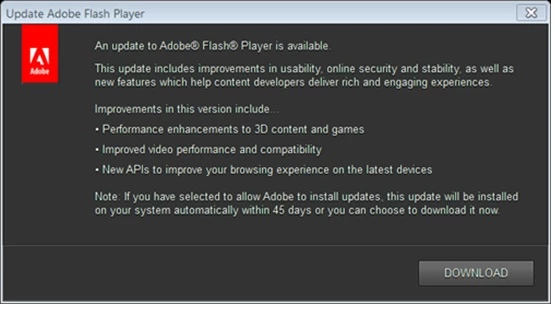
This Mostly users encounter during the startup of the machine to download the update. Is there a way we can disable this prompts to be appearing for user.

Regards,

Ram Prasad

このトピックへの返信は締め切られました。

返信数 1

_maria_
Community Manager
Community Manager
May 3, 2017

Hi,

If you are not hosting the Background Update resources locally, there is no way to only have a system updated via Background Updates.  If you use Adobe servers for Background Updates, there is a (slim) chance that users see the Notification Update window, but when this happens, it usually indicates there is an issue with the Background Update service.  In order to troubleshoot we'll need to get the FlashInstall.log files, with verbose background update logging. 

Background Update mechanism consists of a Service and a Task.  You mention the Service (Adobe Flash Player Update Service) is set to 'Manual' which is correct (the Service is triggered by the corresponding Task, so it only runs when triggered by the Task).  Please verify the Task also exists (on an impacted system):

  1. Launch Control Panel and go to Control Panel > All Control Panel Items > Administrative Tools > Task Scheduler
  2. In Task Scheduler select Task Scheduler (Local) > Task Scheduler Library > Look for Adobe Flash Player Updater
  3. Does the Adobe Flash Player Updater task exist?
  4. If so, go to the History tab and enable history for the task

Please do the following on the same impacted system that you verified the Adobe Flash Player Updater task exists on, and enabled Task History on:

  1. Enable versbose logging:  add SilentAutoUpdateVerboseLogging=1 to the mms.cfg file
  2. Wait 24 hours
  3. After the time has elapsed, provide the FlashInstall.log file(s) saved at the following location:
    • 32 Bit Windows:

      • C:\Windows\system32\Macromed\Flash\FlashInstall.log
    • 64 Bit Windows:

      • C:\Windows\system32\Macromed\Flash\FlashInstall.log AND C:\Windows\syswow64\Macromed\Flash\FlashInstall.log
  4. Upload the file(s) to cloud.acrobat.com/send using the instructions at How to share a document
  5. Post the link to the uploaded file(s) in your reply

--

Maria

_maria_
Community Manager
Community Manager
May 3, 2017

Most likely related to Flash Player Autoupdate doesn't work

olu11533205
Participating Frequently
September 19, 2017

To disable ALL updates you just need to add AutoUpdateDisable=1 in the mms.cfg file.  This will block ALL updates, Background and Notification.  You will then be responsible to deploy updates via some other method.

or should we disable the service Adobe acrobat Update service

Adobe Acrobat Update service is not for Flash Player.  You may be referring to Adobe Flash Player Update Service.  Adobe Flash Player Update Service is the Background Update service, it has not impact on the Notification Update pop-up window.


Can you tell me if this fix your issue? We are having the same issue. We can't get the popup to stop everytime Adobe release an update. We don't automatically update flash and we need to stop this popup on all our client.

For years we have been using the same mms.cfg settings as below but they are not working any more or we are setting it wrong. Please let us know what we need to do to stop this popup completely and disable auto update for flash. We use another tool to deploy flash updates.

content of both C:\Windows\System32\Macromed\Flash\mms.cfg and C:\Windows\SysWOW64\Macromed\Flash\mms.cfg

AutoUpdateInterval=99
SilentAutoUpdateEnable=0

AutoUpdateDisable = 1

Please help.