Exit
  • Global community
    • Language:
      • Deutsch
      • English
      • Español
      • Français
      • Português
  • 日本語コミュニティ
  • 한국 커뮤니티
1

unable to join a path

Explorer ,
Apr 10, 2020 Apr 10, 2020

In the following link of Ai tutorial:

https://helpx.adobe.com/sea/illustrator/how-to/drawing-tools-basics.html?playlist=/services/playlist...

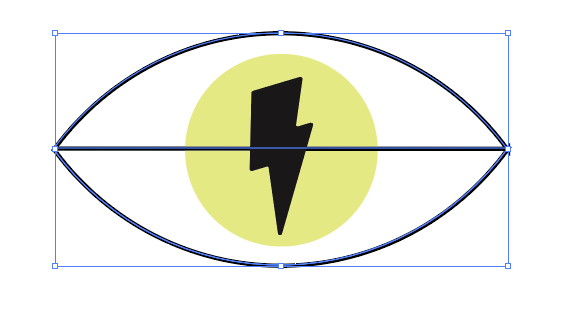
while working on the 5th video, I was unable to join the second part of the eye:
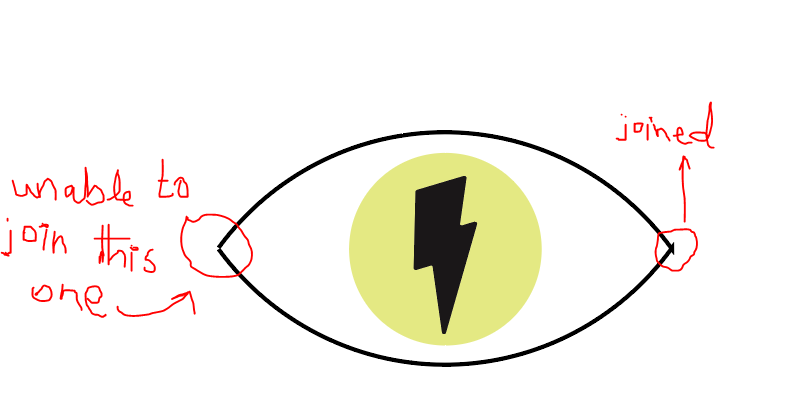
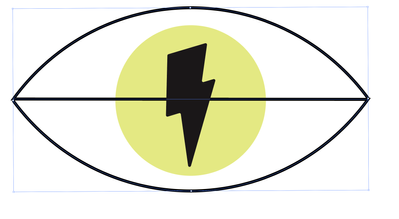
2.PNG

When I join the left one, the following thing happens:
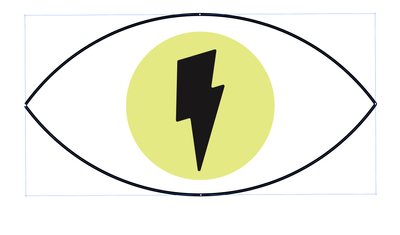
1.PNG

I even closed illustrator then reopened, still the same.


TOPICS
Performance , Tools
3.2K
Translate
Report
Community guidelines
Be kind and respectful, give credit to the original source of content, and search for duplicates before posting. Learn more
community guidelines
Adobe
Community Expert ,
Apr 10, 2020 Apr 10, 2020

Star2,


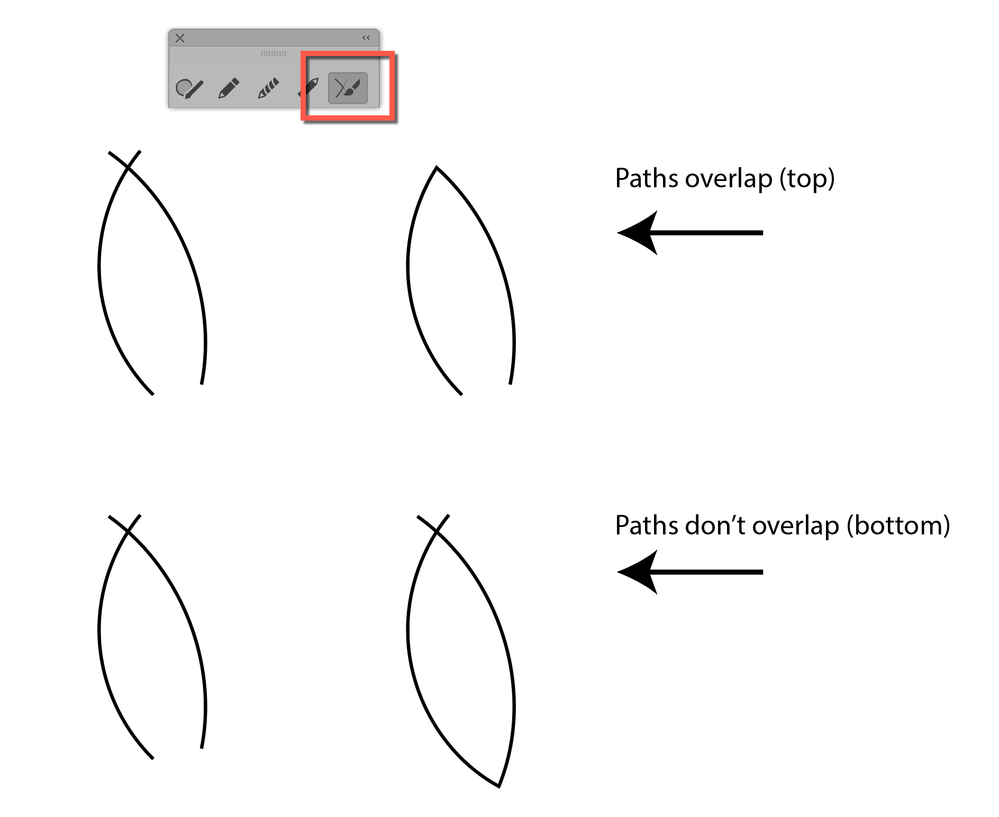
There seems to be a mismatch of the Anchor Points in both sides: to the right the arcs cross so you have the end Anchor Point of the lower arc above that of the upper one and a short vertical segment between them, hence the two Miter Join spikes; to the left the arcs do not (even) meet (no overlap of the Butt Caps).


Going back and obtaining coinciding end Anchor Points would be a good start.


But there seems to be a contradiction between "unable to join this one" and "When I join the left one, the following thing happens:"


How have you obtained the second non solution?


Translate
Report
Community guidelines
Be kind and respectful, give credit to the original source of content, and search for duplicates before posting. Learn more
community guidelines
Explorer ,
Apr 11, 2020 Apr 11, 2020

That exactly my problem

Translate
Report
Community guidelines
Be kind and respectful, give credit to the original source of content, and search for duplicates before posting. Learn more
community guidelines
Community Expert ,
Apr 16, 2020 Apr 16, 2020

"That exactly my problem"


If your problem is exactly the same as the OP's, then use the Join tool and drag across each side of the eye.


~ Jane

Translate
Report
Community guidelines
Be kind and respectful, give credit to the original source of content, and search for duplicates before posting. Learn more
community guidelines
Explorer ,
Apr 16, 2020 Apr 16, 2020

I've try that already, it's doesn't working

Translate
Report
Community guidelines
Be kind and respectful, give credit to the original source of content, and search for duplicates before posting. Learn more
community guidelines
Community Expert ,
Apr 16, 2020 Apr 16, 2020

Show a screen shot.

Translate
Report
Community guidelines
Be kind and respectful, give credit to the original source of content, and search for duplicates before posting. Learn more
community guidelines
Explorer ,
Apr 17, 2020 Apr 17, 2020

The result are exactly the same as Star2 screen shot posted

Translate
Report
Community guidelines
Be kind and respectful, give credit to the original source of content, and search for duplicates before posting. Learn more
community guidelines
Community Beginner ,
Jun 02, 2021 Jun 02, 2021

Hey there, I am also having this same issue during the tutorial. For folks trying to help, could you please check out the video, the files, and the instructions. In going through the exercise, I am getting the exact same problem. Check out Video 5 here: https://helpx.adobe.com/illustrator/how-to/drawing-tools-basics.html?playlist=/services/playlist.hel...


[One image with irrelevant content removed by moderator]


Translate
Report
Community guidelines
Be kind and respectful, give credit to the original source of content, and search for duplicates before posting. Learn more
community guidelines
Community Expert ,
Jun 02, 2021 Jun 02, 2021

Hi @Birdie0101 


In your screen shots, the paths have a gap on one side and overlap on the other side. See here for details:

https://helpx.adobe.com/illustrator/how-to/join-trim-paths-lines.html


~ Jane
 

jane-e_3-1622684558527.png


Translate
Report
Community guidelines
Be kind and respectful, give credit to the original source of content, and search for duplicates before posting. Learn more
community guidelines
Community Beginner ,
Jun 02, 2021 Jun 02, 2021

Yes, I have seen these too. I'm curious if you actually did part 5 of the tutorial? It really is confusing and doesn't seem to show how to fix the problem. Could you give it a watch and try to follow along. 

Translate
Report
Community guidelines
Be kind and respectful, give credit to the original source of content, and search for duplicates before posting. Learn more
community guidelines
New Here ,
Apr 10, 2022 Apr 10, 2022

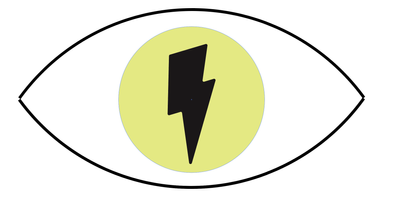
I have the same issue. I see that no one has posted a solution. â€ƒ
 

Screenshot 2022-04-10 104828.png

Screenshot 2022-04-10 104908.png

Screenshot 2022-04-10 104926.png


Translate
Report
Community guidelines
Be kind and respectful, give credit to the original source of content, and search for duplicates before posting. Learn more
community guidelines
Community Expert ,
Apr 10, 2022 Apr 10, 2022

Did you use the Join tool as described by Nancy?

Translate
Report
Community guidelines
Be kind and respectful, give credit to the original source of content, and search for duplicates before posting. Learn more
community guidelines
New Here ,
Apr 10, 2022 Apr 10, 2022

Yes. Please read all the other comments on this thread. We have followed the tutorial and completed each of the steps, including the Join Tool.

Translate
Report
Community guidelines
Be kind and respectful, give credit to the original source of content, and search for duplicates before posting. Learn more
community guidelines
Community Expert ,
Apr 10, 2022 Apr 10, 2022
quote

Yes. Please read all the other comments on this thread.


By @heathjl85


Nobody in the thread mentions the Join tool.

You might confuse it with the Join command.

Translate
Report
Community guidelines
Be kind and respectful, give credit to the original source of content, and search for duplicates before posting. Learn more
community guidelines
Community Expert ,
Apr 10, 2022 Apr 10, 2022


@Monika Gause wrote:

Did you use the Join tool as described by Nancy?


I don't see a post from Nancy?


Translate
Report
Community guidelines
Be kind and respectful, give credit to the original source of content, and search for duplicates before posting. Learn more
community guidelines
Community Expert ,
Apr 10, 2022 Apr 10, 2022

Oops. Sorry, Jane. It was your comment.

Translate
Report
Community guidelines
Be kind and respectful, give credit to the original source of content, and search for duplicates before posting. Learn more
community guidelines
Community Expert ,
Apr 10, 2022 Apr 10, 2022

And it was Jane's screendump that pointed to the Join tool

Translate
Report
Community guidelines
Be kind and respectful, give credit to the original source of content, and search for duplicates before posting. Learn more
community guidelines
Community Expert ,
Apr 10, 2022 Apr 10, 2022

The endpoints are not on top of each other.

Select the left 2 anchor points with the Direct Selection tool.

Choose Object > Path > Average.. Both

Keep them selected.

Choose Object > Path > Join

Repeat for the right side.

Translate
Report
Community guidelines
Be kind and respectful, give credit to the original source of content, and search for duplicates before posting. Learn more
community guidelines
New Here ,
Apr 10, 2022 Apr 10, 2022

Ton, 

Kudos to you sir! After 2 years, you have provided a method that seems to work!

The only issue I see is there is a slight overhang on the left anchors. But at least now, I can finish the tutorial. 

Translate
Report
Community guidelines
Be kind and respectful, give credit to the original source of content, and search for duplicates before posting. Learn more
community guidelines
Community Expert ,
Apr 10, 2022 Apr 10, 2022

If there is what you describe as an overhang there must be more than 2 points joined.

Translate
Report
Community guidelines
Be kind and respectful, give credit to the original source of content, and search for duplicates before posting. Learn more
community guidelines
New Here ,
Apr 10, 2022 Apr 10, 2022
LATEST

Ton,


I figured as such. Thank you for your help.


Translate
Report
Community guidelines
Be kind and respectful, give credit to the original source of content, and search for duplicates before posting. Learn more
community guidelines
Community Expert ,
Apr 10, 2022 Apr 10, 2022

I know this topic from another older thread.


If I remember correctly - one of the two arches is double over each other. Please check first if this is still the case. (I'm pretty sure I reported the incorrect file to the team at the time.)

Translate
Report
Community guidelines
Be kind and respectful, give credit to the original source of content, and search for duplicates before posting. Learn more
community guidelines
Community Expert ,
Apr 10, 2022 Apr 10, 2022

Found it:

Join Paths Not Working (It Keeps Selecting an Anchor Point in Middle of Line as Endpoint) 


Here my contribution to the topic at that time:

pixxxelschubser_0-1649612396381.png

Hi Jacob,

@Turq98BC is totally right. The file is wrong!


There are two identical arcs exactly one above the other - nested in several groups. Furthermore the start and and end point of the arc are not exactly horizontally aligned.


Not the best template for beginners! And IMHO I would use the Join Tool instead of the menu command: Join


By @pixxxelschubser


Translate
Report
Community guidelines
Be kind and respectful, give credit to the original source of content, and search for duplicates before posting. Learn more
community guidelines
Community Expert ,
Apr 10, 2022 Apr 10, 2022


@pixxxelschubser wrote:

Not the best template for beginners! And IMHO I would use the Join Tool instead of the menu command: Join


The Join tool is what I said earlier in this thread, so I agree! Directions for use are up near the top of this thread. The tutorial is from Brian Wood — I recognize his voice.


Jane

Translate
Report
Community guidelines
Be kind and respectful, give credit to the original source of content, and search for duplicates before posting. Learn more
community guidelines