

Inspiring
February 13, 2018
Answered

Best way to draw an rectangle with an arch?

  • February 13, 2018
  • 4 replies
  • 7412 views

Is there a way to draw a rectangle with an arch using Adobe InDesign 2018, or is something i should create within Illustrator and import?

Correct answer Danny Whitehead.

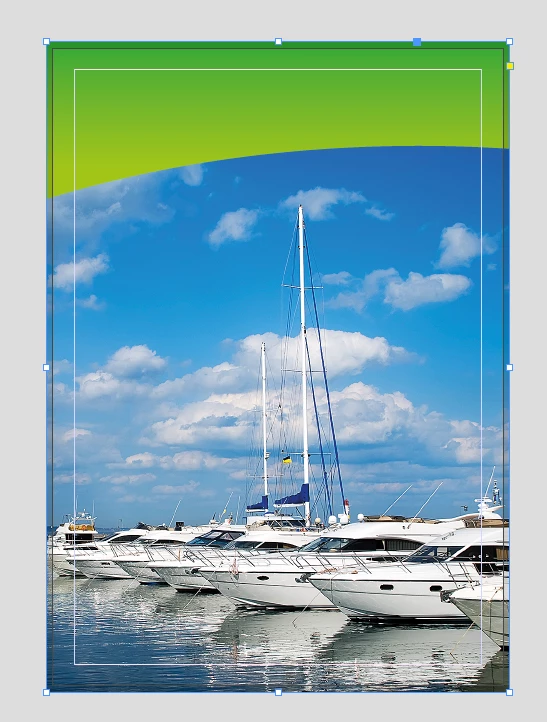
Personally, for these kinds of designs, I use an ellipse (in your case, with an image placed into it), cut and pasted into a rectangle. That way, you're not so committed to the shape/position of the curve, and you can adjust it to suit the content.

1) Create a rectangle, the size of your page (+ bleed, if this will be printed), and fill it how you like.
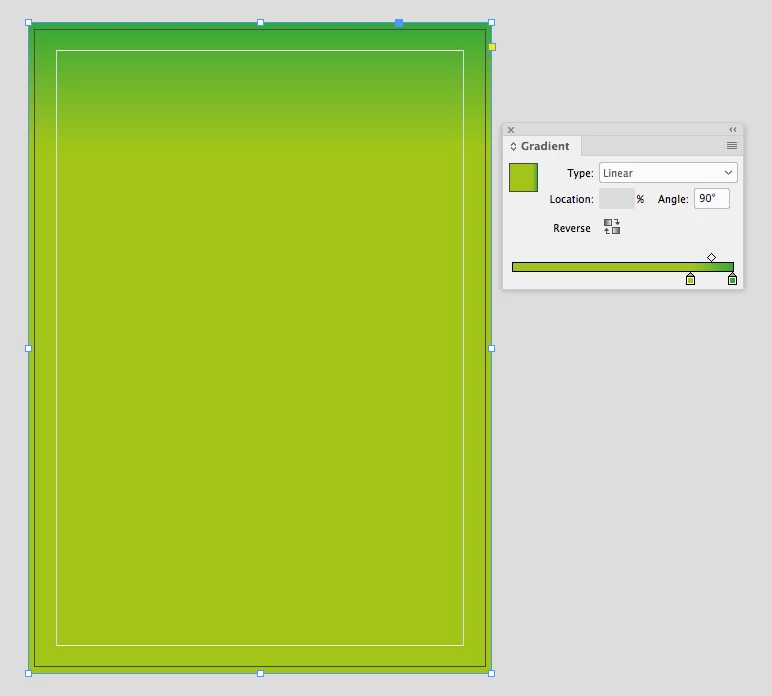
2) Create a large ellipse frame, and place your image into it.

3) Cut the Ellipse, select the rectangle, and Edit > Paste Into.
4 replies

Danny Whitehead.
Danny Whitehead.Correct answer
Brainiac
February 14, 2018

Personally, for these kinds of designs, I use an ellipse (in your case, with an image placed into it), cut and pasted into a rectangle. That way, you're not so committed to the shape/position of the curve, and you can adjust it to suit the content.

1) Create a rectangle, the size of your page (+ bleed, if this will be printed), and fill it how you like.

2) Create a large ellipse frame, and place your image into it.

3) Cut the Ellipse, select the rectangle, and Edit > Paste Into.

Community Expert
February 14, 2018

Hi AnotherMe ,

you could draw it also in InDesign.

In several ways. Barb was showing how to do that with Pathfinder.

Here just one way out of severals how to do it with InDesign's vector drawing tools:

1. Draw out a rectangular graphic frame and add a path point:

2. Select the path point with the Direct Selection Tool:

3. Convert the path point to a smooth or symmetrical one:

4. Drag the path point to a new position and change the rotation of the handles

5. You can change the bezier curve's handles even asymmetrical if you want

Regards,
Uwe

jane-e
Community Expert
February 14, 2018

If you have a simple shape like this one and you end up doing it in Illustrator, don't Import/Place it. Just copy and paste it to keep it vector, same as if you had done it in InDesign.

In Illustrator, you can draw the rectangle, then switch to the Pen tool and the Option (Alt) key to drag one segment up or down and make the curve. Or you can do it the same way Barb shows above.

AnotherMeAuthor
Inspiring
February 14, 2018

jane-e  wrote

If you have a simple shape like this one and you end up doing it in Illustrator, don't Import/Place it. Just copy and paste it to keep it vector, same as if you had done it in InDesign.

In Illustrator, you can draw the rectangle, then switch to the Pen tool and the Option (Alt) key to drag one segment up or down and make the curve. Or you can do it the same way Barb shows above.

Placing an image from Illustrator to InDesin won't keep it as a vector image, but copying and pasting will?

jane-e
Community Expert
February 14, 2018

Hi,

placing a vector graphic file from Illustrator will keep the vector information.
But you cannot edit with InDesign or place an image into the shape that's in the placed graphic.

It's exactly like a placed PDF. You can change the size, rotate and shear it or you can crop it.

If you copy/paste a vector shape from AI to INDD, InDesign is able to convert the contents of the clipboard to InDesign vector shapes. Sometimes this will not work very good ( complex graphics ), but with easy shapes it's definitely a way…

If you copy/paste text from AI to INDD, inDesign will try its best and convert the contents of the clipboard to EPSText. in the Layer panel you'll see a cryptic <unknown> entity perhaps. My German InDesign will show a <Unbekannt> entity on the page. EPSText cannot be edited like text, but you can change fill and stroke. You even can copy/paste EPSText back to Illustrator for editing as text.

Regards,
Uwe


Uwe,

Your explanation is much more detailed and better than mine. I skipped over some because of what the OP is trying to accomplish here.

I will add to your excellent detailed response, though, in case others read it later.

  • An Illustrator file can only be Placed into InDesign when "Create PDF Compatible File" is checked. Otherwise it will fail.
Barb Binder
Community Expert
February 13, 2018

You can draw the green shape in either application. If you aren't great with the Pen tool, try Pathfinder:

  • Draw a rectangle
  • Draw an ellipse on top
  • Select both
  • Object > Pathfinder > Subtract to subtract the top shape (the ellipse) from the bottom shape (the rectangle):

~Barb at Rocky Mountain Training