Participating Frequently
June 20, 2017
Answered

Best Way to Import from Excel?

  • June 20, 2017
  • 3 replies
  • 703 views

I'm hoping there is a shortcut out there that will save me some time. A couple times a year I created a booklet that lists a bunch of events (name of event, time, place, description) as three columns per page, with each event formatted the same way (name is bold an red, time is italicized, etc). Normally I am given the info for everything in a word document and I copy and paste it into indesign then change the paragraph style for each part of the events, but I have to do that part manually.

Is there a way to import from an excel spreadsheet so that it imports row by row but the content from each column is formatted to a specified paragraph style? That way all I have to do is set the styles then import the spread sheet?
    This topic has been closed for replies.
    Correct answer Barb Binder

    So no, you would need to be working a table.

    But your formatting is very consistent, and you can use a combo of the two earlier answers to streamline this workflow.

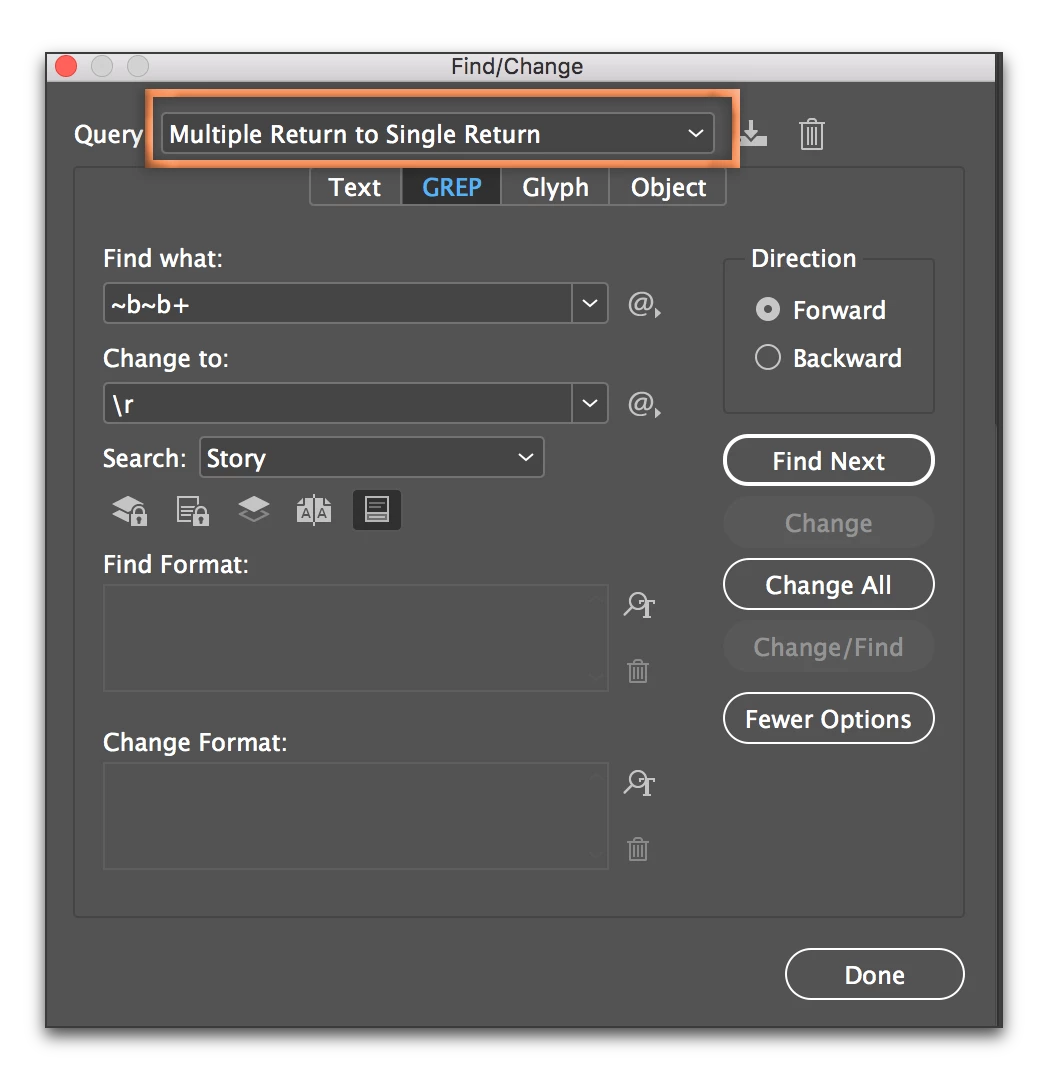
    1. First, remove the extra ¶s above the Times. You can use the default Multiple Return to Single Return query from the list at the top of Find/Change.
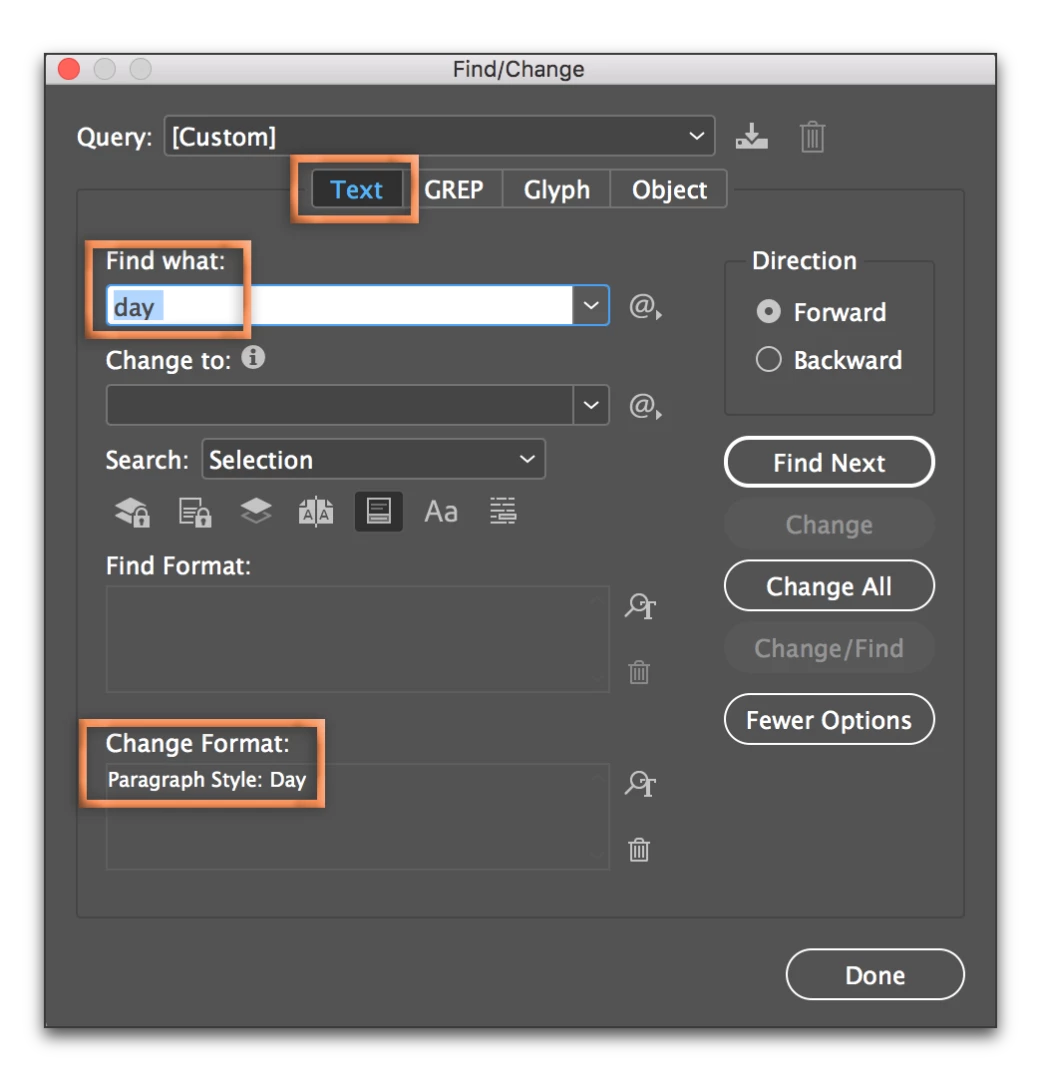
    2. Secondly, you can use a text Find/Change to Find the word "day " (followed by a space) and replace with a paragraph style called Day to format all of the days (Monday, Tuesday, Wed... etc.). One could write a GREP query to find all the days of the week but this will find all occurrences pretty quickly. Just proof when you are done.
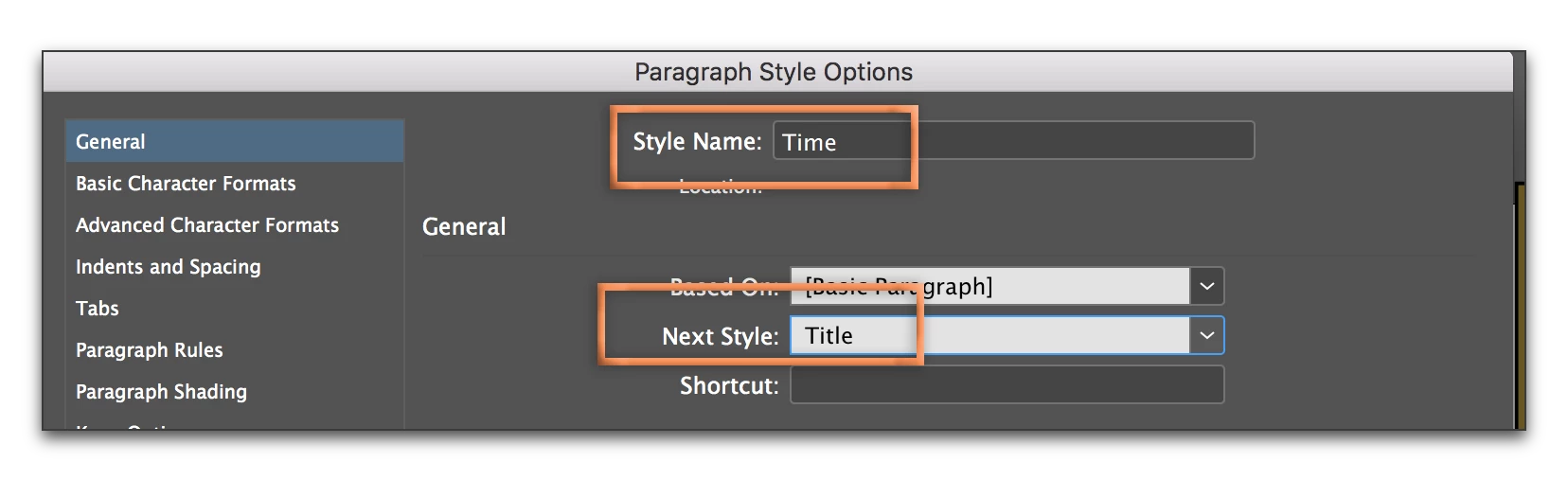
    3. Once the days are formatted, there is a regular pattern of Time, Title, Description, Location. Set up those tags, and set up Next Style as follows:
      1. Time, Next Style Title
      2. Title, Next Style Description
      3. Description, Next Style Location
      4. Location, Next Style Title (this creates a loop)
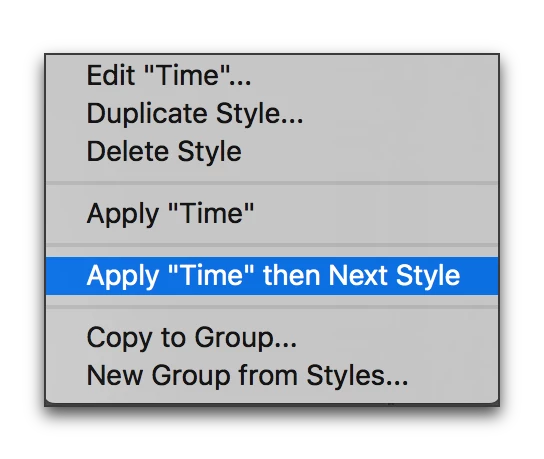
    4. Finally, because you have already formatted the Days, they stand out nicely. Just select the text in between (might be one group of Time, Titie, Description and Location or multiple groups) and right click Time in the Paragraph styles panel. Choose Apply "Time" then Next Style.

    3 replies

    MW Design
    Inspiring
    June 20, 2017

    As well as a screen shot of what you would want to accomplish, a screen shot in Word of what you are given with the spaces, tabs and returns showing.

    That said, I don't know why GREP couldn't be used to apply paragraph and character styles automatically, or Bob's next style suggestion, etc...but without screen shots that is hard to be sure of.

    Barb Binder
    Community Expert
    June 20, 2017

    Have you worked with table and cell styles?

    You can set up a table style that will control the table-level settings, and then nest cell styles into the table style for the left column, the right column and the middle column(s). You can nest paragraph styles into the cell styles to format the text. Set up correctly, one can format an entire table with a single click. (Or you can assign the table style on import.)

    For details on this workflow, see: Table and cell styles in InDesign

    ~Barb at Rocky Mountain Training
    BobLevine
    Community Expert
    June 20, 2017

    There are any number of ways of doing this but it would help to see a screen shot of what you want to accomplish.

    It may well be that the Word file with a combination of styles based on others as well as having a next style applied may be the better solution.

    Participating Frequently
    June 20, 2017

    Here is a screenshot of what the booklet looks like when completed:

    BookletExample.png - Google Drive

    Here is a screenshot of the word document I'm given:

    WordDoc_Example.png - Google Drive

    BarbBinder​ I have not worked with table and cell styles before (I'm pretty new to InDesign) but would this work if my list of events in indesign is not displayed as a table? [example above]

    Thanks everyone for your quick responses and help!

    Barb Binder
    Barb BinderCorrect answer
    Community Expert
    June 20, 2017

    So no, you would need to be working a table.

    But your formatting is very consistent, and you can use a combo of the two earlier answers to streamline this workflow.

    1. First, remove the extra ¶s above the Times. You can use the default Multiple Return to Single Return query from the list at the top of Find/Change.
    2. Secondly, you can use a text Find/Change to Find the word "day " (followed by a space) and replace with a paragraph style called Day to format all of the days (Monday, Tuesday, Wed... etc.). One could write a GREP query to find all the days of the week but this will find all occurrences pretty quickly. Just proof when you are done.
    3. Once the days are formatted, there is a regular pattern of Time, Title, Description, Location. Set up those tags, and set up Next Style as follows:
      1. Time, Next Style Title
      2. Title, Next Style Description
      3. Description, Next Style Location
      4. Location, Next Style Title (this creates a loop)
    4. Finally, because you have already formatted the Days, they stand out nicely. Just select the text in between (might be one group of Time, Titie, Description and Location or multiple groups) and right click Time in the Paragraph styles panel. Choose Apply "Time" then Next Style.

    ~Barb at Rocky Mountain Training