



Big Leslie P
Participant
December 21, 2021
Answered

Change weight/size of frame edges

  • December 21, 2021
  • 7 replies
  • 1421 views

I have just switched from CS5 to CC, and am having a problem with ID.  The weight of the text frame edges is SO RIDICULOUSLY LIIGHT that I cannot even tell that the frames are there,unless I hover over them.  It is unusable; see image below.
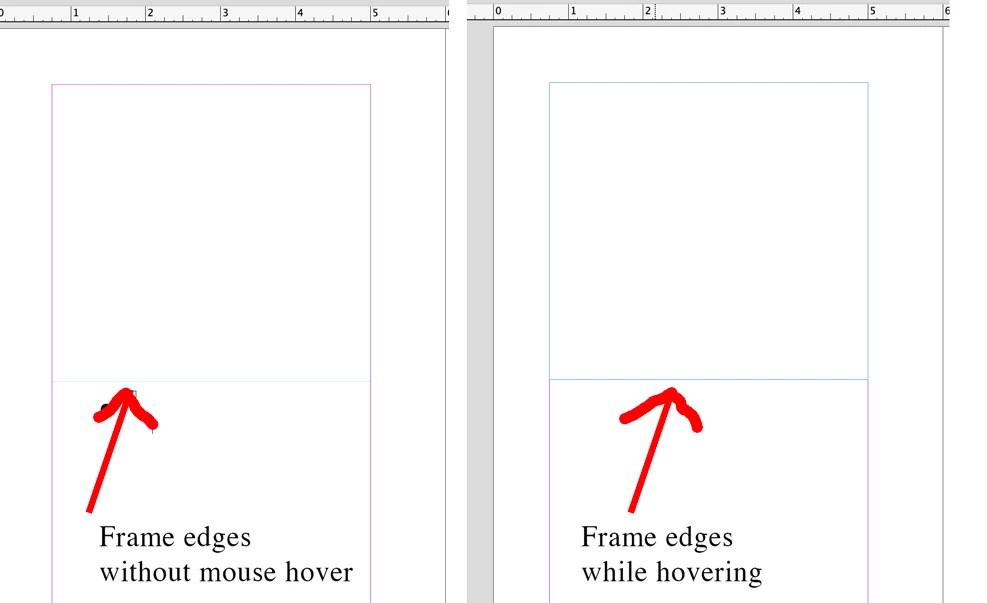
 

How do I make the default frame edges more prominent???


I have already tried: (1) trashing the cache folder (per this thread), (2) un-checking the "GPU Performance" box in preferences, (3) yes, I am in "Normal" view and not "Preview" view or any other view, (4) no, I do not have "overprint preview" turned on (I've tried on & off; no difference), (5) updated ID to the latest software, which made the problem EVEN WORSE than in the image above; now when I hover, it doesn't show the frame; only shows when you click on it.


I am using a 6-month-old Macbook Pro 16", running Big Sur, using ID 17.0.1.


Please help!  I'm laying out a book with a very complex frame layout, and I really, really need to see the edgest of all the frames, all the time.
This topic has been closed for replies.
Correct answer Big Leslie P

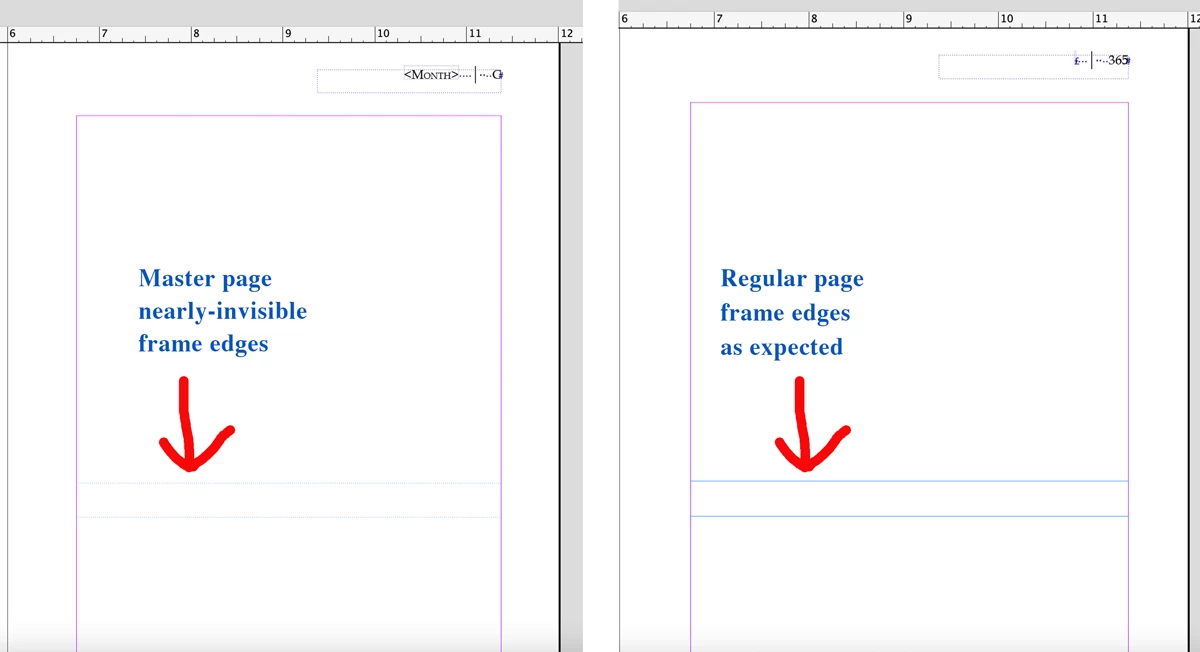
Well, here's the latest.  This almost-invisible-frames problem *only* happens on the master pages.  Here's a sample of master / regular pages from my book.  So I've muddled my way through creating master pages with the hard-to-see frames, and am continuing on with my book.  Would still love to have a clue why this is so, but no longer urgent...

7 replies

Barb Binder
Community Expert
Community Expert
December 22, 2021

I'm not convinced it will help, Leslie. I'm still baffled as why the opacity of the frame edge changes as you hover over a frame. I don't recognize that behavior.


Hey, before you upgrade the OS, can you send me a file with empty light blue frames so that I can take a quick look? I don't need content, just the frames that look light on your display. 


~Barb

~Barb at Rocky Mountain Training
Big Leslie P
Big Leslie PAuthorCorrect answer
Participant
December 26, 2021

Well, here's the latest.  This almost-invisible-frames problem *only* happens on the master pages.  Here's a sample of master / regular pages from my book.  So I've muddled my way through creating master pages with the hard-to-see frames, and am continuing on with my book.  Would still love to have a clue why this is so, but no longer urgent...

Dave Creamer of IDEAS
Community Expert
Community Expert
December 26, 2021

I'm seeing the lighter parent-page frame on my Windows system too. The document pages have the same frame regardless of hover. 


BTW, the hover issue on parent pages is a preference. This does not seem to affect document page frames. 

David Creamer: Community Expert (ACI and ACE 1995-2023)
Barb Binder
Community Expert
Community Expert
December 21, 2021

Hi @Big Leslie P:


Is there something in the Mac system preferences for the display that I've got that's making things behave badly?

I'm on a MacBook and not having the same issue. More info on the specs from the computer where I grabbed the earlier screen shots. Do you see anything that ought to make a difference?

  • macOS 11.6.2 (Big Sur)—could it be the macOS? I don't know.
  • InDesign 17.0.1
  • MacBook Pro (15-inch, 2017)

~Barb

~Barb at Rocky Mountain Training
Big Leslie P
Participant
December 21, 2021

I guess I'll try upgrading to Monterey.  My screen options look just like yours @Barb Binder .

Barb Binder
Community Expert
Community Expert
December 21, 2021

Maybe there is something else going on here. My frames don't change opacity when I hover. 

  • macOS 11.6.2
  • InDesign 17.0.1


~Barb

~Barb at Rocky Mountain Training
Big Leslie P
Participant
December 21, 2021

I tried changing the color of the layers, and it does not make anything more visible, sadly.


How come other people don't have this problem?  Clearly everyone can see empty text frames just fine without doing anything special.


Is there something in the Mac system preferences for the display that I've got that's making things behave badly?

Barb Binder
Community Expert
Community Expert
December 21, 2021

Hi @Big Leslie P:


Would changing the color help? You can double click the layer name in Window > Layers and select a darker color.


~Barb


~Barb at Rocky Mountain Training
Community Expert
December 21, 2021

Hi Big Leslie P,

you could try to enlarge the frame edges with a new control in the InDesign Preferences:


Go to "Customize user interface scaling":

Set preferences

https://helpx.adobe.com/indesign/using/setting-preferences.html


Anchor Points, Handle, and Bounding Box Display Size:

Adjust the slider to scale the display size of anchor points, direction handles, and bounding box.


That's a new feature with InDesign 2022 version 17.


From my German InDesign 2022 on Windows 10:


Regards,
Uwe Laubender

( ACP )

TᴀW
Legend
December 21, 2021

I tried that, but it doesn't seem to make any difference to the width of the text frame bounding box, despite what it says on the label!

Community Expert
December 21, 2021

Hi Ariel,

you are right. Obviously I never tested this before. Even if I do UI Scaling the frame bounding box did not scale.

Here the comparison:


Thanks,
Uwe Laubender

( ACP )

TᴀW
Legend
December 21, 2021

I don't think there's a way to change the width of text frame edges. (And clearly there's a problem here, even @Eugene Tyson was unable to see the text frame halfway down the page!)

The colour of the text frame edges is based on the colour of the layer. So perhaps if you change the layer colour to something more visible (bright orange?) it might help a little.

Also, in the latest version of InDesign you can increase the size of the text-frame anchor points, but not, as far as I can tell, the width of the text frame boundary itself.


Community Expert
December 21, 2021

I didn't notice on my phone. Can clearly see it on the laptop.