Hi @KuriousKatie ,
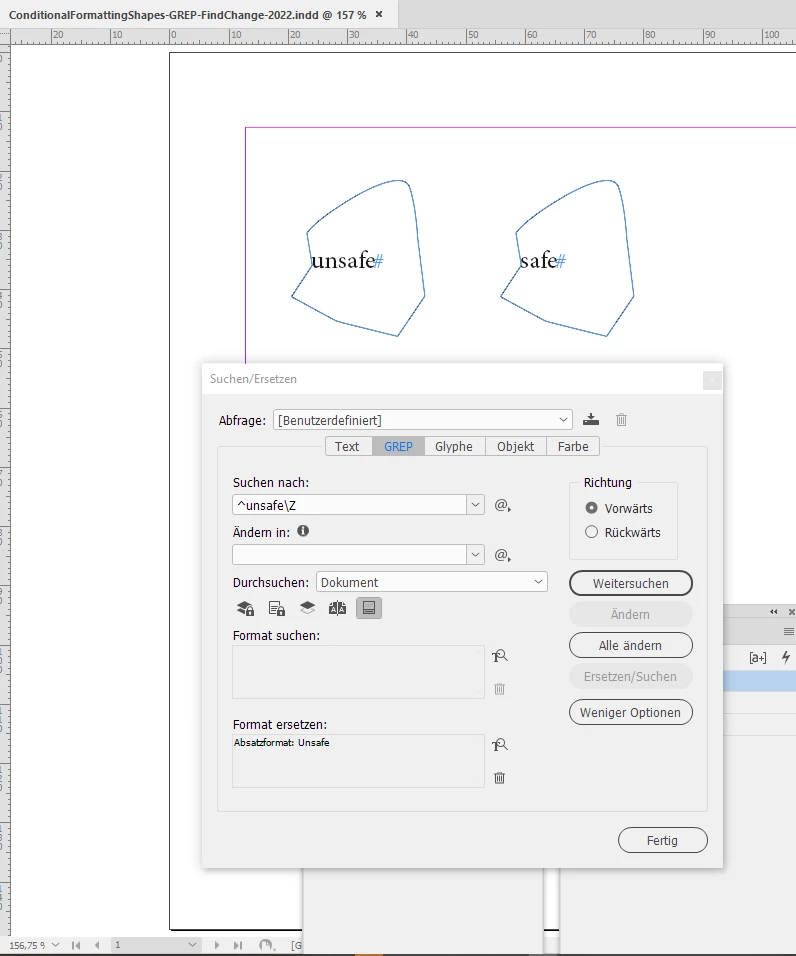
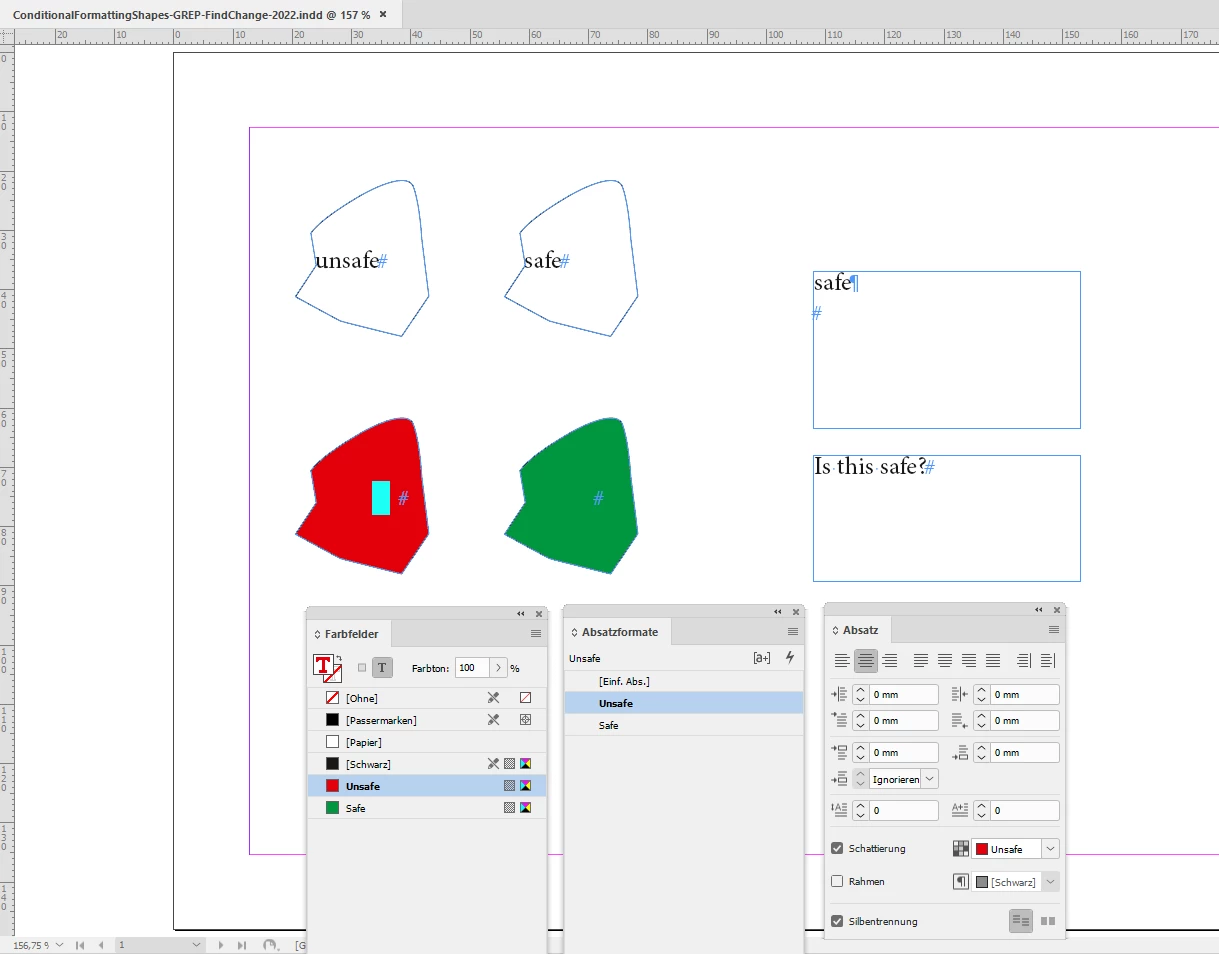
if the shapes were text frames that contain the words "safe" or "unsafe" you could do this with GREP Find/Change and apply a certain paragraph style that is formatted with Paragraph Shading with a huge offset that will be cut to the text frame's edges.
GREP Find pattern could be:
^safe\Z
Change to paragraph style "Safe" with that paragraph shading with color "Green".
GREP Find pattern could be:
^unsafe\Z
Change to paragraph style "Unsafe" with that paragraph shading with color "Green".
From my German InDesign 2022:
After the change some text selected where the new paragraph style is applied:
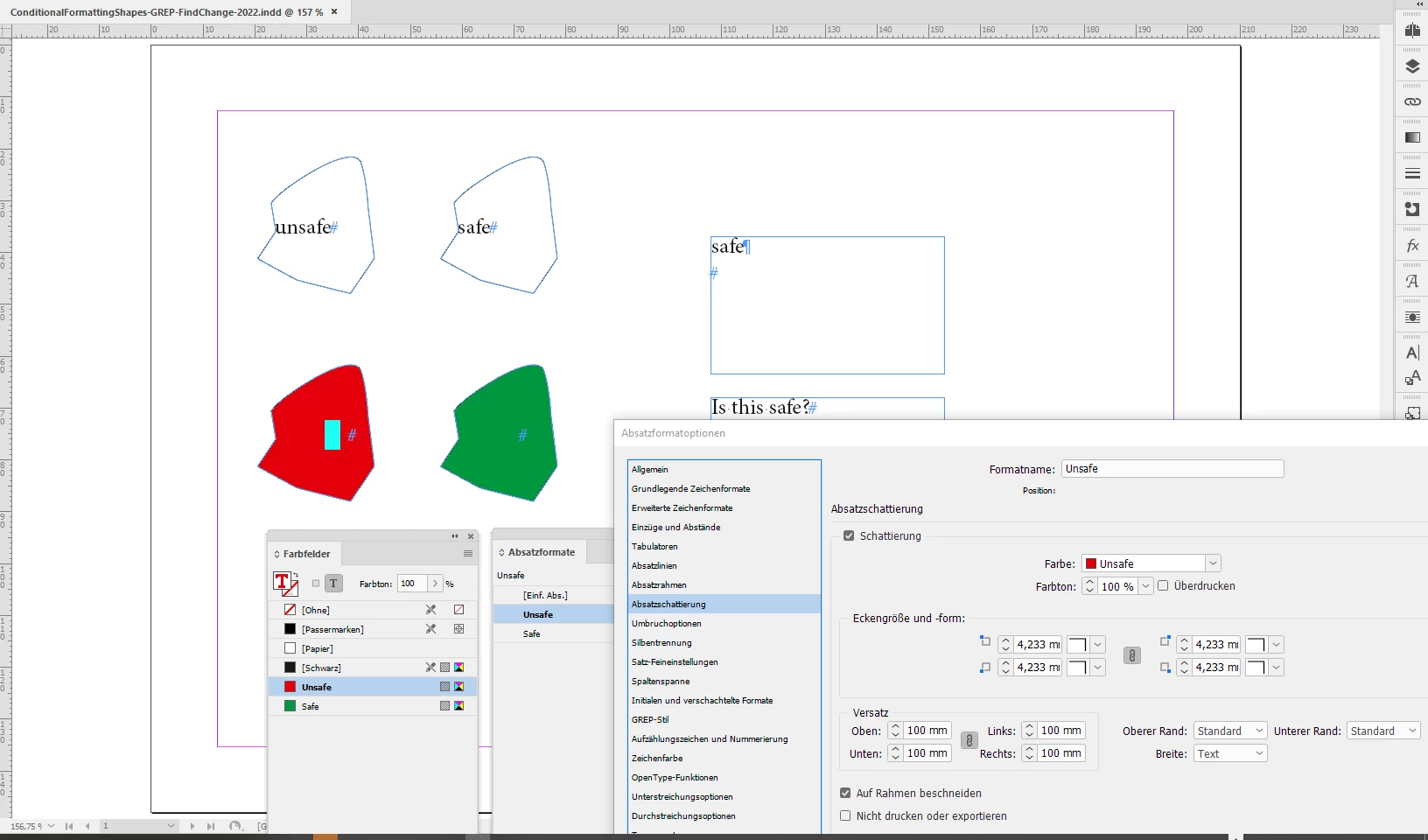
Note:
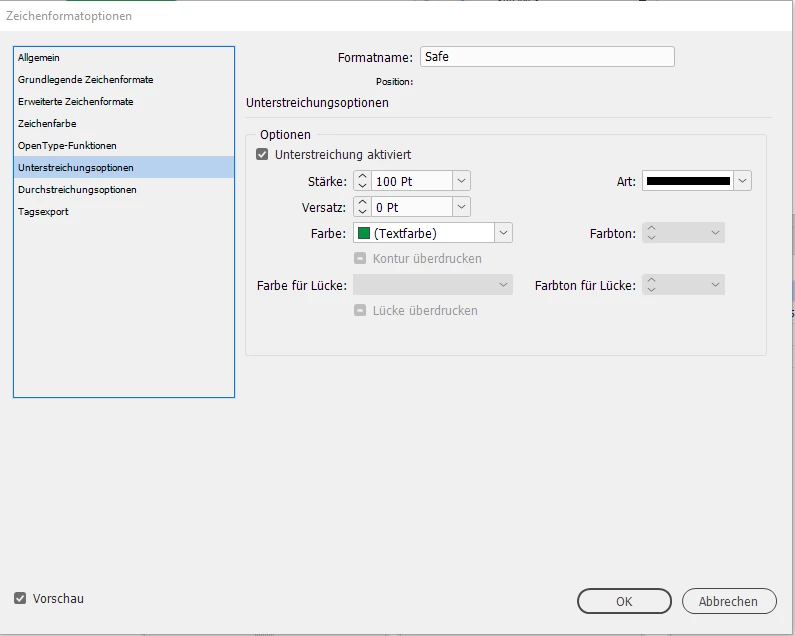
Unfortunately you cannot do this with a GREP Style, because an applied character styles's formatting like underline cannot be restricted to the shape of the text frame.
Download my test document from my Dropbox account and look into the paragraph styles:
https://www.dropbox.com/s/8a48qhs54vpvq3z/ConditionalFormattingShapes-GREP-FindChange-2022.indd?dl=1
Hm, but hold on, you said:
"The words will be within text paths inside of the shapes."
If the text path (or better a text frame) is pasted inside another shape you could apply a paragraph style with some GREP Styles and the applied underline stroke of the GREP Styles will be restricted by the path of the outer shape!
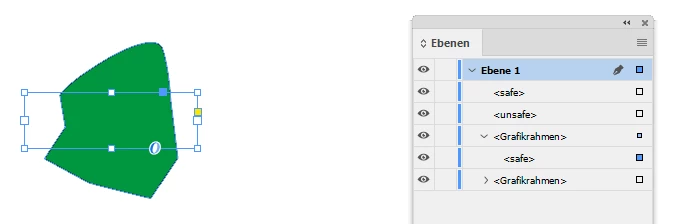
See page 2 of my test file where I pasted a text frame inside the shape that either contains the word "safe" or "unsafe".
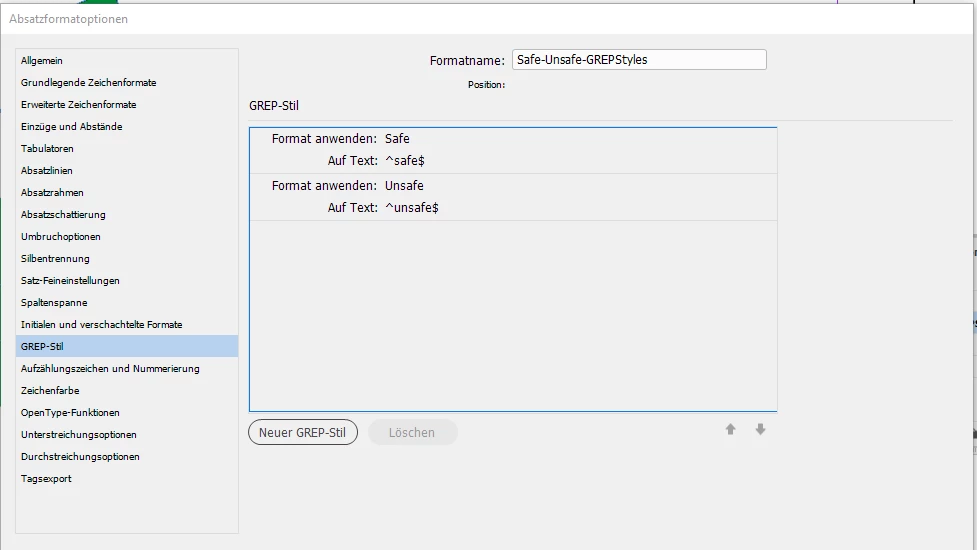
The applied paragraph style has two GREP Styles that apply either character style "Safe" or character style "Unsafe" depending on the contents of the frame. Make sure that the text frame is as wide as the shape or wider; I have set the justification of the paragraph to Full Justified so that the applied underline is as wide as the text frame.
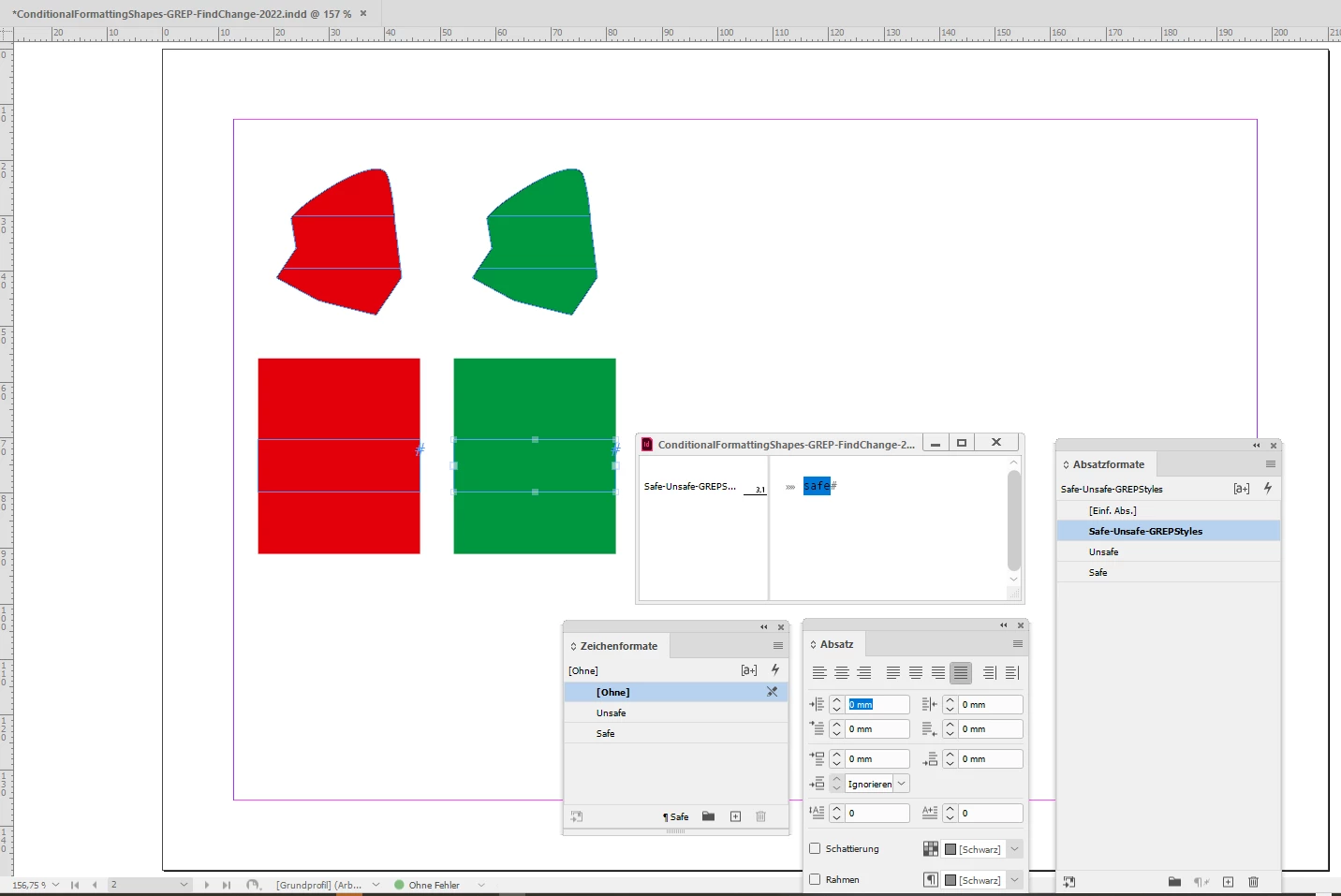
On page 2 we have a graphic frame that contains a text frame with the word "safe":
Below the text frame outside of the shape to show the formatting of its text:
The character style "Safe":
The GREP Styles of the applied paragraph style:
So I think, you'll find your solution on page 2 of my test document.
Regards,
Uwe Laubender
( Adobe Community Professional )



 AdChoices