New Participant
February 12, 2019
Answered

Copy/Paste Photos within same document instead of placing

  • February 12, 2019
  • 4 replies
  • 3437 views

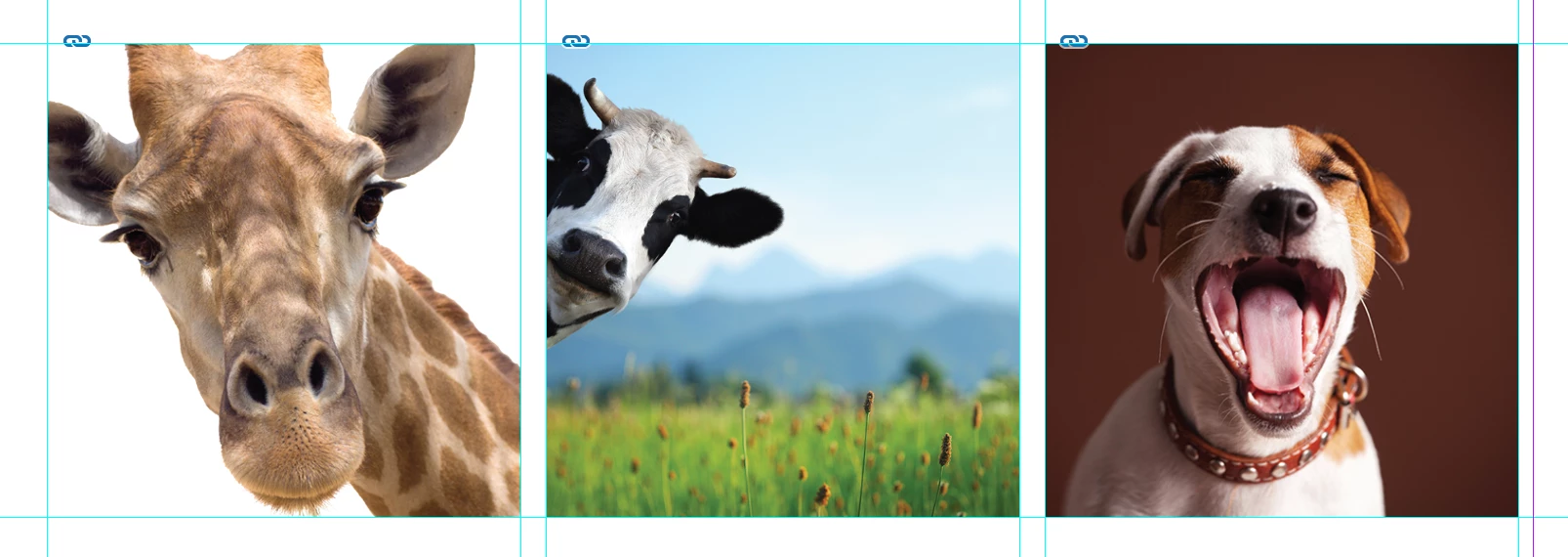
I am struggling to process my magazine pages in InDesign because I cannot figure out an efficient way to re-use photos when I need to move them to a different existing photo box. The format changes very little each month. When I use Quark, I can copy the image, click on the destination box, and paste - done. I need an easy way to do this in InDesign. Having to place a photo as if it were new every time requires following the link, re-adjusting it to fit the box, etc. This has made the process take 2-3 times longer. I need to figure out an easier way instead of having to track down these photos each time.
    This topic has been closed for replies.
    Correct answer Barb Binder

    Hi Shari:

    Yes. Keeping in mind that you are only allowed one image per frame, you have to use the pasteboard (the space outside the page):

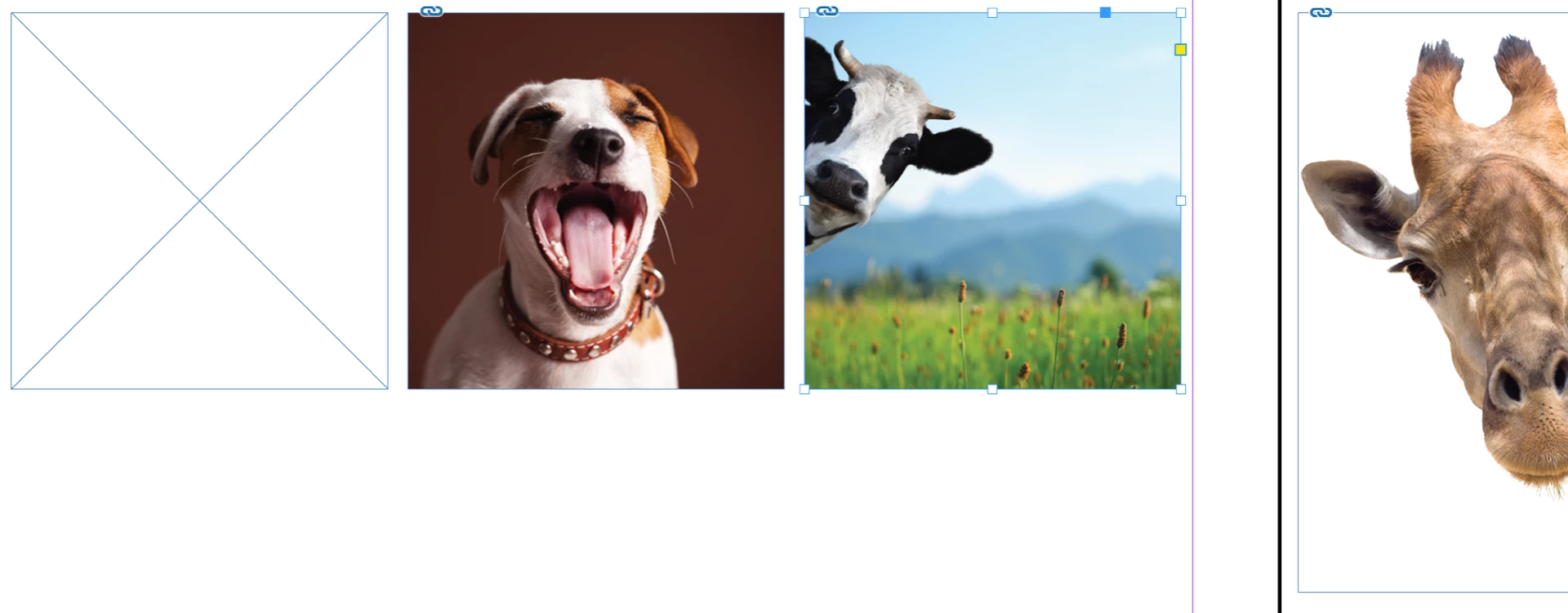
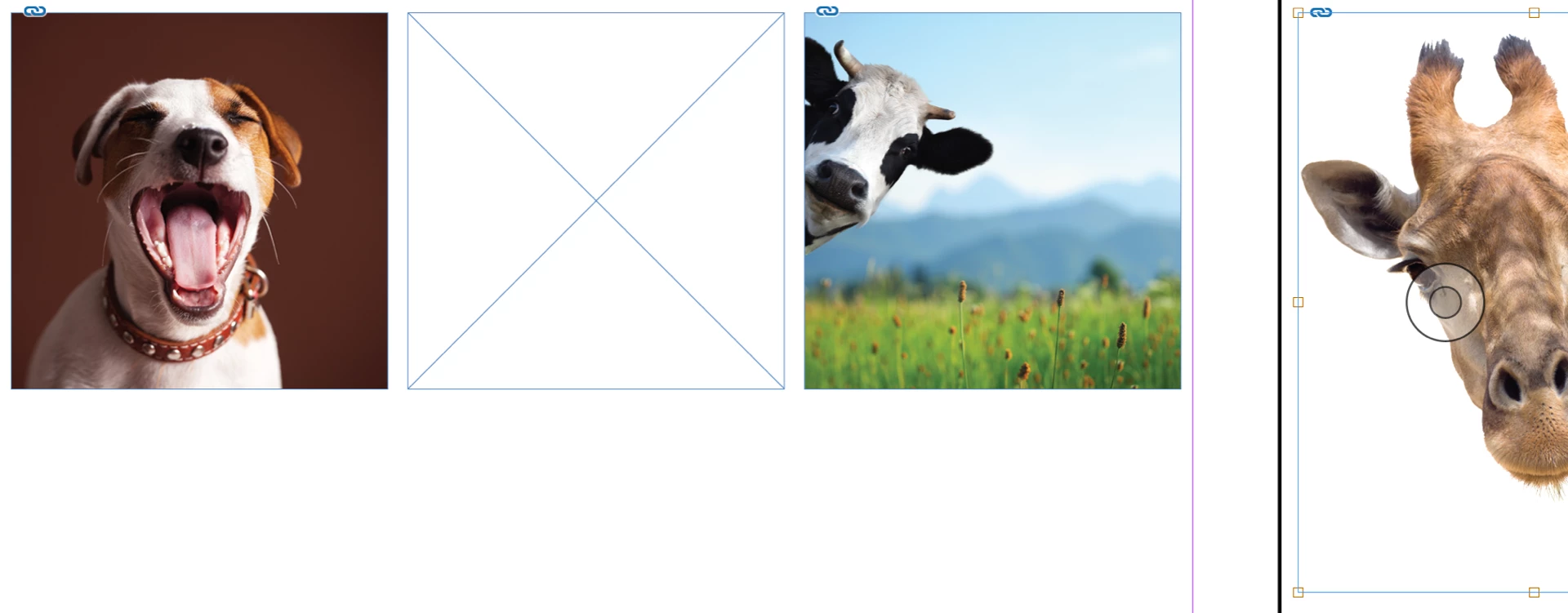
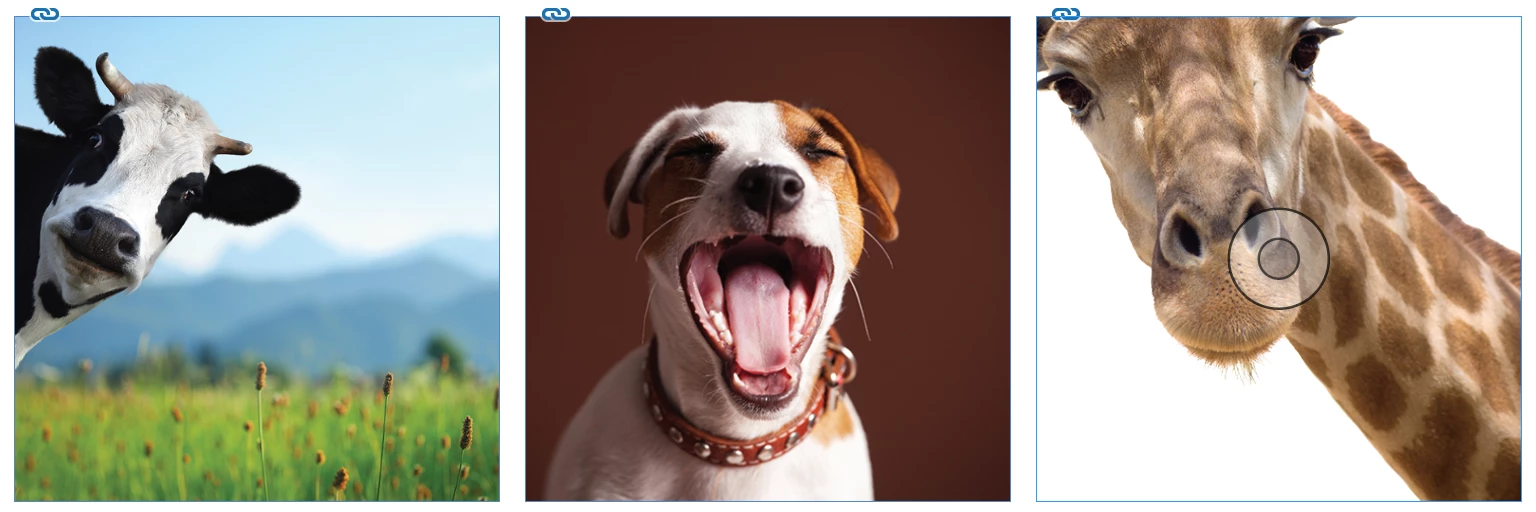
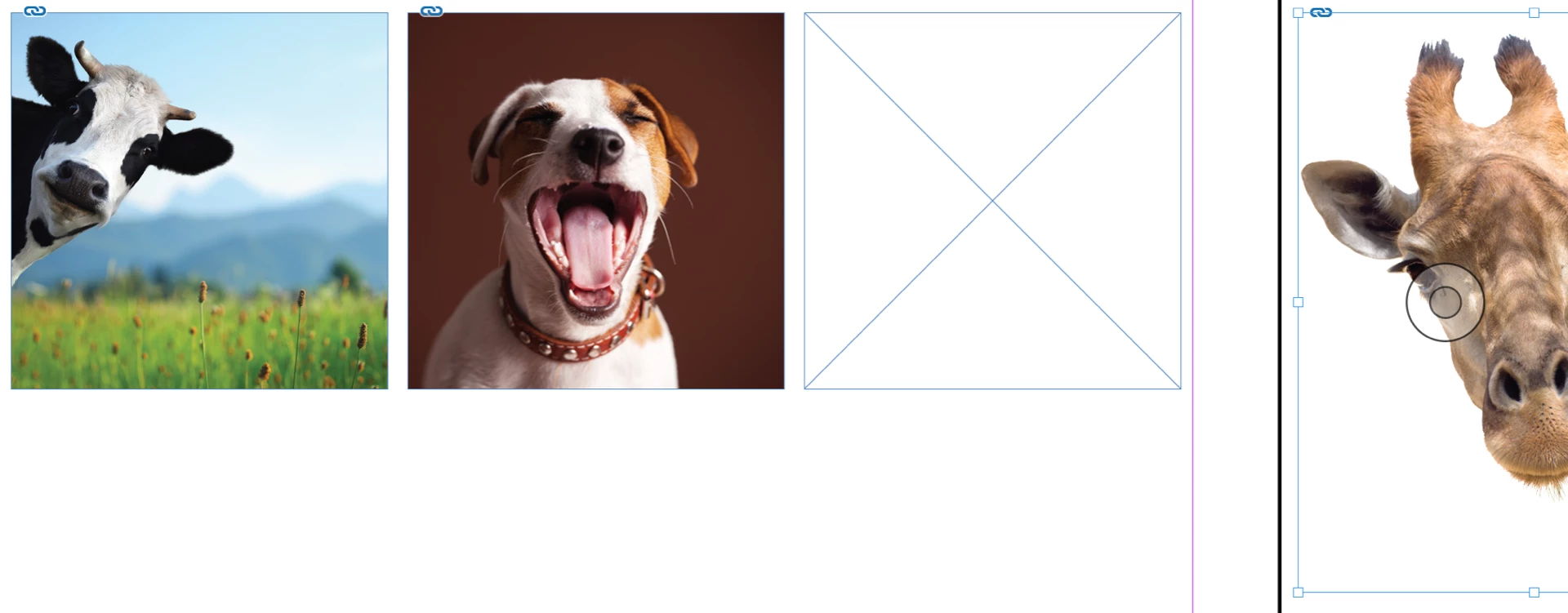
    1. Click the Content Grabber (which I am calling a doughnut and Bill is calling a periscope) select the image. It's on the giraffe in my screen shot below.
    2. Edit > Cut.
    3. Paste that image on the pasteboard. Now you have an empty frame.
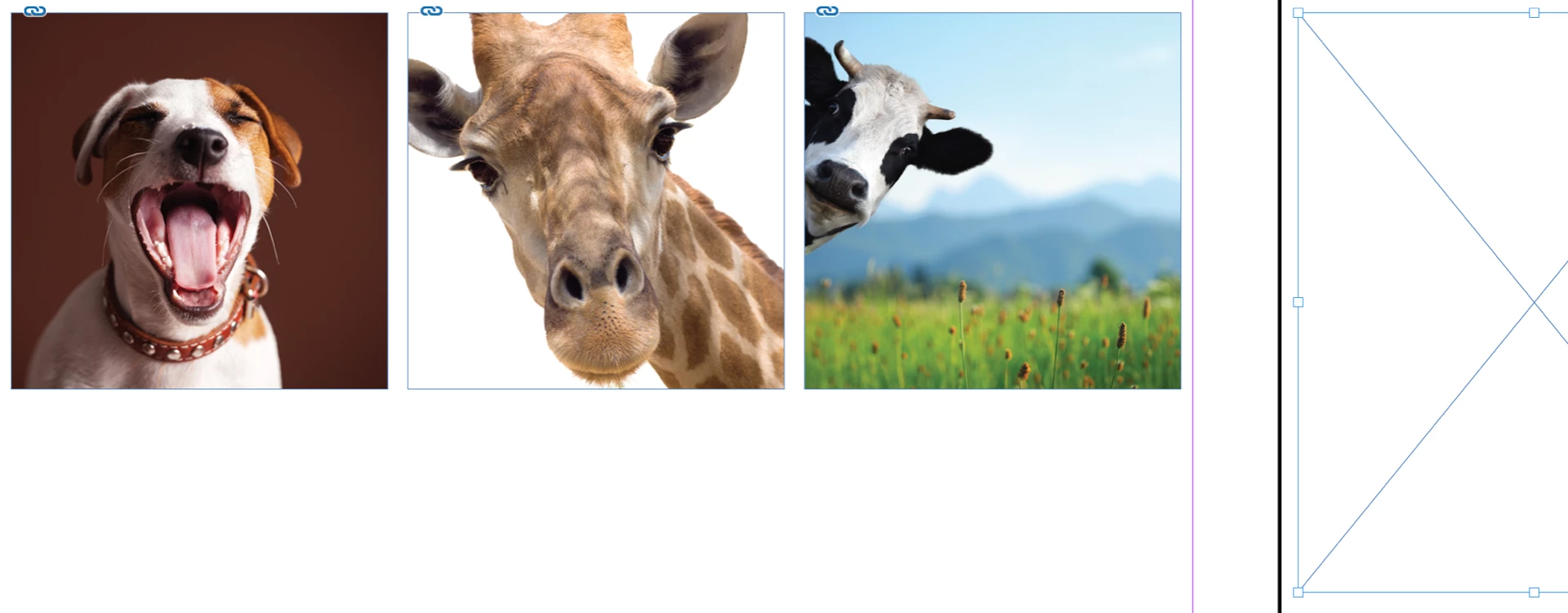
    4. Click the Content Grabber for another image. Edit > Cut.
    5. Edit > Paste into a different frame.
    6. Repeat until you have shuffled all of the images. Then delete the empty frame on the pasteboard.

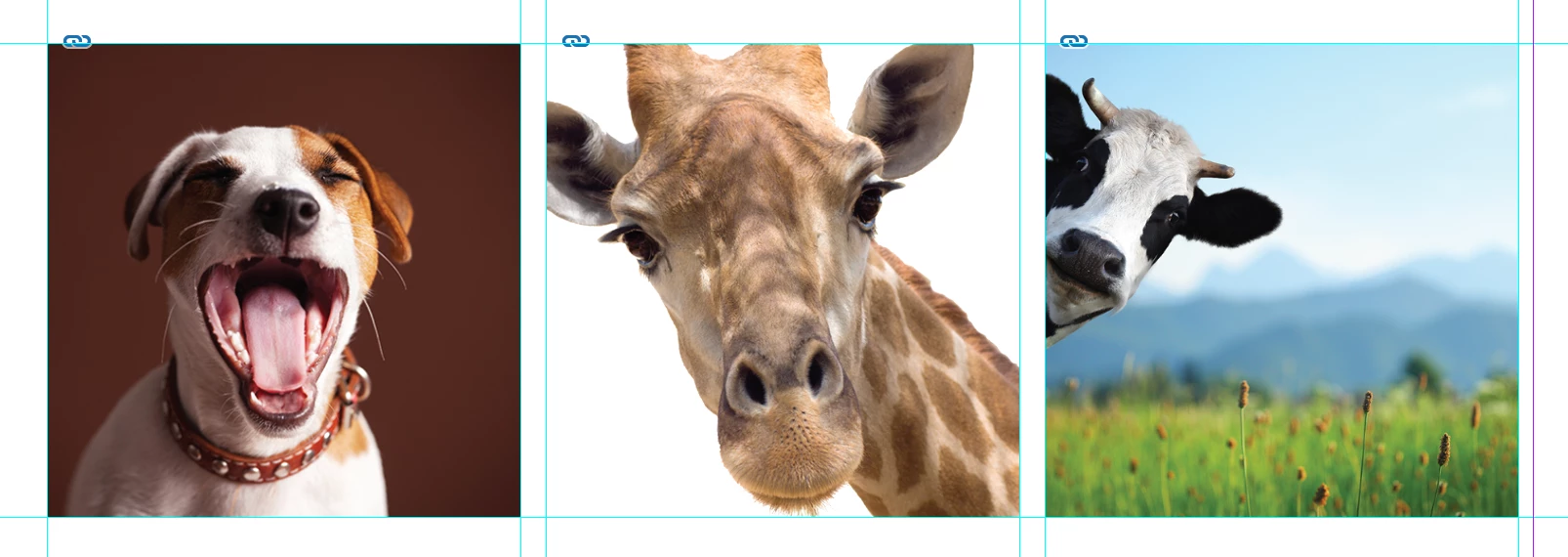
    That said. Personally, I would just the drag the teal ruler guides from the rulers to define a grid for the frame placement and manually move the frames. That would be quicker for me.

    ~Barb

    4 replies

    Barb Binder
    Community Expert
    February 14, 2019

    Glad we got you back on track!

    ~Barb

    ~Barb at Rocky Mountain Training
    New Participant
    February 13, 2019

    Hi sharie81249328

    You can drag and drop the image from you folder directly to the indesign file, this avoid you use the "place command"

    In the other hand, to re-adjusting it to fit the box if the image size change, you can just an object style and activate in "Frame fitting options" the "Auto-Fit" option.

    Bill Silbert
    Community Expert
    February 13, 2019

    Following up on Barb's suggestion I just want to point out that it is very important that the original images within the InDesign file be linked to an actual image file (.psd, .jpeg, .tif, etc.). You should never copy and paste an image into InDesign directly from another program such as Photoshop. Doing so will leave you with simply an uneditable representation of the image which will not even show up in InDesign's Links panel.

    Barb Binder
    Community Expert
    February 13, 2019

    Hi Sharie:

    You are moving images within the same file? That shouldn't be that hard:

    1. Click the doughnut (content grabber) on the original image
    2. Edit > Cut
    3. Draw a new graphic frame
    4. Edit > Paste Into

    You can set the frame fitting options for the new frame when you draw it, after you paste the image or via a object style.

    ~Barb

    ~Barb at Rocky Mountain Training
    Community Expert
    February 13, 2019

    BarbBinder  wrote

    4. Edit > Paste Into

    Hi Barb,

    Paste Into will add unneccessary complexity to the graphic frame:

    A graphic frame within a graphic frame that is holding an image. No good idea, I think.

    Dragging the image from the folder to the layout is better.

    On the other hand, I think I already solved this problem by scripting here:

    Re: Moving embedded graphic to another frame

    Here a step by step discription and the code:

    Have the graphic frame with the image and the frame you want to add the image as well on one spread so that you can select both one after another.

    1. Select the graphic frame holding the image

    2. Add the empty frame to the selection.

    Important: To do that hold the Shift key and click the empty graphic frame.

    Then run the following ExtendScript ( JavaScript ) code:

    ( function()

    {

        if( app.documents.length == 0 ){ return };

        if( app.selection.length != 2 ){ return };

        if( app.selection[0].graphics.length == 0 ){ return };


        var graphic = app.selection[0].graphics[0]; 

        var target = app.selection[1]; 

        target.contentPlace([graphic]);

    }() )

    Screenshots from my German InDesign.

    1. Select the frame with the image:

    2. Add the empty frame to the selection by holding the Shift key and clicking the empty frame:

    4. Run the script code that I posted above.

    How to copy code, install an ExtendScript (JavaScript) script and run the script file see here:

    Indiscripts :: Indiscripts for Dummies

    5. The result after running the script:

    Regards,
    Uwe

    Barb Binder
    Community Expert
    February 13, 2019

    Hi Laubender :

    Hi Barb,

    Paste Into will add unneccessary complexity to the graphic frame:

    A graphic frame within a graphic frame that is holding an image. No good idea, I think.

    Step one says to click the doughnut/content grabber to select the image within the frame. Step two cuts the image and leaves the original frame behind. Paste into pastes the image from the clipboard into the new frame.

    In my experience, this does not created nested graphic frames. Have you had a different experience?

    ~Barb

    ~Barb at Rocky Mountain Training