


How to Make Pasted Images Automatically Adjust Text Flow in InDesign
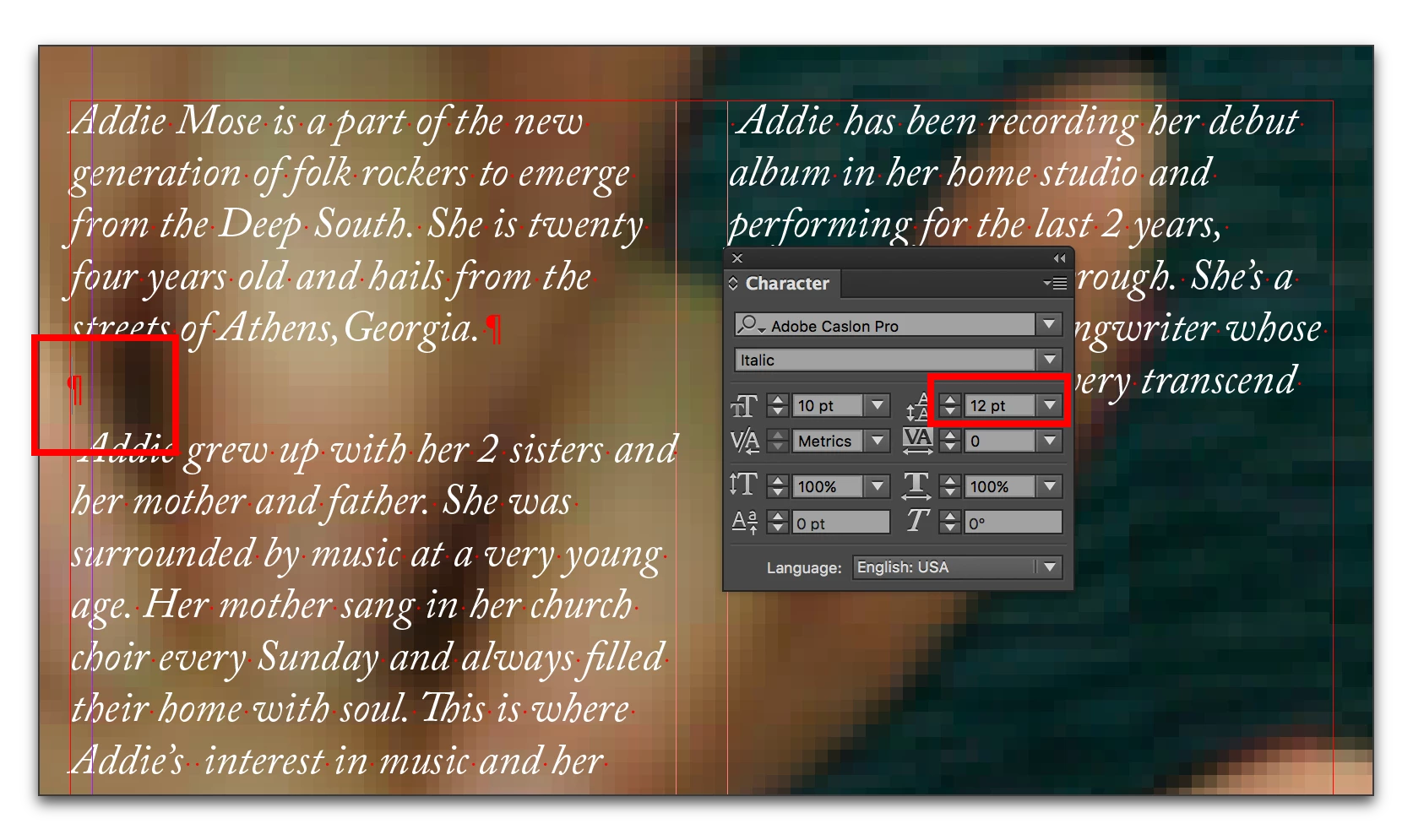
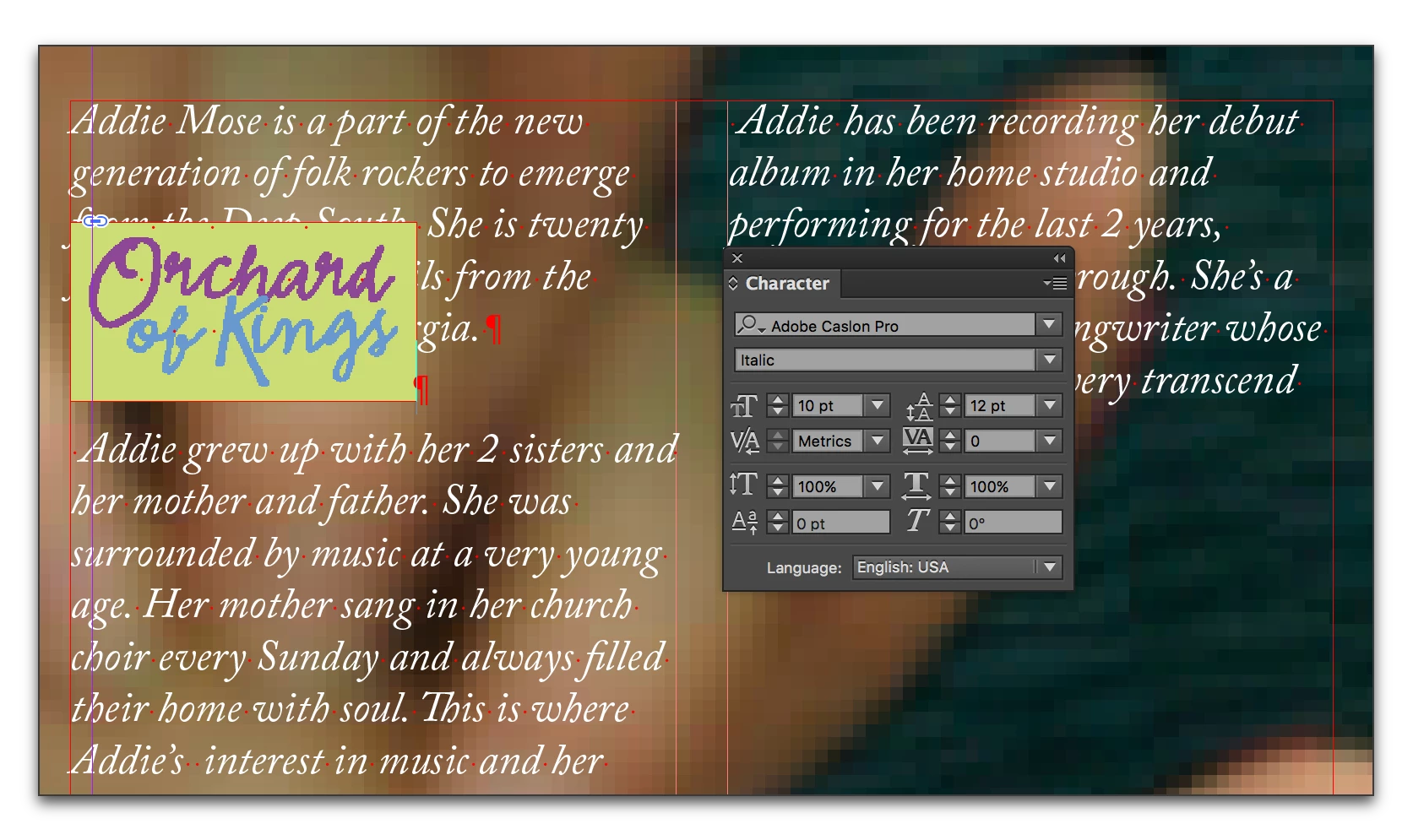
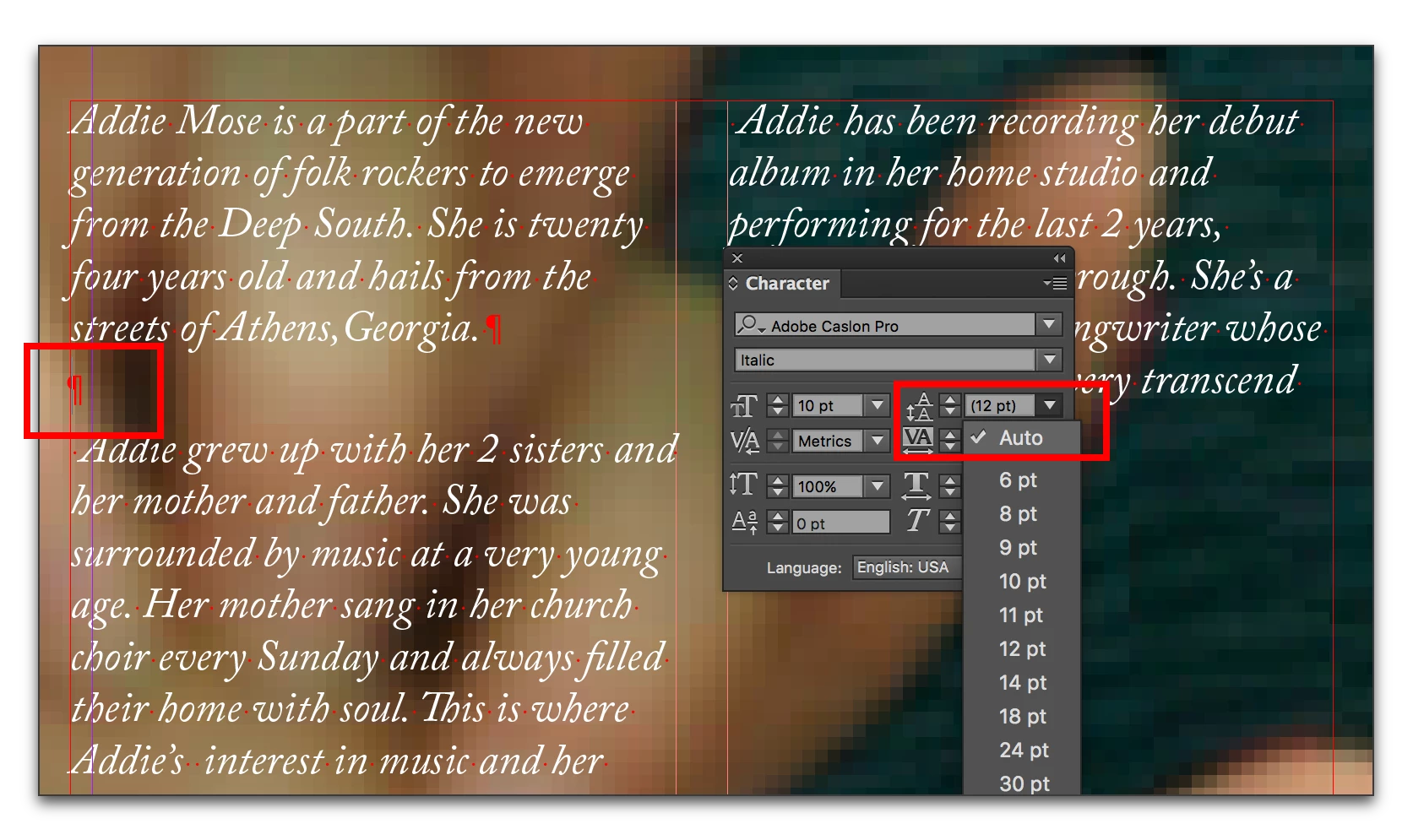
In the past, my understanding has been that you need to copy your image to the clipboard, place your cursor at the insertion point, and then when you paste, your image will be placed at that location in the text in your text frame... but you have to drag the image down so it doesn't overlay text above it, and then you have to add a bunch of CRs to move the text that should be below it, so it moves down below. The image is in place, but doesn't displace the text.
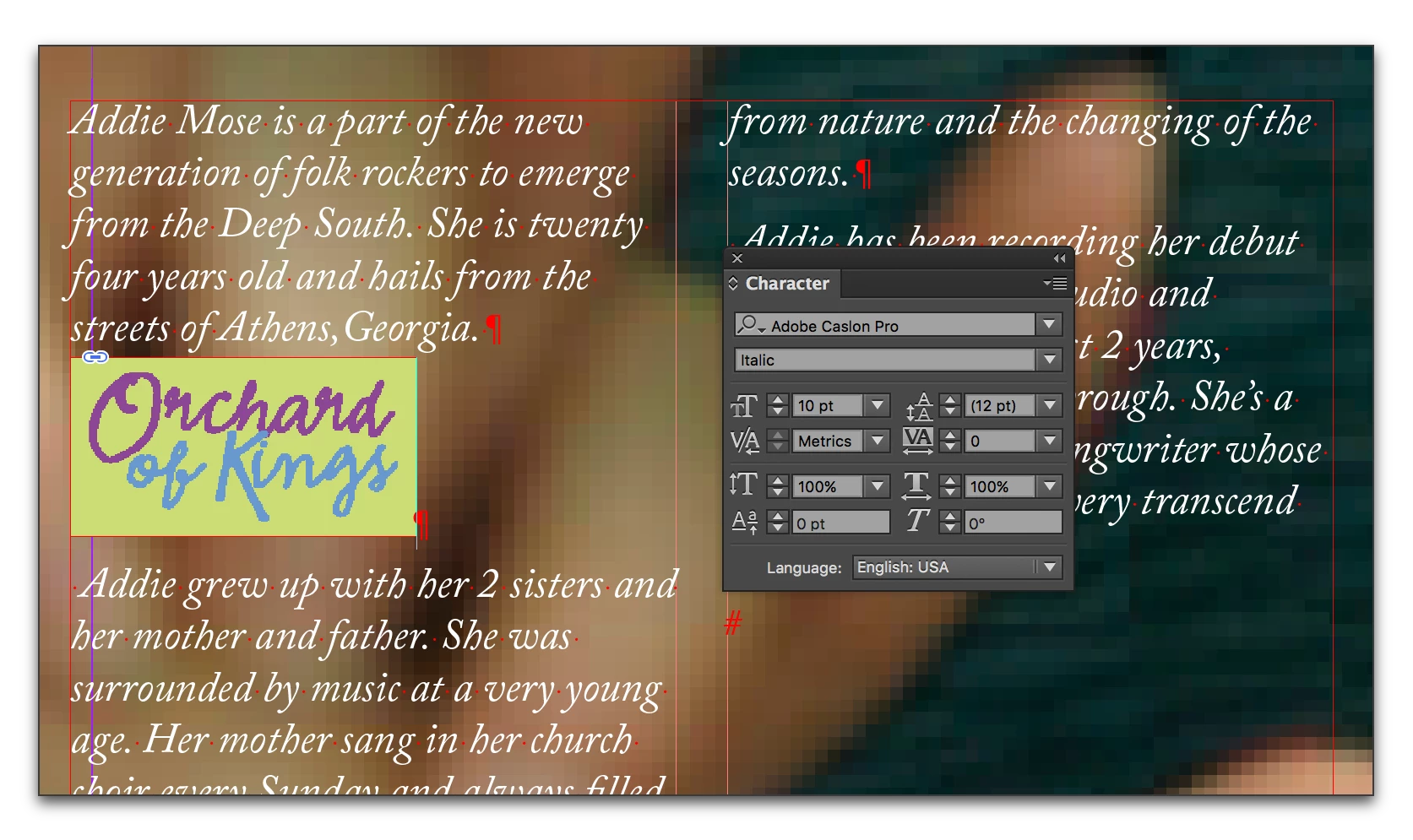
However, I was just placing some images, and I pasted in a couple of pictures that showed up right where I wanted them (below the para I was pasting beneath) and it automatically pushed the subsequent text out of the way, so that it appeared below the bottom edge of the photo. The image was effectively *in* the text flow, and it didn't require any of that usual positioning, or extra CRs to get things positioned properly. Needless to say, this is a LOT faster when I have a bunch of images to place... but I have no idea what I did that made it behave that way. Now, when I paste an image, it does it the old way again, I have to manually create the right positioning/space for each picture.
How do I get it to do that nice *in the flow* thing again?
<Title renamed by MOD>
 AdChoices