


- Home
- InDesign
- Discussions
- Re: Number the paragraphs on a distant side. while...
- Re: Number the paragraphs on a distant side. while...

Copy link to clipboard
Copied
Hello!
How to have the paragraphs numbered on the left side like this:

I want to have the paragraph numbered on the left, but I want to keep the alinea of the first line.
And I don't want this:

Thank you!


 1 Correct answer


This seems a bit "like a shot from behind through the chest into the eye", but it works for me without any extra tab in the text or find&change - just write and apply the paragraph style:

Only two paragraph marks inserted in the text (pressed Enter twice)

The setting is a little tricky and does not work with all values. You have to play a little with the settings and also with the number of characters in the numbering format. But you don't need extra characters in the normal text.


 21
Replies
21
21
Replies
21


Copy link to clipboard
Copied
One way to do it would be with a 2-column table. Number in the left column, text in the right column.

Copy link to clipboard
Copied
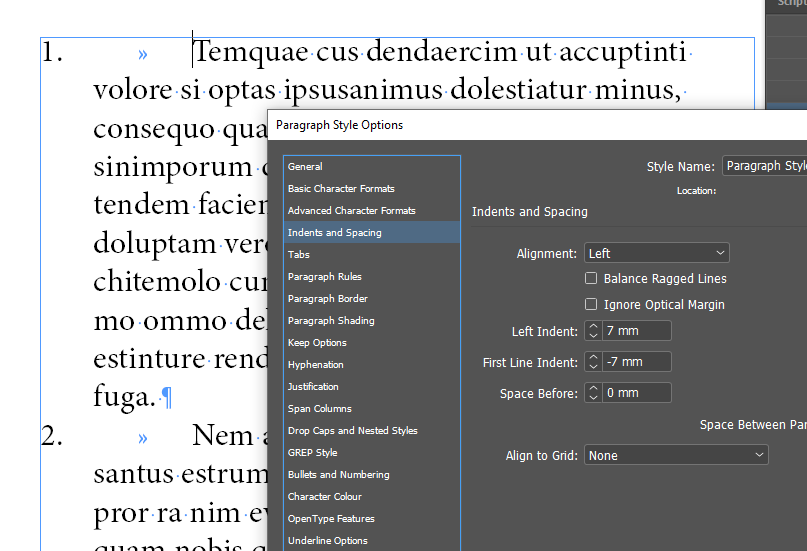
Paragraph Style settings - indents.
Set LEFT indent and then FIRST LINE to a negative value equal to LEFT value. Plus you would need to insert extra tab in front 😉 but it can be done in bulk using Find&Change or GREP.
Copy link to clipboard
Copied
That is the issue: I already tried but I loose the alinea of the first line. I did not understand the second part about extra tab.
Copy link to clipboard
Copied
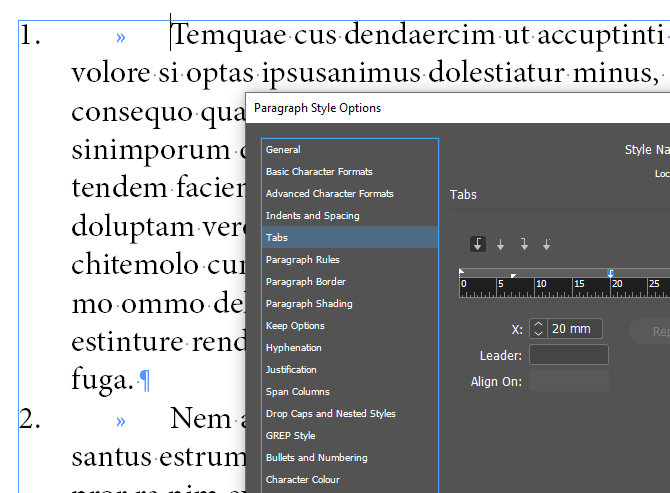
You are right - you should ALREADY have extra tab in front so no need for another one - here is the setup of the ParaStyle (with auto numbering):
Copy link to clipboard
Copied
I set the options like you did I believe, but I have a different result:


Copy link to clipboard
Copied
Then you need to add extra TAB in front of each paragraph - as shown on my screenshots.
How did you get this indent/space before « ??
Copy link to clipboard
Copied
Oh sorry, I misunderstood, so you mean I have to press manually TAB key before every single paragraph?

Copy link to clipboard
Copied
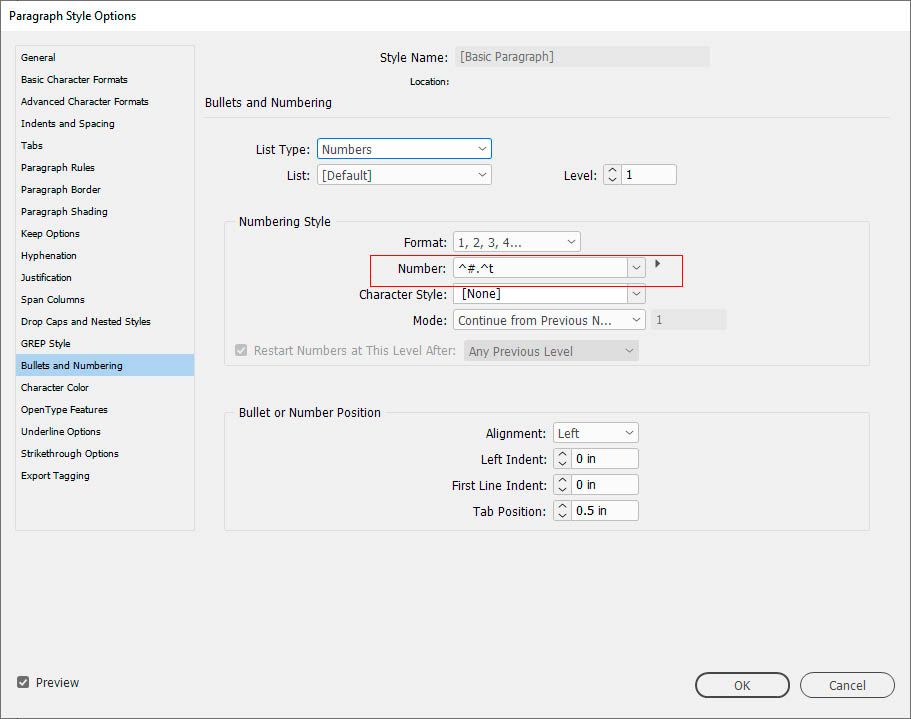
It appears you've left out the tab character in your number format. It should be ^#.^t
Copy link to clipboard
Copied
No it was indeed ^#.^t
But I guess I didn't get that I had to have a tab character manually before each paragraph. It will be a long work, since it is a long text. But if that was the only solution, thank you!
Copy link to clipboard
Copied
This seems a bit "like a shot from behind through the chest into the eye", but it works for me without any extra tab in the text or find&change - just write and apply the paragraph style:
Only two paragraph marks inserted in the text (pressed Enter twice)
The setting is a little tricky and does not work with all values. You have to play a little with the settings and also with the number of characters in the numbering format. But you don't need extra characters in the normal text.
Copy link to clipboard
Copied
Thank you very much! You had the secret code!
Copy link to clipboard
Copied
^m works with the TAB position so I think only one ^m is needed.
And why ^t after « ? Aren't « already in the text ?

Copy link to clipboard
Copied
But if that was the only solution, thank you!
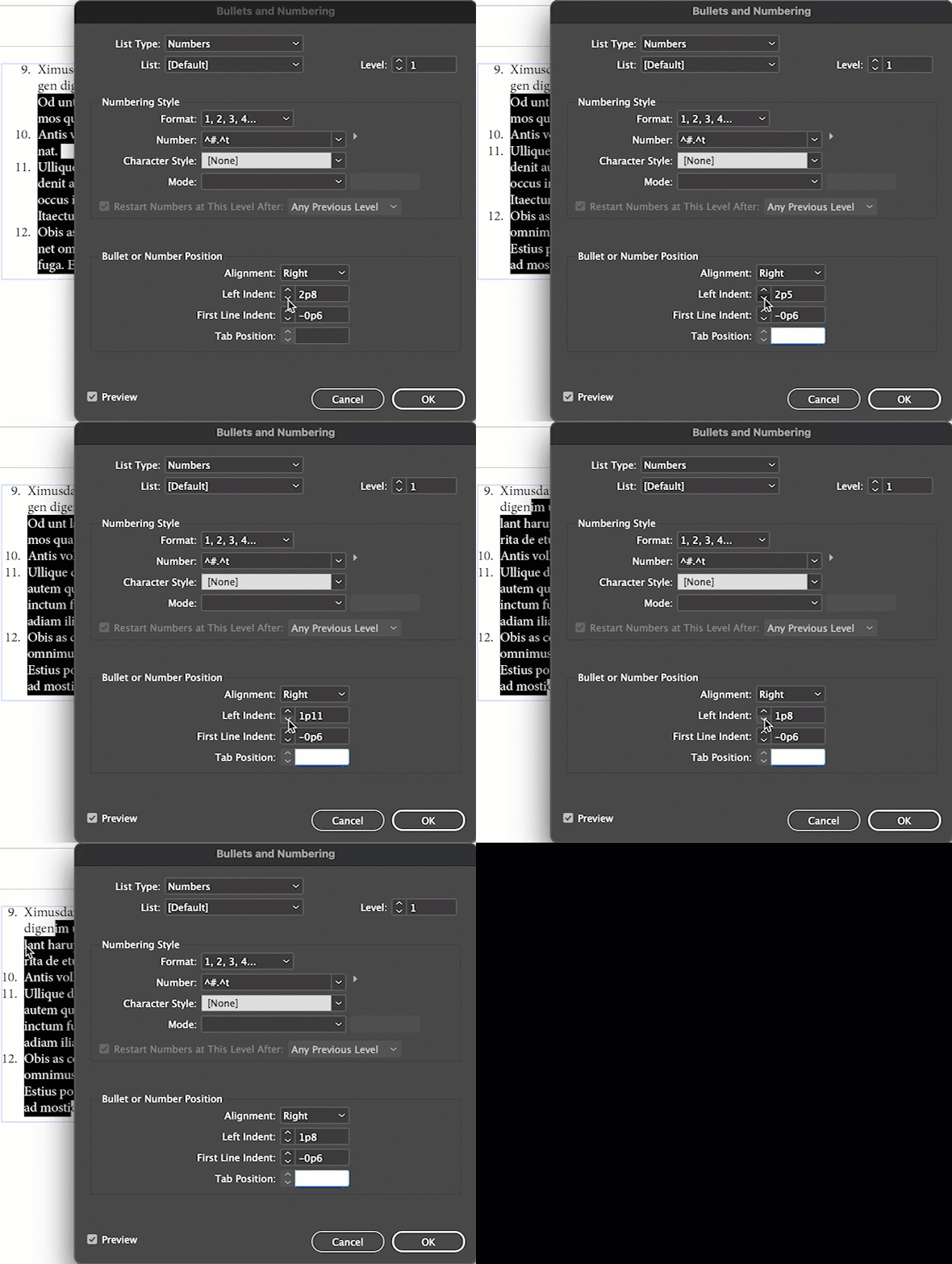
There is a feature specifically for aligning punctuation in Bullets and Numbering dialog box.
Choose Alignment: Right, increase the Left Indent and decrease the First Line Indent until you get the desired result (and keep preview enabled so that you can see it in real time). Then save the results as a paragraph style so that you can assign the formatting to the rest of your book with a single click.
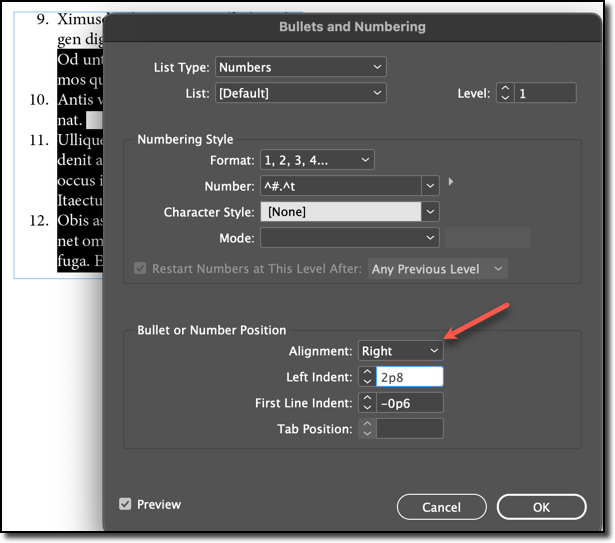
I wrote this up years ago and while the screen shots show their age, it still works the exact same way.
https://www.rockymountaintraining.com/adobe-indesign-aligning-punctuation-in-numbered-lists/
~Barb
Copy link to clipboard
Copied
Thank you for this additionnal trick! (I did not try it yet, I'm not at this point yet.)
Copy link to clipboard
Copied
Yes, but the main problem was in the extra space in the first line.
Copy link to clipboard
Copied
I'm guessing you didn't have time to read the post I linked to, or the answer, Robert?
..increase the Left Indent and decrease the First Line Indent until you get the desired result (and keep preview enabled so that you can see it in real time)
Copy link to clipboard
Copied
I think I did 😉 from the screenshots - @giobd needs extra space after the number but before « ?
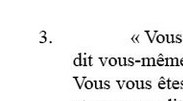
That's why @pixxxelschubser suggested ^m:
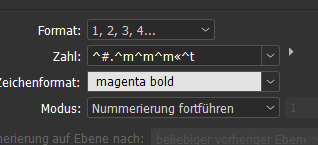
But as ^m is controlled by ^t - only one is needed.
Otherwise there wouldn't be a problem as @giobd already knows how to do "regular" indent ? 😉
Copy link to clipboard
Copied
… That's why @pixxxelschubser suggested ^m:
But as ^m is controlled by ^t - only one is needed.
…
By @Robert at ID-Tasker

That is not quite right. Each character [^m] increases the distance between [bullet number][dot] and the [«] character by a fixed value. The larger the distance has to be, the more characters [^m] are needed.
The tabulator only controls the spacing behind the character [«]. It does not control the character [^m].
Sorry.
As I have already written:
This is only a makeshift - but it also works without additional characters in the text.
But I am always open to better suggestions.
😉
Copy link to clipboard
Copied
You are right 😞 sorry 😞 my mistake 😞 this tab must have mislead me 😞
So if OP already have tab and « at the beginning - he only needs ^#.^m^m - with as many ^m - or ^> - he needs to get desired extra indent in the first line ?
Otherwise, ^t at the end can be more problematic and ^> would be better ??
Copy link to clipboard
Copied
We are here to help.
And those who have not yet made a mistake should "cast the first stone". The good thing is that you can learn from good solutions, but even more from mistakes.
😉
Of course, you can also use ^> instead of ^t.
Or ^< or another space with a fixed width. The rule here is: Whatever you want, or whatever you need, or whatever is easiest to handle.
Many greetings
Copy link to clipboard
Copied
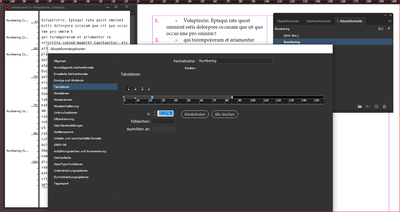
Just as an addition: The tabulator in the paragraph style gives you control over the spacing of your text to the characters you have defined in the numbering format.



Find more inspiration, events, and resources on the new Adobe Community
Explore Now
 AdChoices