

Inspiring
February 13, 2018
Answered

Best way to draw an rectangle with an arch?

  • February 13, 2018
  • 4 replies
  • 7412 views

Is there a way to draw a rectangle with an arch using Adobe InDesign 2018, or is something i should create within Illustrator and import?

Correct answer Danny Whitehead.

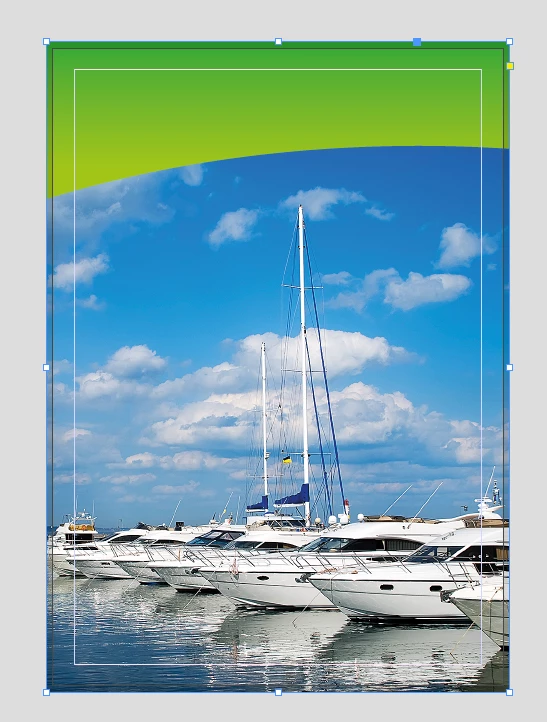
Personally, for these kinds of designs, I use an ellipse (in your case, with an image placed into it), cut and pasted into a rectangle. That way, you're not so committed to the shape/position of the curve, and you can adjust it to suit the content.

1) Create a rectangle, the size of your page (+ bleed, if this will be printed), and fill it how you like.
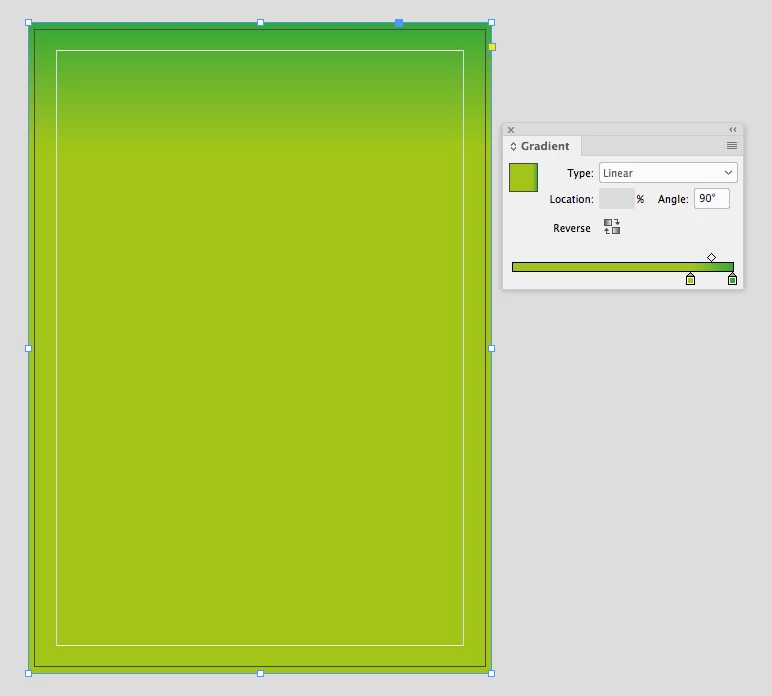
2) Create a large ellipse frame, and place your image into it.

3) Cut the Ellipse, select the rectangle, and Edit > Paste Into.
4 replies

Danny Whitehead.
Danny Whitehead.Correct answer
Legend
February 14, 2018

Personally, for these kinds of designs, I use an ellipse (in your case, with an image placed into it), cut and pasted into a rectangle. That way, you're not so committed to the shape/position of the curve, and you can adjust it to suit the content.

1) Create a rectangle, the size of your page (+ bleed, if this will be printed), and fill it how you like.

2) Create a large ellipse frame, and place your image into it.

3) Cut the Ellipse, select the rectangle, and Edit > Paste Into.

Community Expert
February 14, 2018

Hi AnotherMe ,

you could draw it also in InDesign.

In several ways. Barb was showing how to do that with Pathfinder.

Here just one way out of severals how to do it with InDesign's vector drawing tools:

1. Draw out a rectangular graphic frame and add a path point:

2. Select the path point with the Direct Selection Tool:

3. Convert the path point to a smooth or symmetrical one:

4. Drag the path point to a new position and change the rotation of the handles

5. You can change the bezier curve's handles even asymmetrical if you want

Regards,
Uwe

jane-e
Community Expert
Community Expert
February 14, 2018

If you have a simple shape like this one and you end up doing it in Illustrator, don't Import/Place it. Just copy and paste it to keep it vector, same as if you had done it in InDesign.

In Illustrator, you can draw the rectangle, then switch to the Pen tool and the Option (Alt) key to drag one segment up or down and make the curve. Or you can do it the same way Barb shows above.

AnotherMeAuthor
Inspiring
February 14, 2018

jane-e  wrote

If you have a simple shape like this one and you end up doing it in Illustrator, don't Import/Place it. Just copy and paste it to keep it vector, same as if you had done it in InDesign.

In Illustrator, you can draw the rectangle, then switch to the Pen tool and the Option (Alt) key to drag one segment up or down and make the curve. Or you can do it the same way Barb shows above.

Placing an image from Illustrator to InDesin won't keep it as a vector image, but copying and pasting will?

Community Expert
February 14, 2018

This is a little off-topic, but it elaborates on what Uwe just wrote about copying text between InDesign and Ilustrator:

Regarding moving text between AI and INDD, the best way beginning in InDesign CC 2018 and Illustrator CC 2018 is to use the CC Libraries.

Here's an excerpt from an article I wrote in InDesign Magazine #103, November 2017, on the CC 2018 update:

"When text is exchanged, the applications will maintain the styling to

the highest degree possible. Any text property which exists in both

applications will get the same values.

"For example, if you created some text in InDesign which was

formatted with Adobe Garamond Pro, 12-point size with 14-point leading, a

first line indent, the color blue and Keep Options, Illustrator would convert

all the values to matching values in Illustrator. But the Keep Options would

be dropped since that feature doesn’t exist in Illustrator.

"You can edit a text asset in a CC library. To do so either double-click

the asset, or right-click and choose Edit. A temporary file will open in the

creating application. Make changes to the text and/or formatting and save

the file. InDesign-created text assets must be edited in InDesign. Illustrator created

text assets must be edited in Illustrator.

"If an InDesign file with a library linked text asset is open when the

asset is updated, the InDesign file is updated immediately. If it is closed, it

will be updated when the InDesign file is opened."


https://forums.adobe.com/people/Steve+Werner  wrote


"When text is exchanged, the applications will maintain the styling to

the highest degree possible. Any text property which exists in both

applications will get the same values.

Hi Steve,

there might be some exceptions to that rule. One I was noticing is the property "language". Unfortunately values for "language" are not transferrable from AI to INDD even if both apps format text with a "language" attribute.

Regards,
Uwe

Barb Binder
Community Expert
Community Expert
February 13, 2018

You can draw the green shape in either application. If you aren't great with the Pen tool, try Pathfinder:

  • Draw a rectangle
  • Draw an ellipse on top
  • Select both
  • Object > Pathfinder > Subtract to subtract the top shape (the ellipse) from the bottom shape (the rectangle):

~Barb at Rocky Mountain Training