

hyund39164868
Participant
April 1, 2024
解決済み

P: (GPU) Develop/Edit view & Export artifacts after 14.4.1 Update (AMD-only) (affects Cr, LrC & LrD)

Hi,


Since just now, I've been experiencing a weird bug / crash in Lightroom Classic (on a Mac), where ALL my photos suddenly are fully covered in artefacts in the Develop module.
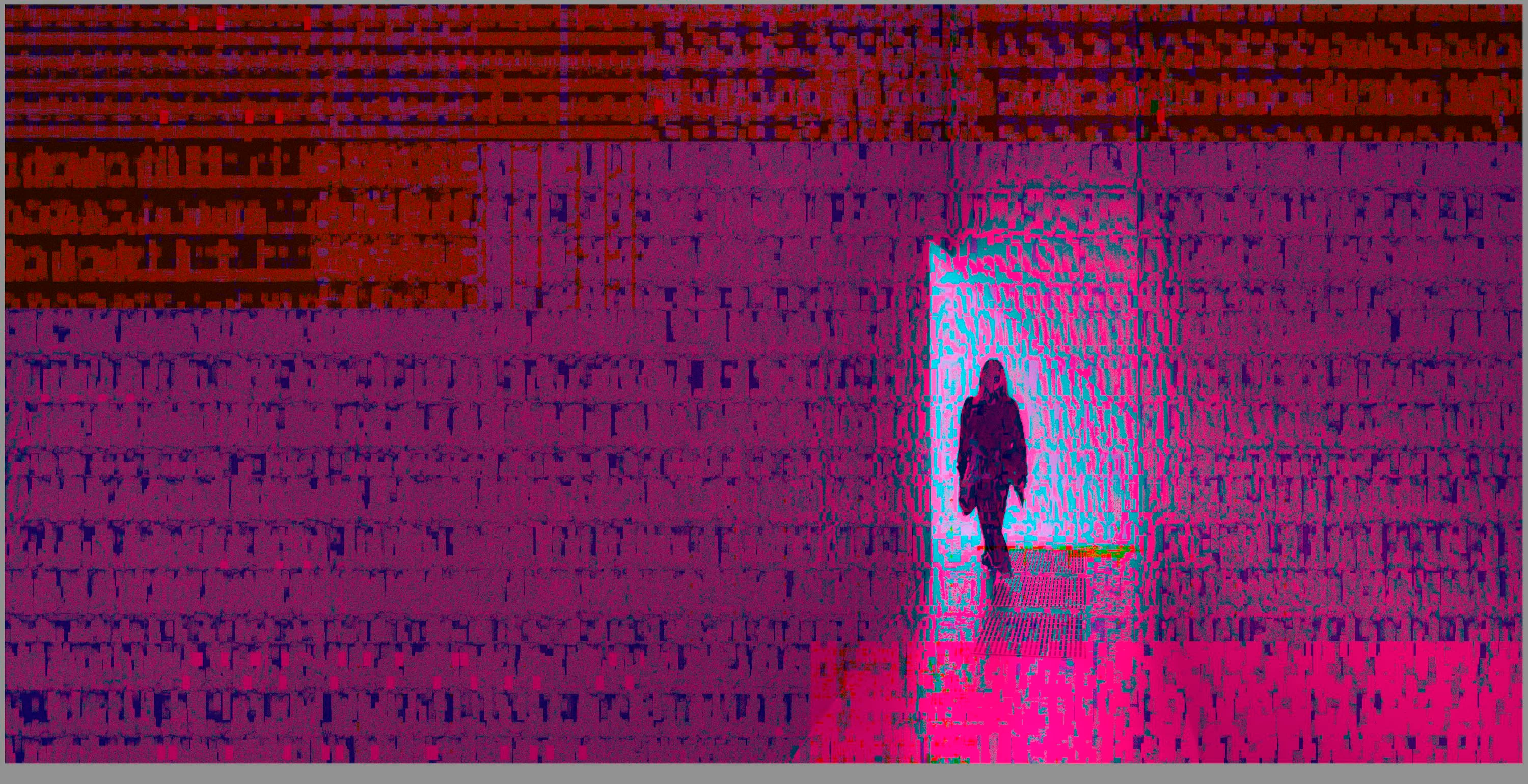
 

(Screengrab from the Develop module in Lightroom Classic)


When I check the linked RAW + JPEG source files in Finder, they all seem ok (they don't look corrupted, nor show any artefacts here), meaning the issue is within Lightroom.
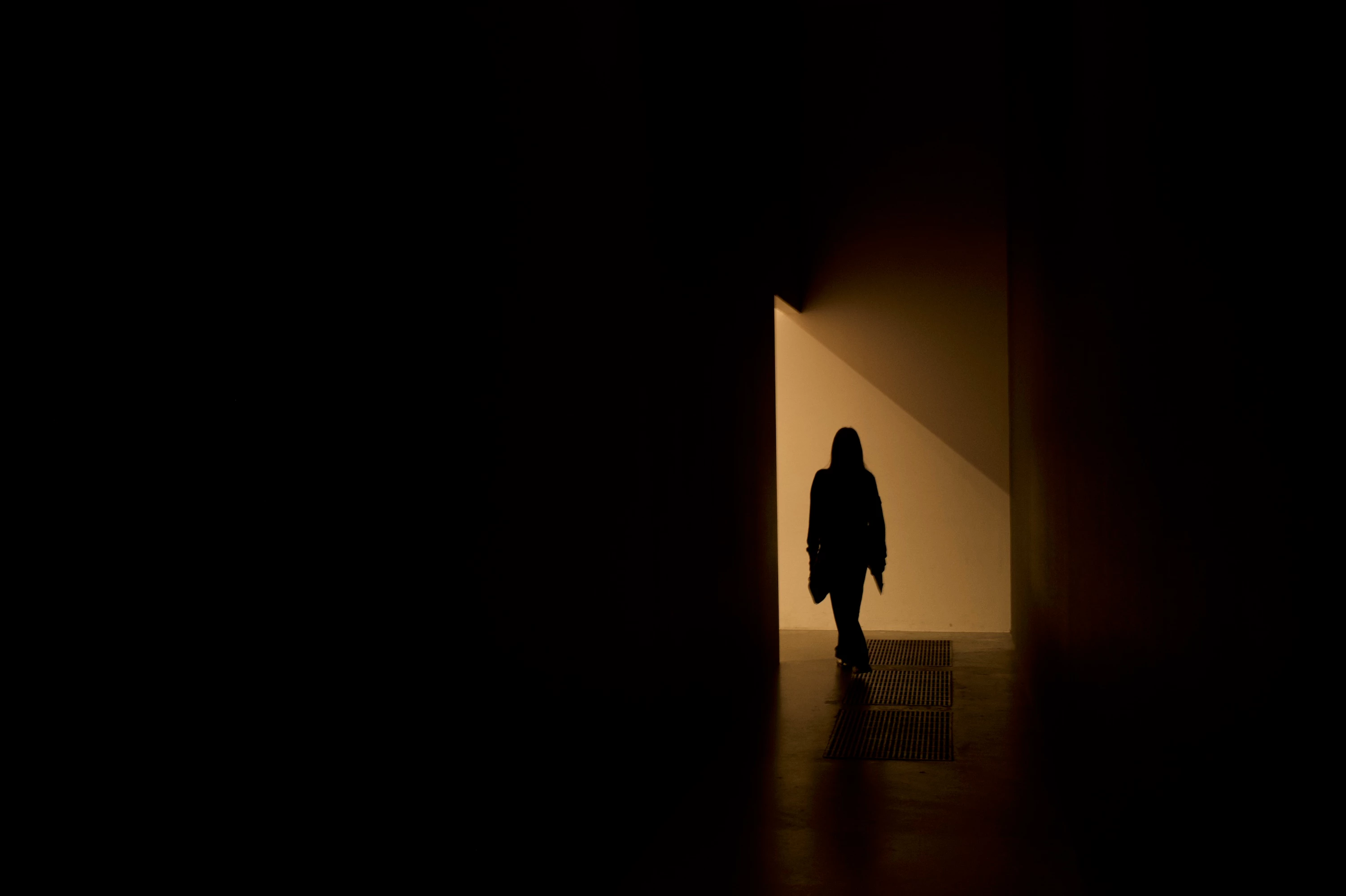
 

(Screengrab from the RAW source file in Finder)


When I export images out of Lightroom (with any setting, edited or even not edited), the artefacts are also present on the export files.
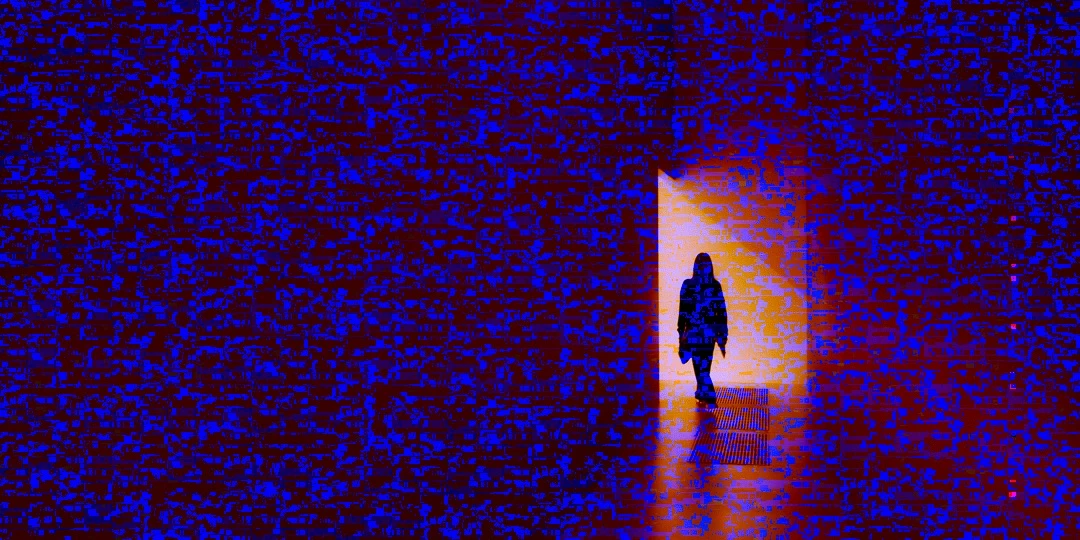
 

(Screengrab from the exported JPG image)


This problem started occuring soon after I applied the new AI noise reduction feature on just ONE (1) photo. 


I already tried:


  • Closing and re-opening Lightroom
  • Shutting down (fully), and restarting the computer after 1 minute
  • Switching the GPU accelrator setting in Lightroom on/off


MY SPECS

  • Lightroom Classic 13.0.1 - Build (202310121438-d2af310c)
  • Macbook Pro 16" - 2019
  • 2,3Ghz 8-core Intel Core i9
  • AMD Radeon Pro 5500M 8GB 
  • 32GB 2667MHz DDR4 memory
  • OS Sonoma 14.4.1


Any help would be greatly appreciated, because this makes the whole software unusable....

Thank you!

返信数 139

Participant
May 2, 2024

Thank you for the tips. I will implement them and see how they work. 

Legend
May 2, 2024

On my machine it is intermittent.

Participating Frequently
May 2, 2024

Quick update:

So far, the issue has not occurred again. Fingers crossed! I hope the next macOS update will solve the problem for good. 

Thanks for all the help!


Ulrike

Participant
April 30, 2024

After using Lightroom Classic for a few weeks, I began having an issue today. Although the images in the Library module were fine, when I opened them in the Develop module I saw a mass of colored streaks throughout the photos. This made it impossible to work with them. I closed LRC, left it alone for an hour, reopened it, and I could work on images again. I closed LRC, left it alone for an hour or so, and the problem returned. 

This is affecting both the images I took the other day and some older ones that I had previously imported.

See the attached images for a sample of what I see. 

I have LRC release 13.2 with camera RAW 16.2, and I'm running it on a 2019 MacBook Pro with an Intel Core i7 processor and AMD Radeon Pro 5300 M graphics chip in addition to the integrated Intel graphics. 

Can anyone enlighten me on how to fix this? 

johnrellis
Legend
May 1, 2024

This problem is striking many people with Macs having AMD Radeon 5300M and 5500M GPUs. It appears to be a buggy graphics driver released by Apple in Mac OS 14.4.1.  Adobe is working with Apple and AMD to resolve the problem.


Two workarounds that some have reported helping:


1. Restart LR when the problem occurs.


2. Set Preferences > Performance > Use Graphics Processor to Custom / Use GPU For Display.

Jay@TeamPurple
Known Participant
April 30, 2024

@johnrellis On my M3 Mac, everything works beautifully without any custom GPU settings.  On our Intel Macs at the office and my personal Intel Mac, I've modifed the ACR GPU settings, Photoshop GPU settings, and even tweaked the Bridge "Advanced" tab settings and various Cache settings trying to find a magic combination that works since the corrupted preview image started happening about a month ago for me on the Intel machines.  I'm working event as I respond to this, so I can't check what my current ACR GPU settings are on any of my Intel Macs, but I'm pretty sure at one point I've tried the combination you suggested (thanks for taking the time to do that, BTW).

The problems I've encountered after turning off the GPU processing and with different custom settings have included ACR freezing up when making modifications to an image, or the interface lurching around unpredictably.  And within Photoshop, various tools in Photoshop (like the Liquify tool, Transform tool, and SmartObjects just not working after the interface appears for those tools), opened images filling with white blocks as a zoom in and out, clarge hunks of my images being filled with random blocks of noise when using the Legacy Save for Web tool, etc.  

Again, my team and I weren't having any of these issues on our Intel Macs until recently.  Can't recall if it started after a macOS update or a Photoshop update.  I'm installing updates constantly on a lot of machines, so it all blurs together.

johnrellis
Legend
April 30, 2024

[This post contains formatting and embedded images that don't appear in email. View the post in your Web browser.]


@Jay@TeamPurple, "As noted in my earlier posts, I've tried every combination of settings for the graphics card within the Photoshop Performance settings.  Nothing I've tried resolves the problem in a way that allows me to use all the Photoshop features and tools as needed on my team's Intel-based Macs (and my personal Intel-based Mac) and I've had to constantly toggle between turning the GPU off and on and off again for routine edits to a single image."


Camera Raw has its own GPU settings distinct from those of Photoshop. 


On my Macbook Pro (M2 Max), when I disable Camera Raw's use of the GPU:


and leave Photoshop's use of the GPU enabled:


then Photoshop's tools like Liquify continue to work.


When you configure Camera Raw and Photoshop similarly, what precisely doesn't work?


Ian Lyons
Community Expert
Community Expert
April 30, 2024

@Rikk Flohr: Photography 


I merged it thinking that it was same issue. You may wnat to unmerge.

Rikk Flohr_Photography
Community Manager
Community Manager
April 29, 2024

We've investigated an issue with the macOS 14.4.1 update that affects systems running AMD series GPUs. 


The issue manifests as garbling of/artifacts in images in Develop/Edit views and similar artifacts in Exported images.  The problem can afflict Camera Raw (16.2.1), Lightroom Classic (13.2) and Lightroom Desktop (7.2).  Restarting the application should restore your Develop/Edit view and return you to the expected Export results. 


The hardware manufacturer's will need to identify the cause and effect the fix. 


If you are not using a system mentioned in this post, please start a new post with complete system information, problem description, and screen captures.


Thank you for your patience. 


Rikk Flohr: Adobe Photography Org
Participant
April 23, 2024

I'm having an issue where theres this weird glitch/noise on top of my photos. I've tried re-importing, closing the software and reopening. The thumbnails show up regularly on the filmstrip previewer at the bottom. I've included two screenshots of example photos - is this just a setting I'm missing or is there a bug/is somthing corrupted? This appears to be happening to all my photos when they load in, including old photos that I have had in lightroom already. Anyone know what's going on?


Participant
May 3, 2024

I'm having the exact same problem, but it happens about half way through editing a set of 100+ images 

Known Participant
April 28, 2024

So… i updated MacOS to 14.4.1, and Lightroom Classic to 13.2, now when I export I get digital noise distortion. Has anyone else seen this problem, or what's going on?

Thanks,

JK

Known Participant
April 28, 2024

I tried LRC 13.1, same results -- meaning there's still noise, but different patterns each time I esport.